
 Shopify Configuration
Bulk Product Tags in Shopify
B
Written by Bird Pickup & Delivery
Updated October 16, 2026
You’ll learn how to efficiently tag multiple products simultaneously to unlock advanced Bird Pickup & Delivery features.
Tags help you manage multiple products for specific behaviors in your Bird Pickup & Delivery app. Use them to control shipping availability, set preparation times, or restrict delivery options across multiple products at once.
How to Bulk Add Tags
Step 1: Select Products
- Go to your Shopify Products page
- Select all products you want to tag
- Uncheck any products that shouldn’t receive the tag
- Click the … menu button
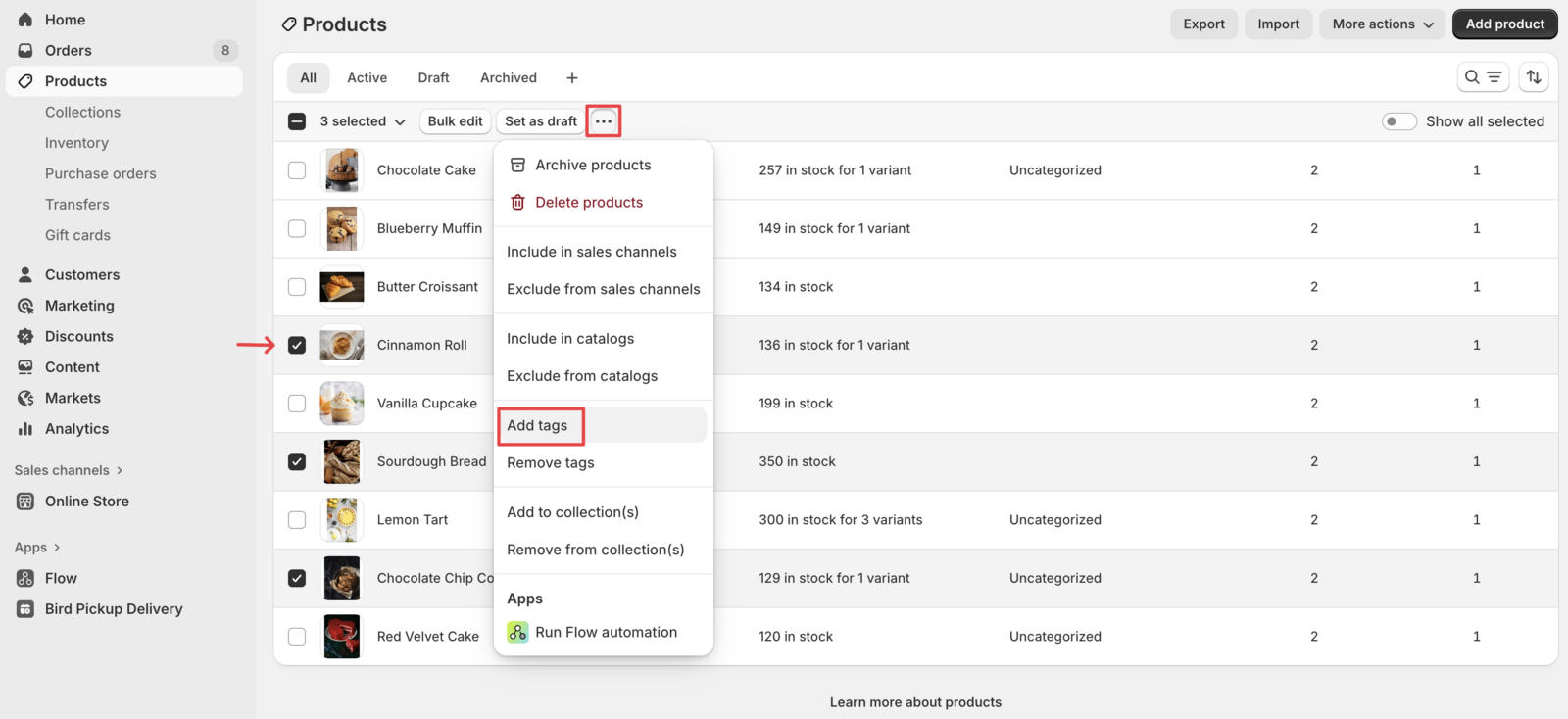
Step 2: Add the Tag
- Click Add tags from the dropdown menu
- Type your tag name in the search box
- Select the existing tag or create a new one
- Click Save
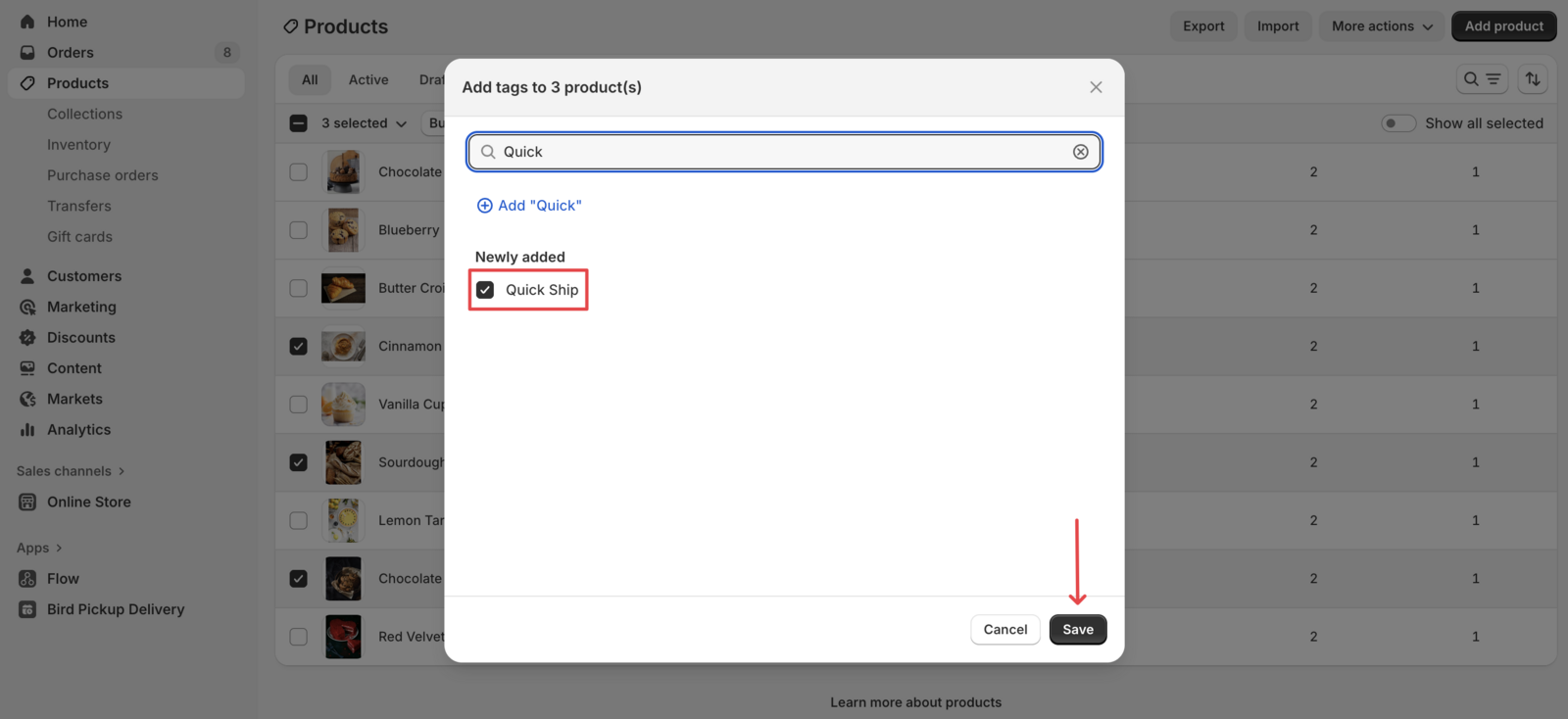
Step 3: Create New Tags (If Needed)
If your tag doesn’t exist:
- Type the new tag name
- Click Add new tag
- Click Save
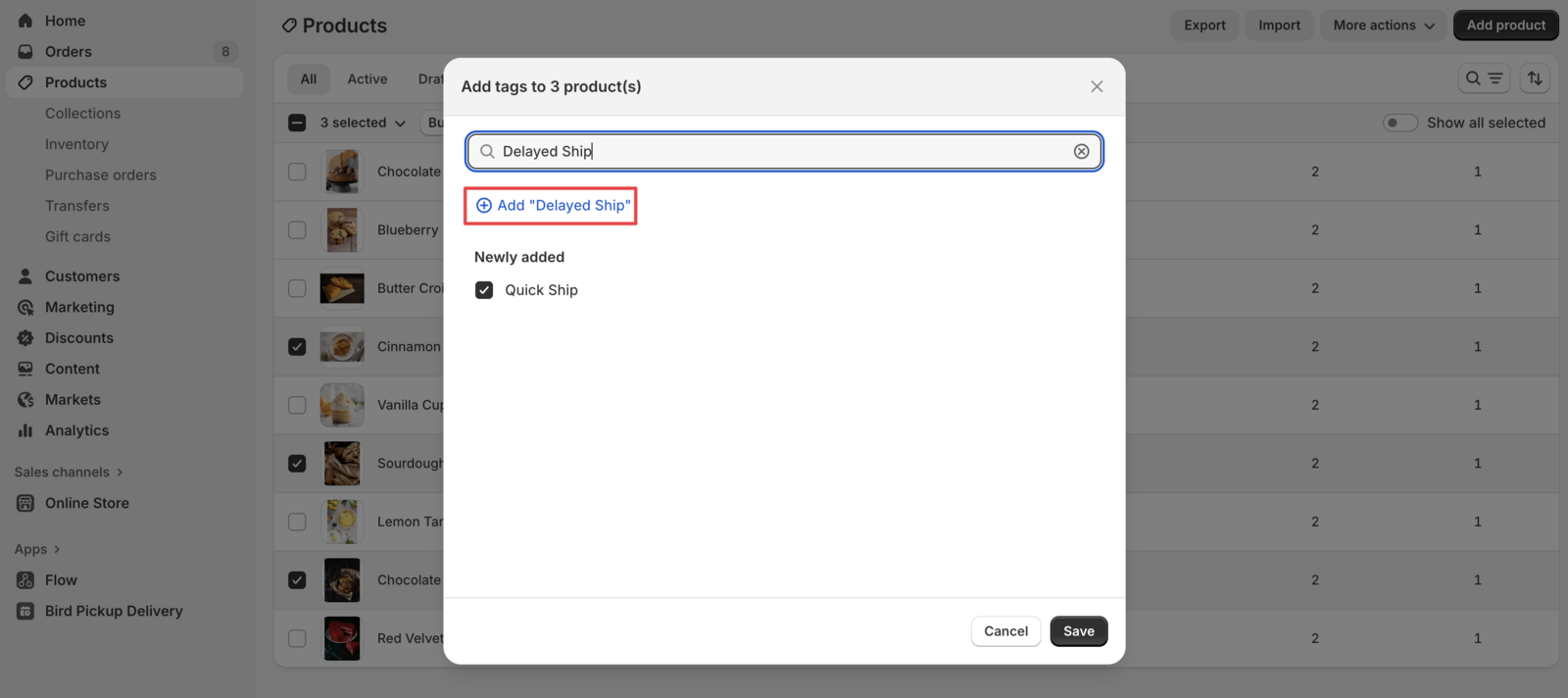
Step 4: Verify Tag Application
Go to any tagged product’s admin page and look for the tag in the Tags field below the product title.
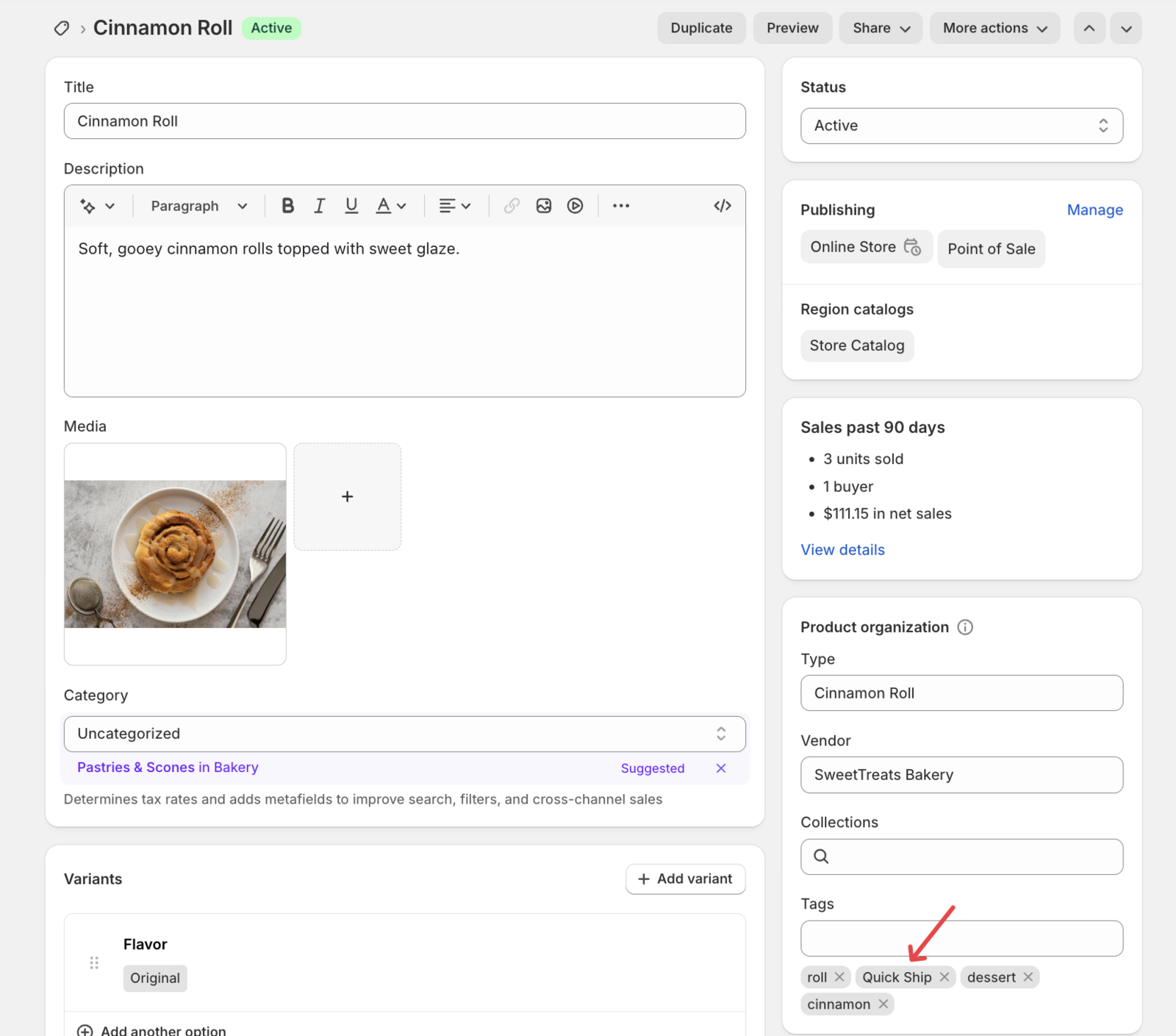
Key Use Cases
Bulk tagging enables these powerful Bird Pickup & Delivery features:
- Display product-wise available delivery message in cart
- Set custom settings for specific product groups
Important Notes
Tags are not case-sensitive. shippable and Shippable function identically.
Related Articles
Was this article helpful?
Thanks for your feedback!