
 Rates
Rates
Why Duplicate Pickup Options Appear at Checkout
If you see two pickup options at checkout — one from Shopify and one from Bird — your customers may get confused about which to choose. This happens when Shopify’s built-in store pickup is still enabled alongside Bird Pickup & Delivery.
What the Problem Looks Like
When both Shopify pickup and Bird pickup are active, customers see duplicate options at checkout:
- Ship: Shows your selected store address from the cart
- Pick up: Prompts customers to select a location again or uses a default location
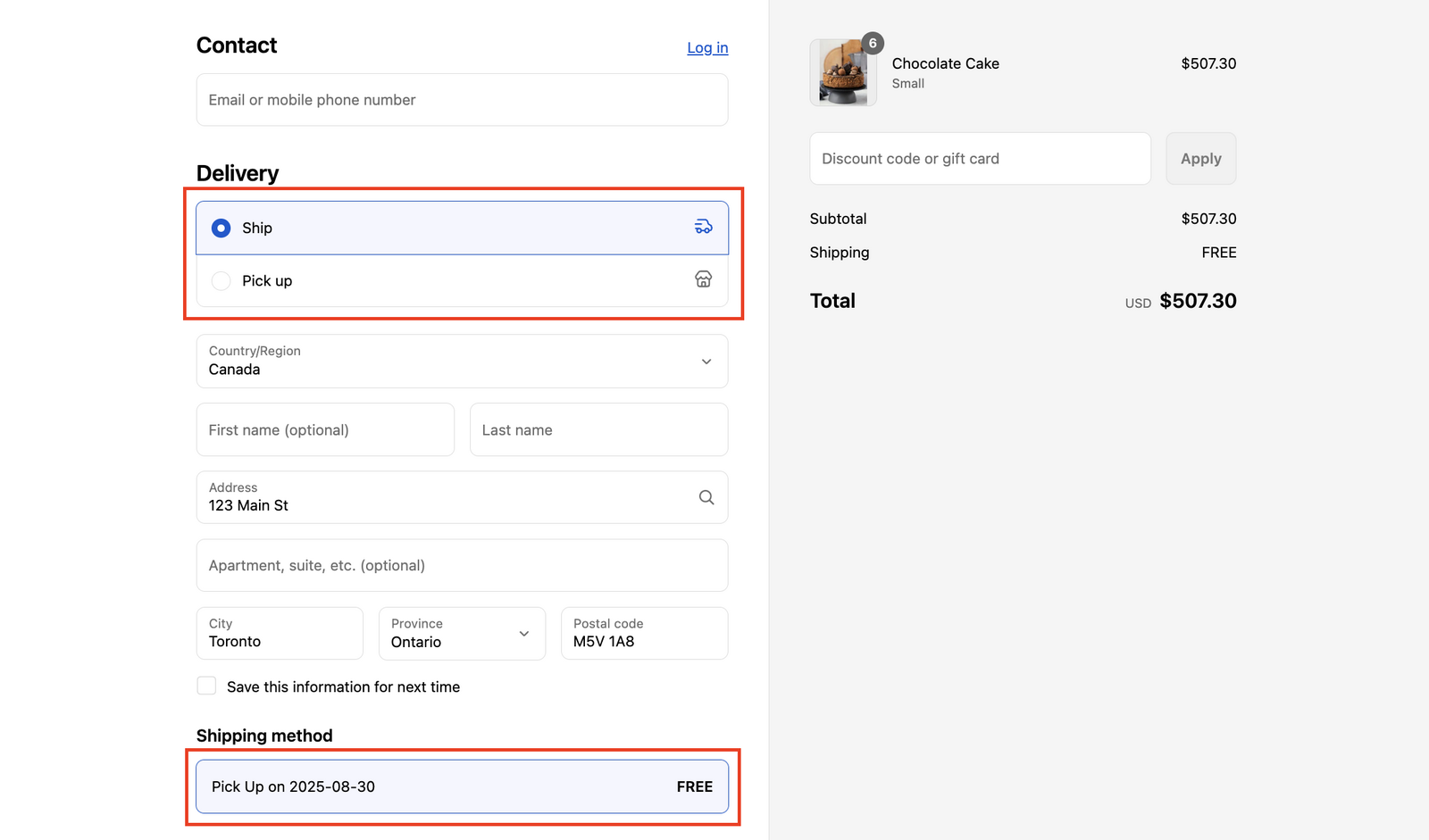
This leads to:
- Duplicate fulfillment method selection prompts
- Inconsistent location selection
- Customers having to select a location manually
- Potential checkout abandonment
After disabling Shopify’s built-in pickup, customers see only Bird’s pickup option:
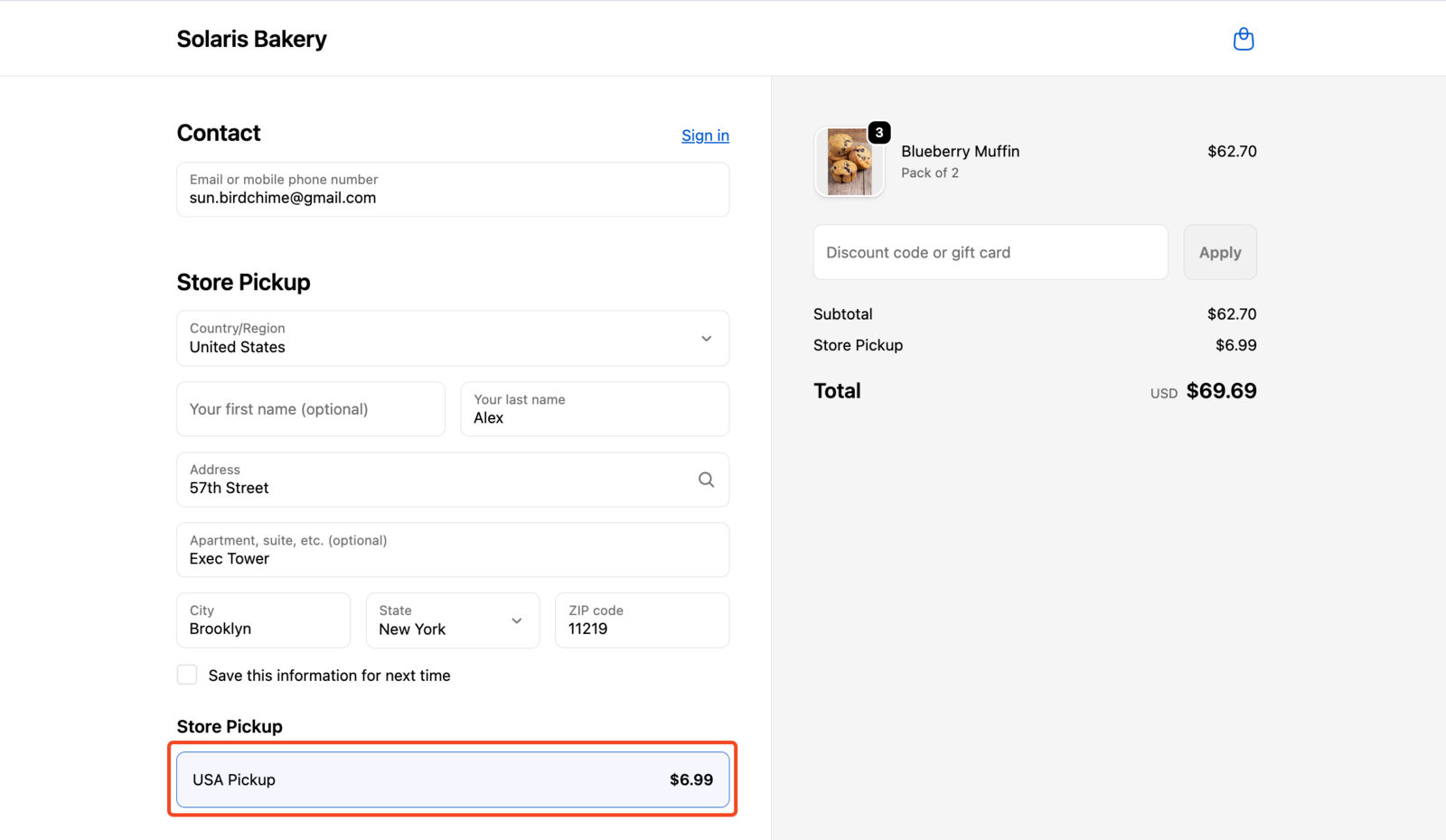
How Bird Prevents This Automatically
Bird automatically disables Shopify’s store pickup when you set up rates through the Bird app. Navigate to Bird App > Rates and complete the setup wizard. Once you accept the terms for using the Bird rates engine, the duplicate pickup issue is resolved automatically.
How to Disable Shopify Pickup Manually
If you need to disable Shopify’s store pickup yourself, follow these steps:
- Go to Shopify Admin → Settings → Shipping and delivery
- Scroll to Pickup in Store section and click
- Click on “Pickup in Store” to open the settings
- Toggle off store pickup for locations stating “Offers Pickup”
- Save changes
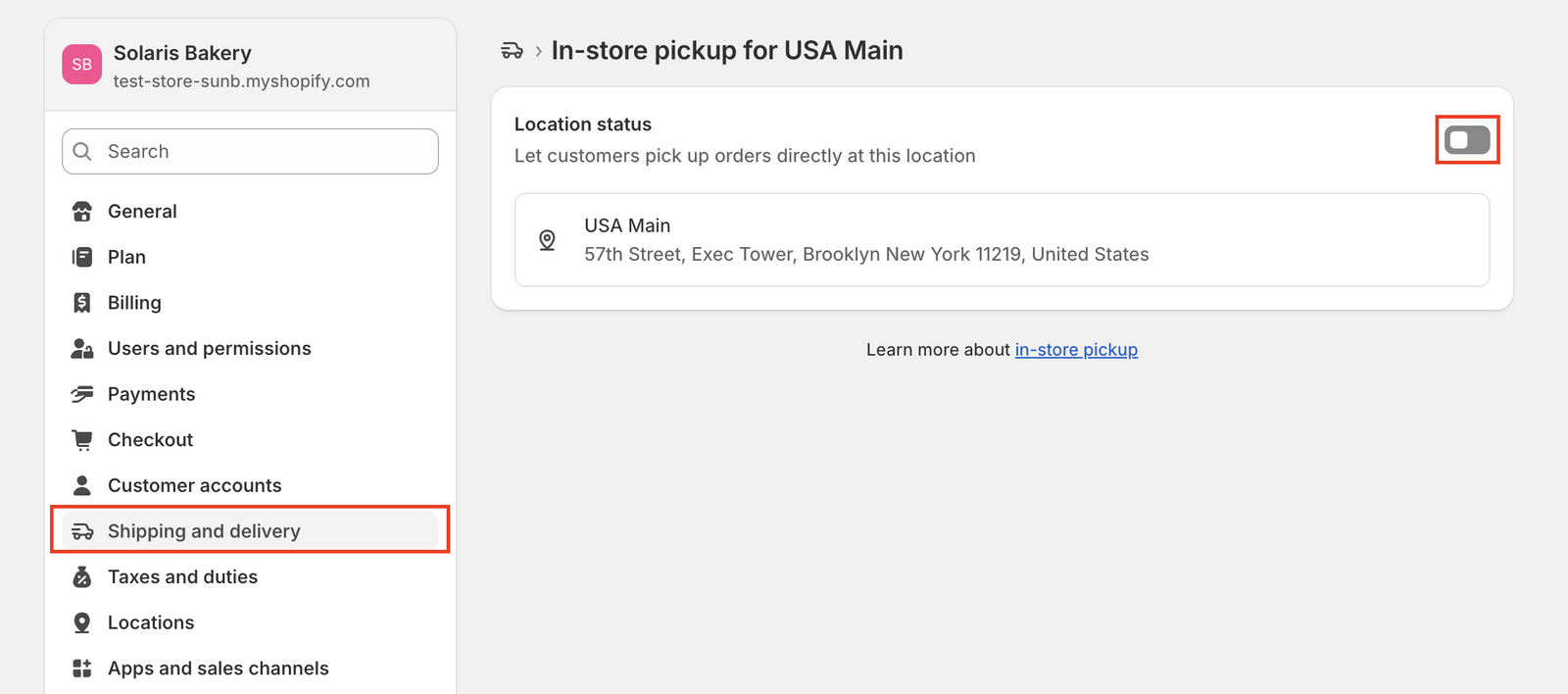
For detailed step-by-step instructions with screenshots, see How to Disable Shopify’s Built-in Store Pickup.
Exception: Pickup-Only Stores
Stores that only offer pickup can keep Shopify’s built-in pickup enabled if they meet all of these conditions:
- No other delivery options enabled (e.g., local delivery or shipping)
- No rates configured in Bird App
- Only store pickup as the fulfillment method
When Bird has no competing delivery methods, it won’t interfere with Shopify’s pickup flow. However, if you later add delivery options or rates, you’ll need to disable Shopify pickup to prevent conflicts.
If you’re unsure or plan to add delivery options later, it’s safer to disable Shopify pickup from the start.
Still Seeing Issues? Check Your Shipping Profiles
If pickup is not working after disabling Shopify’s built-in pickup, verify that Bird rates are configured in your shipping profiles:
If Using Carrier-Calculated Shipping (CCS)
“BirdChime: Order Delivery Date & Pickup (Rates provided by app)” must be present in all shipping profiles.
- Go to Shopify Admin > Settings > Shipping and delivery
- Open each shipping profile
- If “BirdChime: Order Delivery Date & Pickup (Rates provided by app)” is missing:
- Click “Use carrier or app to calculate rates”
- Select “BirdChime: Order Delivery Date & Pickup (Rates provided by app)”
- Select all services
- Click “Done”
If Using Standard Bird Rates (Non-CCS)
Bird rates appear with IDs in brackets, for example: “Store Pickup [23445]” or “Local Delivery [3345]”.
- Go to Shopify Admin > Settings > Shipping and delivery
- Open each shipping profile
- Verify that Bird rates with IDs (e.g., “Store Pickup [23445]”) are present
- If missing, add the appropriate Bird pickup or delivery rates
Related Articles
Was this article helpful?
Thanks for your feedback!