
 Widget and Design
Widget Placement: Manual (CSS)
Move the Bird Pickup & Delivery widget to the exact spot you want on your cart page when automatic placement doesn’t suit your theme.
Bird places the widget on your cart page automatically. Some themes lay out the cart differently, so the widget can end up too low, in the wrong column, or out of view. Manual placement lets you anchor the widget to any element on the page by copying that element’s CSS selector into Bird.
You only need this if automatic placement isn’t working for you. Leave the field blank and Bird keeps choosing the position itself.
These steps use Google Chrome. Other browsers have developer tools too, but the menus are named differently.
Find Your Target Element
- Open your cart page in a new browser tab, with at least one product in the cart
-
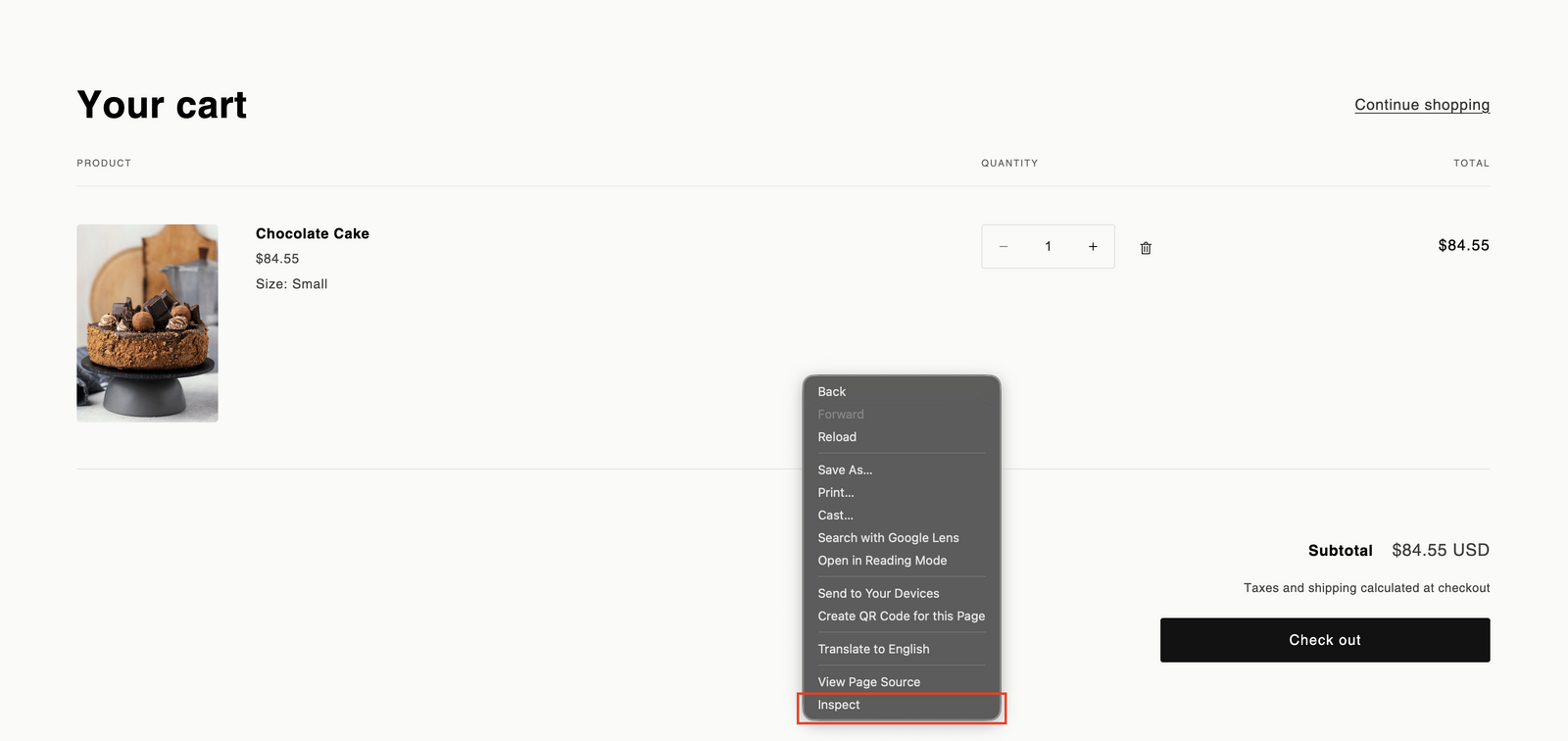
Right-click the element you want the widget next to
- Common choices: the cart footer, the area below the cart items, or just above the checkout button
- Select “Inspect” from the menu
Copy the CSS Selector
-
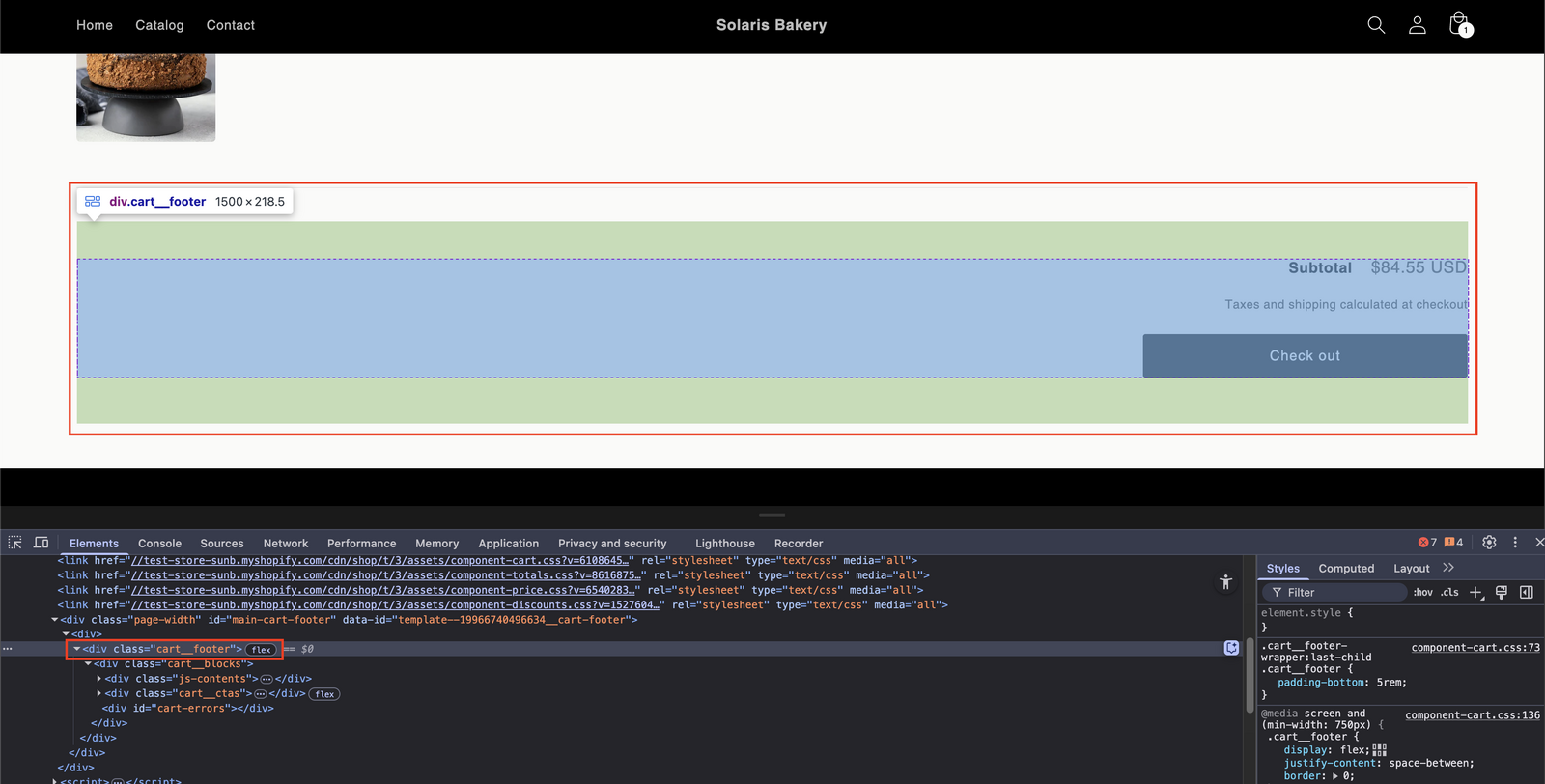
Hover over the highlighted line in the developer tools panel
- The matching element lights up in blue on your page. Move up or down a line until the whole area you want is highlighted.
- Right-click that line in the developer tools panel
- Select “Copy” > “Copy selector”
Add the Selector in Bird
- Go to Bird Settings > Developer > Manual widget placement
-
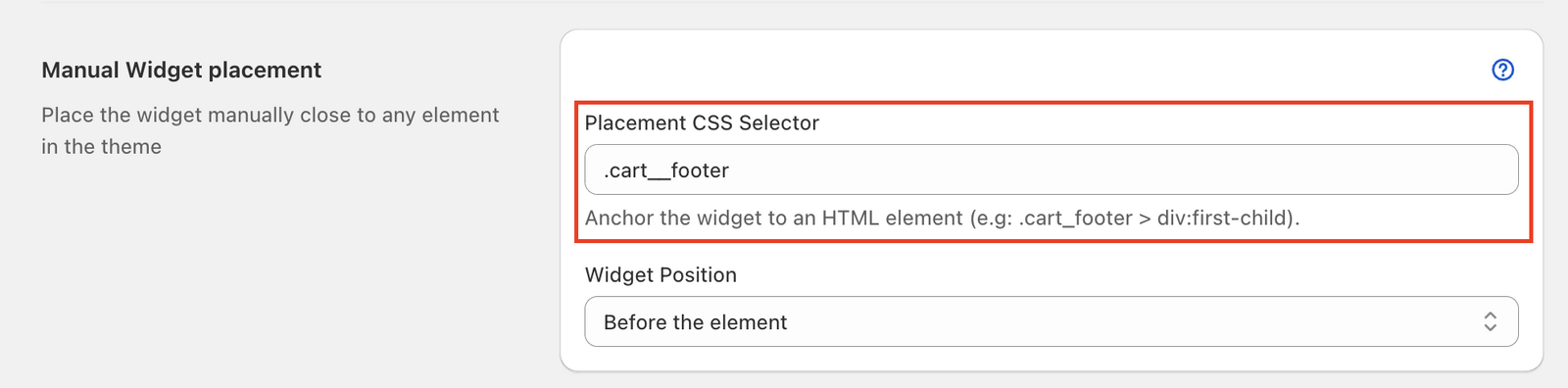
Paste your selector into Placement CSS selector
- A class starts with a dot, for example
.cart__footer - An ID starts with a hash, for example
#cart_footer
- A class starts with a dot, for example
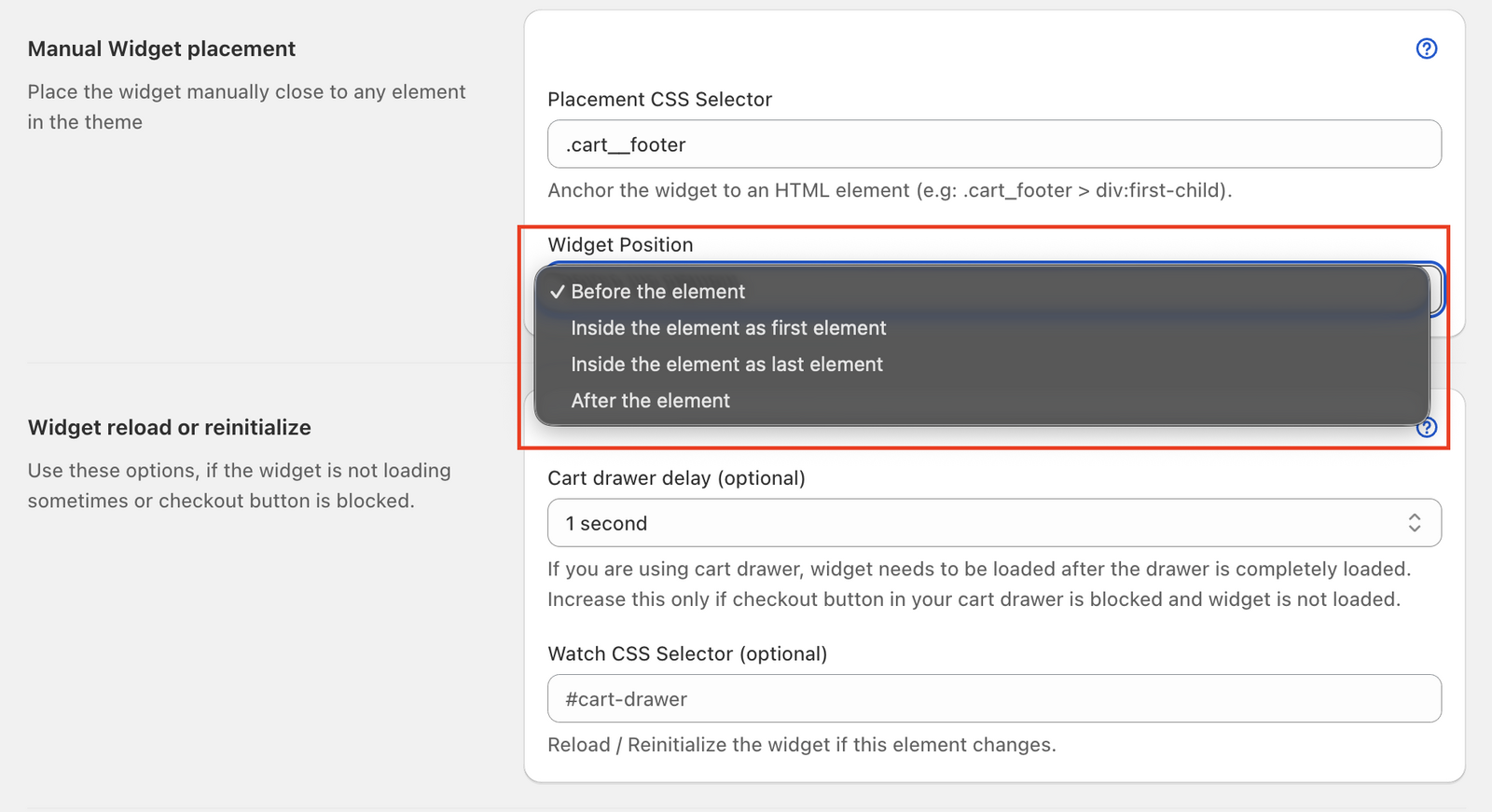
- Choose a Widget position to set where the widget goes relative to that element:
- Before the element: directly above it
- Inside the element as first element: inside it, at the top
- Inside the element as last element: inside it, at the bottom
- After the element: directly below it
- Click Save in the save bar at the top of the page
Example: on Shopify’s Dawn theme, the cart footer is .cart__footer.
Check the Result
- Go to Bird Settings > Widget Placement
- Under Cart page, click Preview in theme. Bird opens your cart with a product already in it.
- Check the widget appears where you expected. If it doesn’t, try a different Widget position, or copy the selector from the element one level up or down.
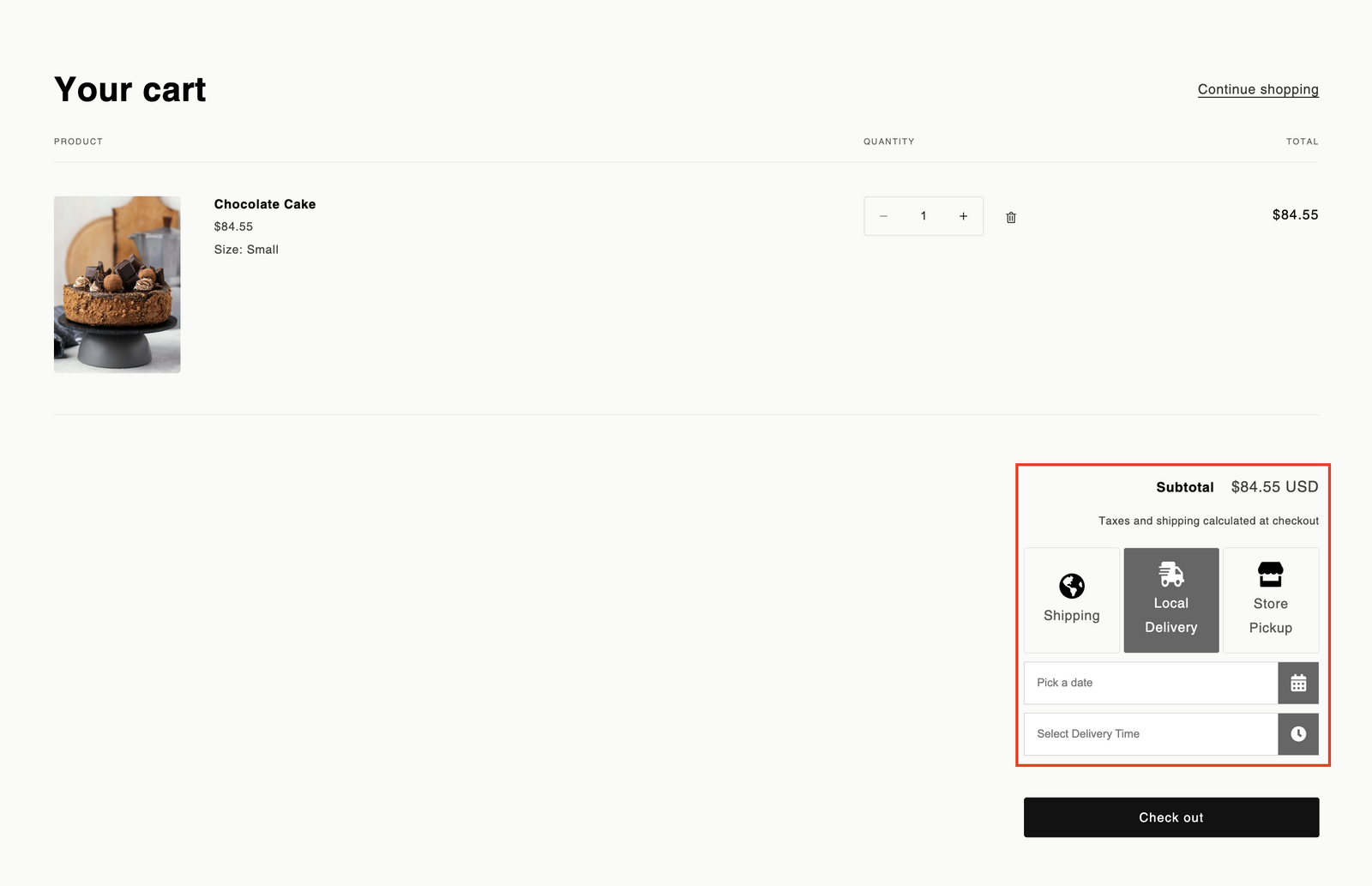
If your store uses a cart drawer, open the drawer too and check the widget there.
Still stuck? Contact Birdchime Support with your store URL and where you’d like the widget, and we’ll find the right selector for you.
Related Articles
Was this article helpful?
Thanks for your feedback!