
 Shipping
Shipping: Order Limits
Set order limits to control your daily shipping capacity and prevent overbooking.
Order limits help you manage your shipping workload by restricting the number of orders customers can place for specific days or time slots. This prevents overbooking and ensures you can fulfill all shipping orders on time.
What are order limits?
Order limits control how many shipping orders customers can place for:
- Daily limits: Maximum shipping orders allowed per day across all time slots
- Time slot limits: Maximum shipping orders allowed per individual time slot
- Date-specific limits: A different daily limit for chosen dates, such as holidays
When a limit is reached, customers will see that day or time slot as unavailable in the shipping widget.
Daily and slot limits together: The system enforces whichever limit is reached first. A full time slot becomes unavailable even if the day has capacity. A full day blocks all remaining slots even if they have room individually.
Plan: Order limits, including date-specific limits, are available on the Growth and Scale plans. See Complete Guide to Our Pricing Plans.
Configure order limits
Step 1: Access shipping availability settings
- Go to Bird Settings > Shipping.
- Scroll down to the Configure availability section.
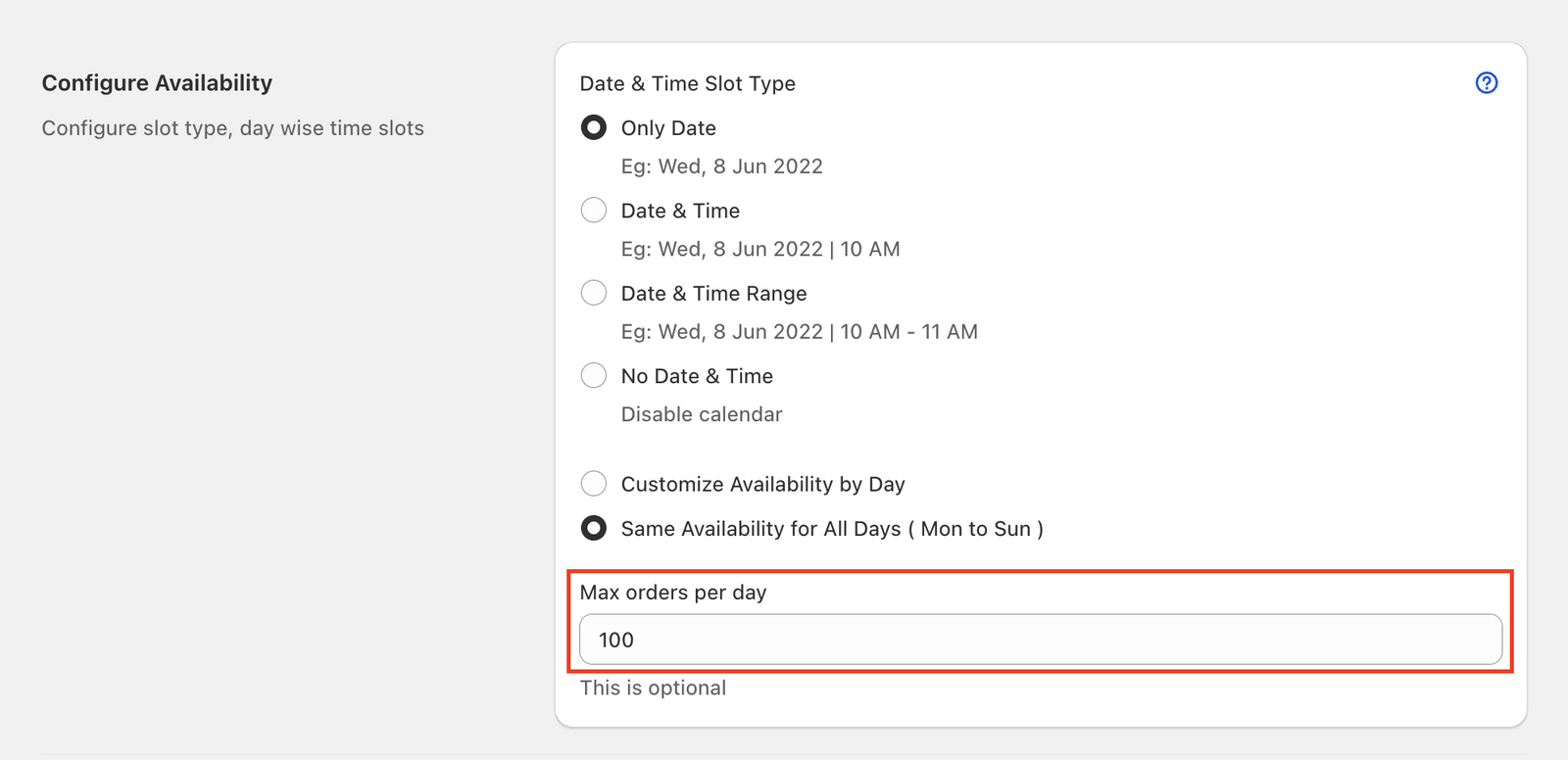
Step 2: Set daily order limits
- Find the Max orders per day field (it reads Max orders on [day] if you customize availability by day).
- Enter your desired daily shipping order limit.
- This limit applies across all time slots for that day.
Step 3: Set time slot order limits
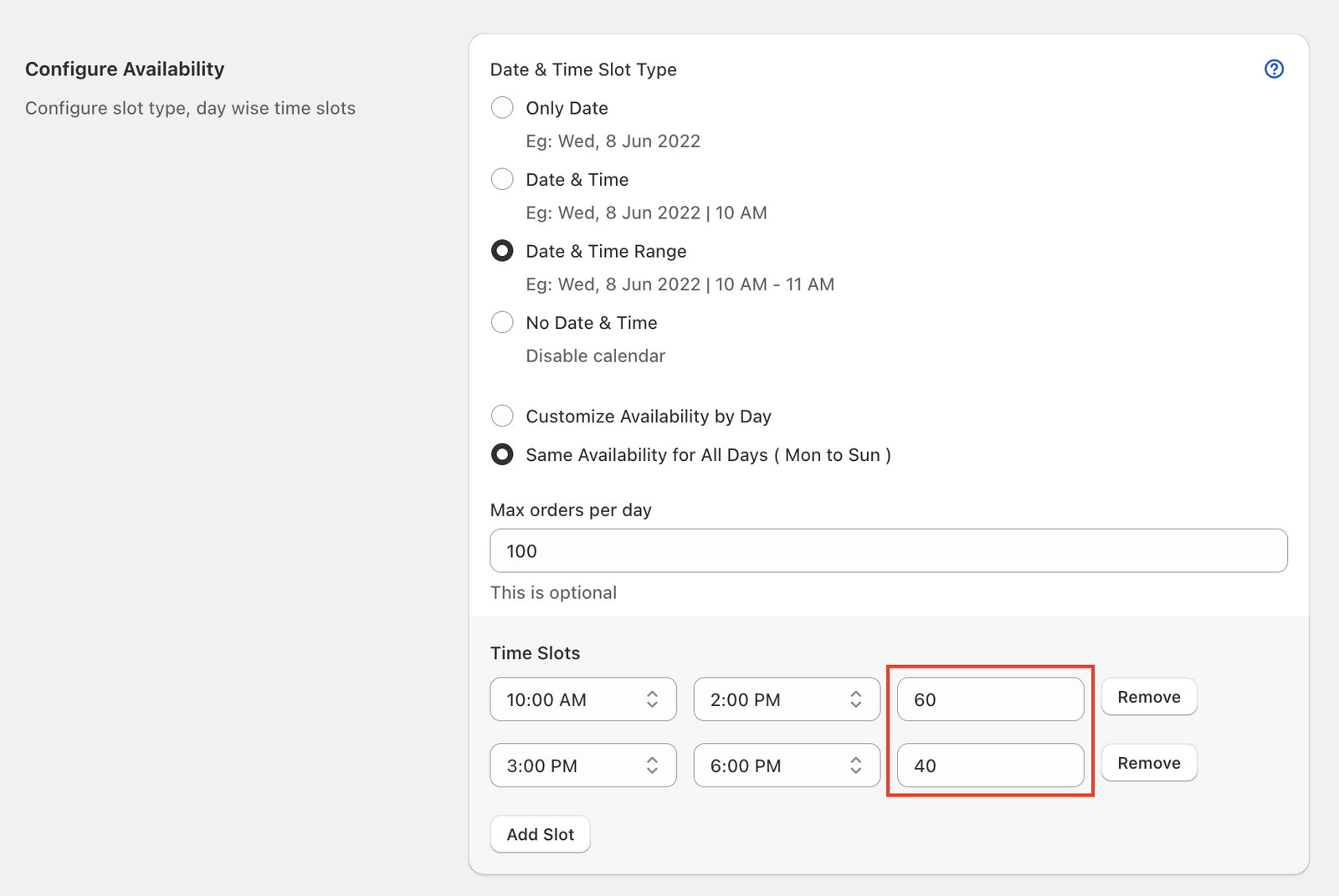
- Under Time slots, find the Max orders field next to each slot.
- Enter limits for each time slot individually.
- Leave blank for unlimited orders in that slot.
Step 4: Set limits for specific dates (optional)
Use this to allow more or fewer shipping orders on chosen dates, such as holidays or busy weekends.
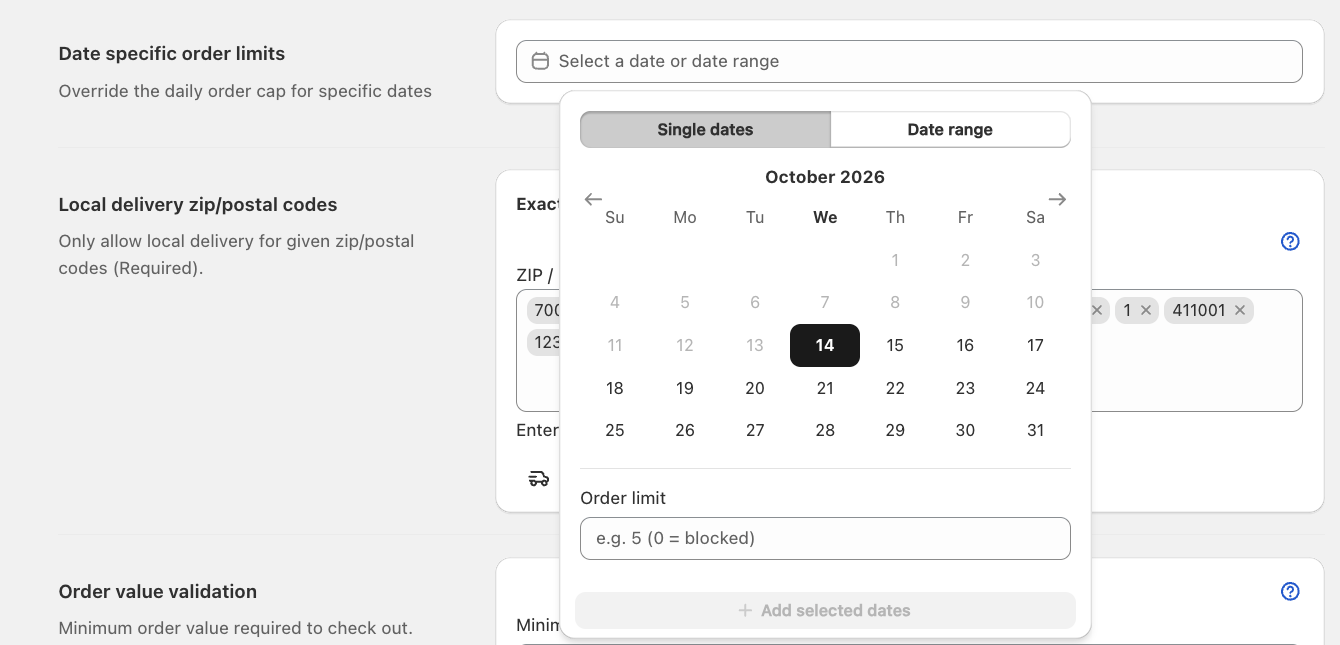
- Scroll down to Date specific order limits.
- Click Select a date or date range.
- Choose Single dates to pick individual days, or Date range to pick a run of days.
- Enter the Order limit. Enter 0 to block the date completely.
- Click Add selected dates, then click Save.
Your dates appear in a table with their limits. A date with a limit of 0 shows as Blocked.
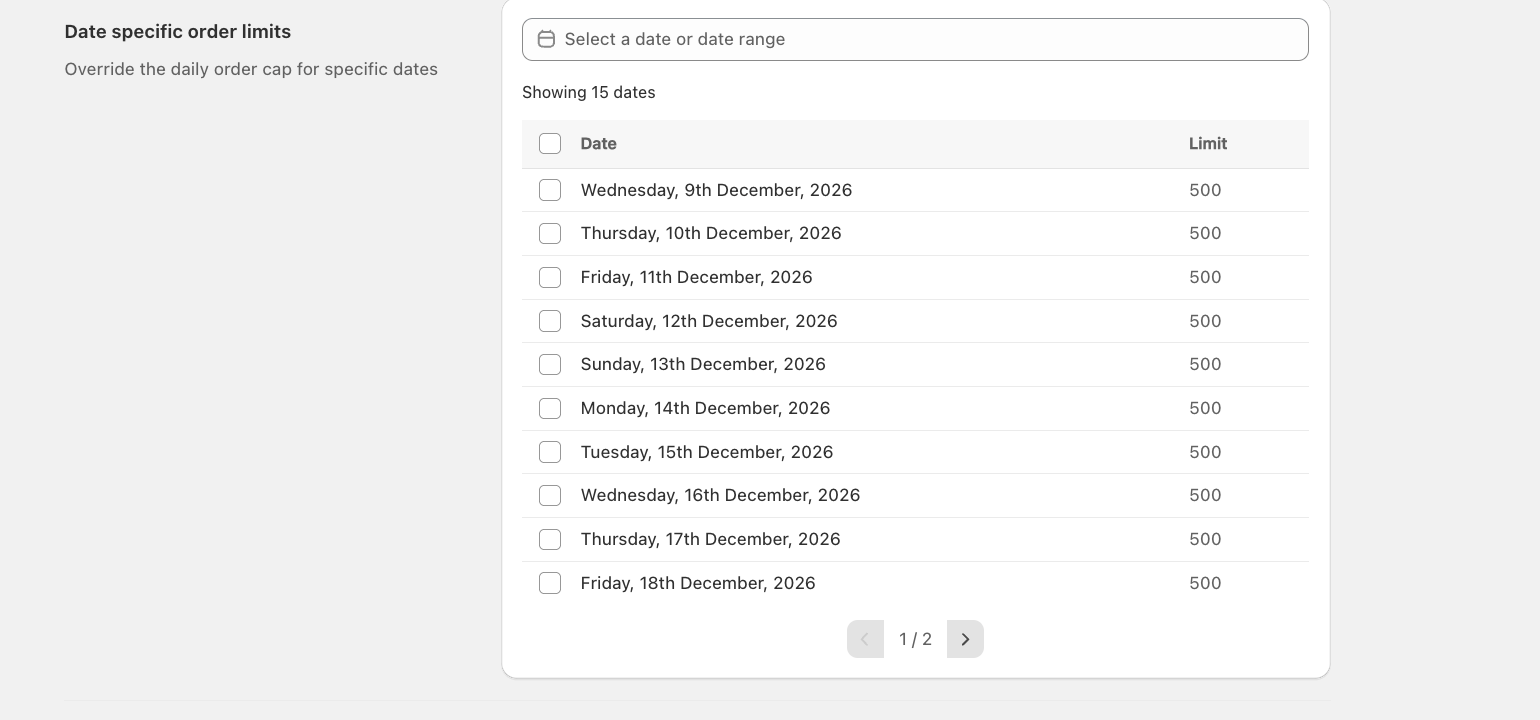
Date limits: On a listed date, the date limit replaces your Max orders per day. It can be higher or lower. Time slot limits still apply on that date. Past dates are removed from the list automatically.
To change a date’s limit, select its checkbox, click Delete selected, and add the date again with the new limit.
Your shipping order limits are now active. Customers will see full or blocked days and time slots as unavailable.
Related Articles
Was this article helpful?
Thanks for your feedback!