
 Widget and Design
How to Hide Express Checkout Options from Cart
As of 20th Dec 2025, we have released a patch that handles this automatically. The patch makes the manual steps below optional.
Hide express checkout buttons to ensure customers complete the full checkout flow with date and time selection.
Express payment options use Shopify’s accelerated checkout flow. To ensure every order captures a scheduled delivery or pickup date, we recommend keeping these buttons on the checkout page — not the cart.
Limitations
- Date and time selection is skipped — Accelerated checkout routes customers directly to payment, bypassing Bird App’s date and time scheduling widget on the cart page. This most commonly affects PayPal.
- Shop Pay uses its own checkout flow — Shop Pay does not pass all of Bird App’s cart data to checkout, so it may affect rates calculation at checkout.
Shop Pay, Google Pay, and PayPal remain fully available once customers reach the checkout page.
How to Hide Express Checkout Options
Follow these steps to remove express checkout buttons from your cart page.
Step 1: Locate Express Checkout Buttons
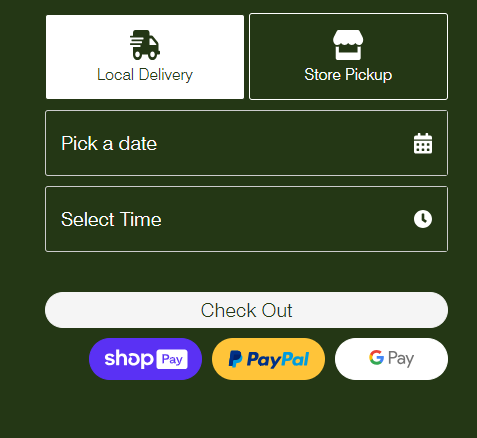
Open your cart page and identify the express checkout buttons. PayPal buttons are the most common.
Step 2: Inspect the Page Elements
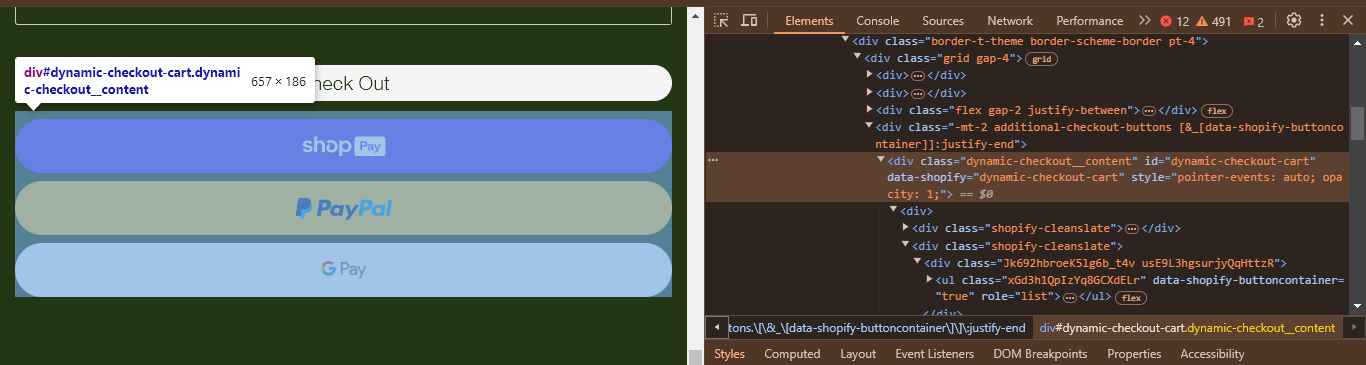
Right-click on the express checkout buttons and select Inspect from the context menu.
Step 3: Find the Element Class or ID
In the developer tools, locate the express checkout button elements. Look for classes or IDs containing words like “dynamic” or “checkout”.
Step 4: Open Bird Developer Settings
In the Bird app, go to Settings > Developer. See Developer Settings.
Step 5: Add CSS to Hide Express Checkout
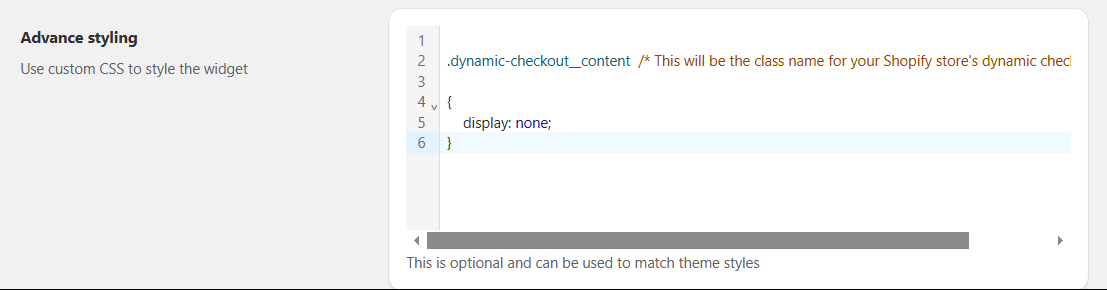
In the Advanced styling section, add CSS code to hide the express checkout buttons. This works for PayPal and other express checkout options.
.cart__dynamic-checkout-buttons {
    display: none !important;
}
The !important declaration overrides theme styles. Replace the selectors with the actual values from your store’s inspection.
Step 6: Verify the Changes
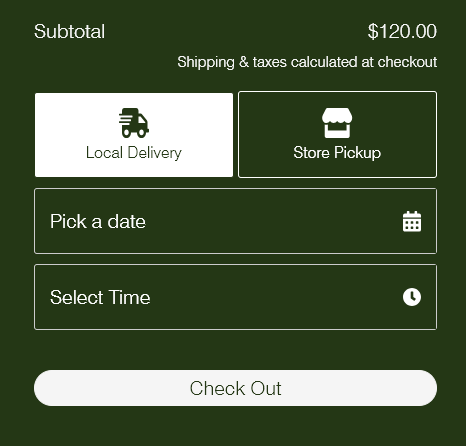
Save your settings and refresh your cart page. The express checkout options should now be hidden.
Troubleshooting
If the CSS doesn’t work:
- Check for typos in your CSS selectors
- Use browser developer tools to verify the correct class/ID names
- Clear browser cache and refresh the page
Alternative solutions if CSS fails:
- Theme Settings: Some themes have built-in options to disable express checkout
- App Conflicts: Check if other apps are forcing express checkout to display
Related Articles
Was this article helpful?
Thanks for your feedback!