
 Notifications
SMS Notifications
Customers don’t always check email, so an “Out for delivery” or “Ready for pickup” update can go unread. SMS notifications text those updates to your customers, and text your staff when a new order comes in.
Requirements
- A paid Bird plan. SMS isn’t available on the Free plan.
- A store based in one of the supported countries below.
- Customers who tick the SMS checkbox in the widget (see Customer Opt-In).
- Customer phone numbers from a supported country. A customer whose number is from another country doesn’t get a text, even if your store is in a supported country.
- Phone number collection turned on in Shopify checkout (Step 1).
- Room in your app spending limit (monthly plans) or your prepaid balance (yearly plans) (Step 2).
| Country | Price per SMS segment (USD) |
|---|---|
| United States | 0.05 |
| Canada | 0.05 |
| United Kingdom | 0.10 |
| Australia | 0.10 |
| Germany | 0.10 |
| Netherlands | 0.10 |
| Switzerland | 0.10 |
| Denmark | 0.10 |
| Sweden | 0.10 |
The price depends on the country of the customer’s phone number, not your store’s country.
Sending customers order updates by SMS is a compliance matter, not just a Bird setting. Make sure your store’s Privacy Policy and Terms of Service say customers may receive SMS notifications about their orders. Bird doesn’t check this for you.
Step 1: Enable Phone Number Collection in Shopify
Customer SMS only. Skip this if you’re only turning on staff SMS.
- In your Shopify admin, go to Settings > Checkout.
- Under Customer contact method, select Phone number or email.
- Click Save.
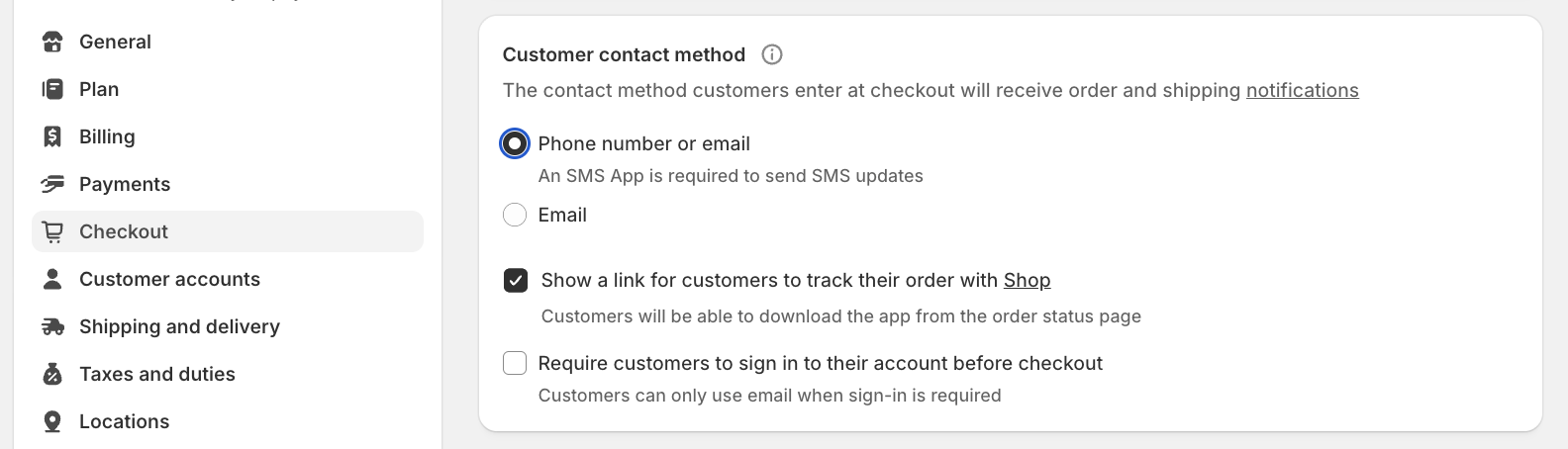
If this is off, Bird has no phone number to text, even with SMS notifications turned on.
Step 2: Fund SMS
SMS isn’t included in your plan. Each text is charged as it’s sent, from the same budget that covers extra orders and extra locations.
Monthly plans: raise your app spending limit.
- In your Shopify admin, go to Bird App > Subscription.
- Click Update limit.
- Enter a new limit and click Confirm and increase limit.
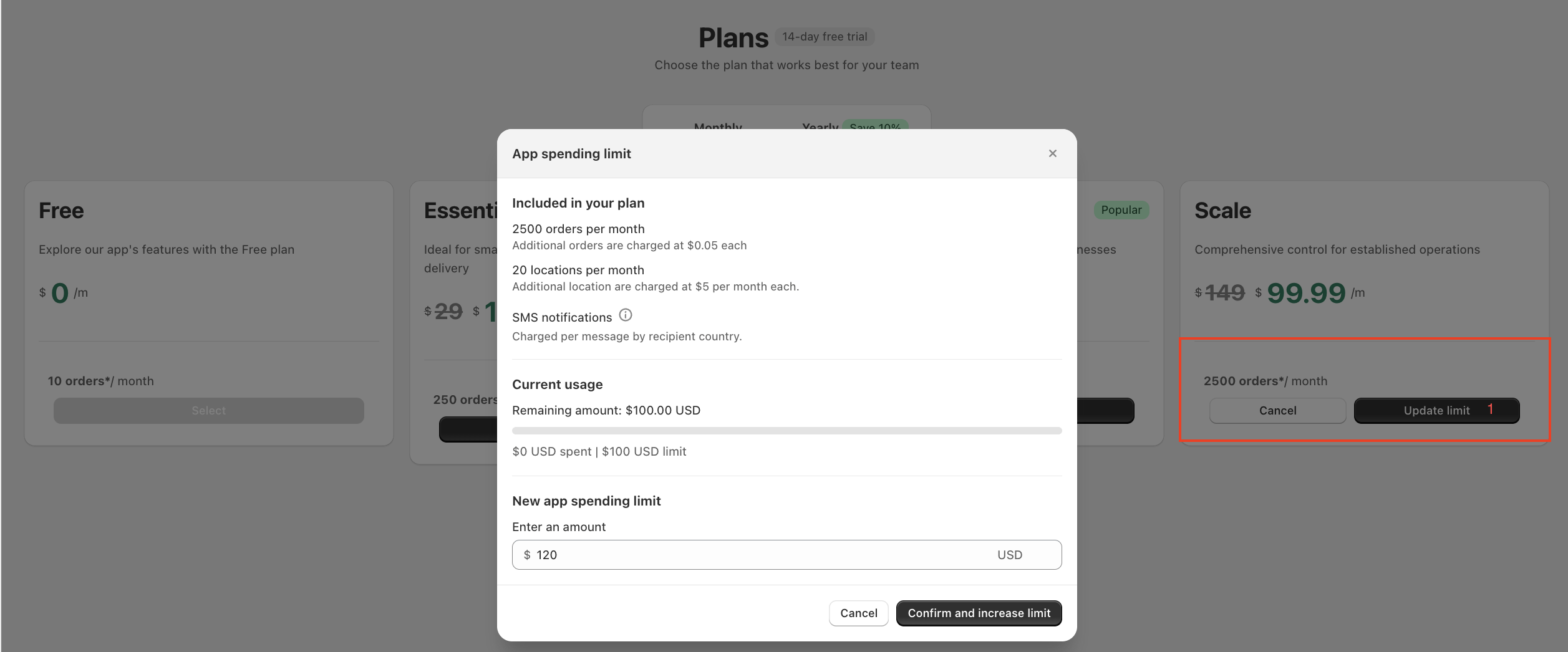
Yearly plans: top up your prepaid balance from Bird App > Subscription.
When the limit is reached or the balance runs out, SMS stops sending until you raise the limit or top up your balance. Email notifications keep working.
Step 3: Turn On SMS Notifications
- Go to Bird Settings > SMS notifications.
- Toggle on the notifications you want sent by text, under Customer notifications or Staff notifications.
- Click Save.
The toggles can’t be turned on until SMS is funded (Step 2). Until then, the page shows a banner telling you what’s missing.
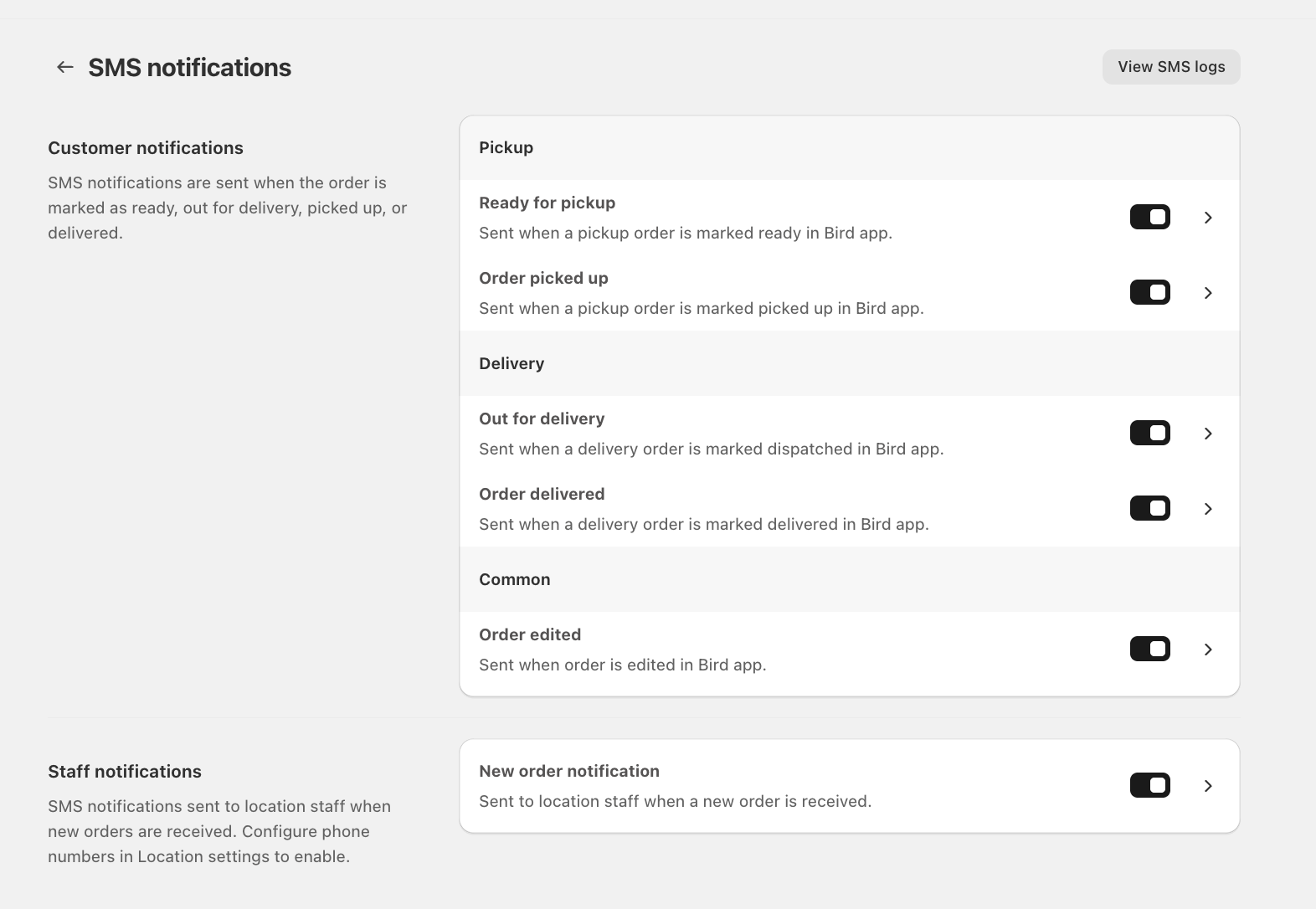
Tip: If every SMS notification is off, the page shows SMS notifications are disabled with an Enable SMS notifications button. Clicking it turns on every customer and staff notification. Turn off any you don’t want.
Step 4: Add Staff Phone Numbers
Staff SMS needs at least one phone number on the location. Skip this if you’re only turning on customer SMS.
- Go to Bird Settings > Configure locations. If you use one schedule for all locations, click Edit locations at the top of Bird Settings instead.
- Open the location whose staff should get texts.
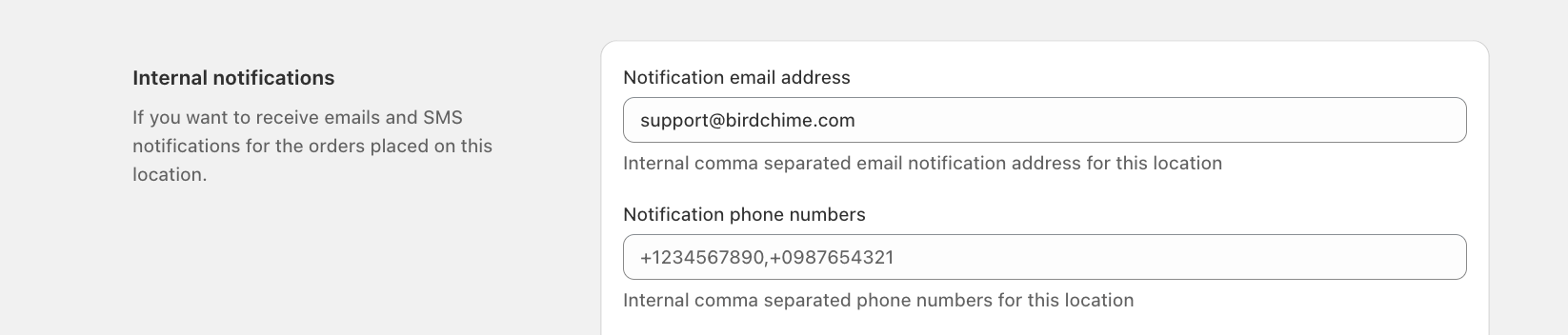
- Under Internal notifications, enter one or more numbers in Notification phone numbers, separated by commas.
- Click Save.
Customer Opt-In
Customers only get texts if they ask for them. As soon as any customer SMS notification is on, the widget shows a checkbox: Send me SMS updates about my order.
- The checkbox is unticked by default.
- Bird texts a customer only when they tick it. Customers who leave it unticked still get your email notifications.
- Staff texts don’t depend on the checkbox.
To change the checkbox wording, go to Bird Settings > Text and languages and edit Message optin label. It accepts text and HTML, so you can link to your SMS terms.
Which Notifications Support SMS
| Notification | Sent to | Applies to | Sent when |
|---|---|---|---|
| Ready for pickup | Customer | Pickup | The order is marked ready for pickup |
| Order picked up | Customer | Pickup | The order is marked picked up |
| Out for delivery | Customer | Delivery | The order is marked dispatched |
| Order delivered | Customer | Delivery | The order is marked delivered |
| Order edited | Customer | All orders, including shipping | Delivery details are changed and Notify customer is ticked |
| New order notification | Staff | Pickup and delivery | A new order is placed |
Shopify’s own order confirmation and shipping confirmation messages aren’t part of Bird SMS.
SMS Wording
To see what a text says, go to Bird Settings > SMS notifications and click the notification’s name. Click Preview to see it filled in with sample order details.
The wording can’t be edited yet.
Billing
Each text is charged when it’s sent, at the price for the customer’s phone country. A long message can be split into more than one SMS, and each part is charged. See Complete Guide to Our Pricing Plans for how monthly usage charges and yearly prepaid balances work.
Troubleshooting
“SMS notifications not available”: Your store isn’t in a supported country.
“Not available for Free plan”: Upgrade to a paid plan.
“Monthly spending limit not configured” or “Usage limit exceeded”: Raise your app spending limit (Step 2).
“No available credits”: Top up your prepaid balance (Step 2).
“SMS notifications are disabled”: Every SMS notification is off. Click Enable SMS notifications, or turn on the ones you want (Step 3).
A customer didn’t get a text. Check these in order:
- The customer ticked Send me SMS updates about my order in the widget. Without it, Bird doesn’t text them.
- The order has a phone number, and the number is from a supported country.
- Your spending limit or prepaid balance isn’t used up.
Related Articles
Was this article helpful?
Thanks for your feedback!