
 Store Pickup
Store Pickup: Global Settings
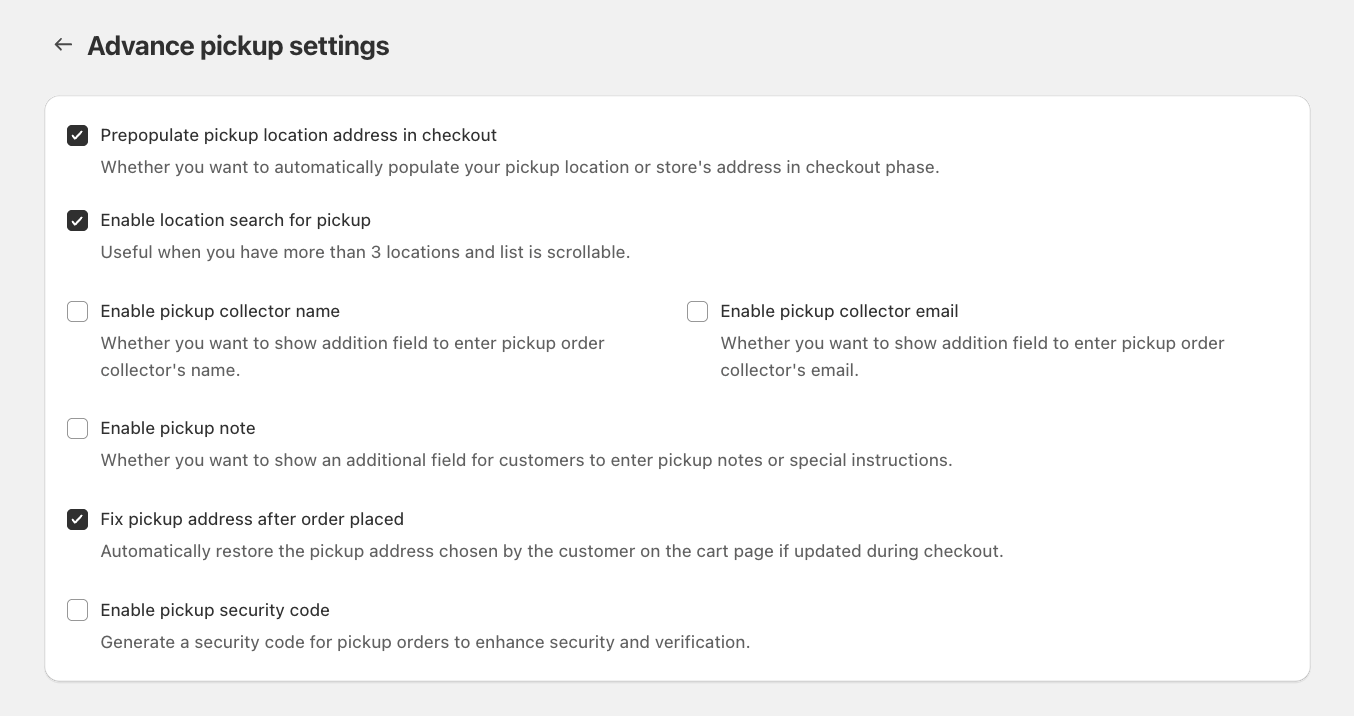
Configure advanced pickup settings to enhance the customer experience and streamline order processing. Set up address prepopulation, location search, and address validation for all pickup locations.
Table of Contents
- What Advanced Pickup Settings Do
- Prerequisites
- Address Management Settings
- Location Selection Settings
- Common Questions
- Troubleshooting
- Quick Reference
What Advanced Pickup Settings Do
Advanced pickup settings are global configuration options that apply to all pickup locations.
Prerequisites
Before configuring advanced pickup settings, ensure:
- Widget is enabled in your theme
- Pickup is enabled for at least one location in Bird Settings
Address Management Settings
Prepopulate Pickup Location Address in Checkout
What it does:
- Automatically fills checkout address field with selected pickup location address
Configuration:
- Go to Bird Settings > (Advance) > Pickup
- Toggle Prepopulate pickup location address in checkout to ON
- Click Save
📖 Related: Why Are Customers Being Shown a Shipping Address Field for Pickup Orders?
Fix Pickup Address After Order Placed
What it does:
- Automatically restores pickup address if changed during checkout
- Works after order placement (address is corrected in Shopify order details)
Configuration:
- Go to Bird Settings > (Advance) > Pickup
- Toggle Fix pickup address after order placed to ON
- Click Save
Location Selection Settings
Enable Location Search for Pickup
What it does:
- Adds search box to pickup location selection
- Filters locations as customers type
Configuration:
- Go to Bird Settings > (Advance) > Pickup
- Toggle Enable location search for pickup to ON
- Click Save
Note: Most useful when you have more than 3 locations. For 1-3 locations, the standard pickup location selection is sufficient.
Common Questions
Can I use multiple advanced settings together?
Yes. All advanced pickup settings can be enabled simultaneously.
Do advanced settings apply to all locations?
Yes. Advanced pickup settings are global and apply to all pickup locations. You cannot configure them per location.
What’s the difference between prepopulate address and fix address?
- Prepopulate address: Fills address field during checkout
- Fix address: Restores address after order placement if changed during checkout
Both can be enabled together.
What happens if a customer changes the address during checkout?
If “Fix pickup address after order placed” is enabled, the address is automatically restored to the pickup location address after the order is placed. The order will use the correct pickup location.
Troubleshooting
Issue: Address not prepopulating in checkout
Problem: Address prepopulation may not work due to setting not enabled, widget issues, checkout locale conflicts, or conflicts with other apps.
Solution:
- Verify Prepopulate pickup location address in checkout is toggled ON
- Check that widget is enabled in theme
- Ensure customer selects pickup location on cart page
- Check for conflicts with checkout locale files
- Check for conflicts with other apps that override checkout process, or checkout locale
- Contact Bird Support for help with troubleshooting
Quick Reference
Address Management:
- Prepopulate address: Auto-fill checkout address field
- Fix address: Restore address after order placement
Location Selection:
- Location search: Search box for more than 3 locations
Navigation: Bird Settings > (Advance) > Pickup
Related Articles
Was this article helpful?
Thanks for your feedback!