
 Local Delivery
Local Delivery: Global Settings
Configure advanced delivery settings to enhance the customer experience and streamline order processing. Set up postal code (ZIP code) validation modes, address revalidation, and selection expiry for all delivery locations.
Table of Contents
- What Advanced Delivery Settings Do
- Prerequisites
- Revalidate Delivery Location Postal Code in Checkout
- Basic Validation Settings
- Inventory Mapping
- Common Questions
- Troubleshooting
- Quick Reference
What Advanced Delivery Settings Do
Advanced delivery settings are global configuration options that apply to all delivery locations. They control how postal codes are matched, ensure address consistency between cart and checkout, and manage session expiry for customer selections.
Prerequisites
Before configuring advanced delivery settings, ensure:
- Widget is enabled in your theme
- Local Delivery is enabled for at least one location in Bird Settings
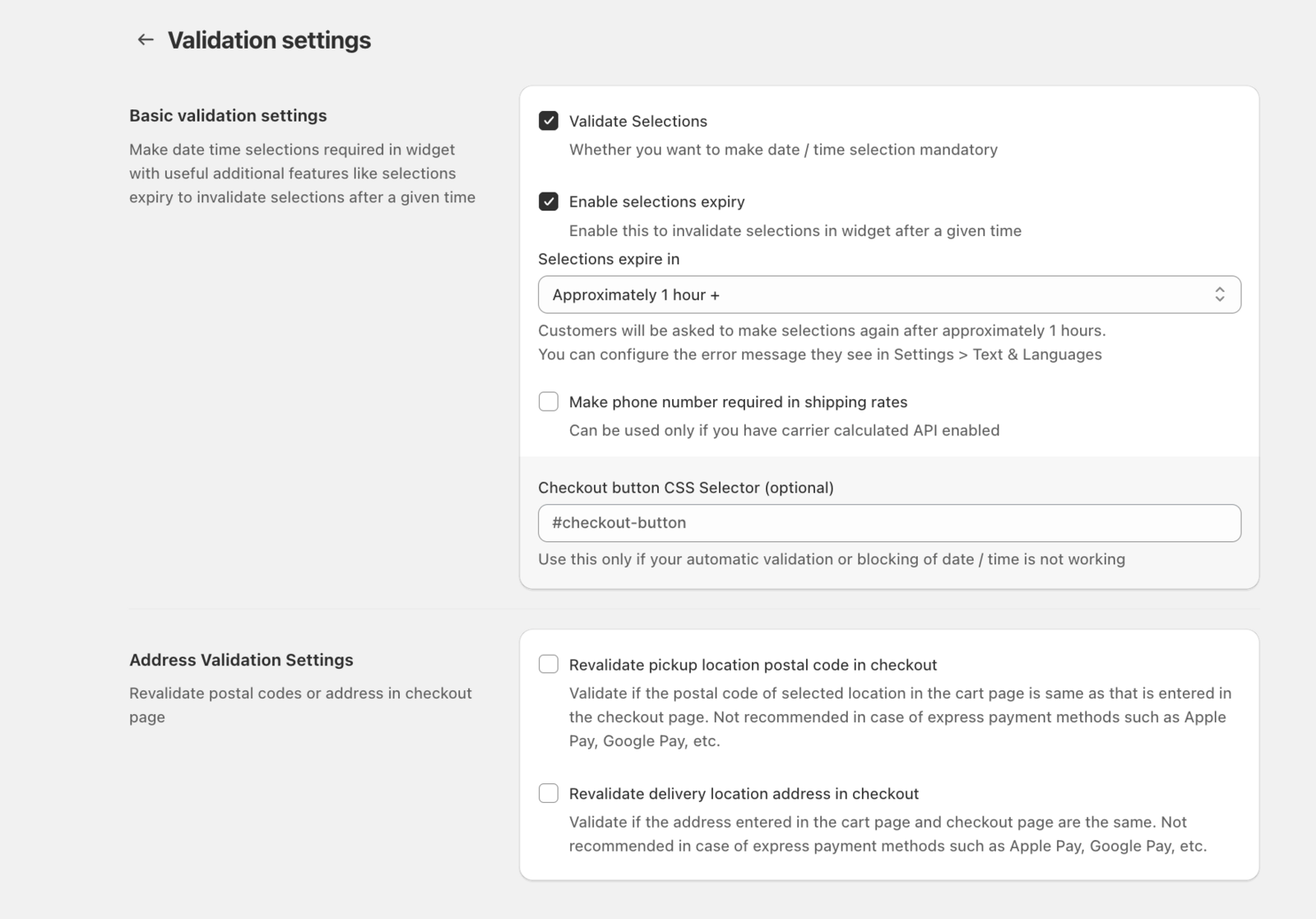
Revalidate Delivery Location Postal Code in Checkout
What it does:
- Ensures the postal code entered in the cart widget matches the shipping address provided at checkout.
- Prevents customers from selecting a delivery slot for a supported postal code and then changing the address to an unsupported one during checkout.
Configuration:
- Go to Bird Settings > Validations > Postal code validation settings
- Toggle Revalidate delivery location postal code in checkout to ON
- Click Save
Basic Validation Settings
Validate Selections
What it does:
- Makes date and time selection mandatory before the customer can proceed to checkout.
- Applies to all fulfillment methods (Delivery, Pickup, Shipping).
Configuration:
- Go to Bird Settings > Validations > Basic validation settings
- Check Validate selections
- Click Save
Enable Selections Expiry
What it does:
- Invalidates customer selections after a set period (1-24 hours).
- Useful for ensuring that time-sensitive rules (like cut-off times) are correctly applied if a customer leaves a cart for several hours.
Configuration:
- Go to Bird Settings > Validations > Basic validation settings
- Check Enable selections expiry
- Choose the expiry window
- Click Save
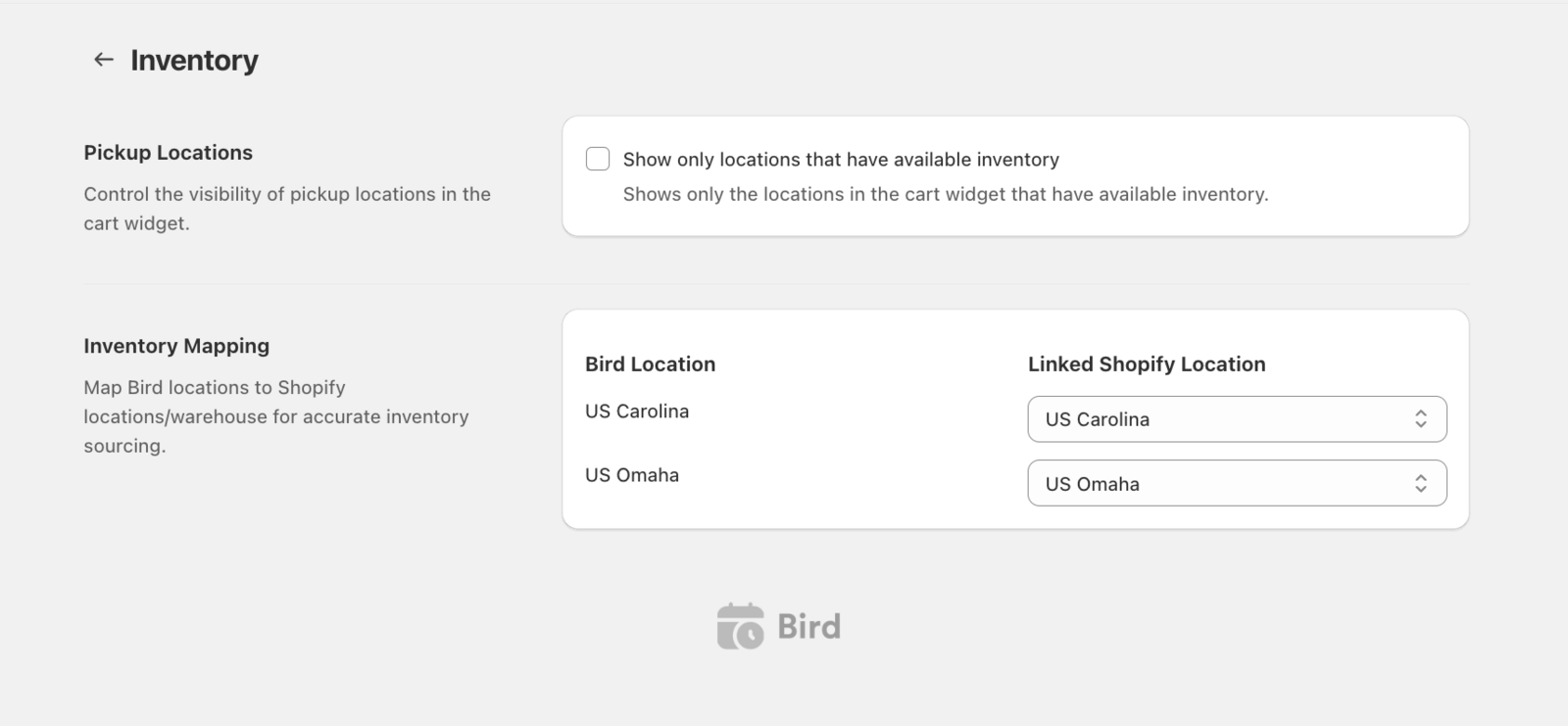
Inventory Mapping
What it does:
- Maps each Bird location to a specific Shopify inventory source (location/warehouse).
- Allows for multi-warehouse setups where different Bird locations source stock from different physical places.
- Ensures accurate inventory checking for delivery availability.
Configuration:
- Go to Bird Settings > Inventory
- Scroll to Inventory Mapping section
- For each “Bird Location” listed, use the dropdown to select the corresponding “Shopify Location”
- The system will use this mapping to check stock levels for that specific location
How It Works:
- Single Warehouse: Map all Bird locations to your main Shopify location.
- Multi-Warehouse: Map each Bird location to its specific warehouse or store in Shopify.
- Mixed: You can have some locations mapped and others using default behavior, but full mapping is recommended for accuracy.
Technical Flow: When a customer adds items to the cart and selects a delivery location/zone, the system checks the mapped Shopify location for that Bird location. It verifies that all items in the cart are available at that specific warehouse before allowing the order to proceed for that delivery location.
Common Questions
Do these settings apply per location?
No. These are global settings. Rules like “Selection Expiry” or “Distance Validation Mode” apply to every location offering delivery.
Why should I enable address revalidation?
It prevents “address hopping,” where a customer gets a local delivery slot for one address but finishes the order with a different shipping address that you might not serve.
Troubleshooting
Issue: Customers can’t proceed to checkout even with a valid date
Problem: “Validate Selections” is on, but there might be a theme or third-party app conflict preventing the widget from recording the selection correctly. Solution: Ensure the widget is correctly placed in your theme and that “Validate Selections” is configured, reach out to support if you need further help.
Quick Reference
Key Settings:
- Distance validation mode (Bird Settings > Delivery): Exact, Partial, or Advanced postal code matching.
- Revalidation: Matches cart postal code to checkout shipping address.
- Expiry: Automatically clears old selections after X hours.
Navigation: Bird Settings > Validations (revalidation, selections expiry) · Bird Settings > Delivery (distance validation mode)
Related Articles
Was this article helpful?
Thanks for your feedback!