
 Integrations
Skio Subscriptions
Connect Skio to Bird Pickup & Delivery so each renewal order Skio creates gets its delivery date moved forward automatically.
Requirements
- You need to be on the Bird Scale plan.* You need Skio installed on your store.
Step 1: Generate an API key in Skio
- In Bird, go to Bird Settings > Integrations, open the Subscription tab, and click Skio.
- Under the API key field, click Skio’s API keys. This opens the API page of your Skio dashboard (API & Integrations > API) in a new tab.
- Enter a name for the key, such as
Bird Pickup & Delivery. - Click Generate API key, then click Copy. Skio shows the key only once, so copy it before you leave the page.
Keep your API key private. Paste it only into Bird, never into emails or support chats. If a key has been shared, delete it on Skio’s API page, generate a new one, then click Disconnect Skio in Bird and connect again with the new key.
Step 2: Connect Skio
- In Bird, paste the key into API key.
- Click Connect Skio. You’ll see a “Skio connected” message.
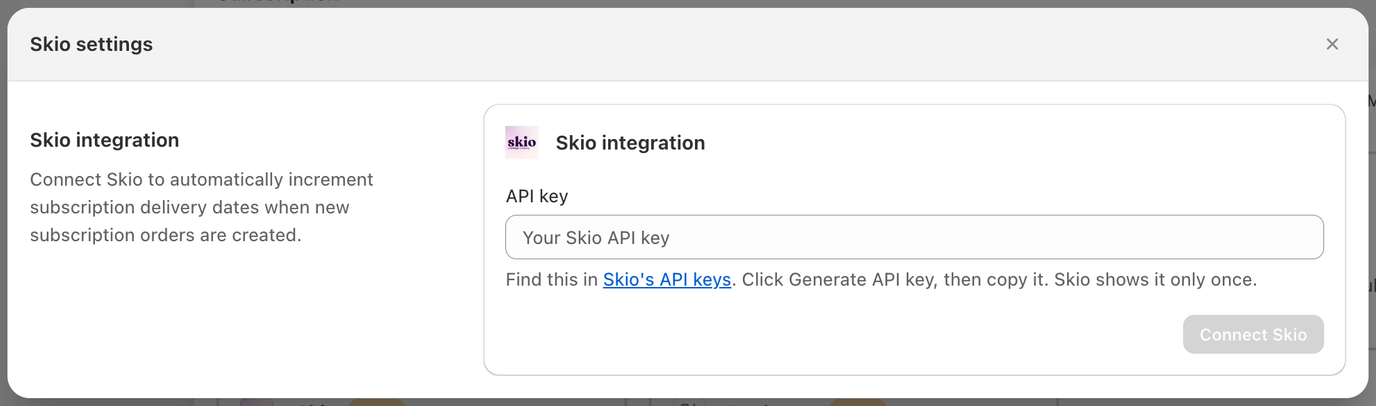
Seeing “Invalid API key”? Check that you copied the whole key. If you didn’t copy it before leaving the page, generate a new key in Skio and paste that one. If you see “Couldn’t reach Skio”, wait a few minutes and click Connect Skio again.
Step 3: Email customers (optional)
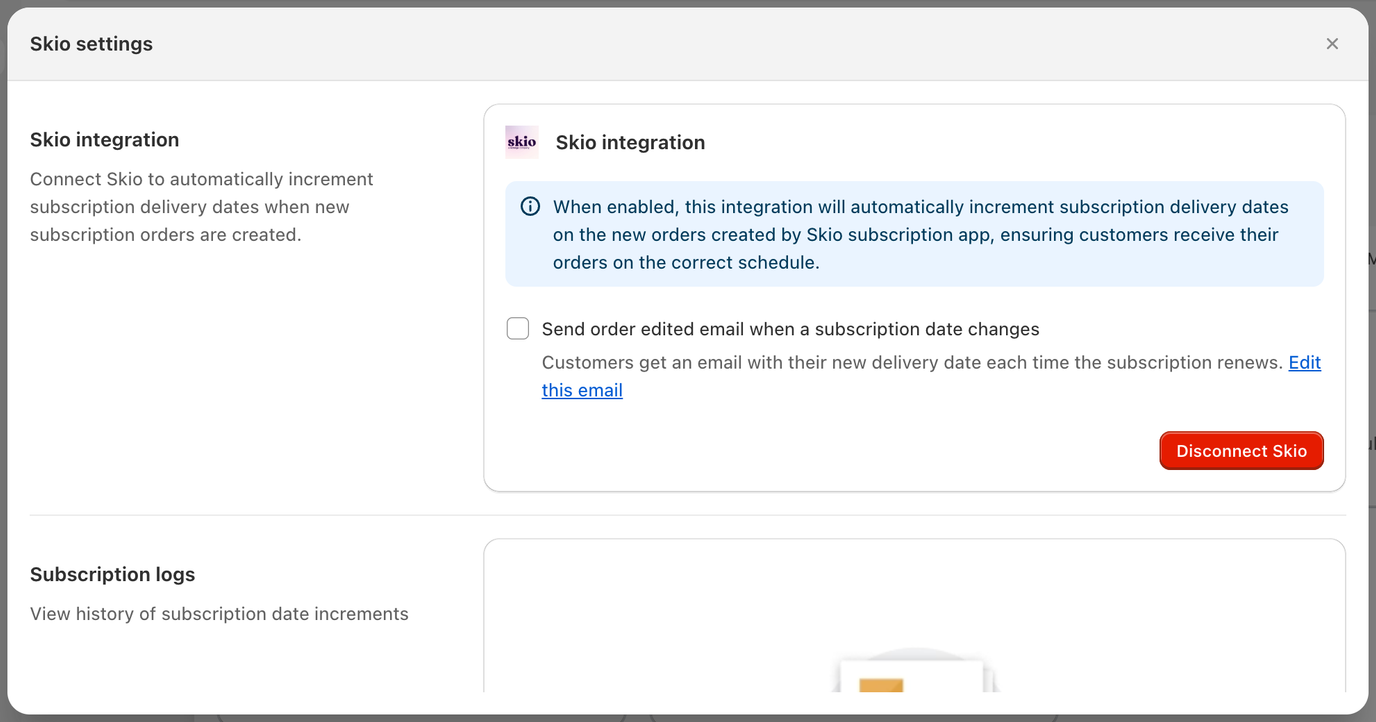
Tick Send order edited email when a subscription date changes to email customers their new delivery date each time their subscription renews. Click Edit this email to change the wording.
Step 4: Review subscription logs
Subscription logs list every date change. Each entry shows:
- Order: the order number, which opens the order in Shopify
- Description of action: what changed, e.g. “Skio: Incremented delivery date from 2026-11-29 to 2026-11-30”
- Timestamp: when it happened
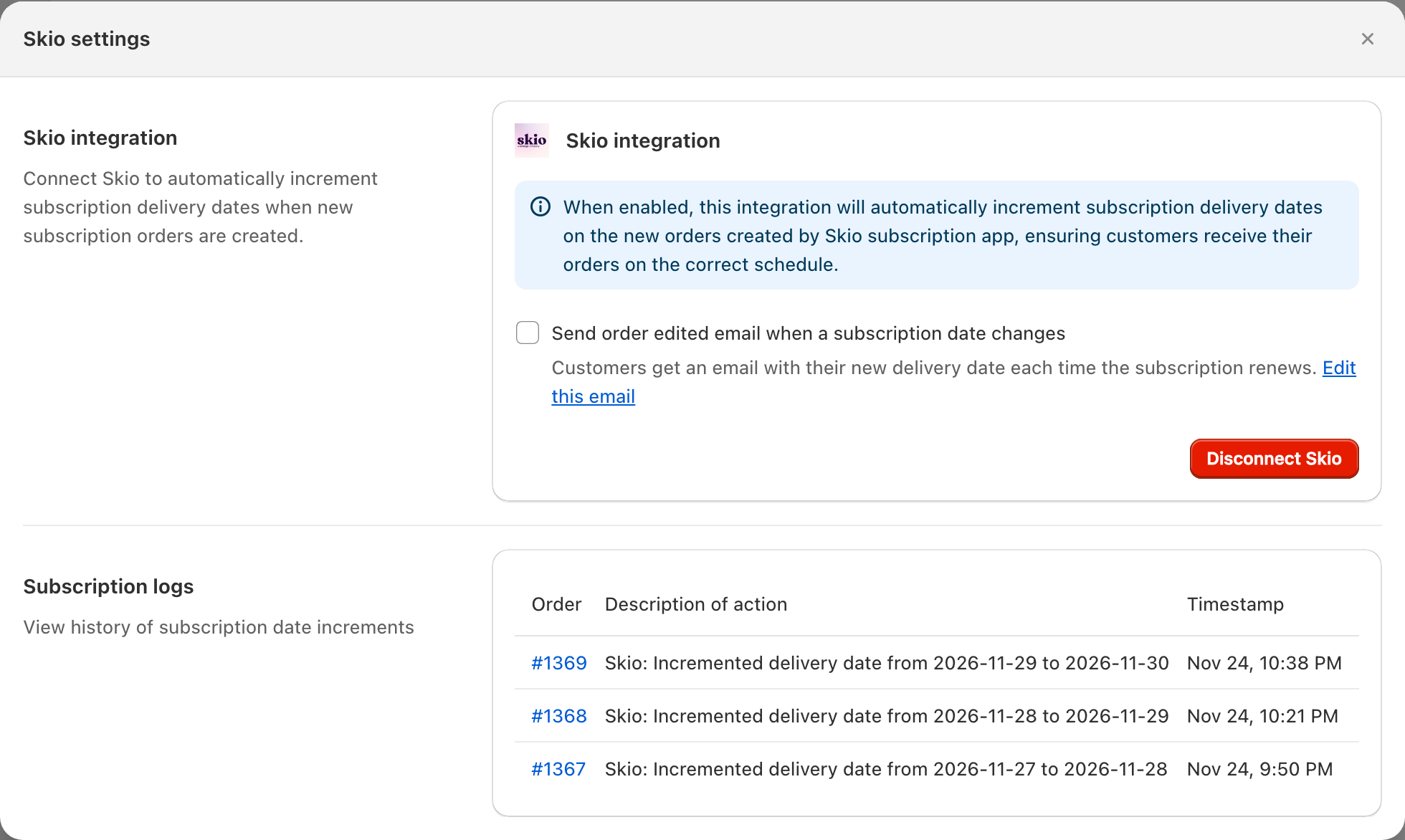
Tip: Logs start with the first renewal. The first checkout order has no entry, because its date doesn’t change.
Disconnect Skio
Click Disconnect Skio at any time to stop moving delivery dates.
Was this article helpful?
Thanks for your feedback!