
 Widget and Design
Widget Design
Make the Bird Pickup & Delivery widget match your store’s colors, icons and layout.
The widget sits on your cart page, right next to your theme’s own buttons and text. If its colors or calendar style clash with your theme, it looks like a third-party add-on and customers trust it less. Widget Design lets you change how every part of the widget looks without writing any code.
Open Widget Design
- Go to Bird Settings > Widget Design. The page opens as Design settings.
- Make your changes. The Widget preview on the right side of the page updates as you go.
- Click Save in the save bar at the top of the page
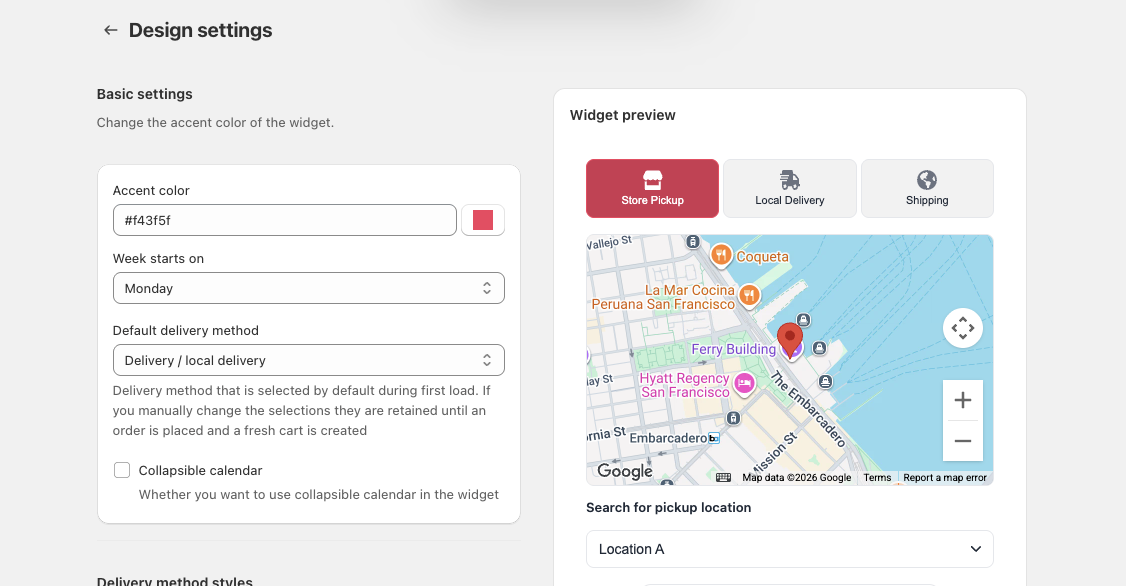
The settings are grouped in the same order as below. Any color you leave empty uses Bird’s default, and many defaults follow your accent color.
Basic Settings
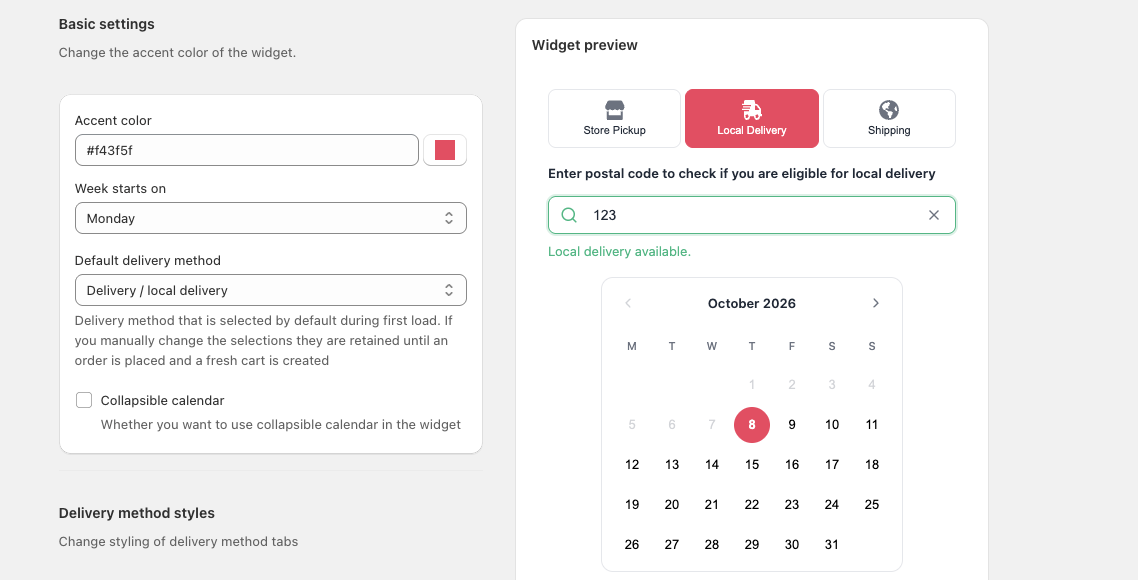
| Setting | What it does |
|---|---|
| Accent color | The widget’s main color. Selected tabs, the selected date and highlights use it unless you set their own colors below. |
| Week starts on | Whether calendar weeks start on Sunday or Monday |
| Default delivery method | Which method is selected when a customer first sees the widget: Delivery / local delivery, Pick up or Shipping. If the customer switches, Bird remembers their choice until they place the order. |
| Collapsible calendar | On: customers see a date field, and the calendar opens when they click it. Off: the full calendar is always shown in the cart. |
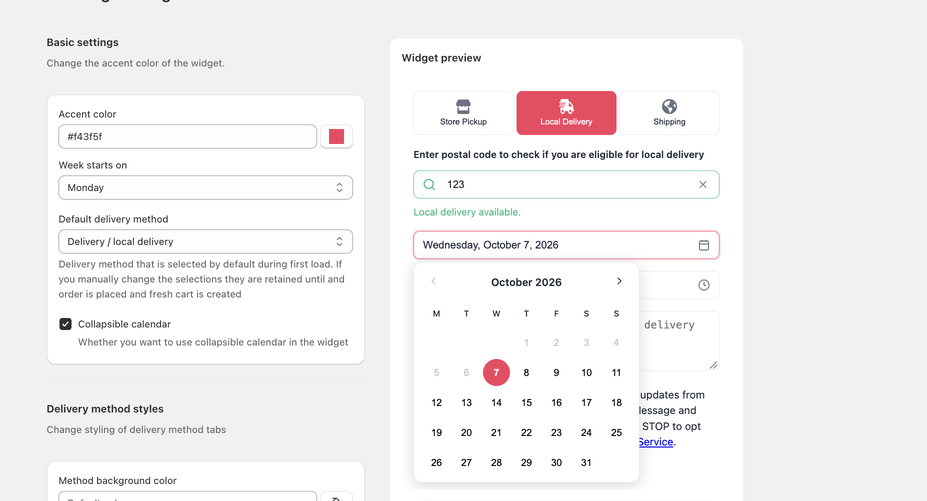
Use the collapsible calendar if your cart page or cart drawer is short on space. Keep the full calendar if you want customers to see available dates at a glance.
Delivery Method Styles
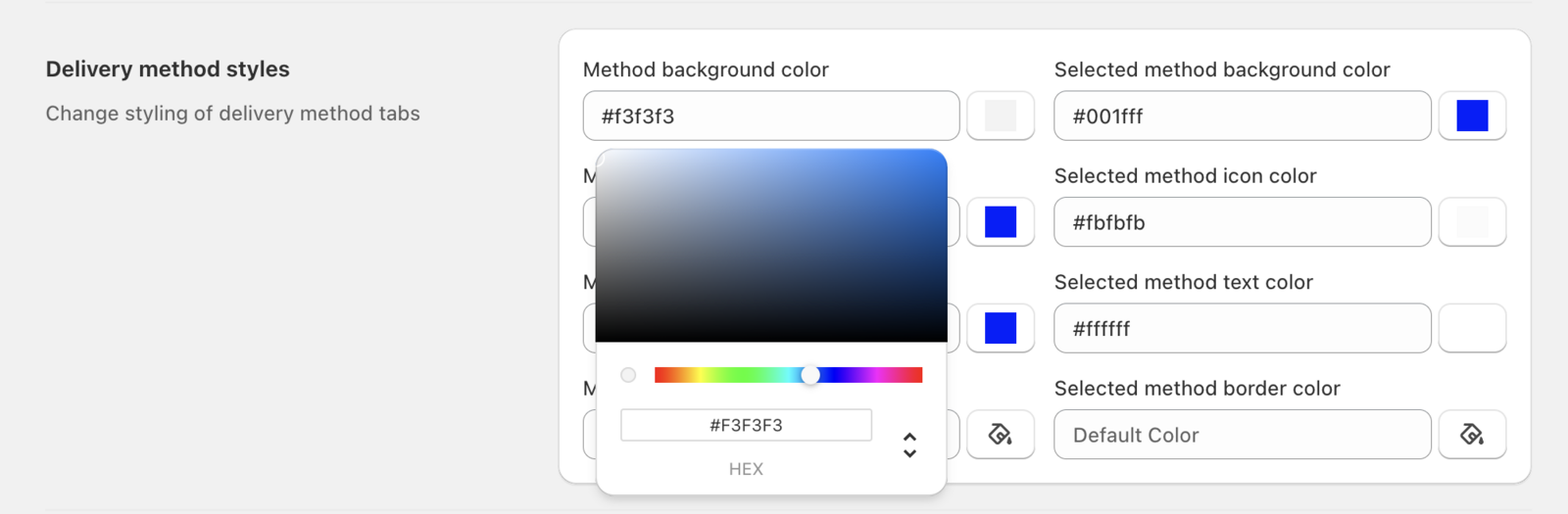
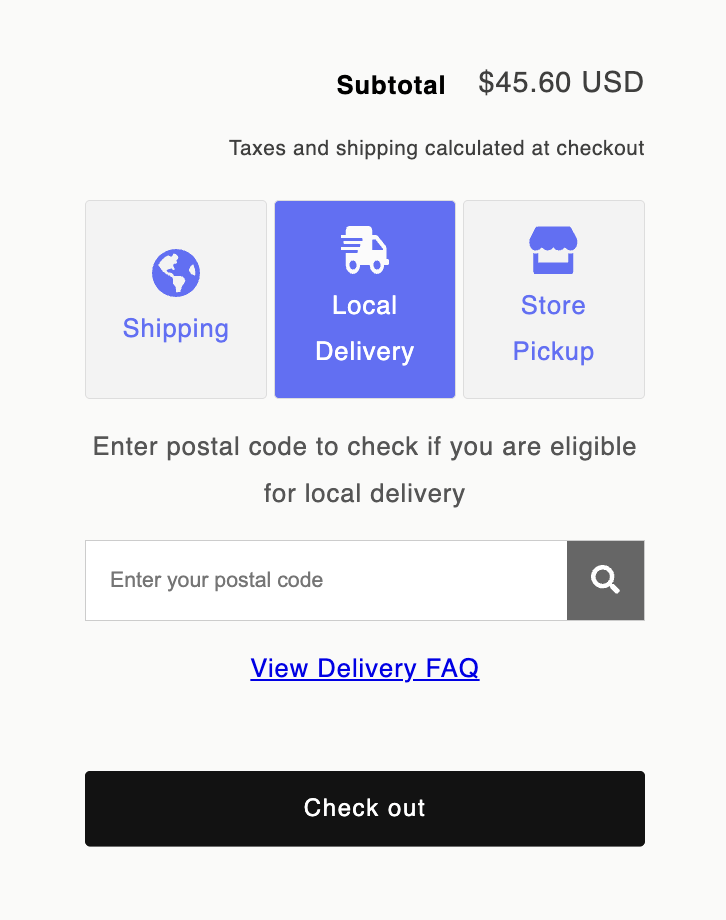
These colors style the method tabs (Store Pickup, Local Delivery, Shipping) at the top of the widget. The tabs only appear when you offer more than one method.
| Setting | What it colors |
|---|---|
| Method background color / Selected method background color | The tab’s background, before and after it’s chosen |
| Method icon color / Selected method icon color | The default icons |
| Method text color / Selected method text color | The tab labels |
| Method border color / Selected method border color | The tab outlines |
Delivery Method Icons
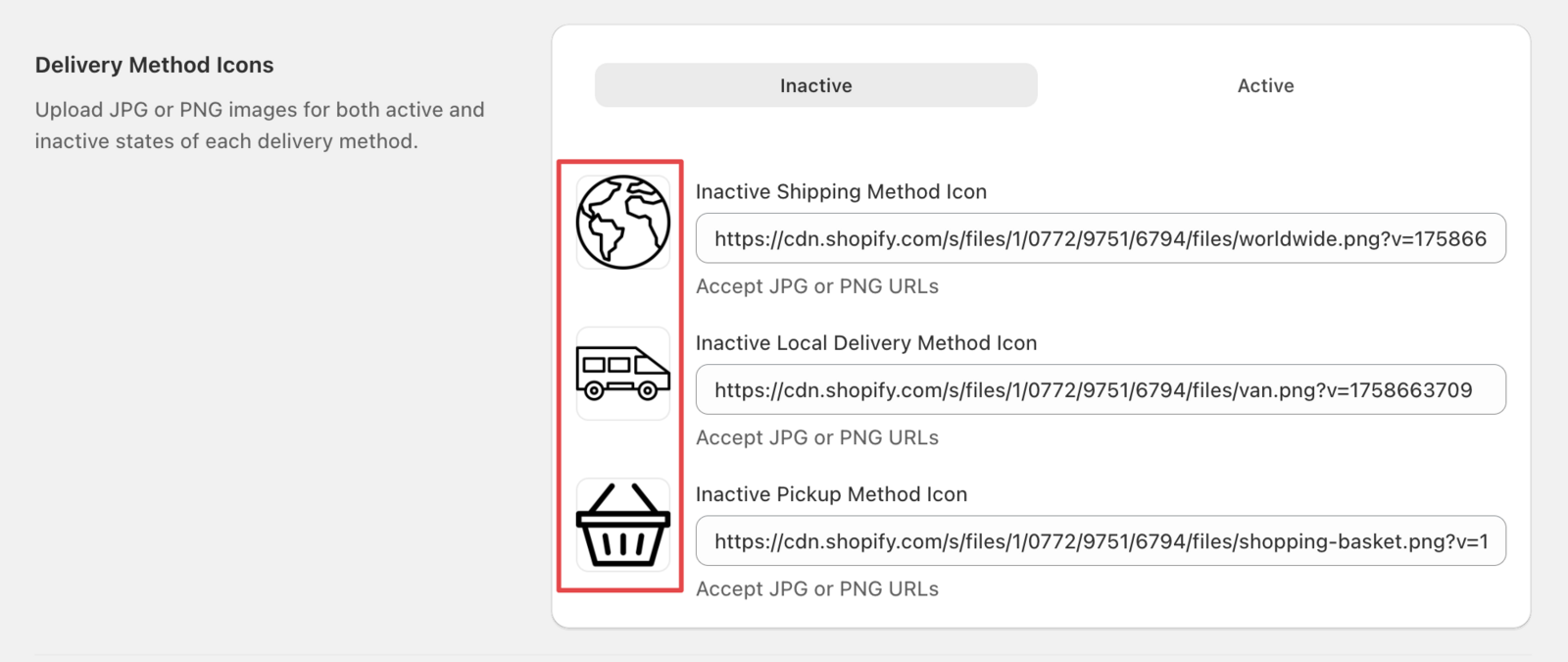
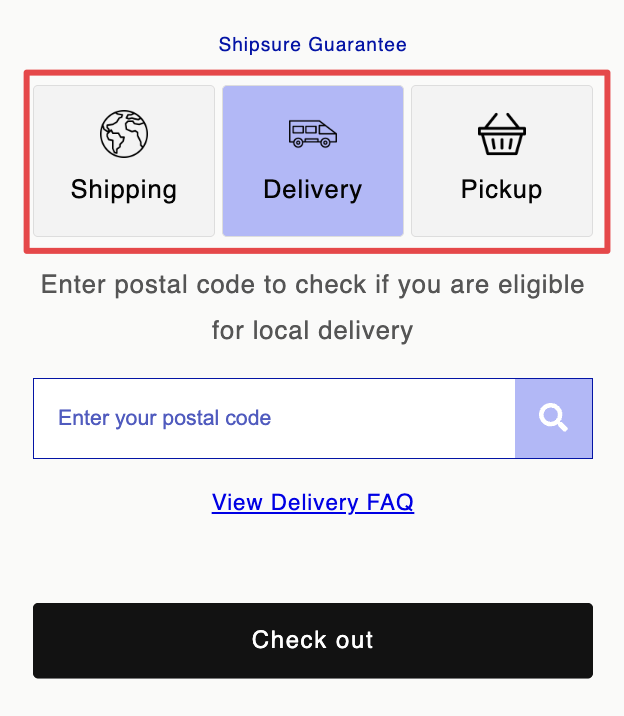
Replace the default tab icons with your own images.
- Upload your icon images to Shopify: go to Shopify Admin > Content > Files, upload a JPG or PNG, and copy its link
- In Delivery method icons, open the Inactive tab and paste a link into each method’s field. These icons show on tabs that aren’t selected.
- Open the Active tab and paste the icons for the selected tab
- Check the small preview next to each field, then click Save
If you only add an inactive icon, Bird uses it for the selected tab too. Icons are shown at 24 × 24 pixels, so square images with a transparent background look best.
Calendar Styles
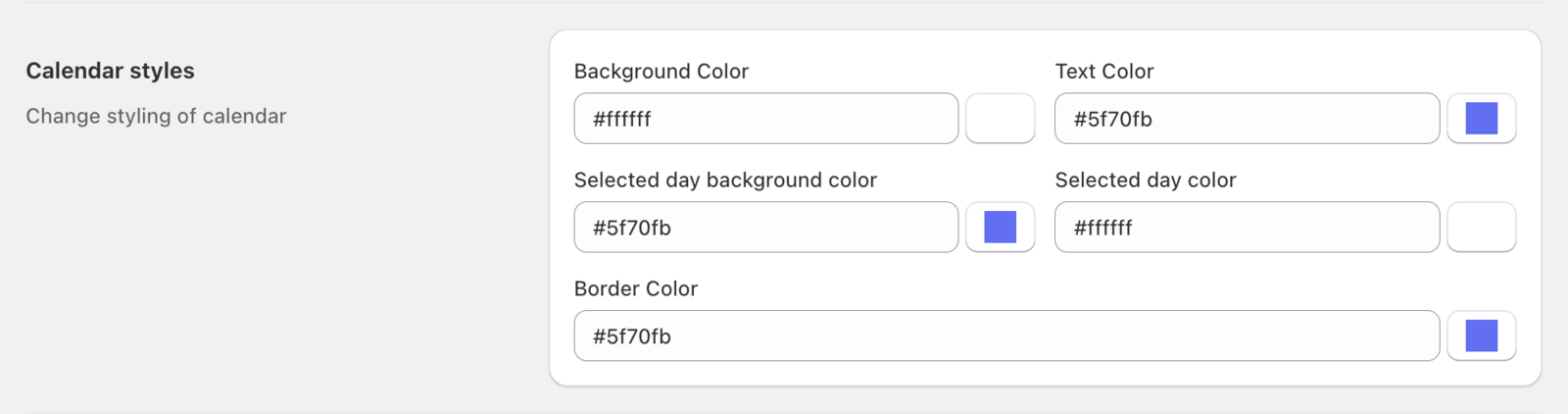
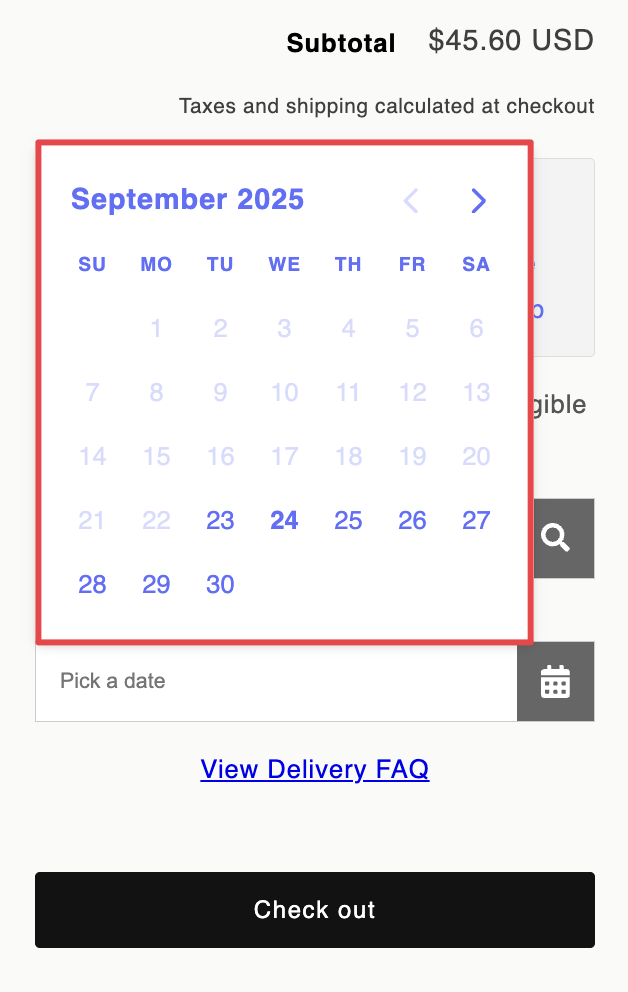
| Setting | What it colors |
|---|---|
| Background color | The calendar background |
| Text color | The dates and month name |
| Selected day background color | The circle behind the chosen date (accent color if empty) |
| Selected day color | The number of the chosen date |
| Border color | The calendar outline |
Input Field Styles
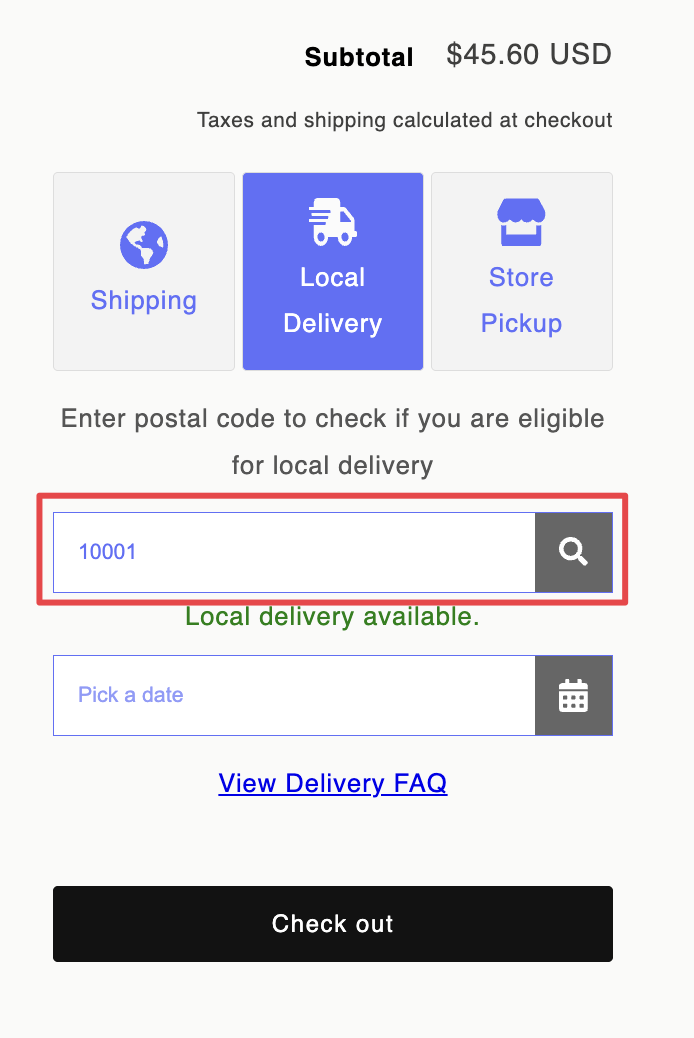
These style the widget’s input boxes, such as the date field, time picker and postal code field.
| Setting | What it colors |
|---|---|
| Background color | Inside the box |
| Text color | What the customer types or picks |
| Border color | The box outline |

Widget Header, Footer and Error Styles
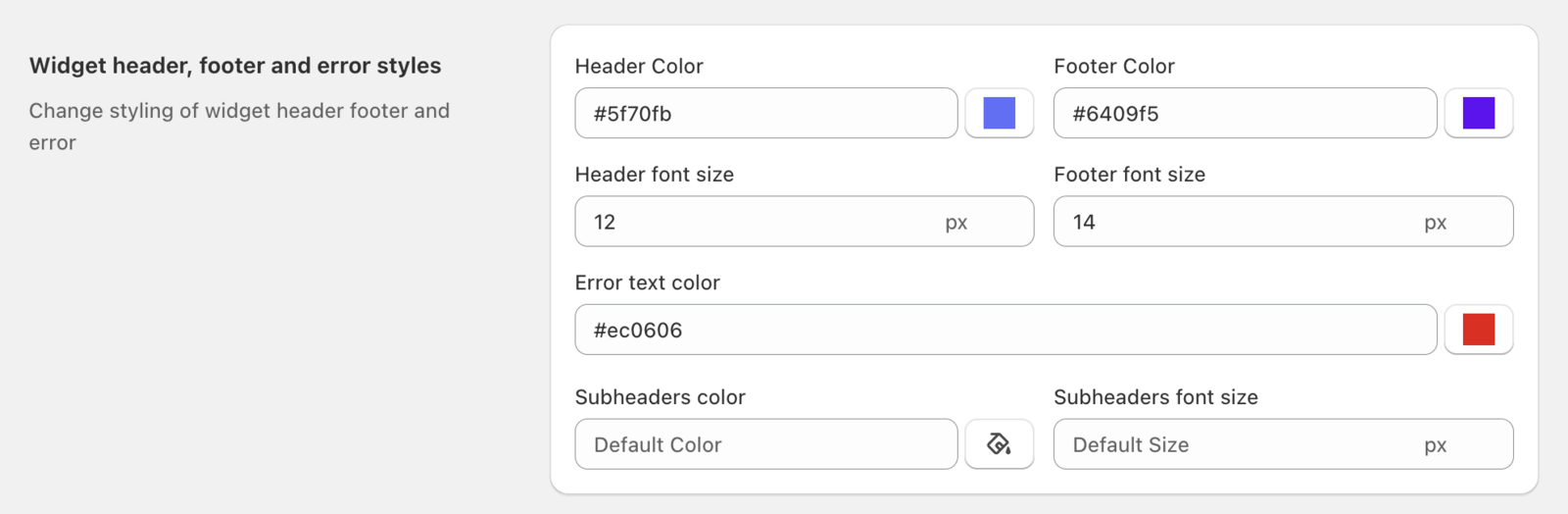
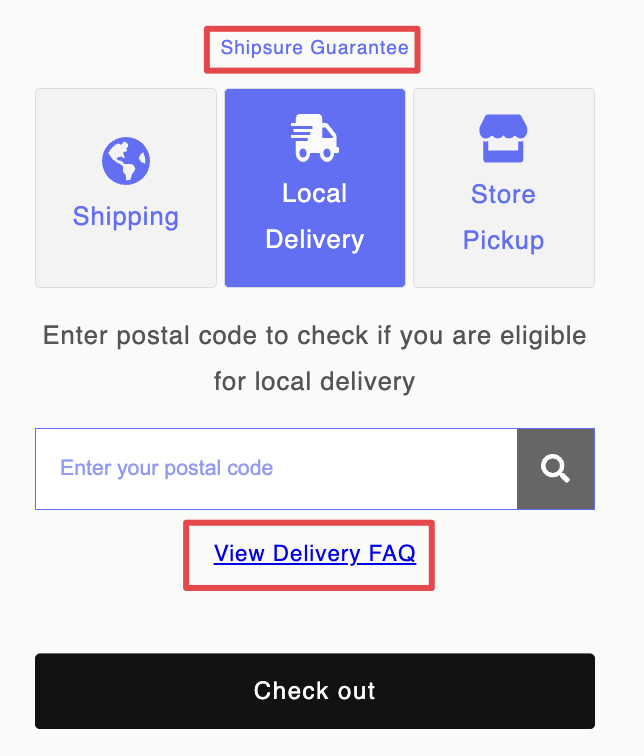
These style the text you add above and below the widget in Text and Languages, and the widget’s error messages.
| Setting | What it changes |
|---|---|
| Header color / Header font size | The text above the widget |
| Footer color / Footer font size | The text below the widget |
| Error text color | Error messages, such as “Please select a date” |
| Subheaders color / Subheaders font size | Small headings inside the widget |
Font sizes are in pixels. Leave a size empty to keep the default.
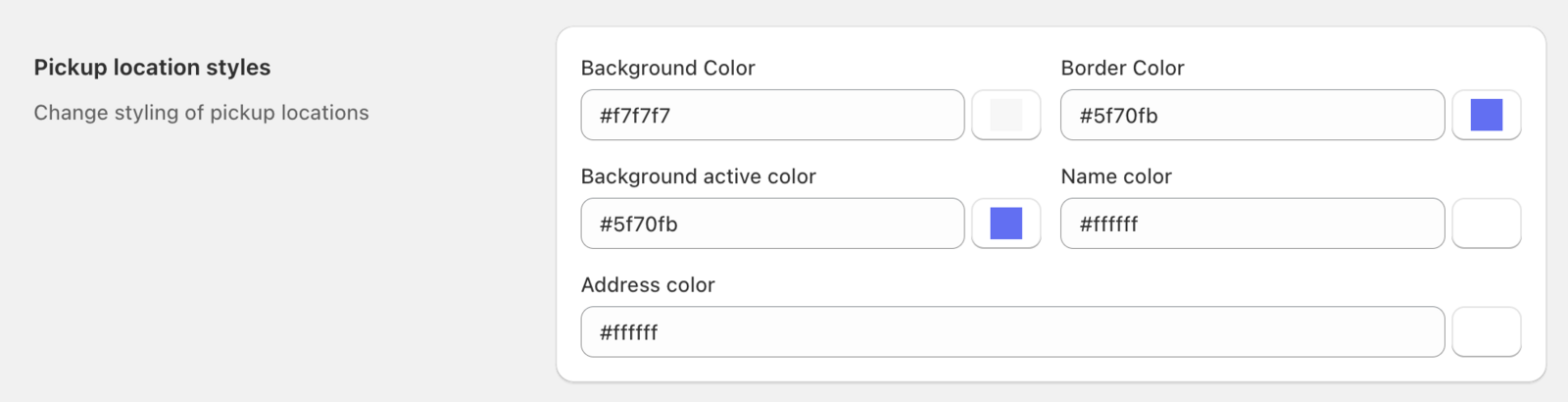
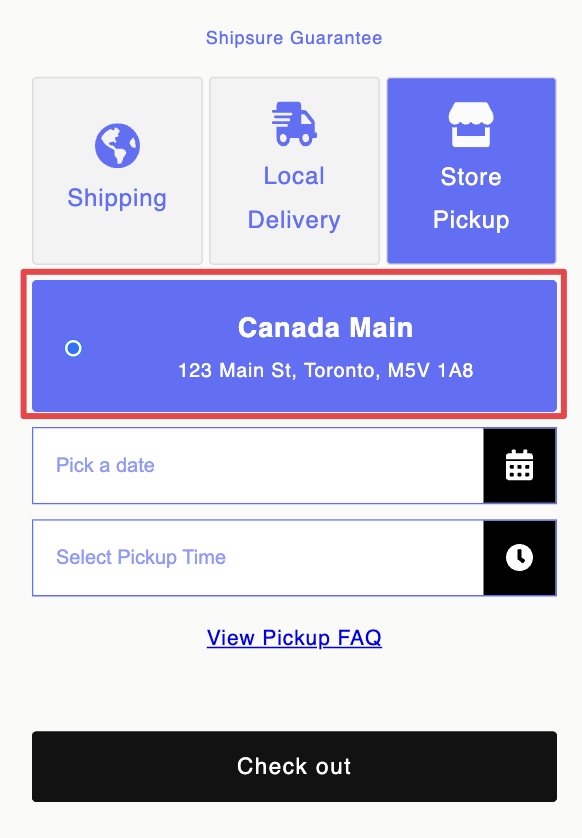
Pickup Location Styles
These style the list of stores customers choose from for Store Pickup.
| Setting | What it colors |
|---|---|
| Background color | Each store card |
| Border color | The card outline |
| Background active color | The card the customer has selected |
| Name color | The store name |
| Address color | The store address |
Global Postal Code Widget Styles
These style the standalone postal code checker you can add anywhere on your store, such as a “Do we deliver to you?” box in your header. They don’t change the cart widget. See Local Delivery: Postal Code Validation.
| Setting | What it colors |
|---|---|
| Label color | The checker’s heading |
| Background color | The checker box |
| Input field background color | The postal code box |
| Input text color | The postal code the customer types |
Widget Width
The widget fills the width of the space your theme gives it. To make it narrower, add CSS:
- Go to Bird Settings > Developer
- Scroll to Advanced styling and add:
#birdchime-slots-box {
    max-width: 400px !important;
}
- Change
400pxto the width you want, then click Save - Check your cart page on both desktop and mobile
To keep the widget a sensible size on every screen, set a minimum and maximum instead:
#birdchime-slots-box {
    width: 100% !important;
    min-width: 300px !important;
    max-width: 400px !important;
}
!important makes sure your width wins over the widget’s own default styles.
Going Further with Custom CSS
For anything Widget Design doesn’t cover, such as fonts or spacing, add your own CSS in Bird Settings > Developer > Advanced styling. See Developer Settings.
Related Articles
Was this article helpful?
Thanks for your feedback!