
 Widget and Design
How to Customize Widget Language and Labels
Edit every label, error message, and instruction your customers see — all in one place, organized by different widgets.
The Text & Language settings page lets you customize every piece of text the Bird widget shows on your storefront. The page is organized into collapsible sections so you can focus on one area at a time, and a search bar lets you jump straight to any field by name or value.
Access Text & Language Settings
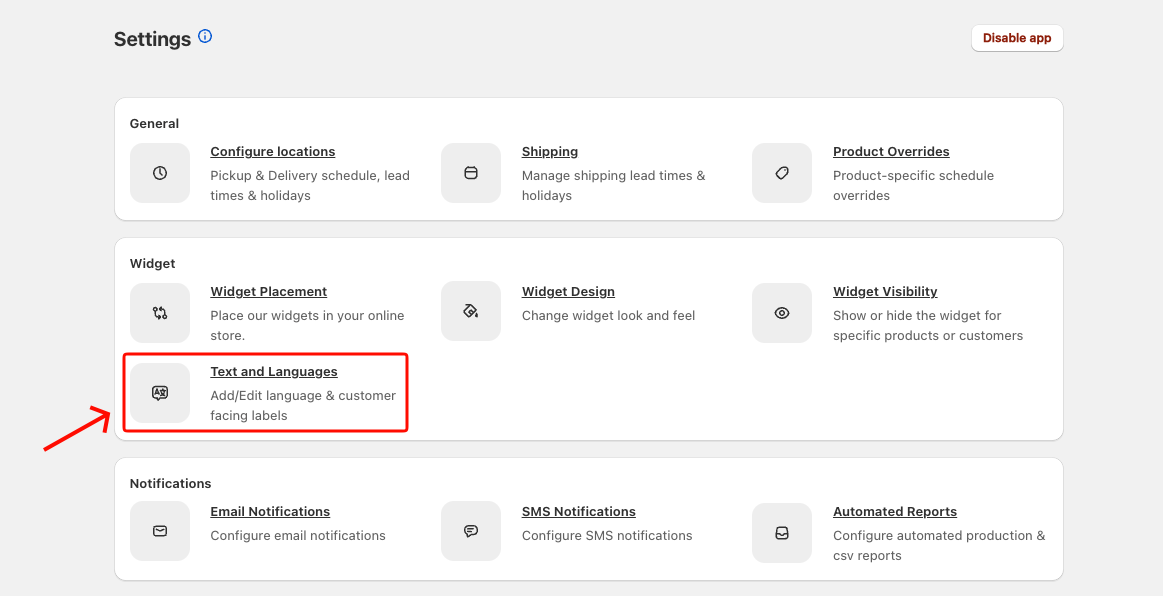
- Navigate to Bird App Settings → Text and Languages. The page opens directly on your default language.
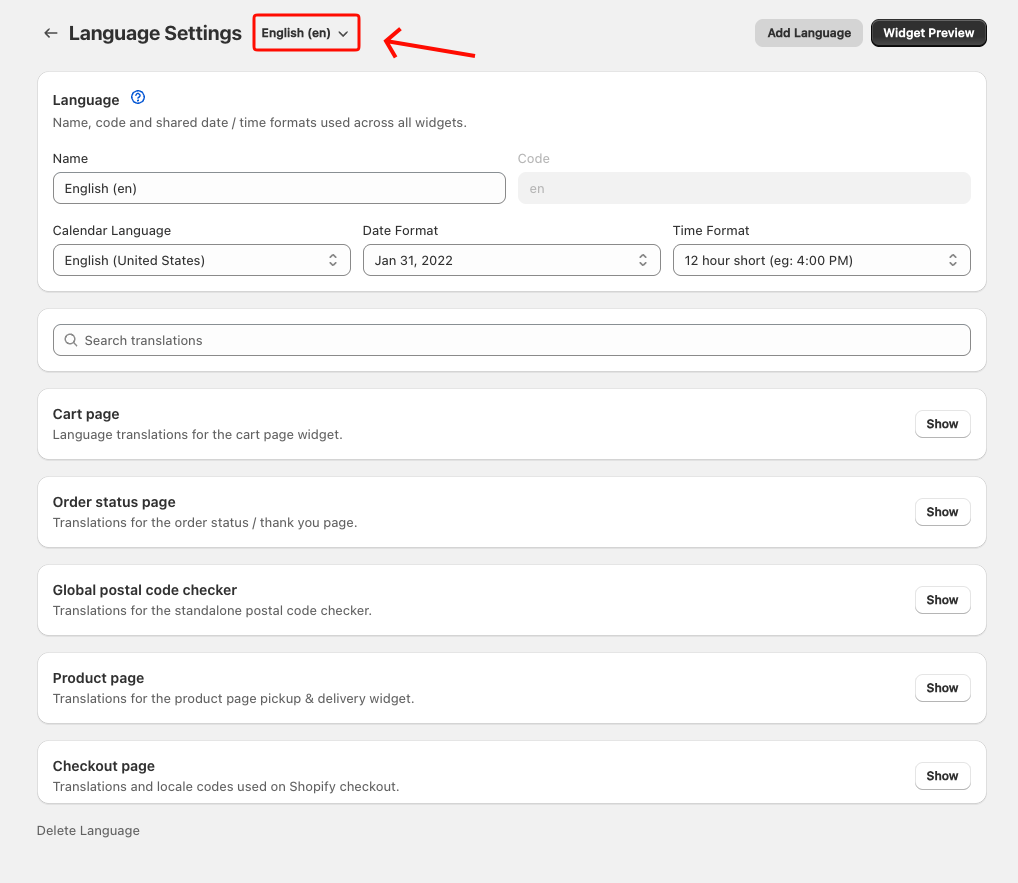
- If you have more than one language, pick the one you want from the language dropdown next to the page title.
Page Layout
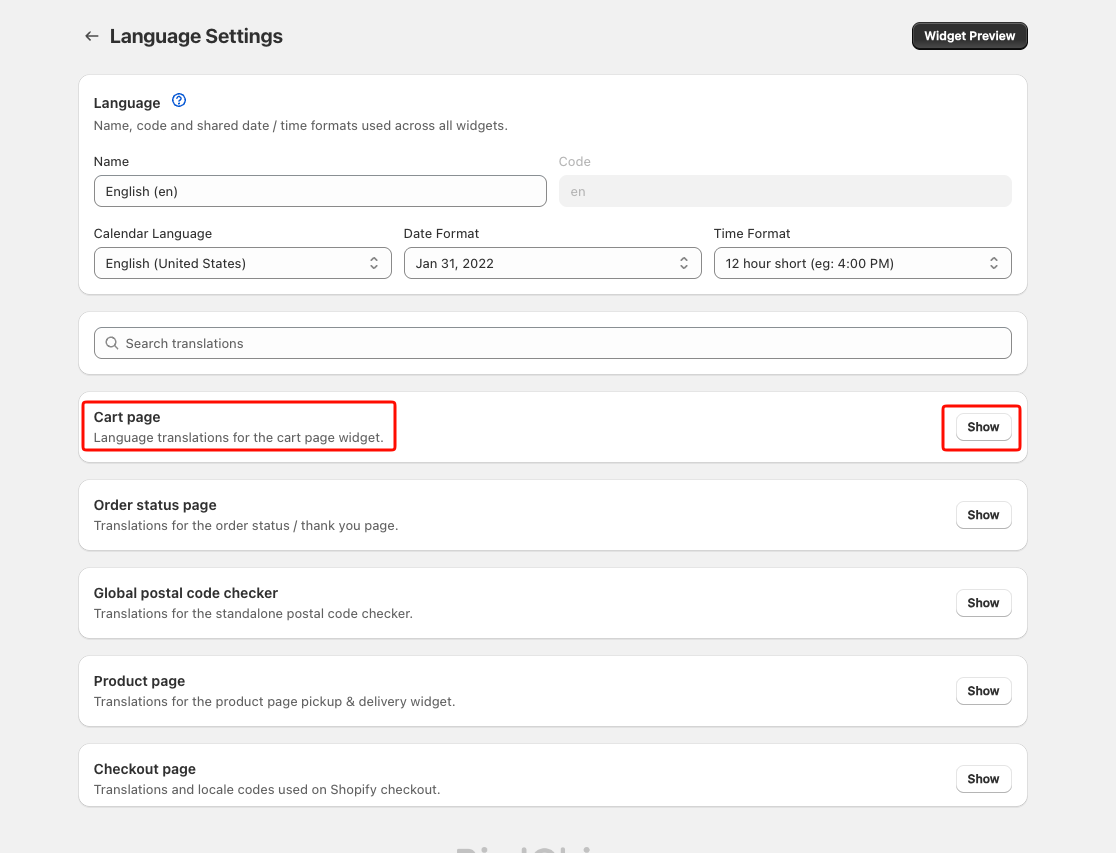
The page opens with all sections collapsed. Each section shows its title and a short description — click Show to expand it and reveal the fields inside, and Hide to collapse it again when you are done.
A search bar sits above the section list. Type any word — a field name, a hint, or part of a saved translation value — and matching fields appear instantly with their sections auto-expanded. Sections with no matches hide entirely. Clear the search to return to the collapsed overview.
Switch, Add, or Delete a Language
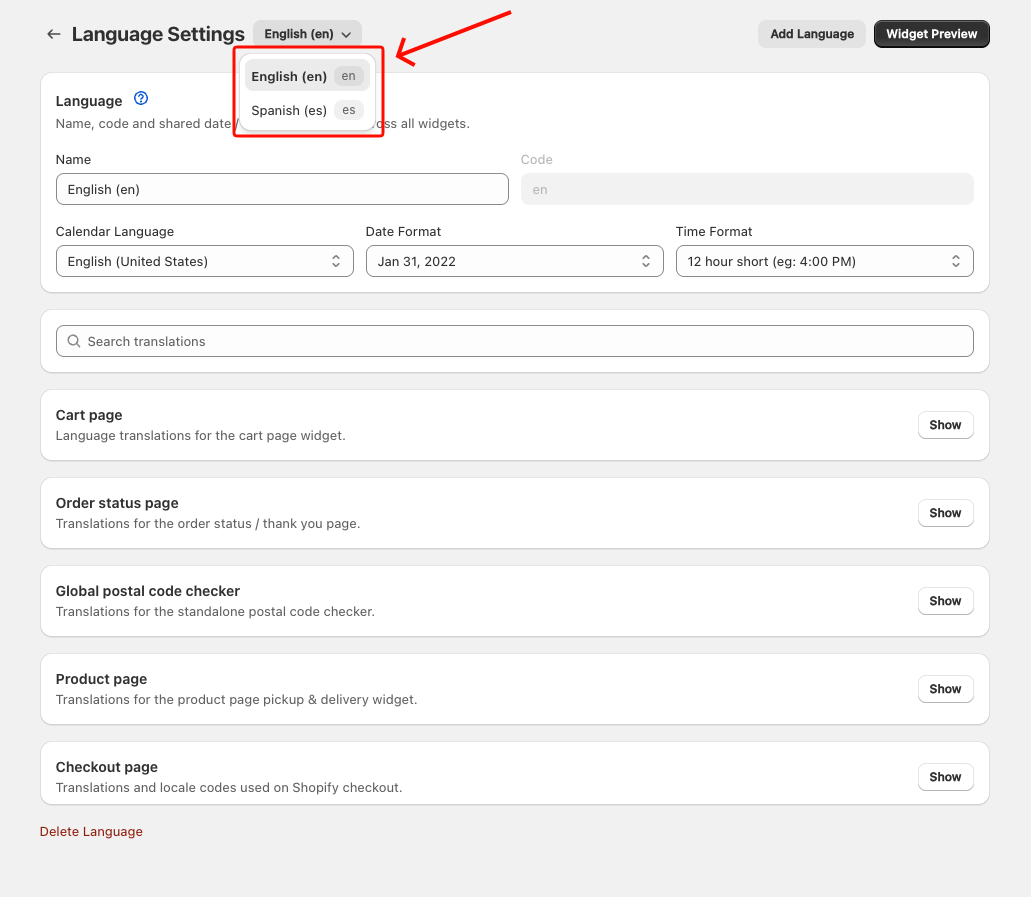
Switch language. Click the language dropdown next to the page title and pick a language. Each entry shows the language name and its code, for example fr-CA. If you have unsaved changes, Bird asks you to confirm before switching.
Add a language. Click Add Language in the top-right of the page. Choose the language code that matches your storefront. Bird opens the new language for editing straight away.
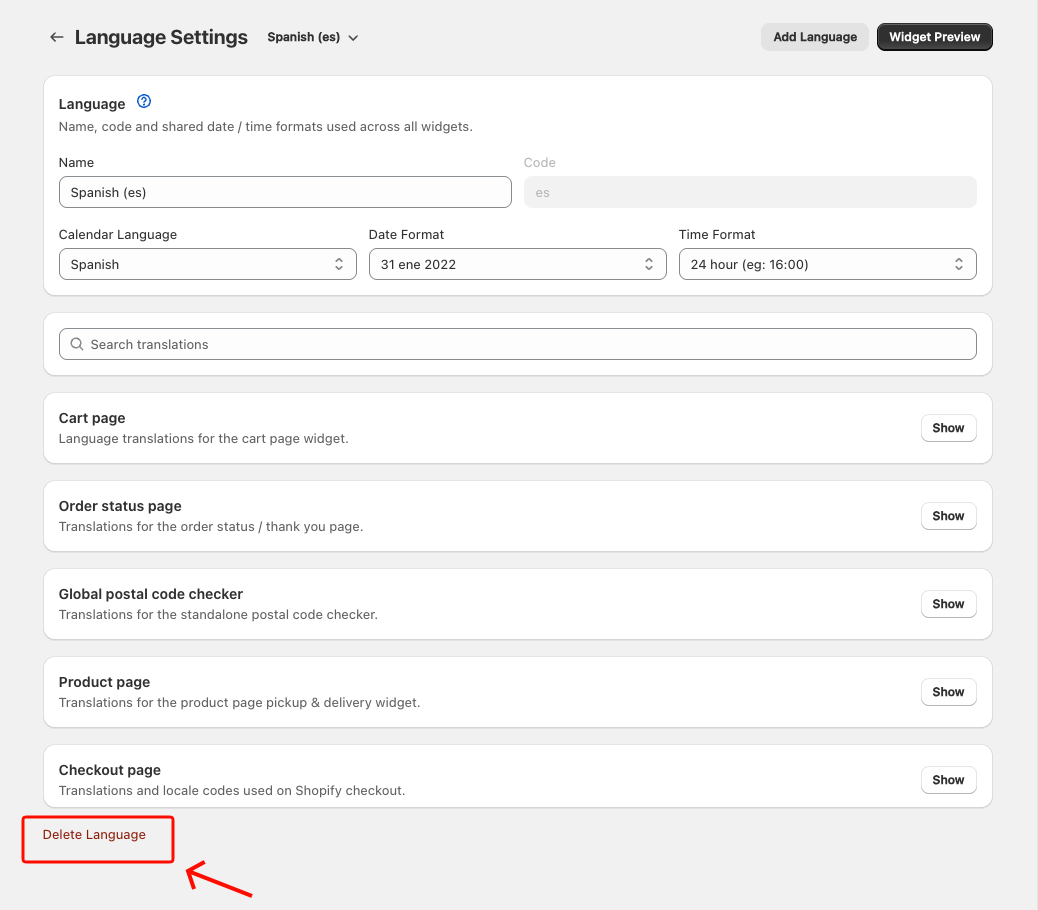
Delete a language. Scroll to the bottom of the page and click Delete Language. It deletes the language currently shown in the dropdown. You cannot delete your last language, so the button is grayed out when only one is left.
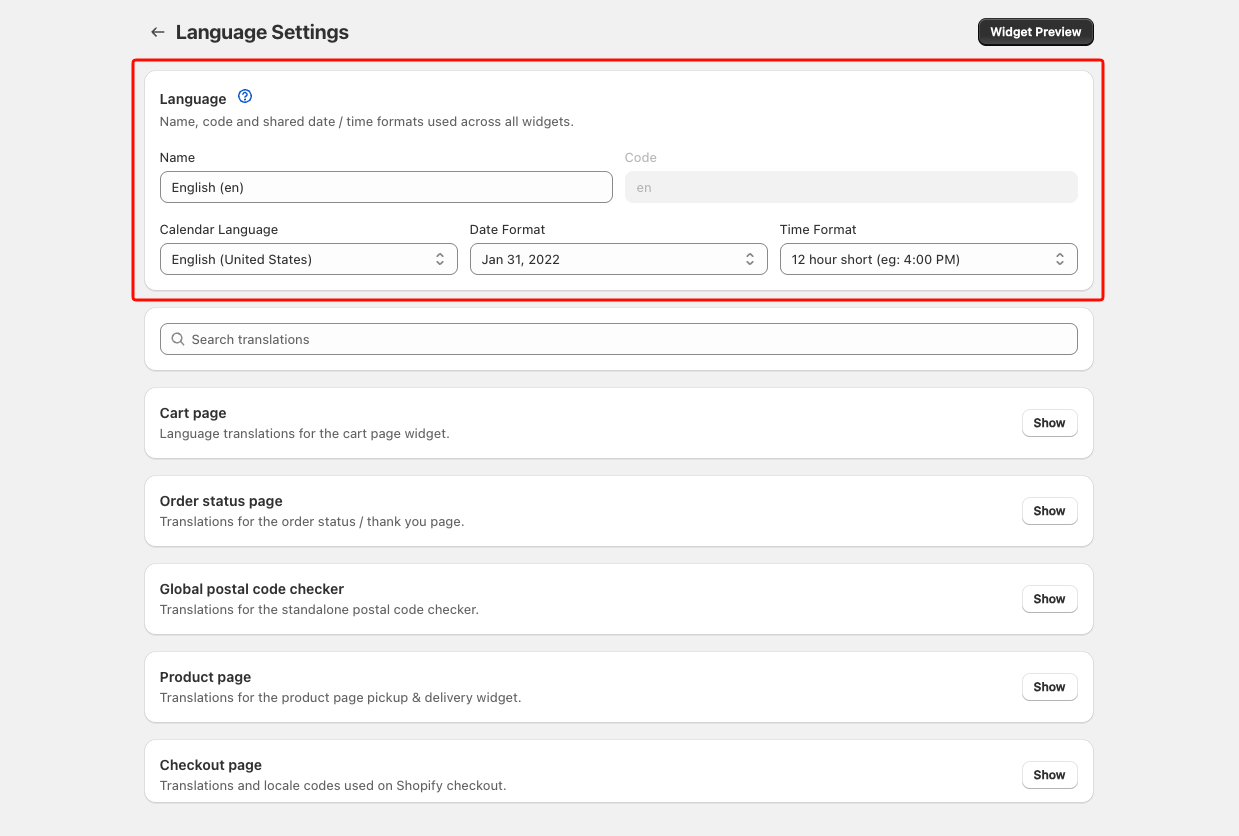
Language (always visible)
These fields are always visible at the top of the page and apply across every widget surface.
| Field | What it controls |
|---|---|
| Name | Display name for this language profile (visible in the Bird admin only) |
| Code | The language code (read-only; set when the language was created) |
| Calendar Language | The locale used by the date-picker — controls month names, weekday abbreviations, and locale-aware formatting |
| Date Format | How dates are displayed in the widget (short, medium, long, or full) |
| Time Format | 12-hour short, 12-hour long, or 24-hour clock |
Cart Page
Translation fields for the widget shown on the cart and drawer.
Labels
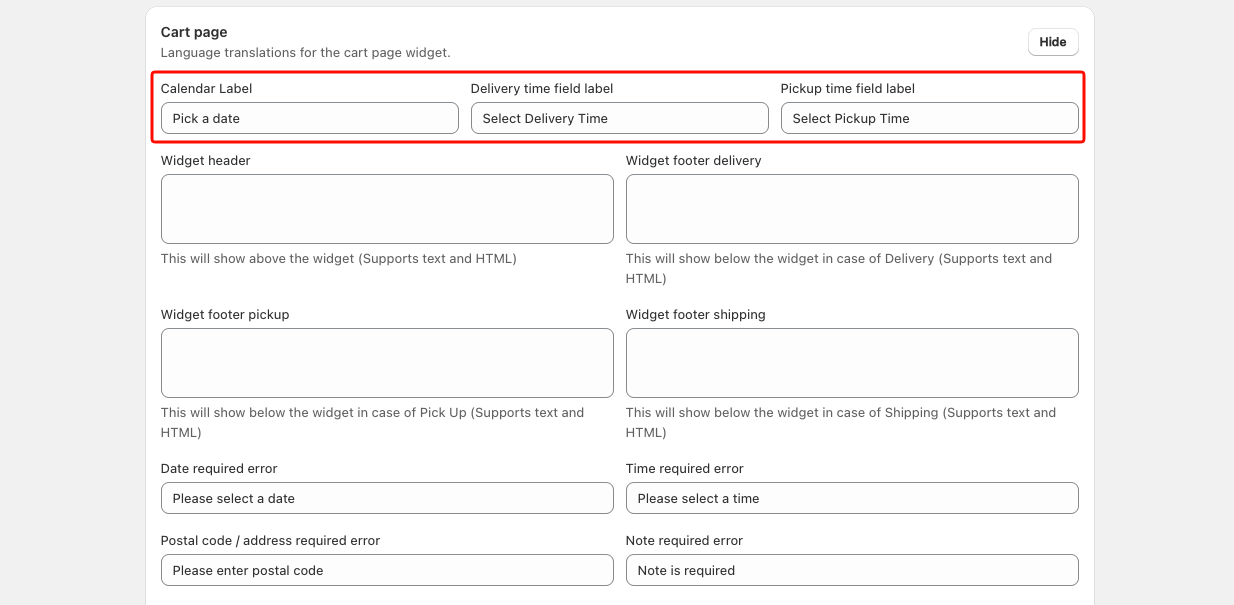
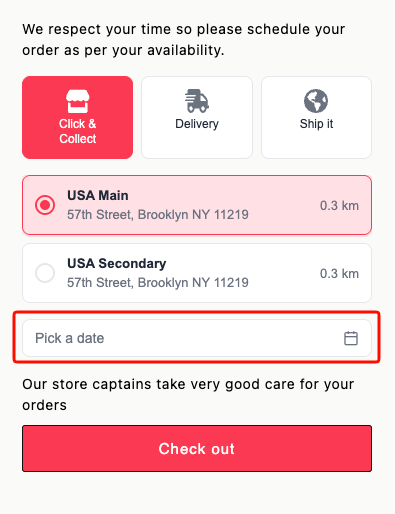
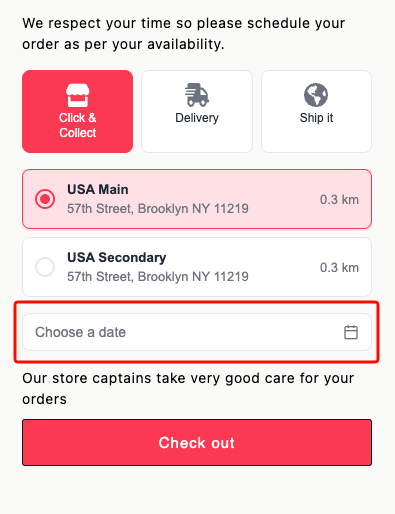
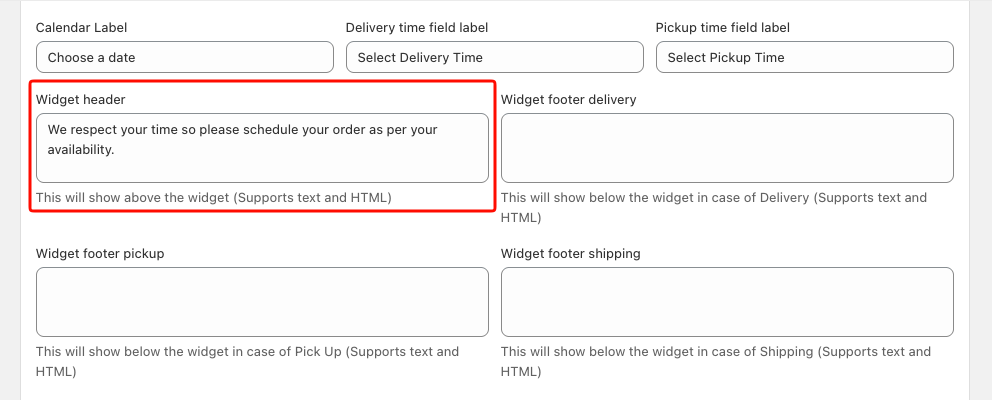
- Calendar Label — the prompt above the date picker (e.g. “Select a date”)
- Delivery time field label — label for the delivery time dropdown
- Pickup time field label — label for the pickup time dropdown
Widget Header and Footer
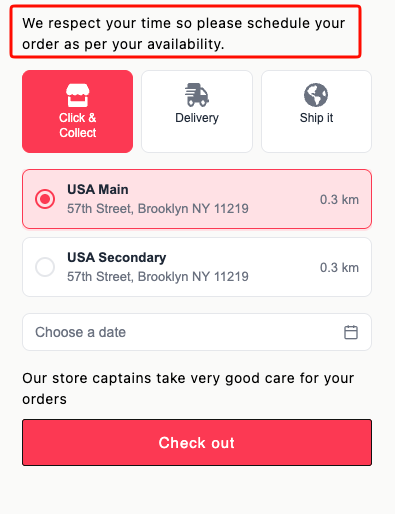
- Widget header — text shown above the entire widget; supports HTML
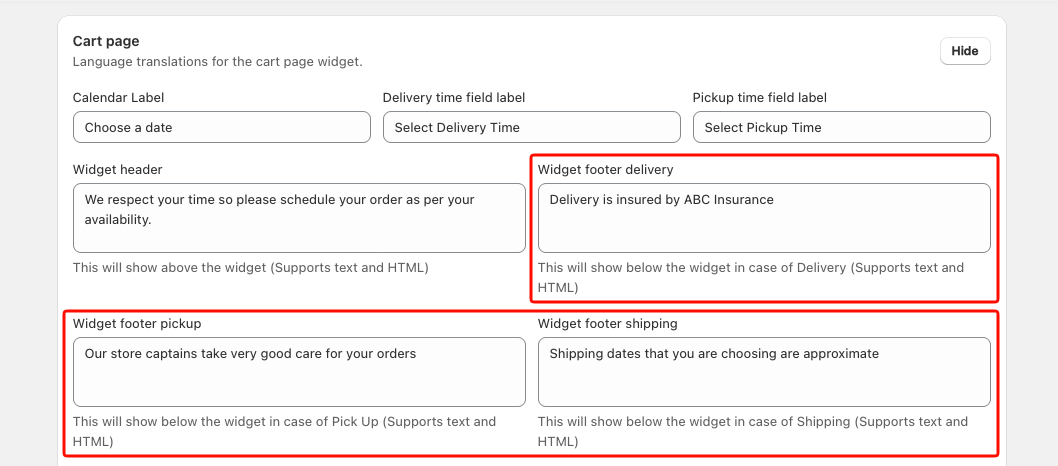
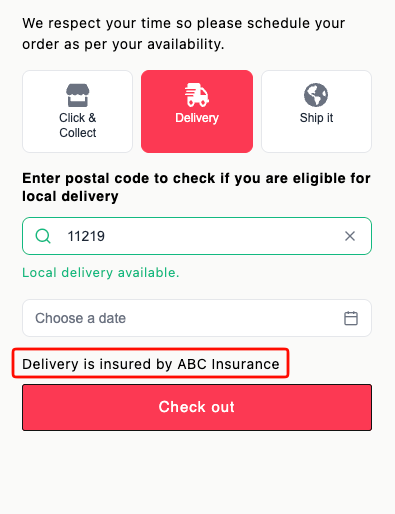
- Widget footer delivery — text shown below the widget when local delivery is selected; supports HTML
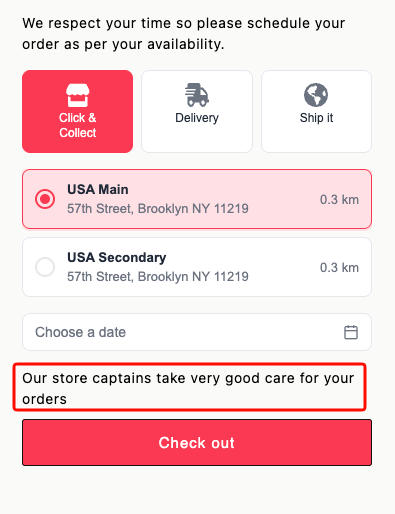
- Widget footer pickup — text shown below the widget when store pickup is selected; supports HTML
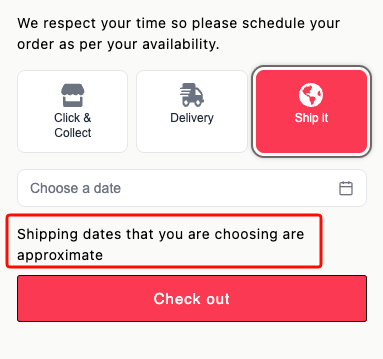
- Widget footer shipping — text shown below the widget when shipping is selected; supports HTML
Delivery Method Names
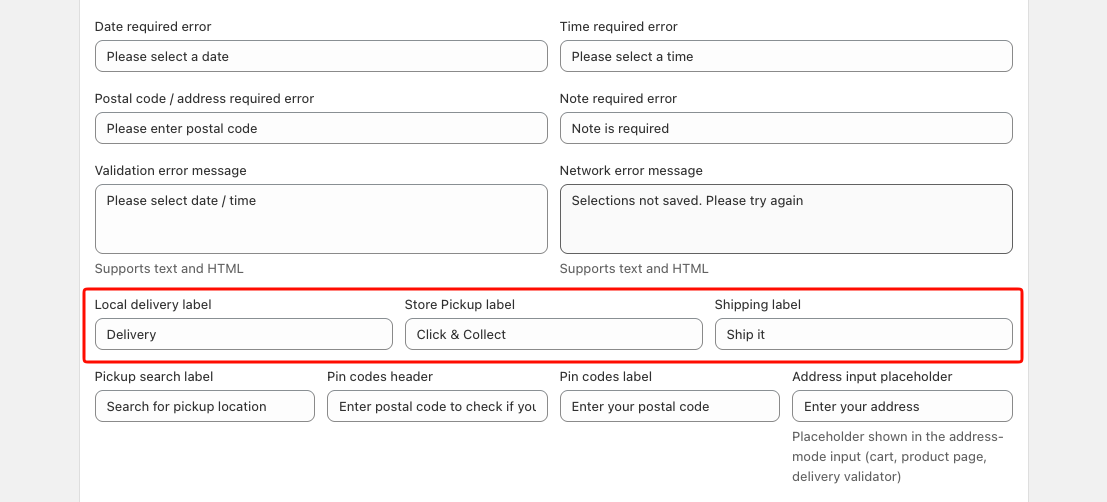
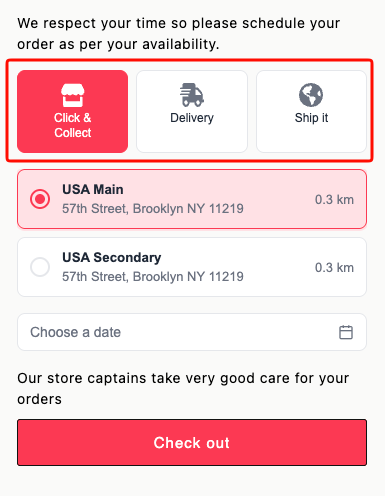
- Local delivery label — renames the “Local Delivery” tab
- Store pickup label — renames the “Store Pickup” tab
- Shipping label — renames the “Shipping” tab
Required-Field Errors
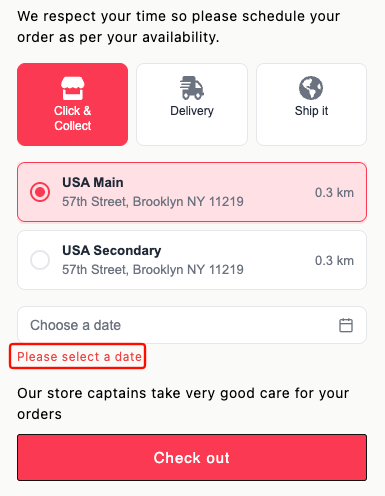
- Date required error — shown when a customer tries to check out without selecting a date
- Time required error — shown when a time slot selection is required but missing
- Postal code / address required error — shown when delivery validation requires an address
- Note required error — shown when a custom note field is marked required
Validation and Network Errors
- Validation error message — general checkout-blocked error; supports HTML
- Network error message — shown when the widget cannot reach the server; supports HTML
Address / Postal Code Fields
- Pickup search label — label for the store-search input in pickup mode
- Zip/postal codes header — heading above the postal code validation area
- Zip/postal codes label — label for the postal code input
- Delivery search label — placeholder for the delivery-mode location input (visible only when the delivery dropdown is enabled)
- Address input placeholder — placeholder text for the address input used in the cart widget, product page widget, and delivery validator
Postal Code Status Messages
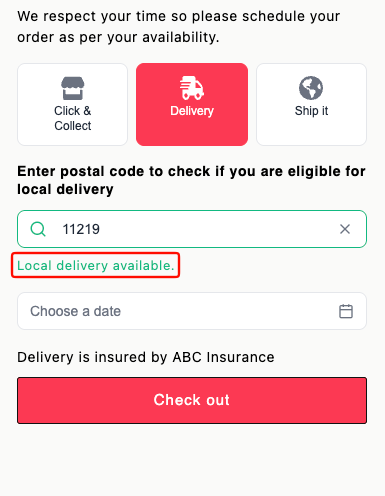
- Zip/postal codes success — message shown when the entered postal code is valid for delivery
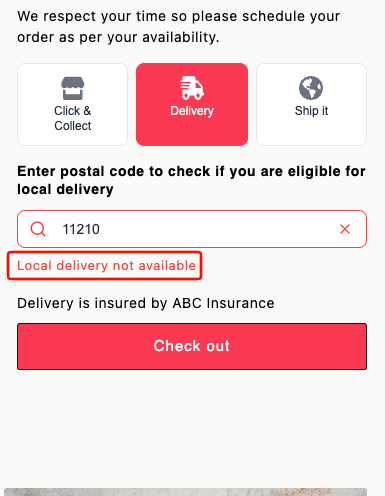
- Zip/postal codes error — message shown when the postal code is outside your delivery zone
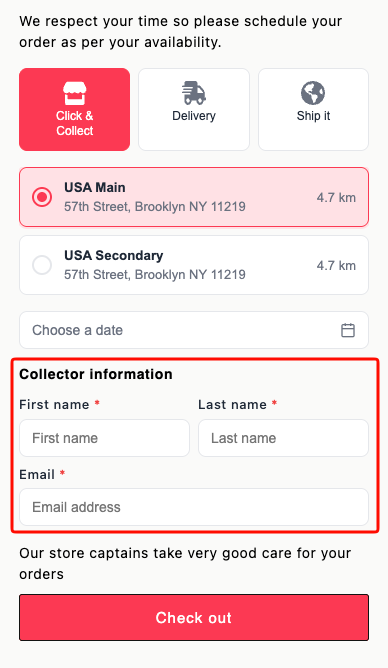
Collector Information
- Collector heading — section heading for the collector details form
- Collector name label — label for the collector’s name field
- Collector email label — label for the collector’s email field
Notes (per delivery method)
- Pickup note label / placeholder — for the note field on pickup orders
- Delivery note label / placeholder — for the note field on delivery orders
- Shipping note label / placeholder — for the note field on shipping orders
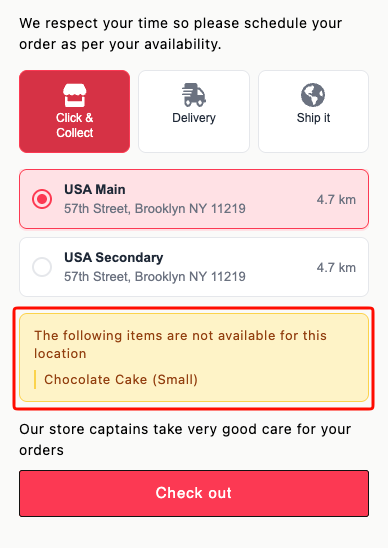
Product Availability Errors
- Pick up availability error — shown when cart items are not available for pickup
- Delivery availability error — shown when cart items are not available for delivery
- Shipping availability error — shown when cart items are not available for shipping
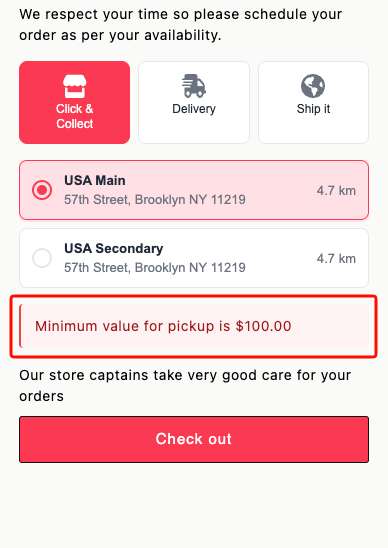
Minimum Order Value Errors
- Pick up minimum value error — shown when the cart total is below the pickup minimum
- Delivery minimum value error — shown when the cart total is below the delivery minimum
- Shipping minimum value error — shown when the cart total is below the shipping minimum
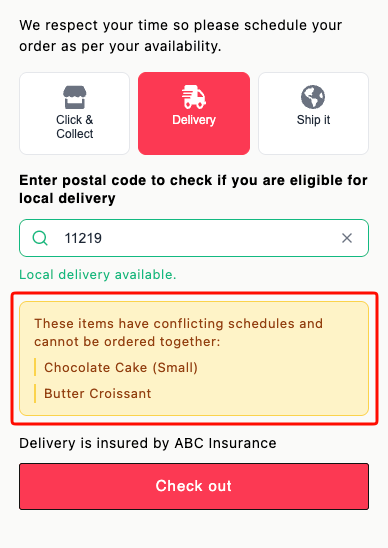
Mixed Cart Messages
- Cart eligibility message — shown when some cart items are not available for the selected fulfillment method
- Schedule conflict message — shown when cart items have incompatible availability schedules
Expiry and SMS Opt-In
- Selections expiry validation error — shown at checkout when a previously selected date/time has expired
- Message optin label — label for the SMS/marketing opt-in checkbox; supports HTML
Order Status Page
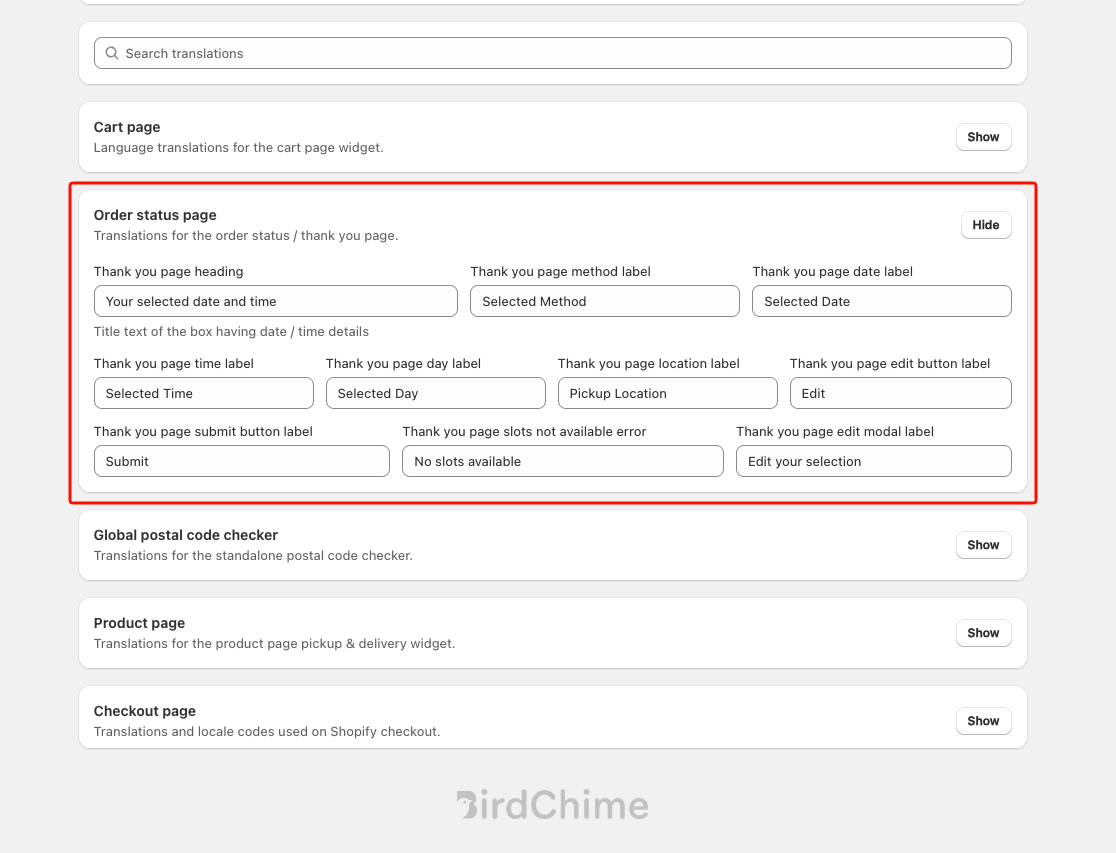
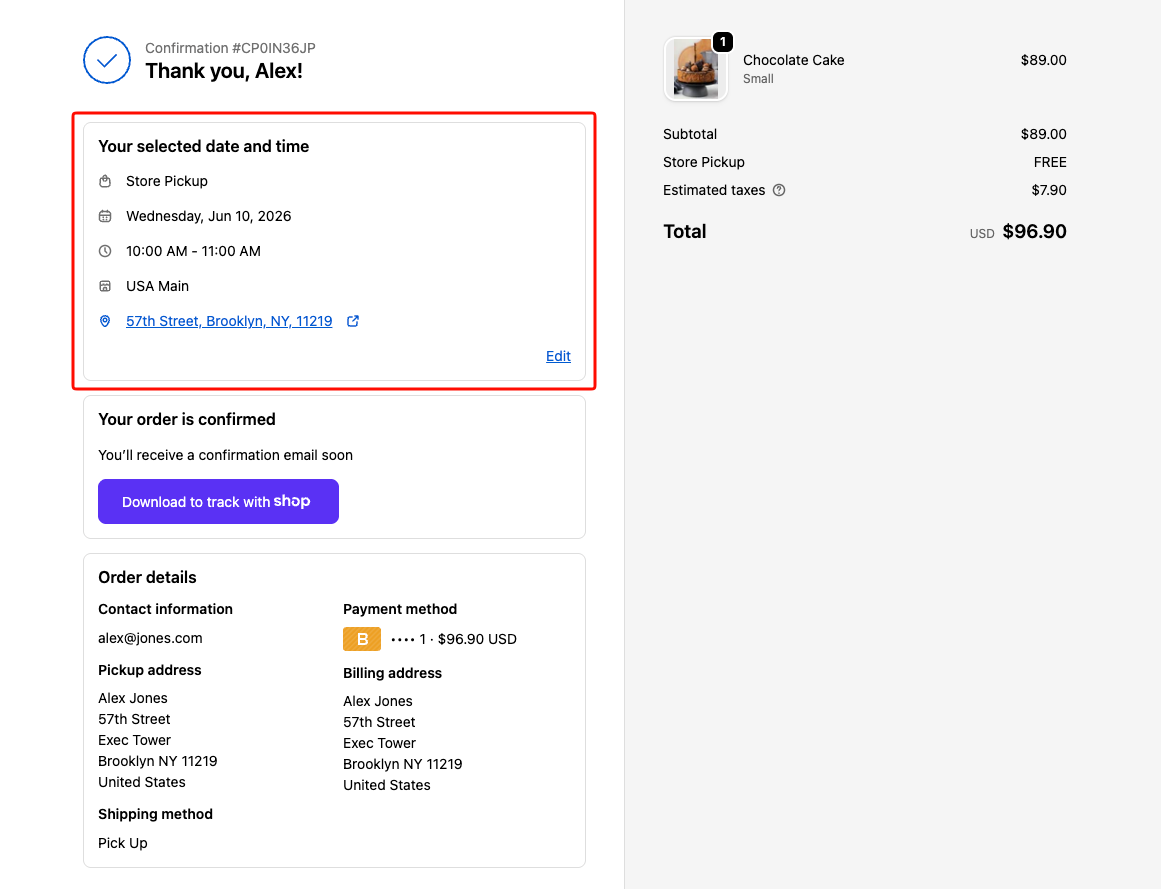
Translations for the delivery summary box on the Shopify thank-you and order status pages.
| Field | What it controls |
|---|---|
| Thank you page heading | Title of the date/time summary box |
| Thank you page method label | Label for the fulfillment method row |
| Thank you page date label | Label for the scheduled date row |
| Thank you page time label | Label for the time slot row |
| Thank you page day label | Label for the weekday row |
| Thank you page location label | Label for the pickup location row |
| Thank you page edit button label | Text on the “Edit” button |
| Thank you page submit button label | Text on the save button in the edit modal |
| Thank you page slots not available error | Error shown when rescheduling but no slots are open |
| Thank you page edit modal label | Heading inside the reschedule modal |
Global Postal Code Checker
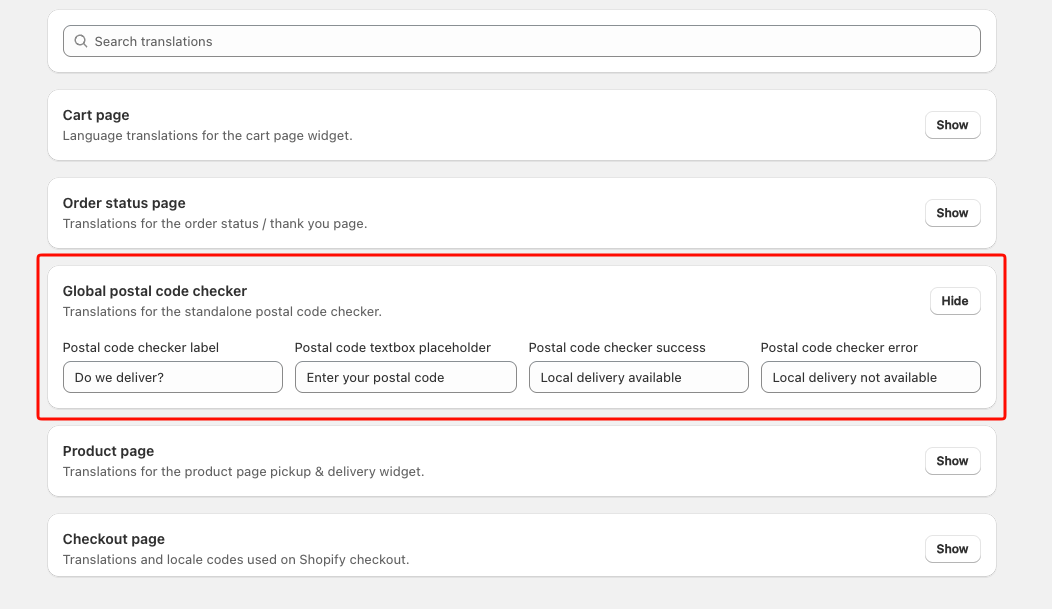
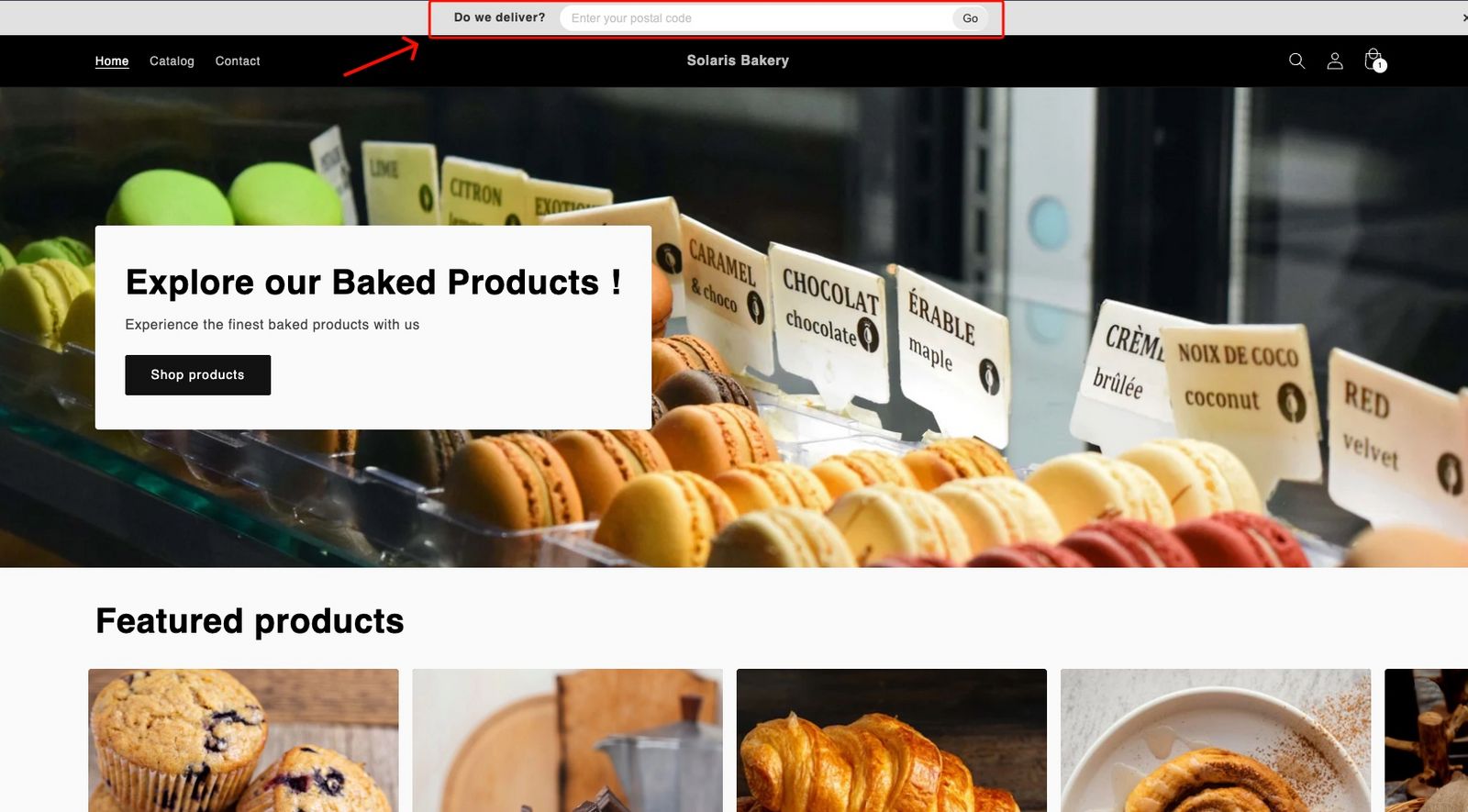
Translations for the standalone postal code checker widget that can be embedded anywhere on your storefront.
| Field | What it controls |
|---|---|
| Postal code checker label | Heading above the checker |
| Postal code textbox placeholder | Placeholder inside the input |
| Postal code checker success | Message when the postal code is serviceable |
| Postal code checker error | Message when the postal code is outside your delivery zone |
Product Page
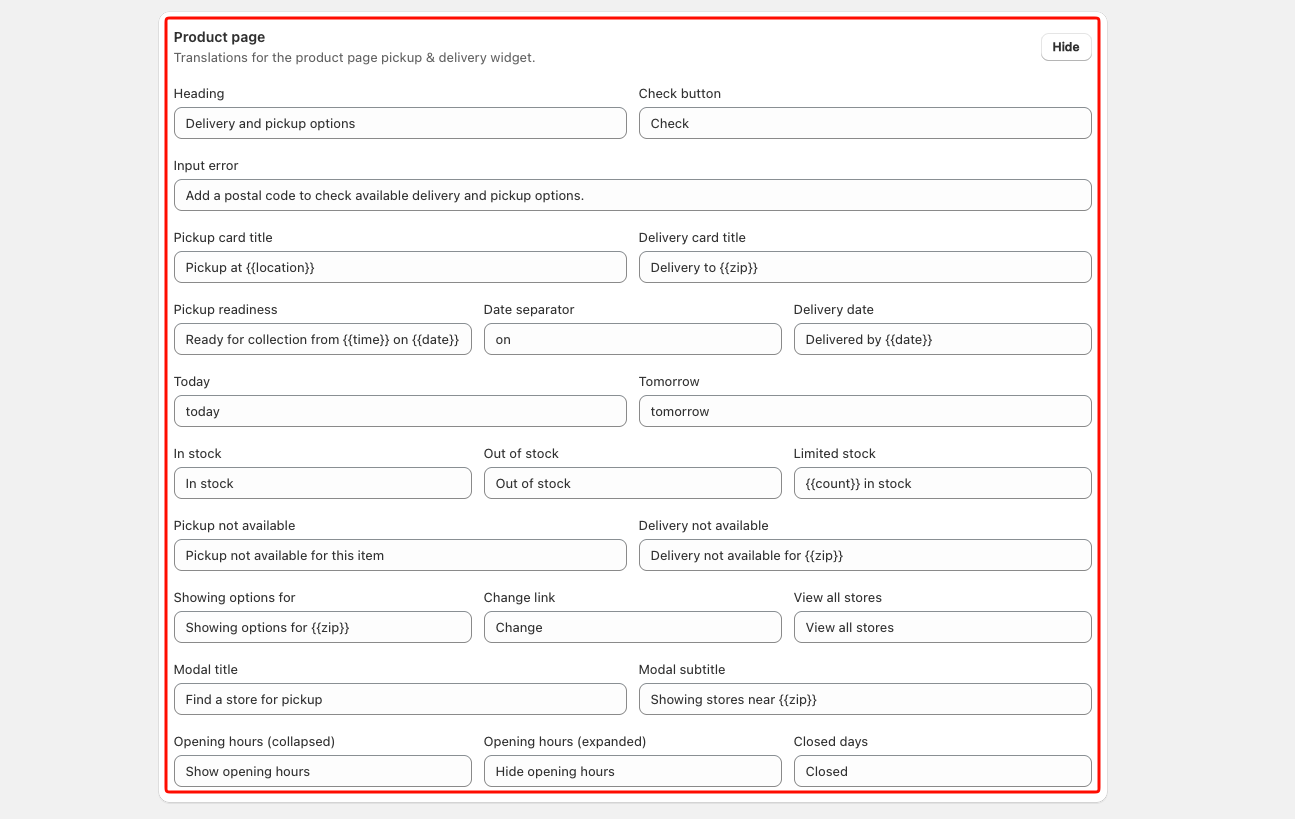
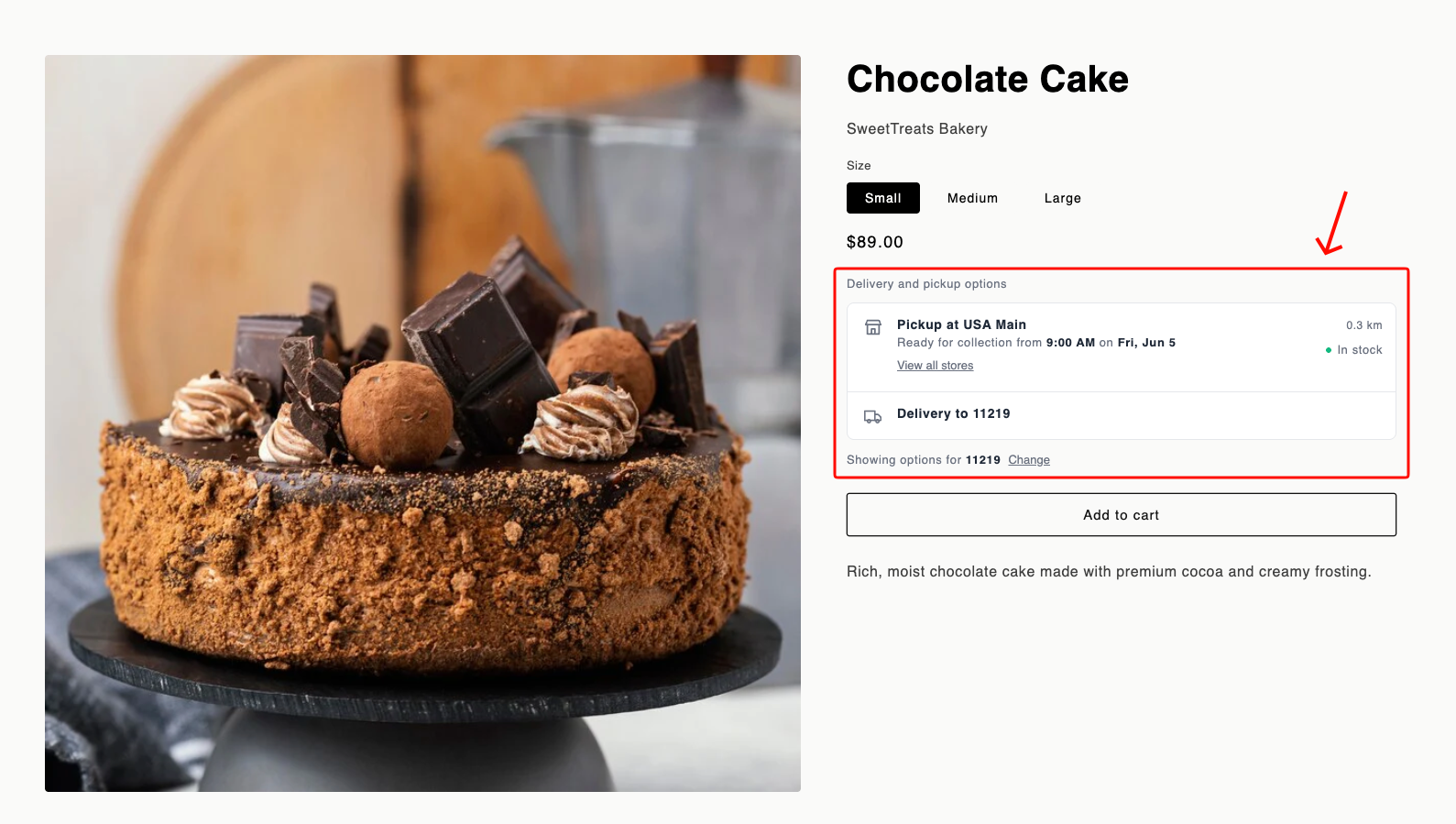
Translations for the product page widget that shows pickup and delivery availability directly on the product detail page.
Header and Input
- Heading — widget title (e.g. “Pickup & Delivery”)
- Check button — label on the submit button
- Input error — validation message when the address field is empty or invalid
Card Titles
-
Pickup card title — heading for the pickup result card; use
{{location}}to insert the store name -
Delivery card title — heading for the delivery result card; use
{{zip}}to insert the entered postal code
Readiness and Delivery Date
-
Pickup readiness — the “ready by” line on the pickup card; use
{{time}}and{{date}} - Date separator — the word between the time and date in the pickup readiness string (e.g. “on” in “Ready for collection from 4:00 PM on Jan 31”)
-
Delivery date — the estimated delivery line; use
{{date}}
Date Shortcuts
- Today — replaces the date with “Today” when the result is the current day
- Tomorrow — replaces the date with “Tomorrow” when the result is the next day
Stock States
- In stock — shown when inventory is available
- Out of stock — shown when inventory is zero
-
Limited stock — shown when inventory is low; use
{{count}}to display the quantity
Unavailable States
- Pickup not available — shown when pickup is not offered for the product or location
-
Delivery not available — shown when delivery is not available for the entered address; use
{{zip}}
Address Summary Row
-
Showing options for — confirms which address results are showing; use
{{zip}} - Change link — text on the link that lets customers re-enter their address
- View all stores — link that opens the full store list modal
Store Finder Modal
- Modal title — heading of the “Find a store” modal
-
Modal subtitle — context line below the title; use
{{zip}}
Opening Hours
- Opening hours (collapsed) — toggle label when hours are hidden (e.g. “Show opening hours”)
- Opening hours (expanded) — toggle label when hours are visible (e.g. “Hide opening hours”)
- Closed days — text shown for days the location is closed
Checkout Page
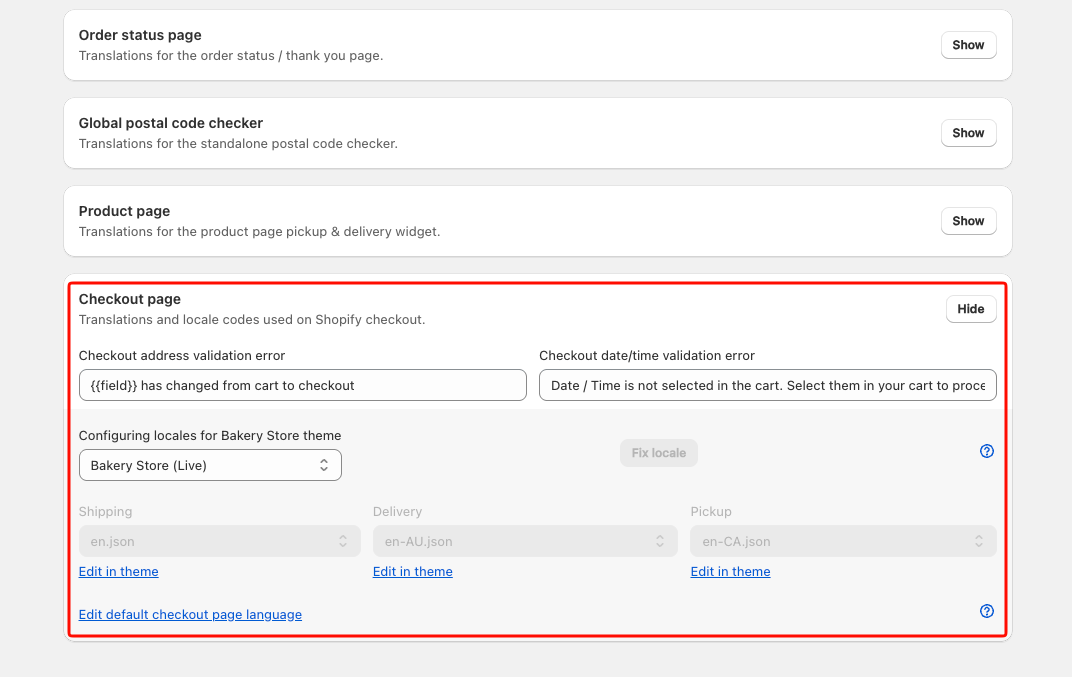
Translations and locale settings for Shopify checkout.
Validation Messages
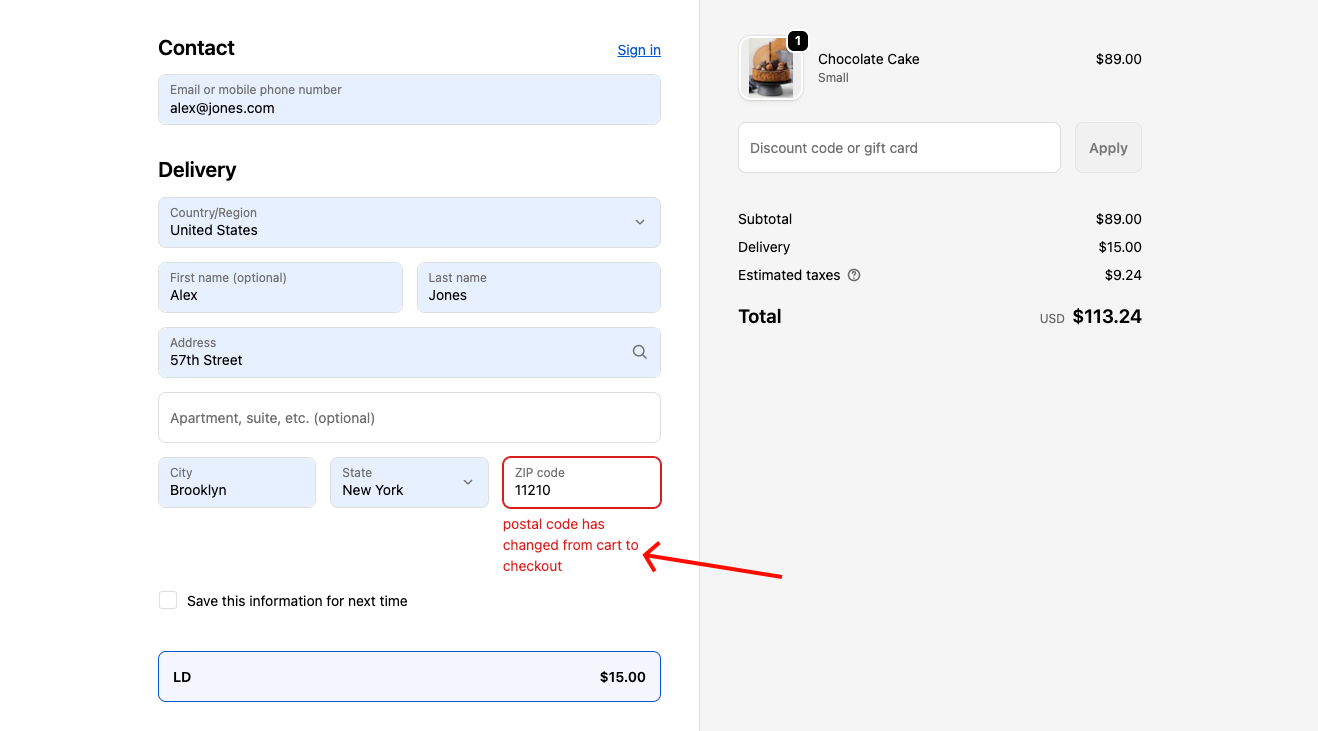
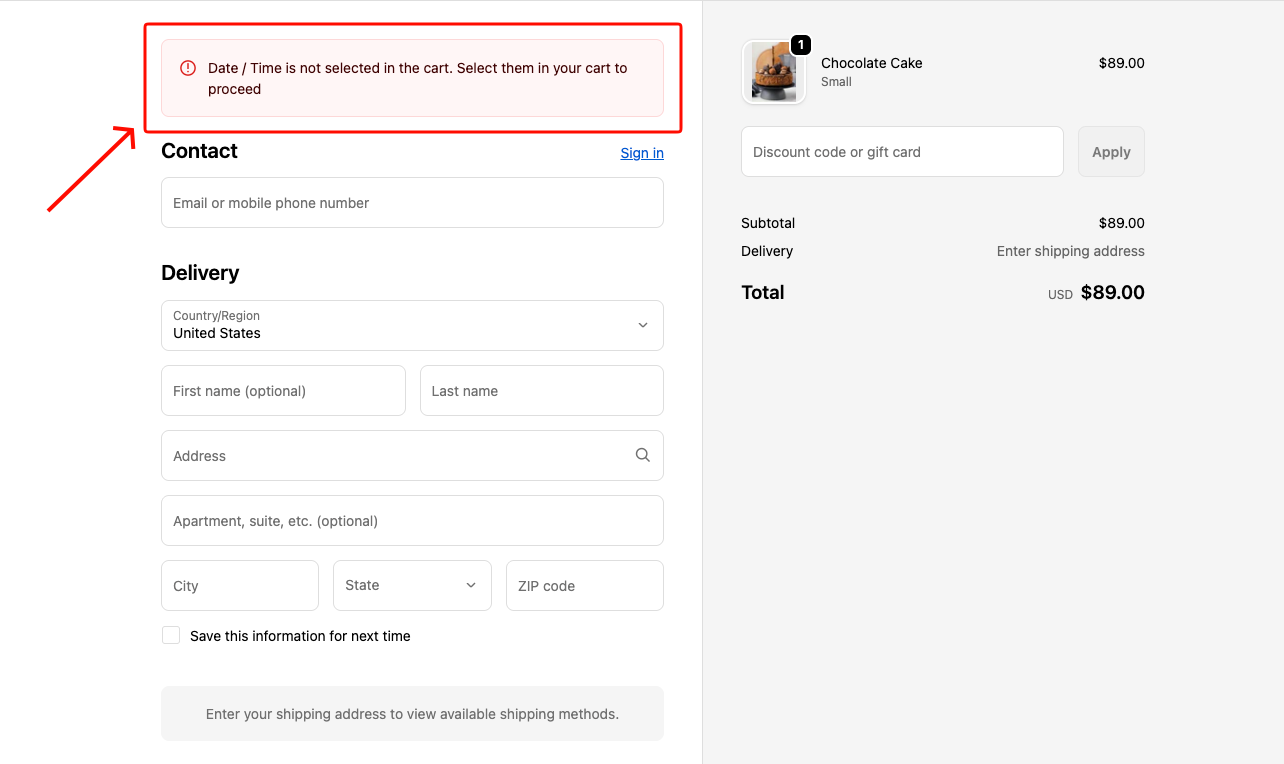
- Checkout address validation error — shown when the customer’s shipping address at checkout differs from the one entered in the cart
- Checkout date/time validation error — shown when the customer reaches checkout without having selected a date/time in the cart
Checkout Locale Selectors
These three dropdowns map Bird’s delivery method labels to Shopify’s built-in checkout locale strings, so the checkout page and order confirmation emails display the correct translated method names.
- Shipping — the Shopify locale entry used for shipping orders
- Delivery — the Shopify locale entry used for local delivery orders
- Pickup — the Shopify locale entry used for store pickup orders
If a warning icon appears on this section’s header, the locale files for this language are missing from your theme. See How to Set Up Checkout Locale Files to create them.
Previewing Your Changes
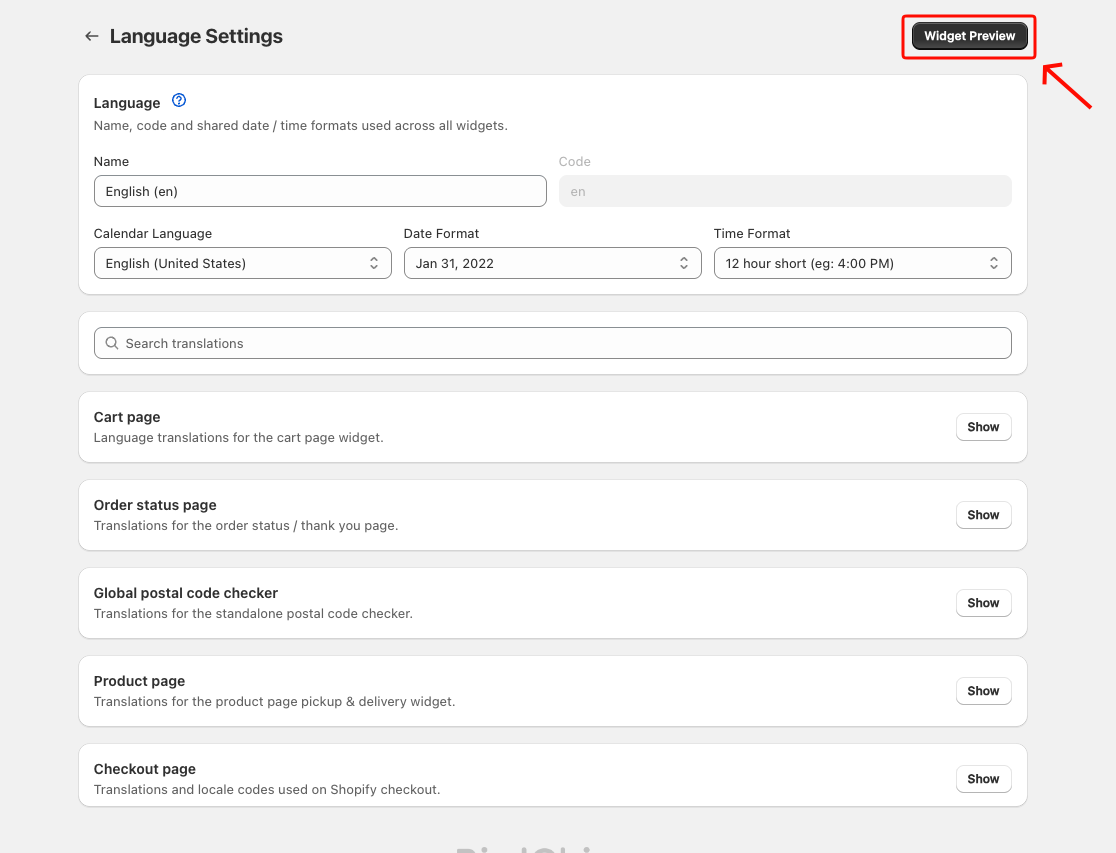
Use the Widget preview button (top-right of the page) to see your widget with the updated text before saving. Click Save in the save bar at the top of the page when you are ready to apply your changes.
Fields that support HTML accept basic tags like <b>, <i>, <a>, and <br>. Make sure all tags are properly closed to avoid display issues.
Related Articles
Was this article helpful?
Thanks for your feedback!