
 Shopify Configuration
Checkout Page Language
B
Written by Bird Pickup & Delivery
Updated October 16, 2026
Easily update your checkout page language using Bird Pickup & Delivery, even if you are not on the Advanced Shopify plan.
What is Checkout Page Language Modification?
Change the text your customers see at checkout. Use Bird App to customize pickup and delivery labels.
Why Use This Feature?
Personalize your checkout experience. Ensure your customers see clear, relevant language that matches your brand and fulfillment options.
Edit the Checkout Page Language
Follow these steps to update your checkout page language:
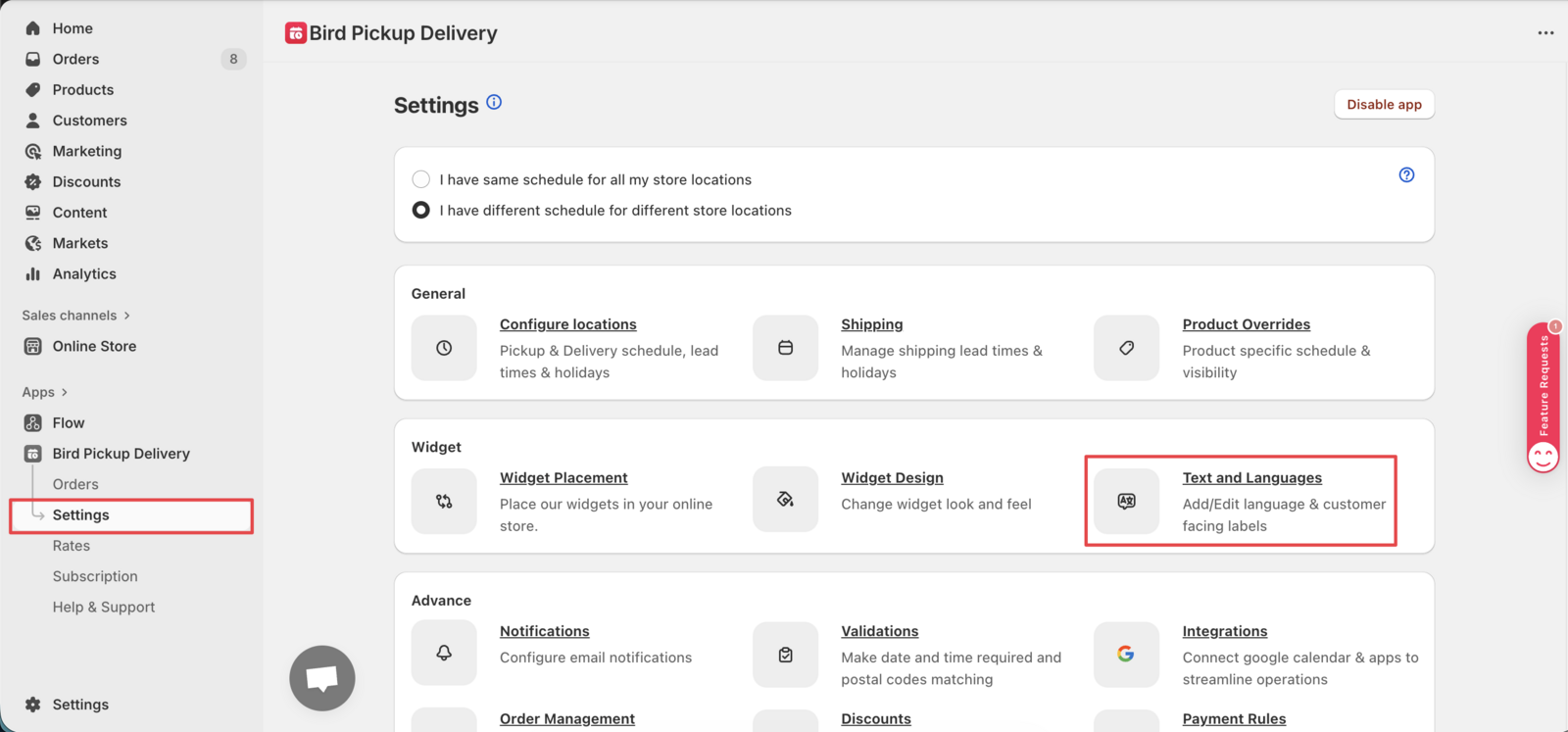
- Go to Bird Settings > Text and languages. The page opens directly on your default language. Use the language dropdown next to the page title to switch to another one.
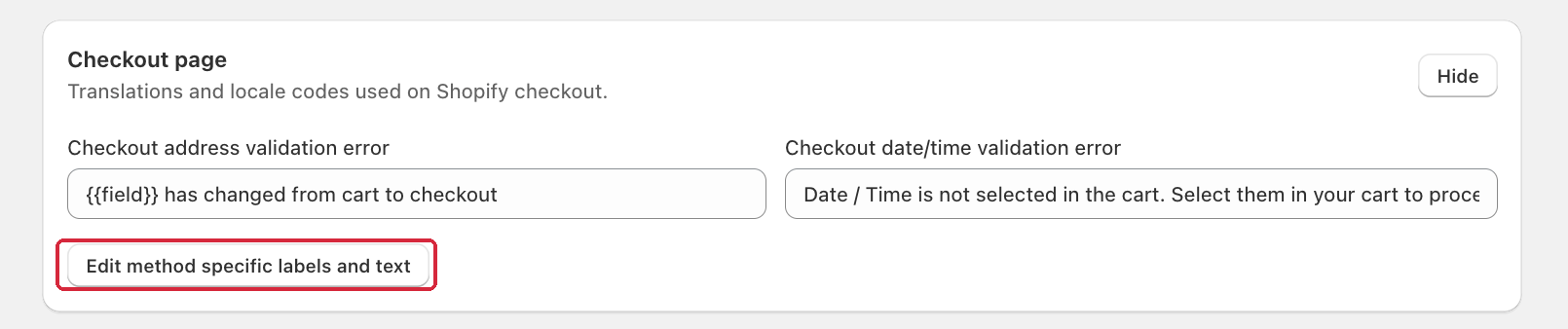
- Scroll to the Checkout page section, click Show to expand it, then click Edit method specific labels and text.
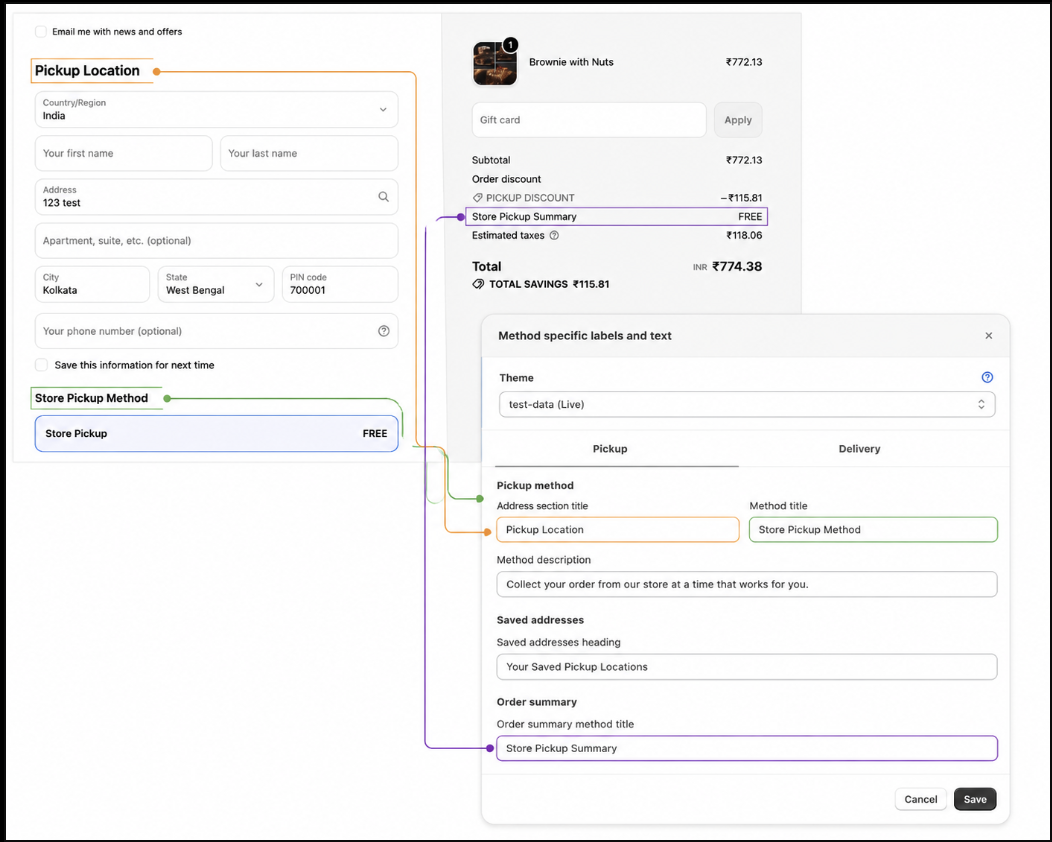
- Switch between the Pickup and Delivery tabs and change the labels you need, such as Method title or Address section title, then click Save.
- Reload your checkout page to see your changes live.
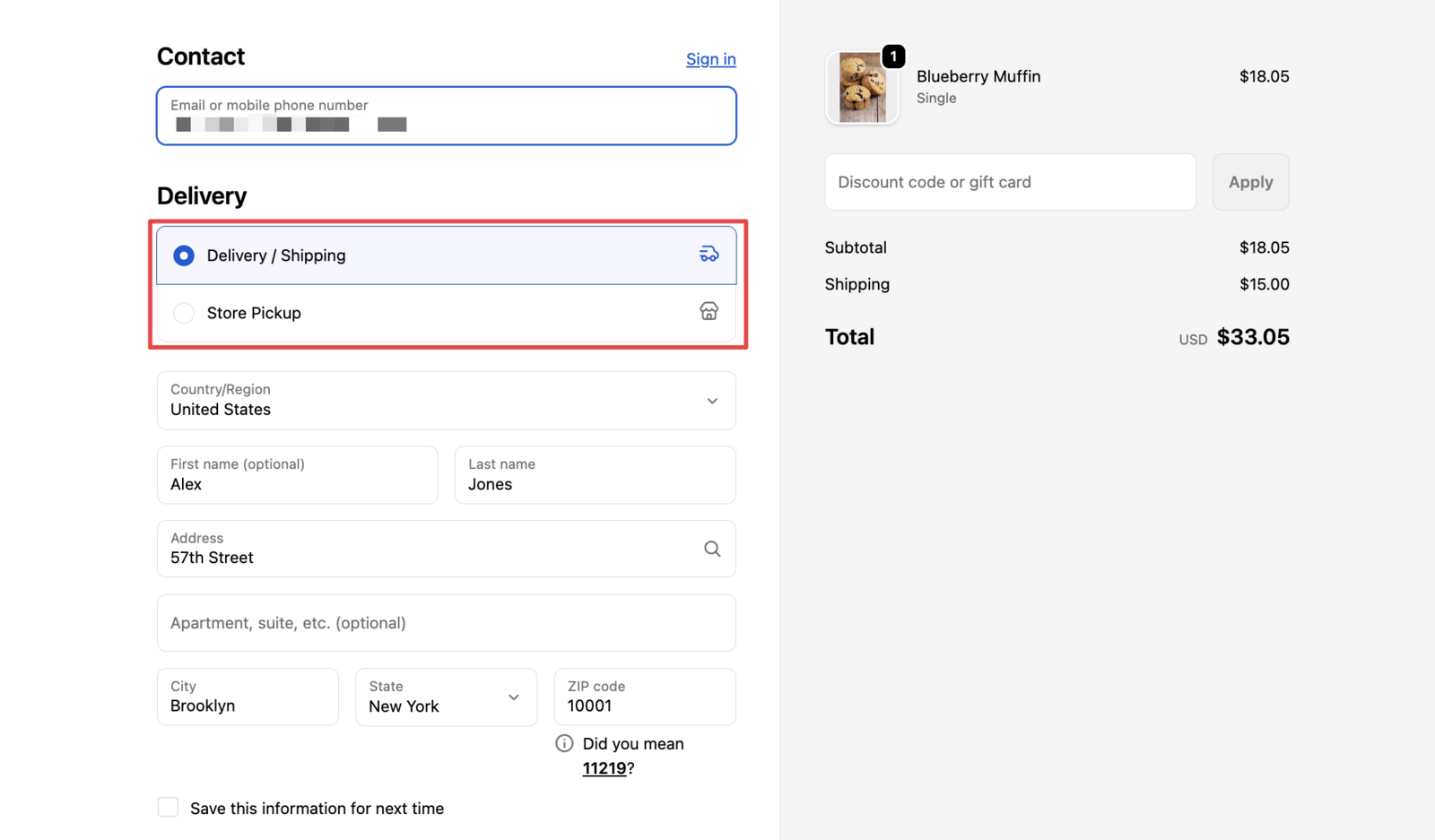
You have successfully updated your checkout page language. Your custom labels are now live for your customers.
Related Articles
Was this article helpful?
Thanks for your feedback!