
 Getting Started
Switching to the Current Widget
The current Bird widget is a complete rebuild — fast, scalable, and packed with new capabilities like the product page widget and a pickup store finder. All new installs already run it by default. If your store still runs the older legacy widget, this guide shows you how to switch.
Switching is one-way. Once you enable the current widget, the store cannot be moved back to the legacy widget from settings — reach out to us if you ever need to.
Step 1: Enable the Current Widget
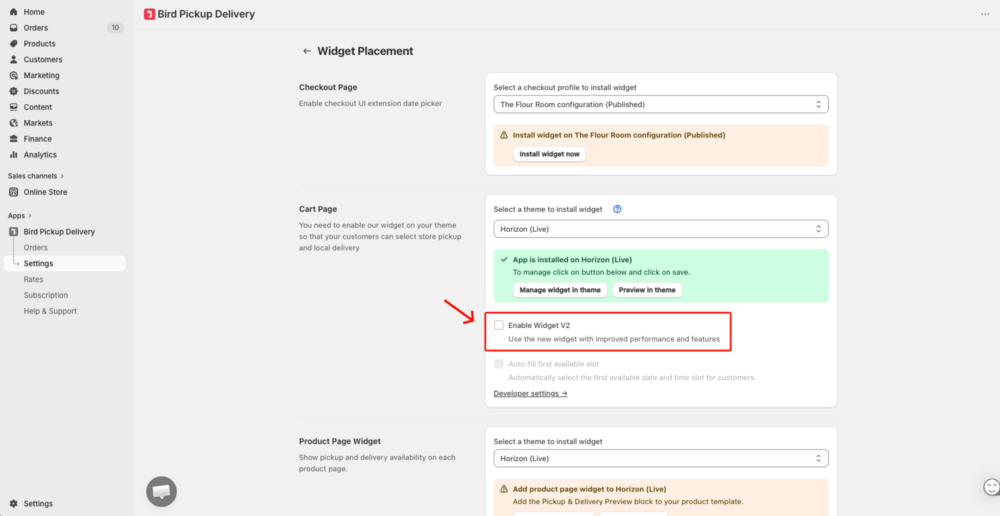
- In Bird, go to Settings → Widget Placement
- Under Cart Page, check Enable Widget V2
- A permissions dialog appears — click Update to approve
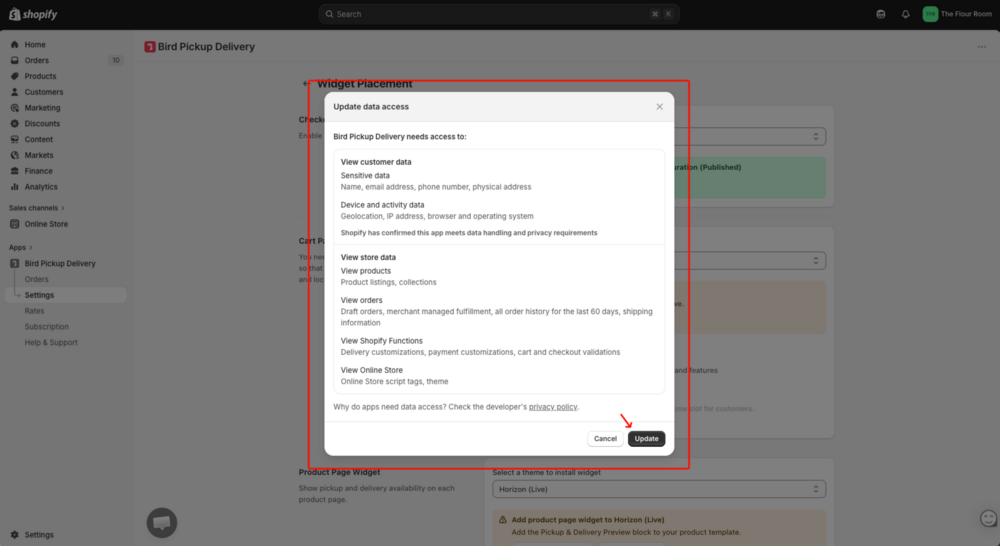
After approving, a save bar appears at the top of the page — click Save.
Only stores on the legacy widget see the Enable Widget V2 checkbox. If you don’t see it, your store already runs the current widget — you’re all set.
Step 2: Install the Widget in Your Theme
- In Settings → Widget Placement, under Cart Page, select your active theme from the dropdown
- Click Manage widget in theme — this opens the Shopify theme editor
- In the theme editor, confirm the Bird app embed is enabled
- Save the theme
Next Steps
Once you’ve switched, these features are available to enable in your settings.
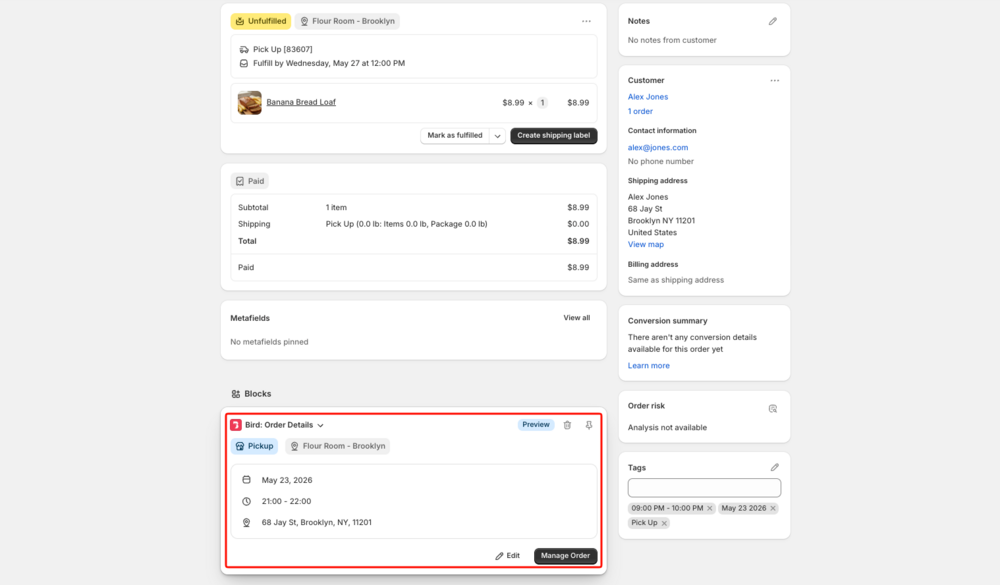
Bird Order Details Block
The details your customers select in the Bird widget appear in the Bird Order Details block right on Shopify’s order page — so you can see them without opening the Bird app.
What Changes for Your Customers
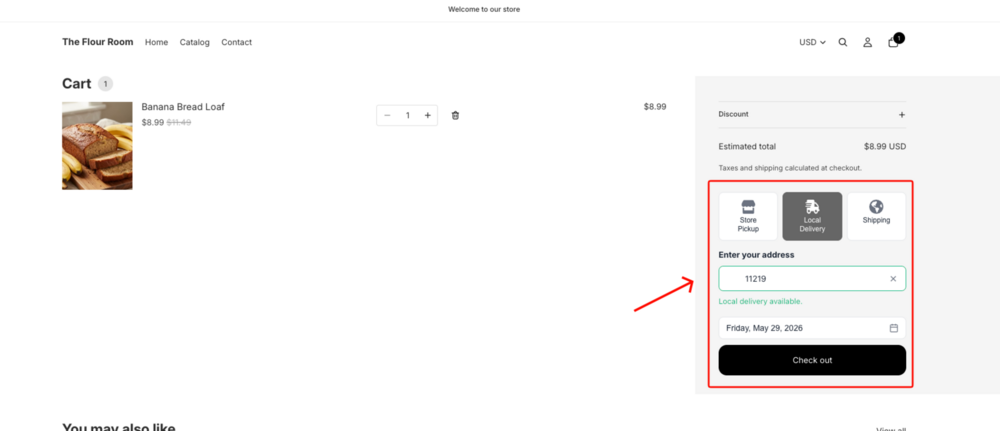
- Fast and scalable — built to handle high-traffic stores without slowdowns
- A completed selection is preserved if the customer navigates away and returns to the cart
- The customer’s zip or postal code is remembered for the current browsing session, so they don’t have to re-enter it as they shop
- Cleaner UI that works seamlessly with modern Shopify themes
Related Articles
Troubleshooting
Enable widget V2 checkbox is greyed out — Multi-location is not enabled. At the top of Bird Settings, choose I have different schedule for different store locations.
Widget not appearing after enabling — Go to Settings → Widget Placement, click Manage widget in theme, and re-save the theme in the Shopify editor.
Permissions prompt did not appear — Toggle the Enable Widget V2 checkbox off and on again to re-trigger the permission prompt.
Was this article helpful?
Thanks for your feedback!