
 Getting Started
Import Locations
Add many locations at once from a Google Sheet or CSV file. Use it for pickup points or delivery hubs that aren’t Shopify locations. To bring in your Shopify locations instead, see the Sync Shopify Locations article in Getting Started.
Before you start: your plan’s location limit
Imported locations count toward your plan’s location limit, the same as Shopify locations. Each imported location counts as one location. See Complete Guide to our Pricing & Plans for each plan’s limit.
A location counts only while it’s turned on:
- Different schedule for each location: a location counts once store pickup or local delivery is turned on for it.
- Same schedule for all locations: a location counts as soon as it’s imported.
To use more locations than your plan includes, approve extra usage from the Bird App subscription page (Update limit on monthly plans, or a top-up on annual plans). Each location over the limit is billed at USD 5 per month.
Step 1: Prepare your sheet
On the Import locations page, click Download Sample CSV to get the template. Use these column headers, spelled exactly as shown:
| Column | Required | What to fill | Example |
|---|---|---|---|
| Store Name | Yes | The location’s name, as customers see it in the widget | Sample Store |
| Address 1 | Yes | Street address | 123 Main Street |
| Address2 | No | Apartment, suite or unit | Suite 100 |
| City | Yes | City | New York |
| Zip | No | Postal or ZIP code | 10001 |
| Phone | No | The location’s phone number | +1-555-123-4567 |
| Country Code | Yes | Two-letter country code | US |
| Province Code | No | State or province code | NY |
| Iana Timezone | No | The location’s timezone. Leave blank to use your store’s timezone. | America/New_York |
| Position | No | The order locations appear in the widget. Leave blank in every row to sort alphabetically. | 1 |
- Address 1 has a space and Address2 doesn’t.
Step 2: Share the file
Use one of these:
- Google Sheets: put your locations on the first tab, then set sharing to Anyone with the link can view. Copy the link.
- CSV file: upload it to Shopify admin > Content > Files and copy its link.
The file must be under 5MB.
Step 3: Start the import
- Go to Bird Settings > Configure locations > Import locations.
- Paste the link into CSV file URL.
- Click Start import.
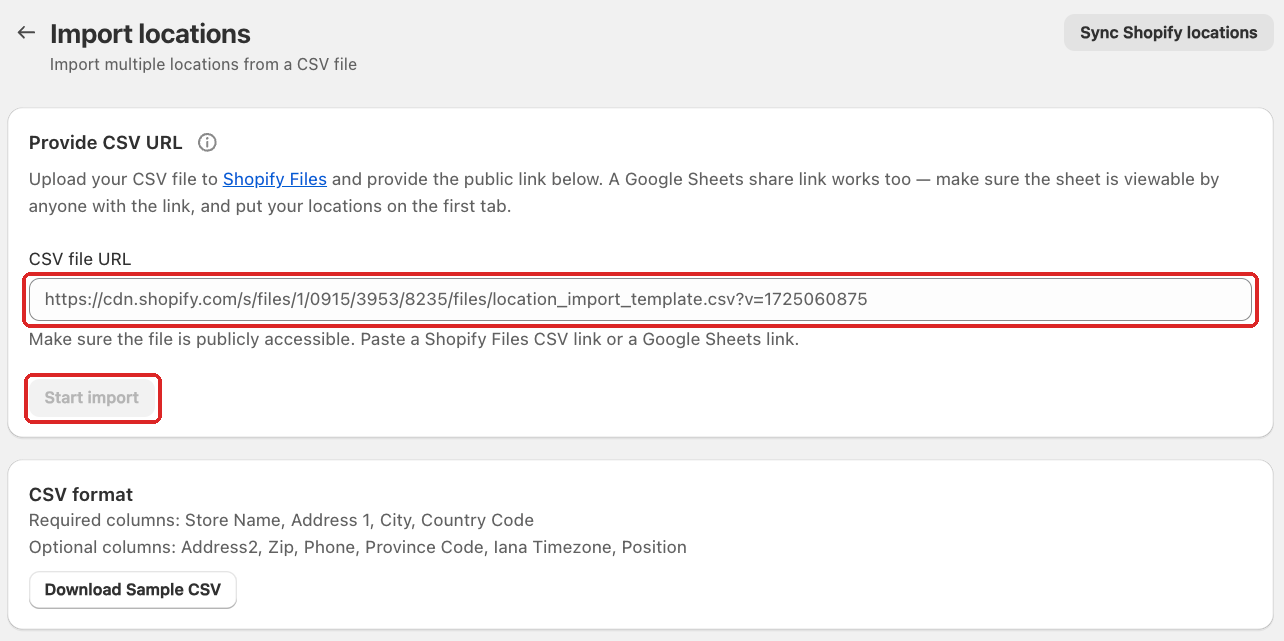
Stay on the page while it runs. When it finishes, you’ll see how many locations were imported. If some rows failed, click View errors to see the row number and reason.
Step 4: Turn on pickup or delivery
If you use a different schedule for each location, imported locations start with store pickup and local delivery turned off, so they don’t show in the widget yet. Turn on the methods you want at each one:
- Go to Bird Settings > Configure locations and open an imported location.
- Tick Enable store pickup, Enable local delivery, or both.
- Set up its schedule. See Set Up Different Schedules for Multiple Store Locations.
Repeat for each imported location. If you’ve reached your plan’s location limit, you’ll see Location limit reached and the method stays off.
If you use the same schedule for all locations, imported locations are turned on straight away and use your shared schedule. If you’ve reached your plan’s location limit, the rest are imported but left turned off. You’ll see “N locations were added but turned off because you’ve reached your plan’s location limit.” To use them, approve extra usage, then turn them on in Bird Settings > Configure locations.
Rows are matched by Store Name. If a row’s Store Name matches a location you already have, that location’s address is replaced. Only reuse an existing name when you mean to update that location.
Notes
- Imported locations exist only in Bird. They aren’t created in Shopify.
- Importing the same sheet again updates those locations instead of creating copies. If you rename a location in Bird first, the import creates a new one. If you use the same schedule for all locations, importing again also turns those locations back on.
- To stop offering an imported location, turn off its pickup and delivery in Bird. This also frees up a place in your plan’s location limit.
Troubleshooting
“That link returned an error.” The sheet or file isn’t public. In Google Sheets, set sharing to Anyone with the link.
“That link returned a web page, not a CSV file.” Paste the Google Sheets share link itself, or a direct link to the CSV file.
“That file is missing required column(s).” Check your headers match the table above exactly, including spaces.
“Row 5: City is required.” That row is missing a required value. Fill it in and import again. Rows that already imported are updated, not duplicated.
“Location limit reached.” You’ve used all the locations your plan includes. Turn off a location you no longer need, or approve extra usage from the Bird App subscription page. Then turn the location on again.
An imported location doesn’t show in the widget. Turn on store pickup or local delivery for it (Step 4).
Related Articles
Was this article helpful?
Thanks for your feedback!