
 Getting Started
Sync Shopify Locations
B
Written by Bird Pickup & Delivery
Updated November 6, 2026
Bird adds your Shopify locations automatically when you install it and whenever you create one in Shopify. If a location is missing from Bird, or its address is out of date, sync your Shopify locations to bring Bird up to date.
Sync Shopify locations
- Go to Bird Settings > Configure locations.
- Click Import locations.
- Click Sync Shopify locations.
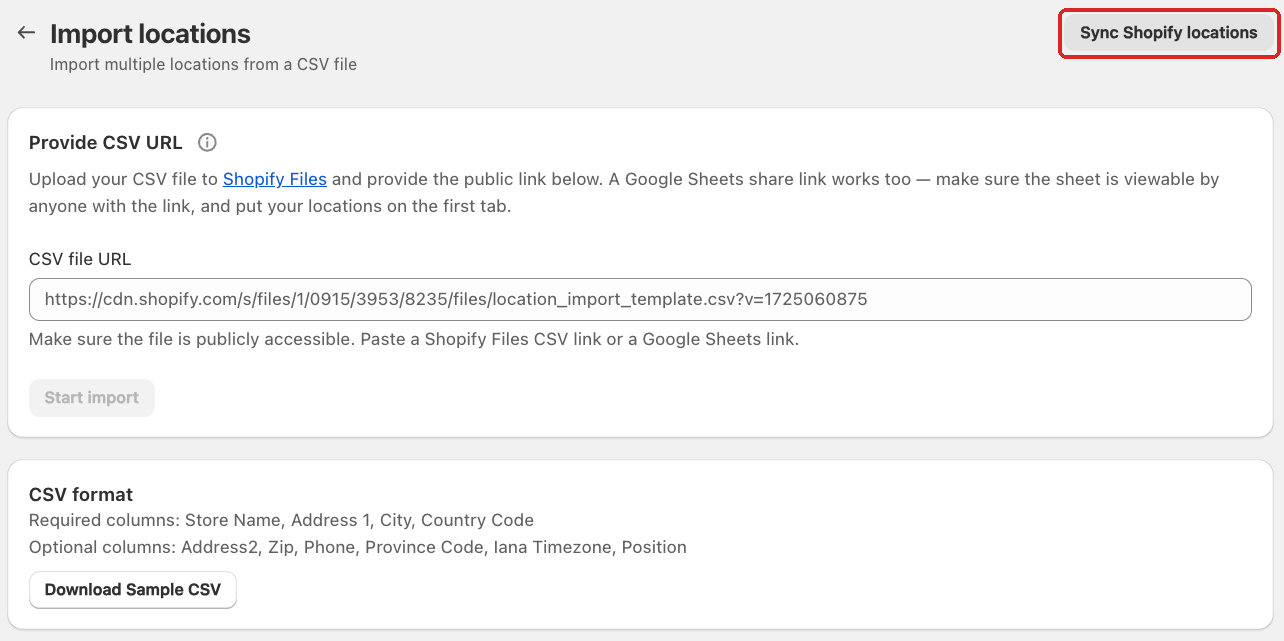
The sync runs in the background. Reload the Locations page after a minute to see the results.
The sync copies each location’s name, address and phone from Shopify.
If you use the same schedule for all locations, the sync also turns each location on or off to match Shopify. If you’ve reached your plan’s location limit, a location that’s turned off in Bird stays off. See Complete Guide to our Pricing & Plans for each plan’s limit.
Notes
- Bird never deletes a location, even if you delete it in Shopify. To stop offering a location, turn off its pickup and delivery in Bird.
- New location on the Locations page opens Shopify admin. To add a location that only exists in Bird, use Import locations on the same page. See the Import Locations article in Getting Started.
Related Articles
Was this article helpful?
Thanks for your feedback!