
 Getting Started
Set Up the Same Schedule for All Store Locations
Multi-location setup is now the default in Bird. For almost all stores we recommend setting up schedules per location instead. It works even when your locations share identical hours today, and it lets any location diverge later without reconfiguring everything. Use a single shared schedule (described below) only if you specifically prefer one global schedule or run a single-location store.
This guide covers the same schedule for all locations mode: one configuration for operating hours, preparation times, and product availability that applies to every location.
When to Use a Unified Schedule
Choose this option if:
- All locations operate on identical hours and holidays
- You prefer one schedule for every location
- You manage a single-location store
Step 1: Select Schedule Mode
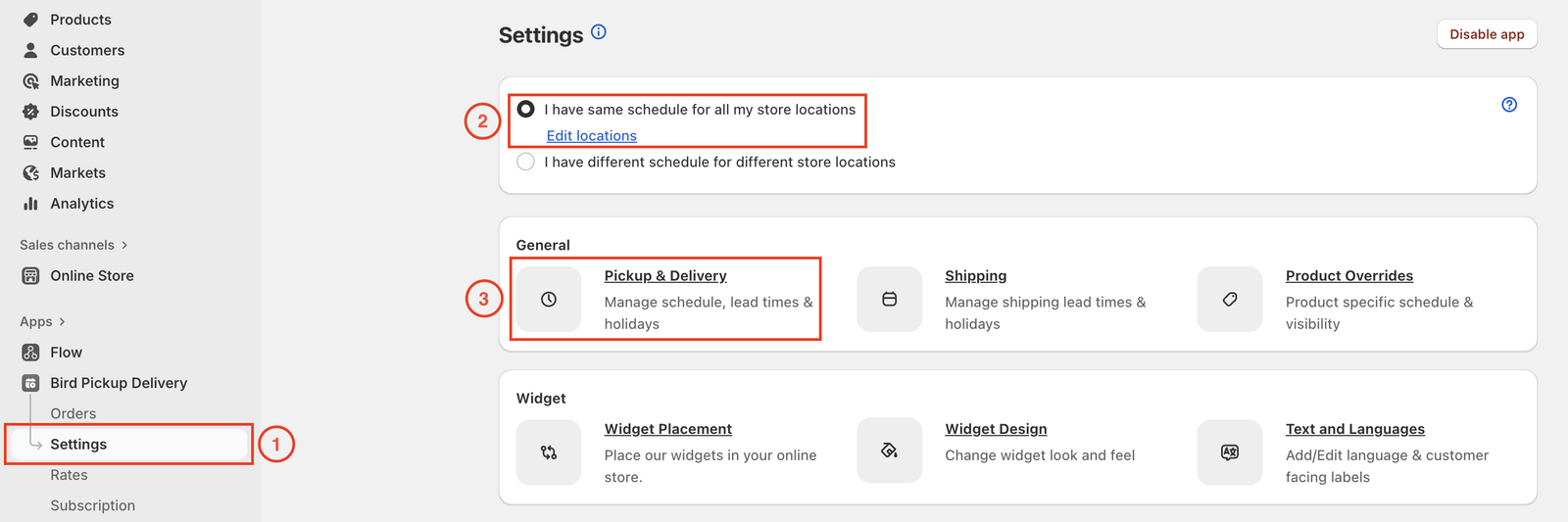
- Go to Settings in Bird App.
- Select I have same schedule for all my store locations.
- To configure the delivery methods, click the Pickup & delivery tile
Step 2: Enable Delivery Methods
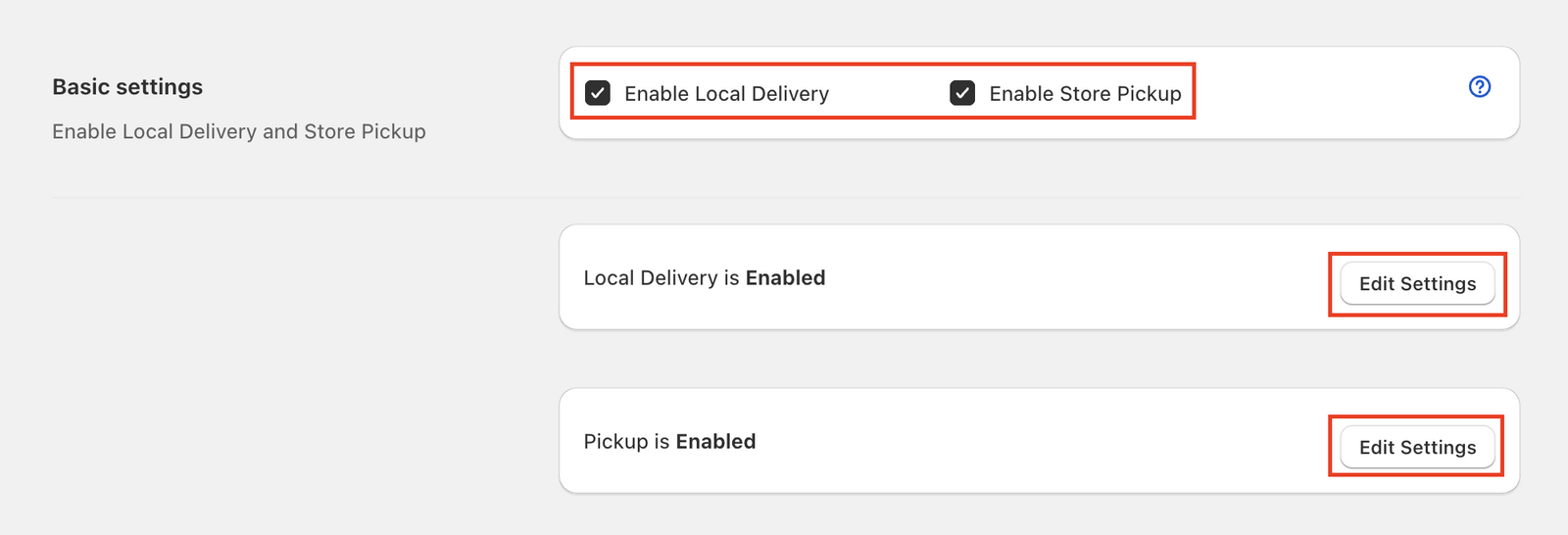
- Enable Local Delivery and/or Store Pickup as needed.
- These methods use the same schedule across all locations.
Step 3: Configure Global Schedule Settings
Configure these settings once. They apply to all locations.
-
Configure Availability
- Set operating hours and time slots for delivery, pickup, and shipping
-
Preparation Time & Cut-off Time
- Set lead times and daily cut-off times for your orders
-
Blockout Dates
- Mark holidays or unavailable dates on the calendar
-
Product Availability
- Include or exclude specific products for each delivery method
Verification Checklist
- Same schedule mode selected
- Delivery methods enabled
- Availability, preparation, and blockout dates set
- Product availability rules applied
That’s it. Your unified schedule now applies to all locations.
Related Articles
Was this article helpful?
Thanks for your feedback!