
 FAQs
FAQs
How to View Bird Data on the Shopify Orders Page
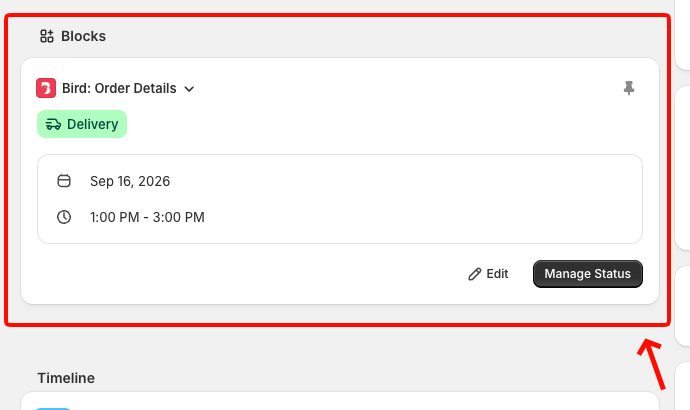
The Bird Order Details block is an admin block that appears directly on Shopify’s order detail page, so you can see everything your customers selected in the Bird widget without opening the Bird app. The details your customers attach at checkout show up right here.
What the Block Shows
| Field | Example |
|---|---|
| Delivery method | Pickup / Local Delivery / Shipping (shown as a badge) |
| Scheduled date | Feb 24, 2026 |
| Scheduled time | 10:00 AM – 11:00 AM |
| Pickup location | Main St Store (shown as a badge) |
| Store address | 123 Main St, New York, NY (pickup only) |
| Collector name | John Doe |
| Collector phone | +1 555-0123 |
| Collector email | [email protected] |
| Order note | Gift wrap please |
| Pickup security code | 4821 |
The block also shows the current Bird status (Ready for Pickup, Out for Delivery, Complete) as a badge, and includes an Edit button to change the scheduled slot and a Manage Status button to mark the order ready, dispatched, or complete. See How to Update Order Status from the Shopify Admin.
Requirements
The block shows Bird details for any order where the customer selected a date and time in the Bird widget.
How to Enable
The Bird Order Details block is a Shopify admin block included with the Bird app, and it appears on order detail pages automatically. If you don’t see it:
- In Shopify admin, go to Orders and open any order
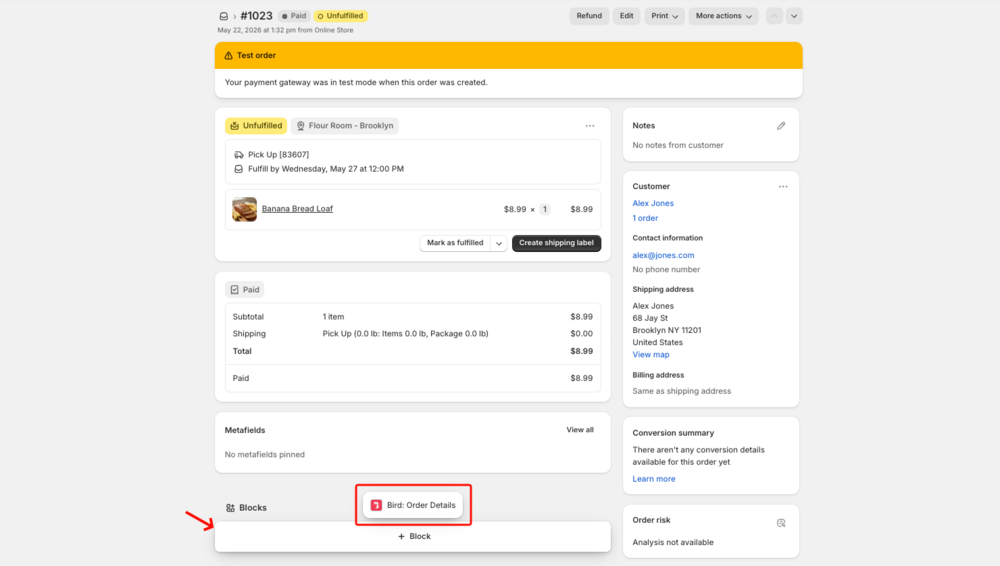
- If the Bird panel is missing, scroll to the Blocks section at the bottom of the order page
- Click + Block and select Bird: Order Details
- Click Save
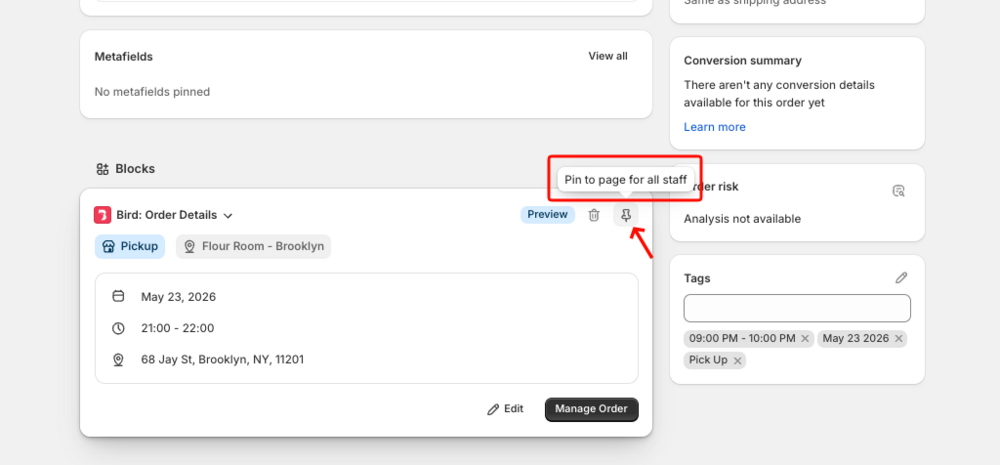
To make the block visible to all staff by default, click the pin icon on the block header and select Pin to page for all staff.
Troubleshooting
Block is not visible — Add it manually from the Blocks section of the order page (see How to Enable above), then pin it to the page for all staff.
Related Articles
Was this article helpful?
Thanks for your feedback!