
 FAQs
What is the _BirdChimeSlotId and how do I hide it?
_BirdChimeSlotId appears in two different places in your Shopify store, and they serve different purposes. Understanding which one you’re seeing helps you know what actions you can take.
- Cart Attribute: Bird uses it during checkout and removes it from the order right after the order is created. You may still see it on draft orders and older orders.
- Line Item Property: Appears as a property on cart items (visible on both cart pages and order pages). Can be hidden.
Cart Attribute (Order Page)
The _BirdChimeSlotId is an internal variable that improves widget reliability and helps diagnose issues with missing dates, times, and other hard-to-debug problems. You can safely ignore this field or use it to view detailed order information.
Where it appears: In the “Additional Details” section on Shopify order pages (admin view only), on draft orders and older orders. On new orders, Bird removes it right after the order is created.
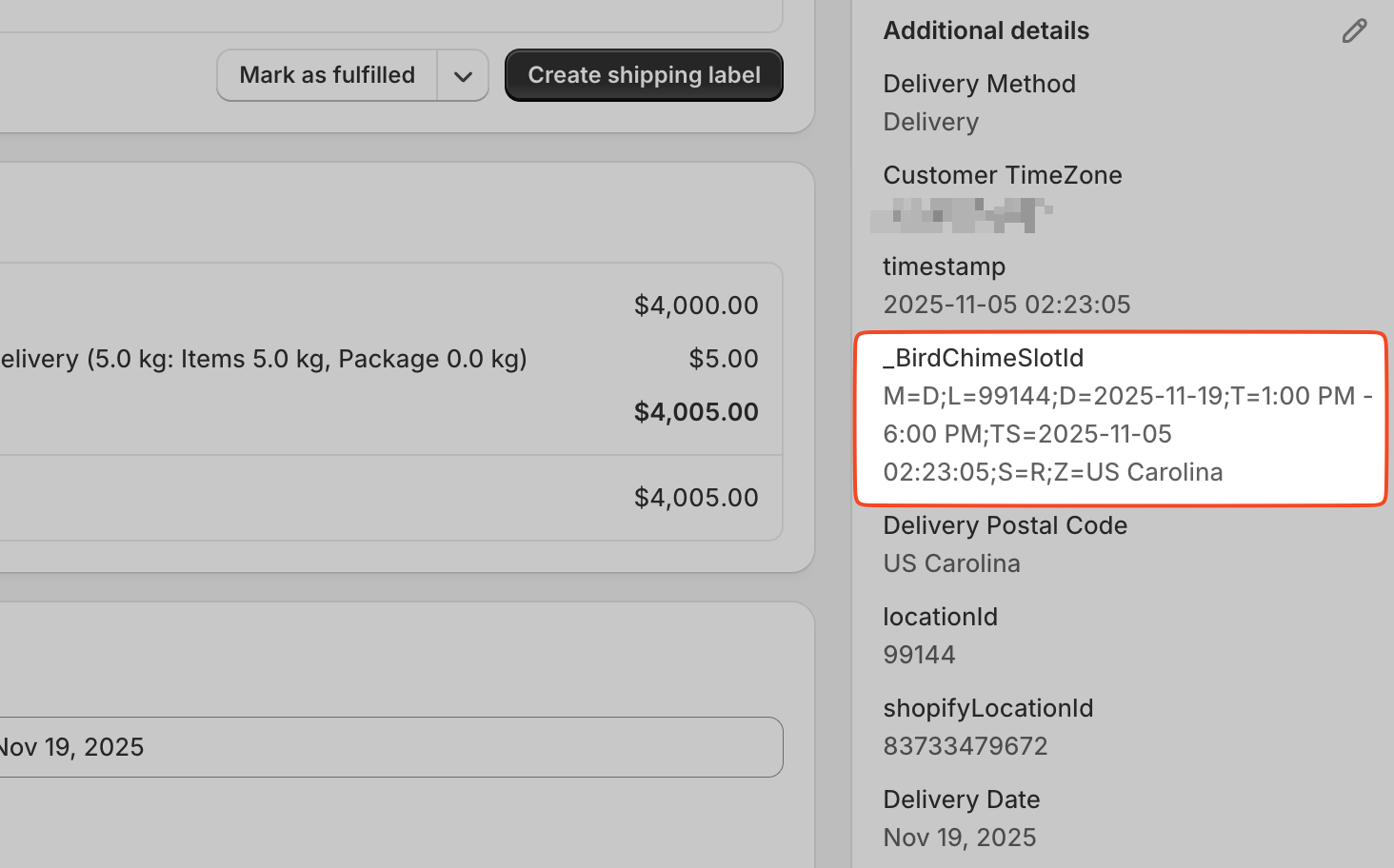
The variable captures key order details at checkout. It helps diagnose critical issues like checkout page caching problems. The value appears as a formatted string with semicolon-separated components:
M=D;L=12;D=2026-10-23;T=19:00-20:00;TS=2026-10-18 06:33;S=R;Z=10001;A=1 Main St,New York,NY,10001,US
Here’s what each symbol represents:
| Symbol | Possible Values | Explanation |
|---|---|---|
| M | P, D, or S | Method: Pickup, Delivery, or Shipping |
| L | Location ID | The location identifier |
| D | YYYY-MM-DD | Selected date |
| T | Time range | Selected time slot |
| TS | YYYY-MM-DD HH:MM | When Bird saved the selection (used by selection expiry) |
| S | D, T, R, or N | Slot type: date (D), datetime (T), datetime range (R), or no date (N) |
| Z | Postal code | Delivery: the customer’s postal code. Pickup: the location’s postal code |
| A | Address | Delivery only: the customer’s address |
Clear _BirdChimeSlotId on older orders
On a draft or older order, you can clear its value:
- Open any order page
- Click the pencil icon next to “Additional Details”
- Edit the
_BirdChimeSlotIdvalue to empty - Click Save
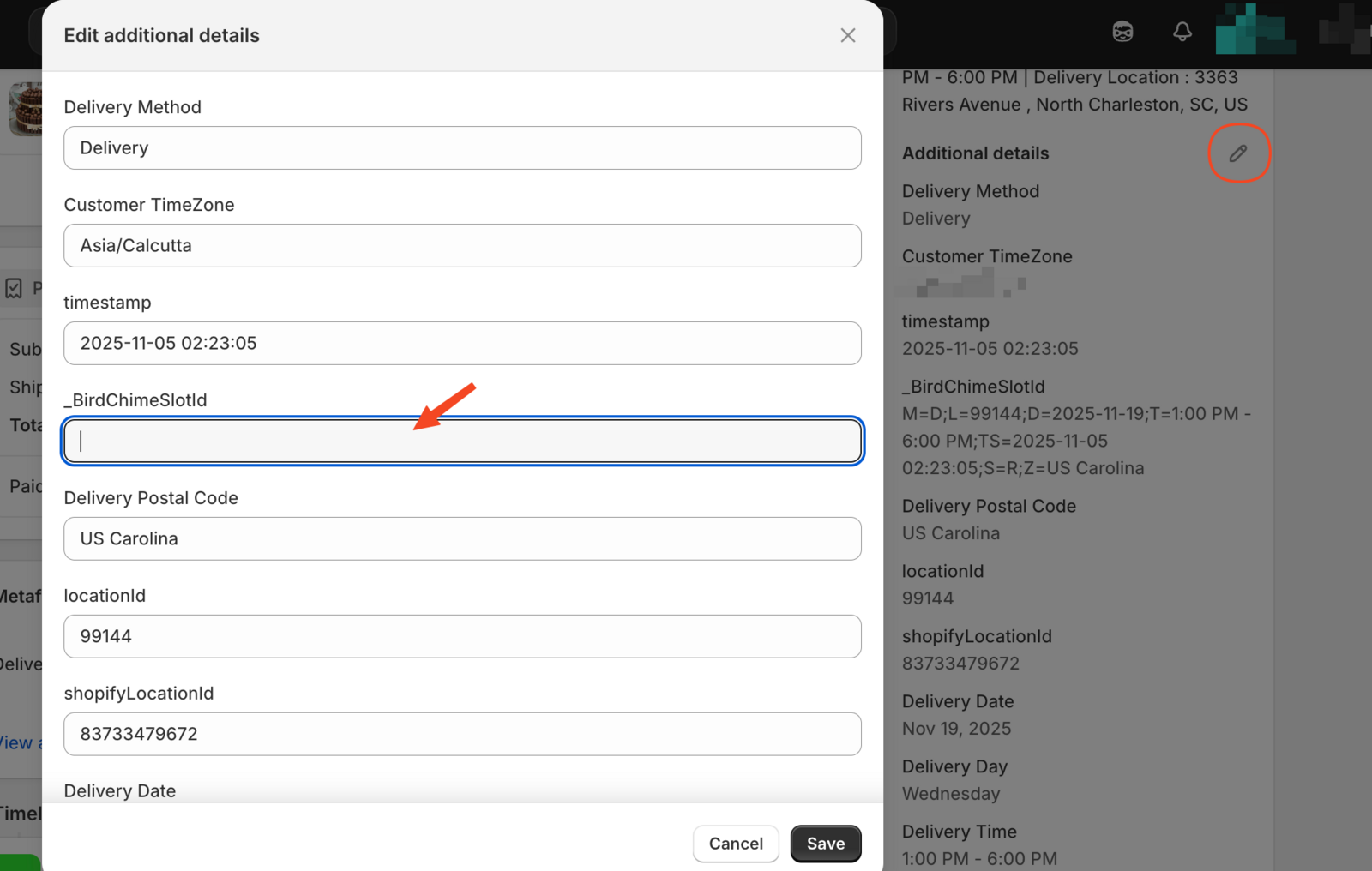
This reduces the UI space used by the field. However, we recommend keeping the value intact for troubleshooting purposes.
Line Item Property (Cart Page - Can be Hidden)
The _BirdChimeSlotId stores customer selections from your Bird Pickup & Delivery widget.
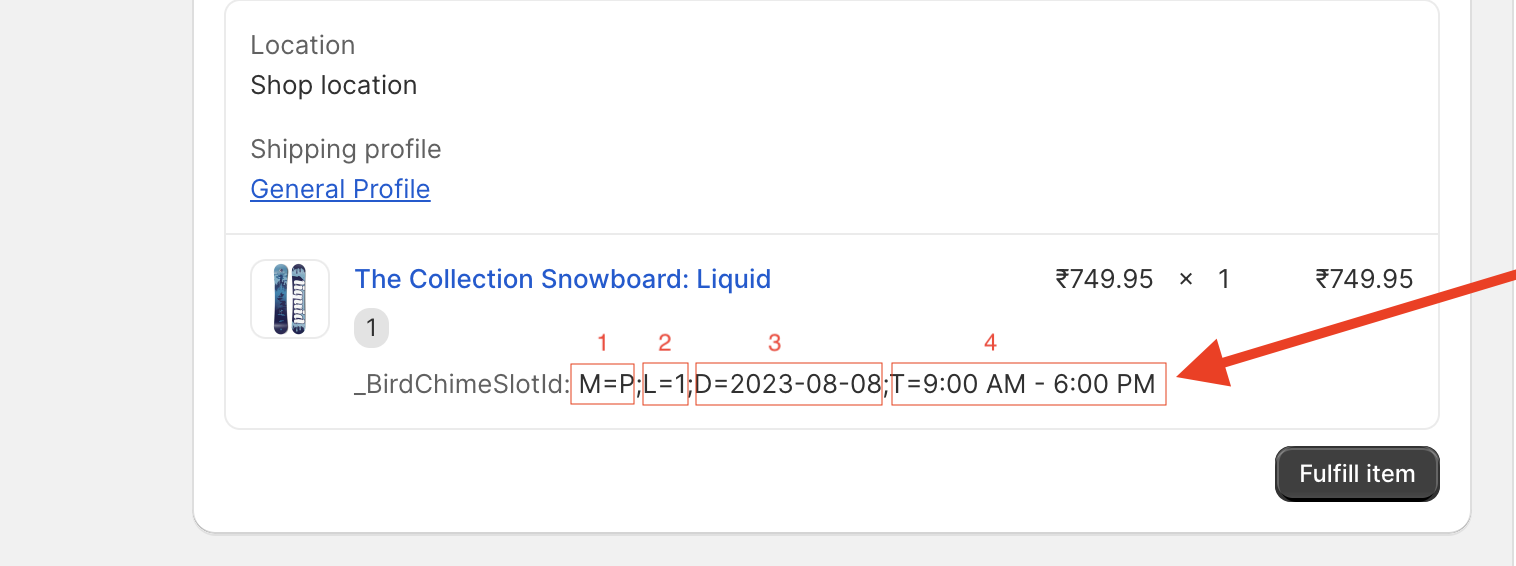
Where it appears: As a line item property on cart pages and order pages in Shopify Admin.
When line item properties appear: Bird only adds this line item property when you use Bird Rates with CCS.
Important: This can be hidden from customer-facing cart pages. It determines which delivery rates to display during Shopify checkout.
It uses the same format as the cart attribute above.
Test if _BirdChimeSlotId appears on your cart page
Follow these steps to check if _BirdChimeSlotId is visible to customers:
- Add a product to your cart
- Navigate to the cart page
- Select delivery details in the Bird widget
- Proceed to checkout
- Return to the cart page
Check both your main cart page and drawer cart if applicable.
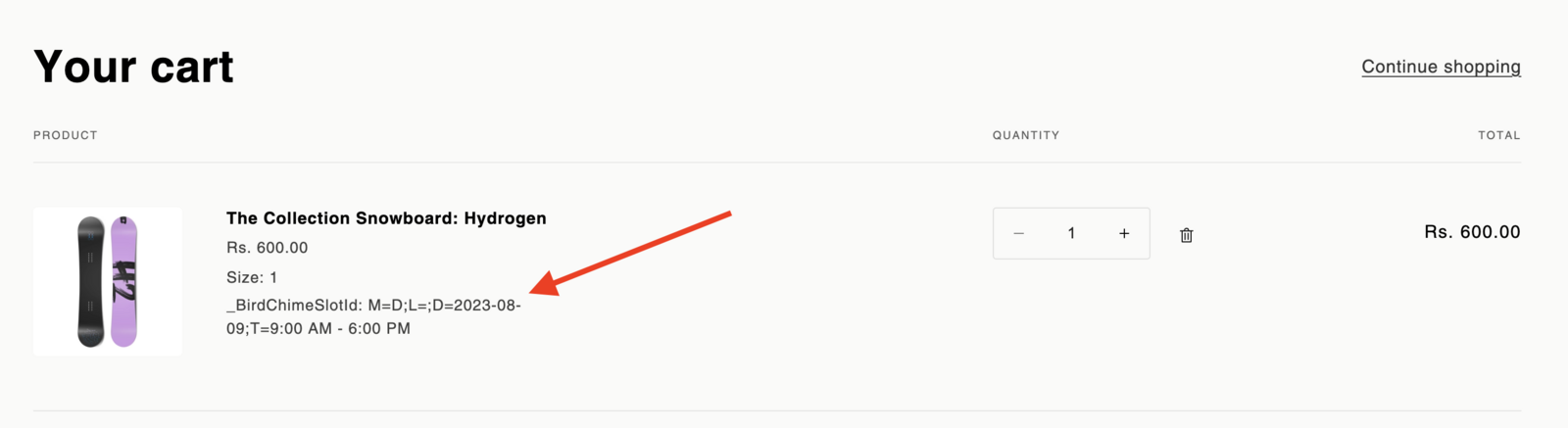
If you see _BirdChimeSlotId, you may hide it by following the steps below. If not, no action is required.
Hide _BirdChimeSlotId from your cart page
We automatically hide _BirdChimeSlotId, but some themes require manual configuration.
Option 1: Using unless statements
Option 1a: Standard Liquid syntax
Find this code in your cart file (cart.liquid, cart-template.liquid, main-cart.liquid):
{% unless p.last == blank %}
Replace with:
{% unless p.last == blank or p.first == '_BirdChimeSlotId' %}
Option 1b: Whitespace control syntax
Find this code:
{%- unless p.last == blank -%}
Replace with:
{%- unless p.last == blank or p.first == '_BirdChimeSlotId' -%}
Option 2: Using if statements
Find this code:
{% if p.last != blank %}
Replace with:
{% if p.last != blank and p.first != "_BirdChimeSlotId" %}
Option 3: Using property variables
Find this code:
{% unless property.last == blank %}
Replace with:
{% unless property.last == blank or property.first == '_BirdChimeSlotId' %}
Option 4: Remove entire property display
Find this code in cart-ajax-template.liquid or cart-notification.liquid:
<span class="ajaxcart__product-meta">{{@key}}: {{this}}</span>
Remove this line completely.
Append to existing conditions
If your code already has additional conditions, append one of these:
or p.first == "_BirdChimeSlotId"
and p.first != "_BirdChimeSlotId"
or property.first == '_BirdChimeSlotId'
That’s it! The _BirdChimeSlotId will no longer appear on your cart page.
Remove _BirdChimeSlotId from orders
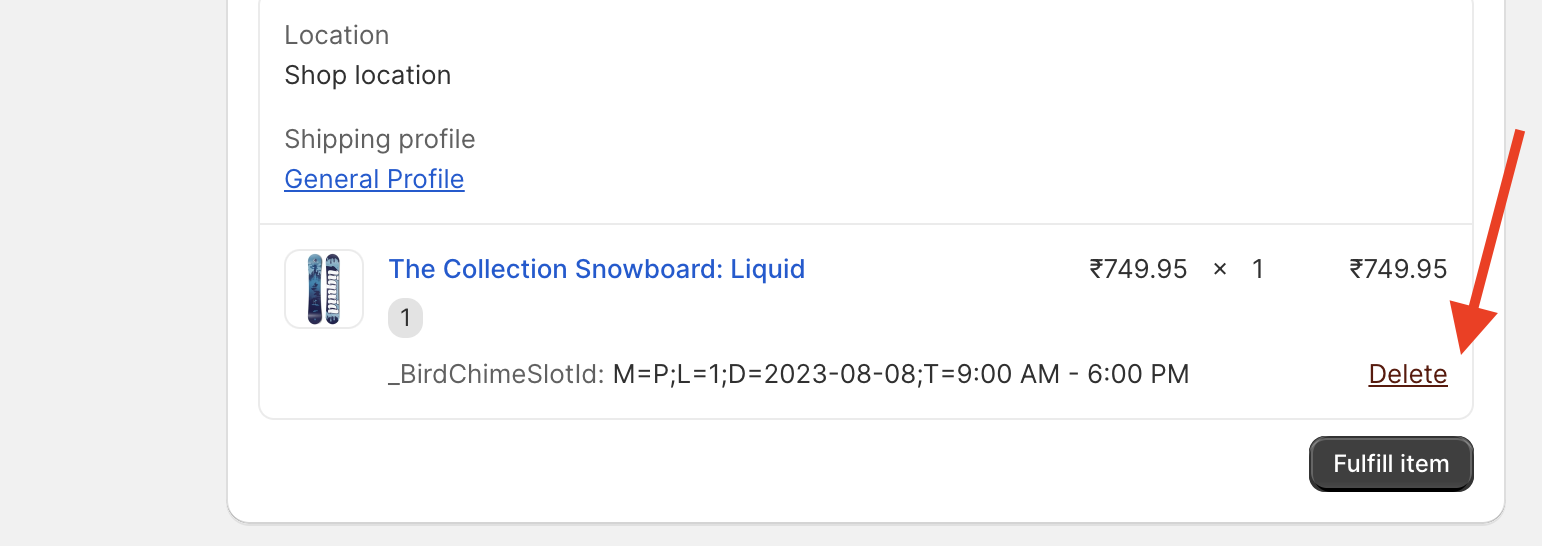
To remove the line item property from an order, hover over the _BirdChimeSlotId and clicking the Delete button.
Related Articles
Was this article helpful?
Thanks for your feedback!