
 Order Management
Order Status: Update via Shopify Admin
You can move a Bird pickup or delivery order through its whole lifecycle without leaving the Shopify order page.
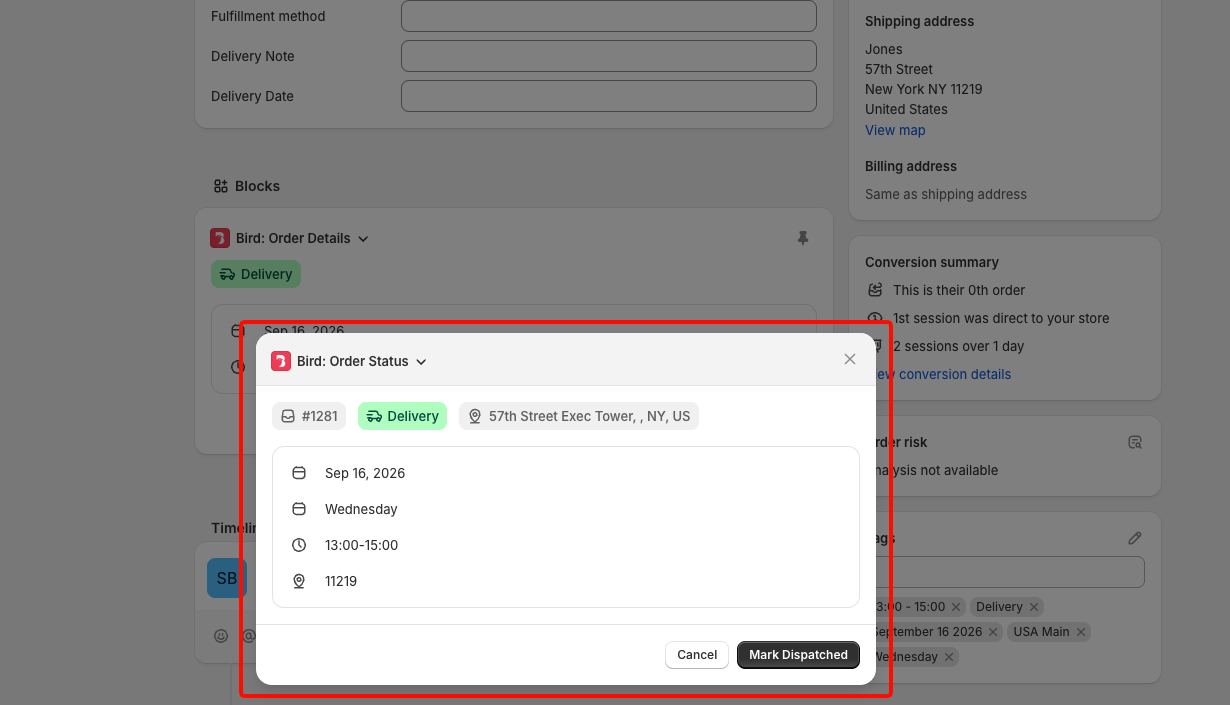
The action is called Bird: Order Status. It opens a small window showing the order’s delivery details, with one button that moves the order to its next status. Marking a status also sends the matching customer email, if you have that email switched on in Bird Settings > Email notifications.
Two Ways to Open It
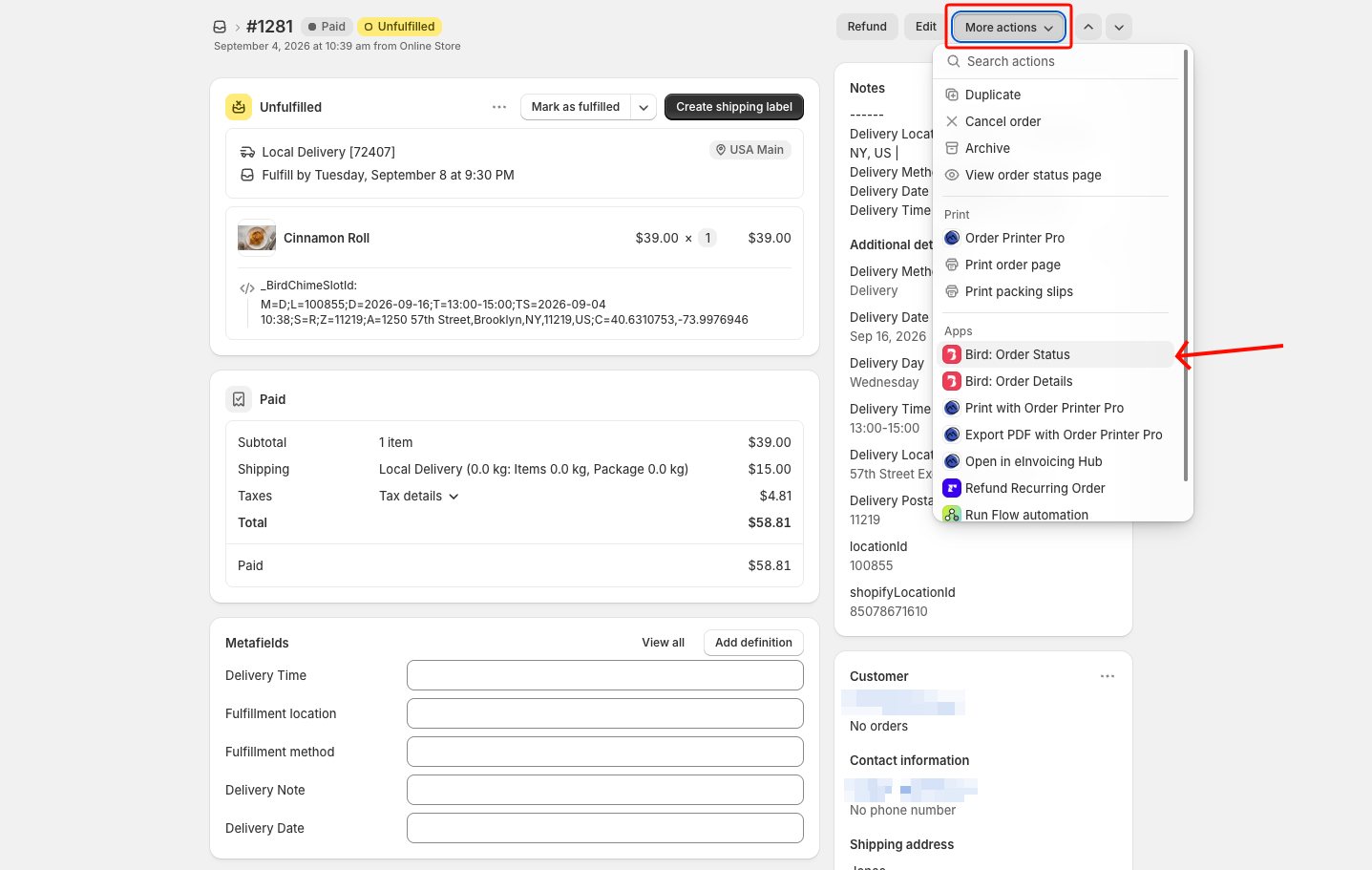
From the More actions menu
- In your Shopify admin, go to Orders and open the order.
- Click More actions.
- Scroll to the Apps group and select Bird: Order Status.
From the Bird block
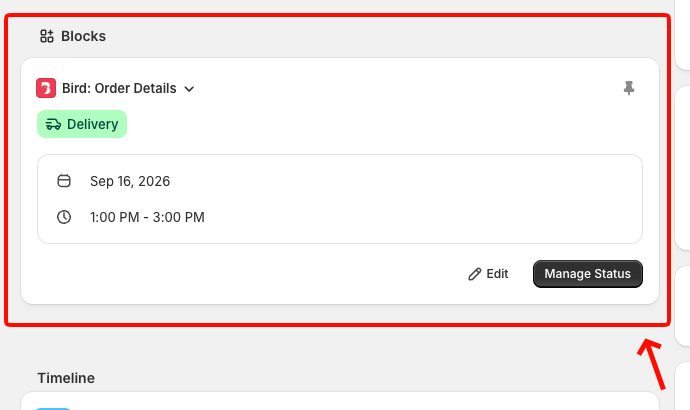
If you have the Bird Order Details block on your order page, click Manage Status on the block. It opens the same window.
What the Button Does
There is only one button, and its label changes depending on where the order already is. Each order takes two clicks to finish, not three.
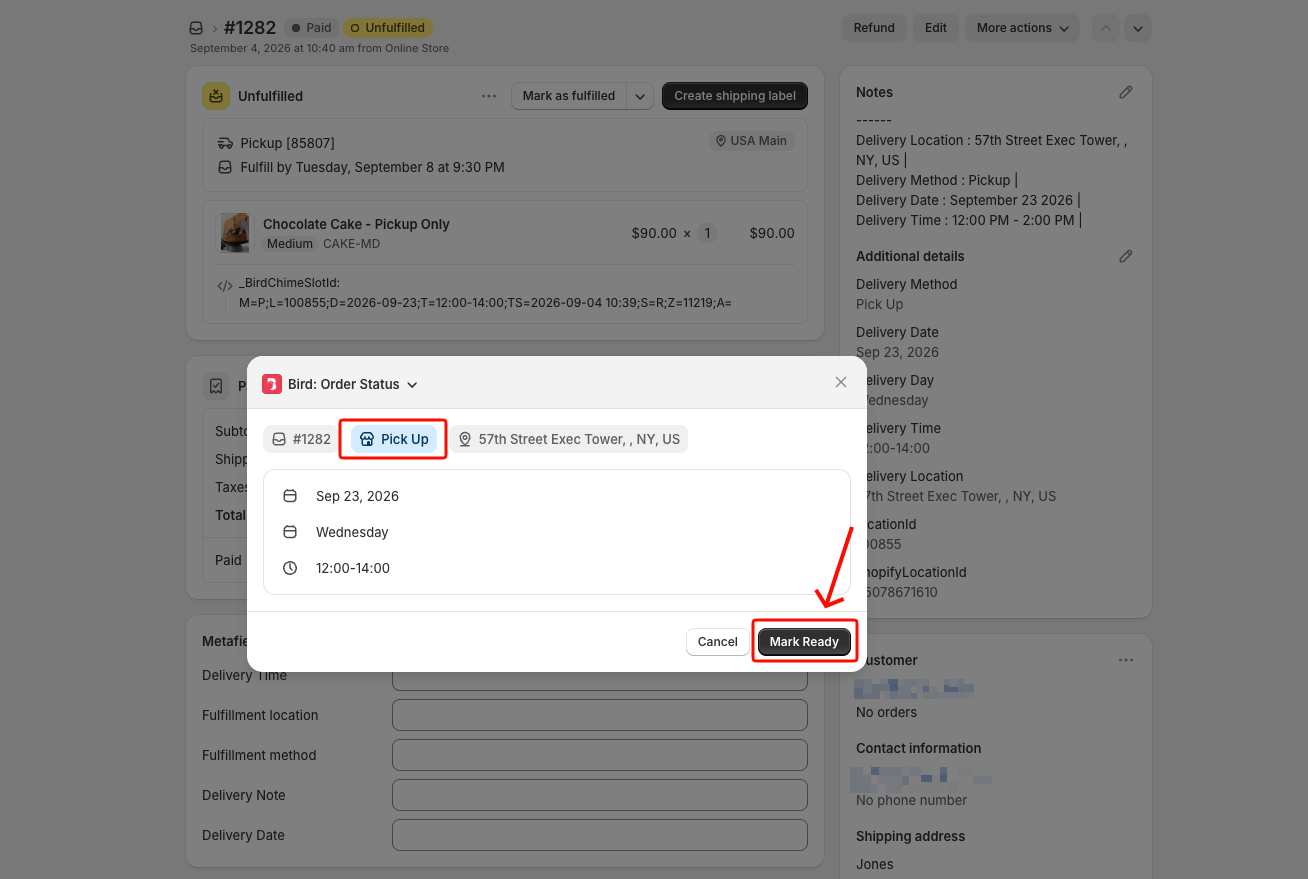
Pickup orders
| Click | Button says | Order becomes |
|---|---|---|
| First | Mark Ready | Ready for Pickup |
| Second | Mark Picked Up | Complete |
Delivery orders
| Click | Button says | Order becomes |
|---|---|---|
| First | Mark Dispatched | Out for Delivery |
| Second | Mark Delivered | Complete |
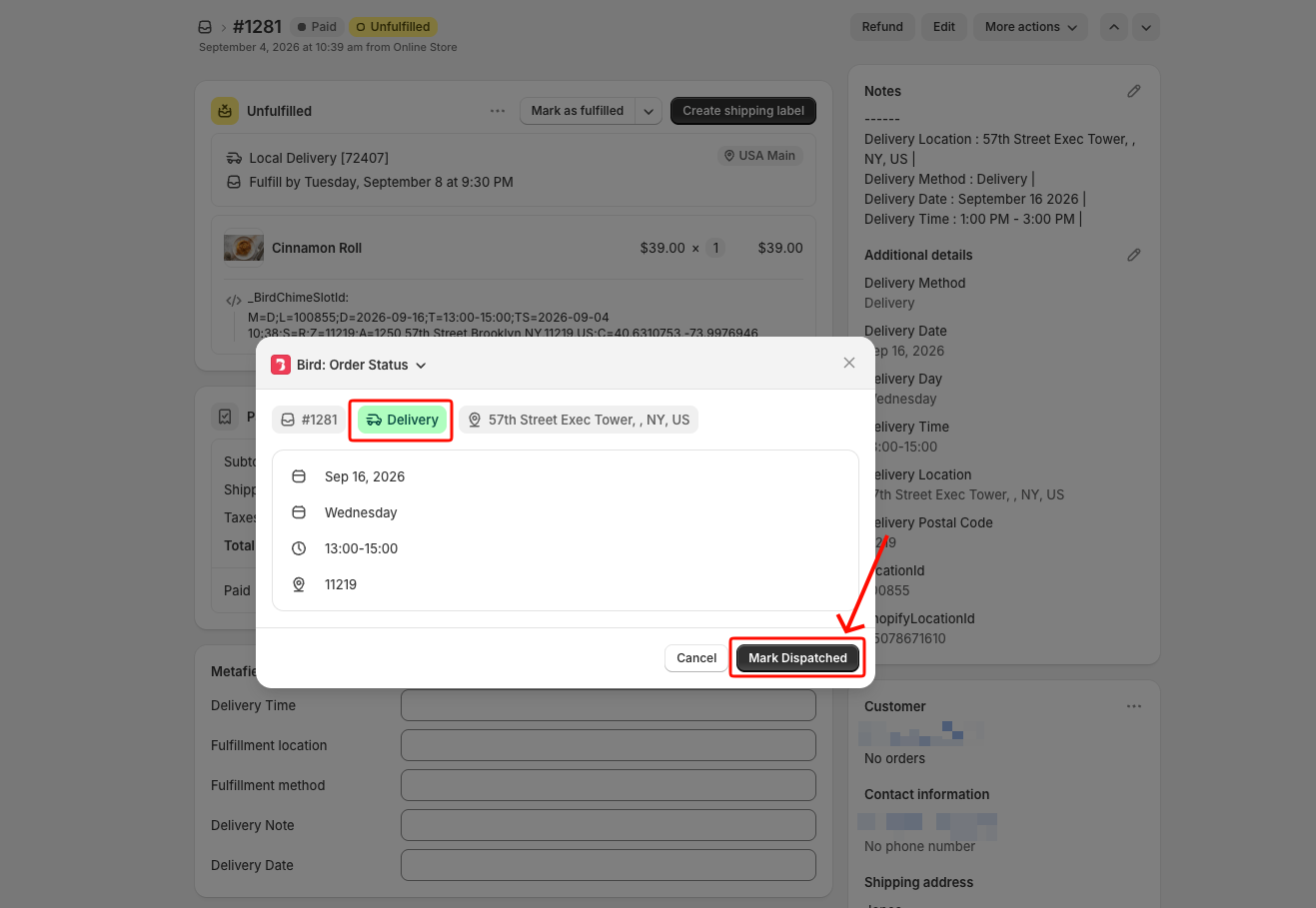
So you open the window once when the order is ready or leaves the store, and once more when the customer has it. After the second click the order is complete and the button is gone.
Tip: Reopen the window any time to check where an order stands. The status also shows as a badge on the Bird Order Details block.
On the Shopify Mobile App
The same action works on the Shopify app for iPhone, iPad, and Android, but Shopify draws it differently.
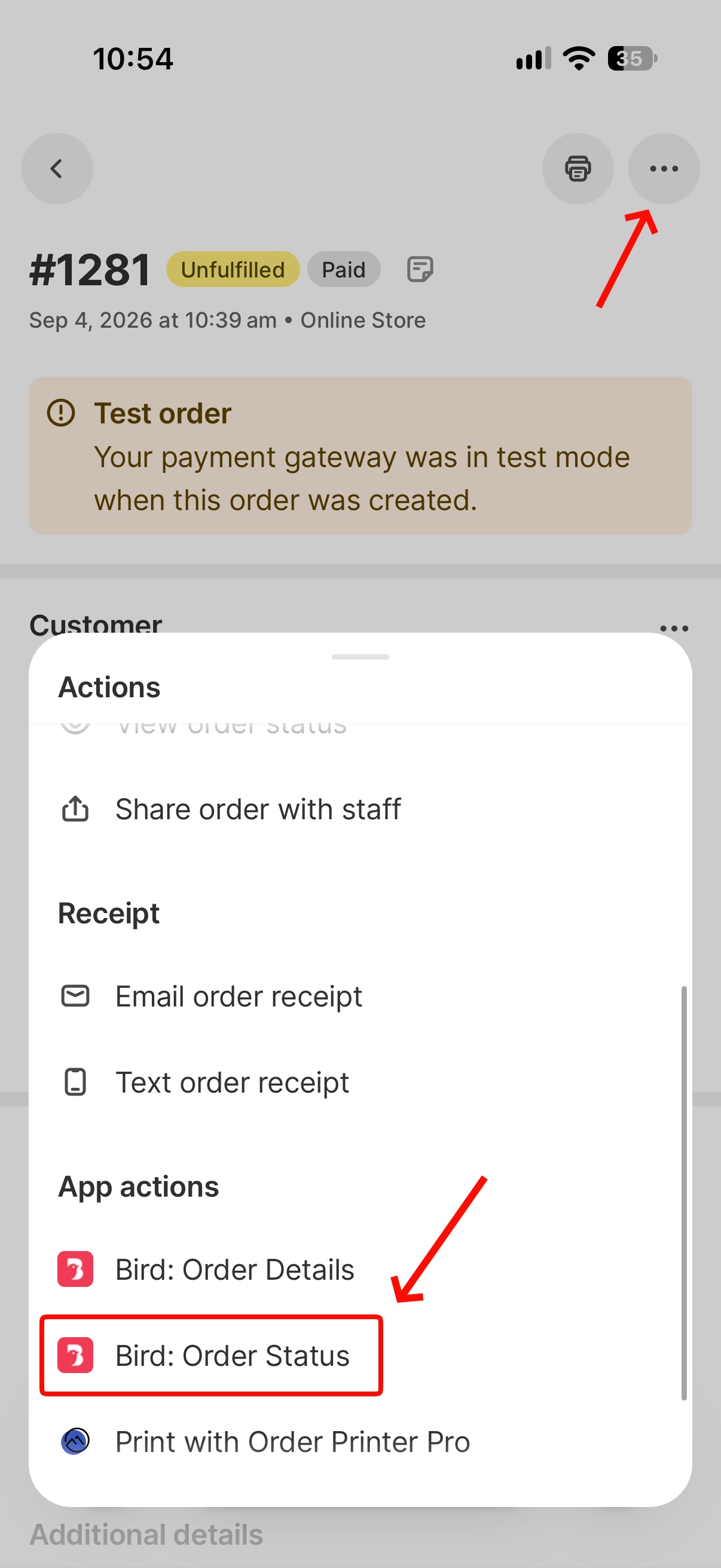
- Open the order in the Shopify app.
- Tap the ⋯ (more) icon.
- Scroll down to App actions and tap Bird: Order Status.
The button has no label on mobile. On a phone or tablet, Shopify does not show the black Mark Ready or Mark Dispatched button along the bottom. Instead it turns that same button into a ⊕ icon in the top-right corner of the window, next to the ⋯. Tap ⊕ to apply the status. It does exactly what the labelled button does on a computer: the table above still tells you which status it will set.
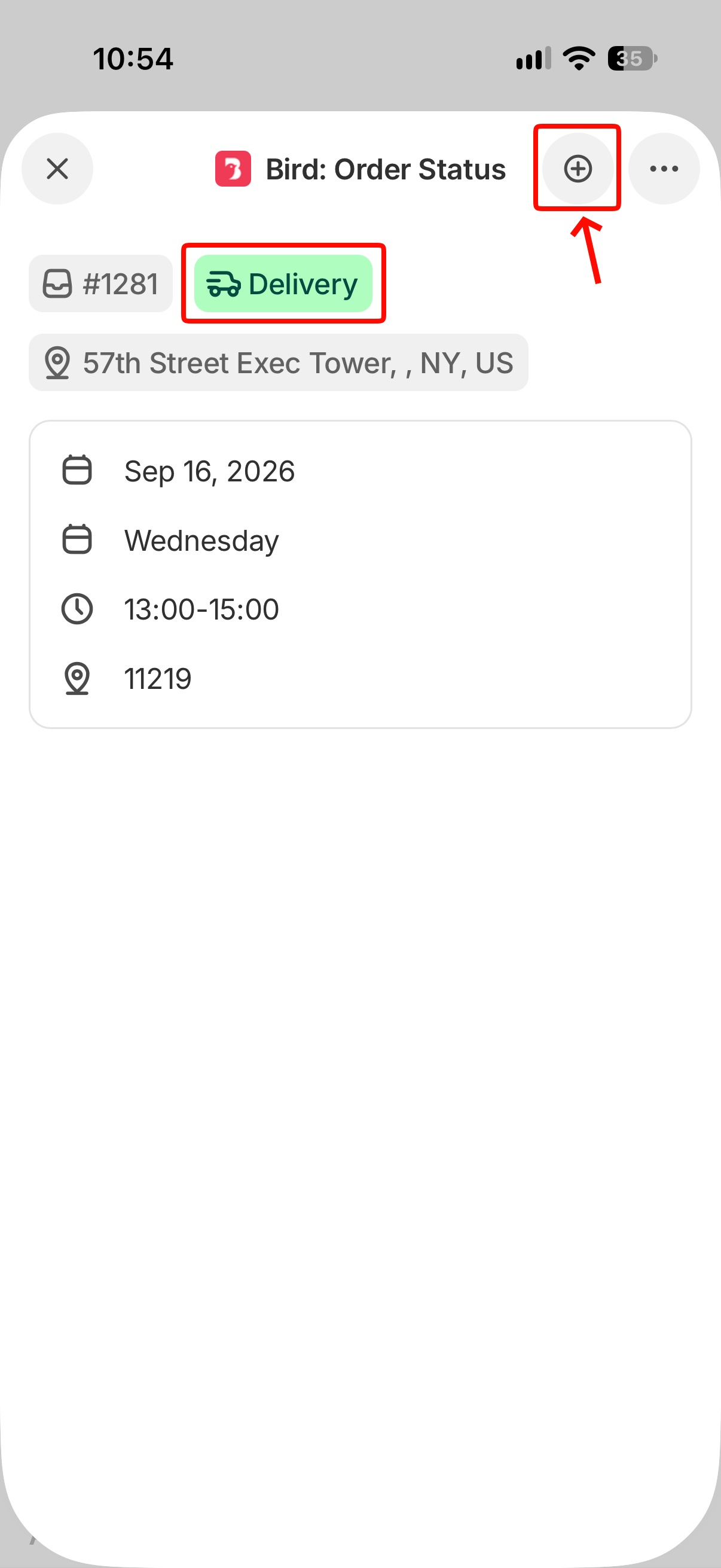
This is how Shopify displays app actions on mobile, and it is the same on iOS and Android. If you are unsure what a tap will do, open the same order on a computer once; the button there spells it out.
When There Is No Button
- The order is already complete. The window says This order has already been completed. and only offers Close. There is nothing left to mark.
- The order has no Bird pickup or delivery details. The window says No available actions for this order. Bird statuses only apply to orders whose delivery method is Pickup or Delivery. A standard shipping order shows this, and so does any order the widget never touched, such as a draft or manual order before you save Bird: Order Details on it. Fulfil these with Shopify’s own fulfilment tools.
Tip: If you know the order does have a Bird date on it, close the window and open it again. The same message appears when the order fails to load.
What Happens After You Mark a Status
- The new status is saved on the order and shows as a badge on the Bird Order Details block and on the Orders page in the Bird app.
- The matching customer email goes out, if it is enabled in Bird Settings > Email notifications. See Customer: Pickup & Delivery Notifications.
- Shopify’s own shipping confirmation email is suppressed, so the customer does not get a duplicate, generic notice.
Use this action, not Shopify’s Fulfill button. If staff fulfil a pickup or delivery order with Shopify’s native fulfilment button instead, Shopify’s shipping confirmation email fires on top of Bird’s own emails, and the customer gets two messages.
If you would rather update many orders at once, use the bulk action bar on the Orders page in the Bird app instead. See Order Status: Update via Bird.
Related Articles
Was this article helpful?
Thanks for your feedback!