
 Order Management
Orders: View, Sort & Filter in Bird
Problem: As your order volume grows, it gets harder to find exactly the orders you need — orders for a specific delivery date, orders still pending, or orders for one location — in a single long list.
Solution: Bird’s Orders page gives you full order management — search by order number, filter by date, order status, delivery method, and location, and switch between list and calendar views to see exactly the orders you’re looking for.
View Orders in List Format
View all your upcoming and past deliveries and pickups in a filterable list format.
- Navigate to Orders in your Bird App dashboard
- Use the Orders / Draft orders tabs at the top to choose which orders to view
- Use the Search orders by order number bar to find a specific order
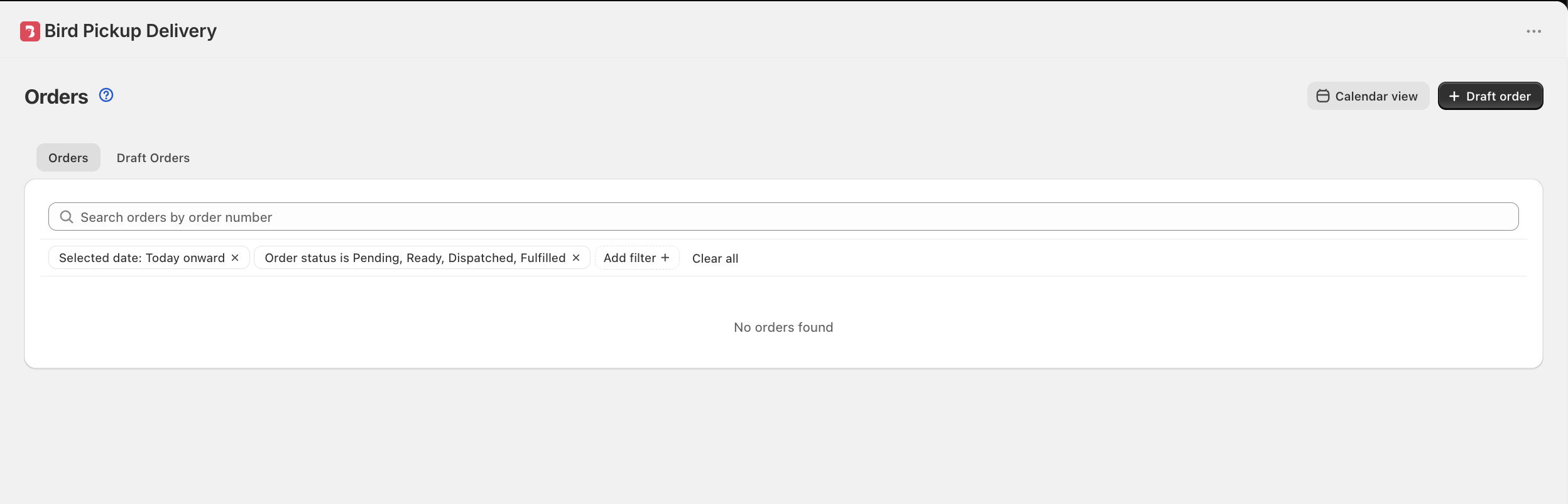
- Use the filter pills below the search bar to narrow your results
Two filters are active by default: Date filter (Selected date) set to Today onward, and Order status set to Pending, Ready, Dispatched, Fulfilled. Click Add filter + to add more, click the × on any pill to remove just that filter, or click Clear all to reset everything.
Filter Orders by Date
Find orders for a specific delivery date, order date, or date range.
- Click the Date filter (Selected date) pill
- Under Filter on, choose Selected date — the day the order is due — or Created date — the day the order was created
- Pick a preset — Today onward, Today, Tomorrow, Last 30 days, Last 90 days, Last 12 months, No date — or choose Custom to set your own start and end dates
- Click Clear in the panel to remove the date filter entirely
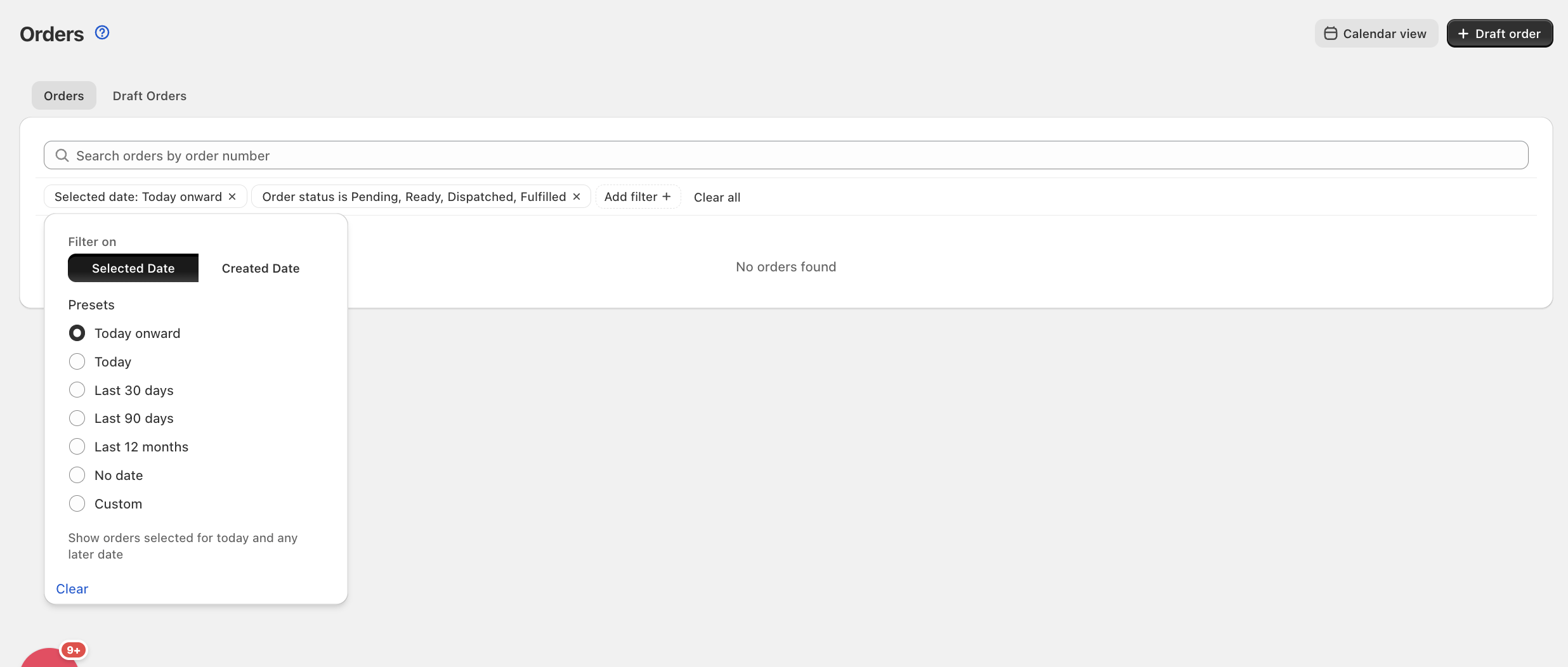
Selected date is the day the order is due. Created date is the day the order was created. Today onward, Tomorrow, and No date only appear when Filter on is set to Selected date.
Switching Filter on changes which of these two date fields every preset and custom range applies to — it doesn’t change the sort order of the list.
You’re done! Your orders are now filtered to the date field and range you chose.
Apply Additional Filters
Combine multiple filters with your date filter to narrow your search precisely.
Click Add filter + to add any of the following:
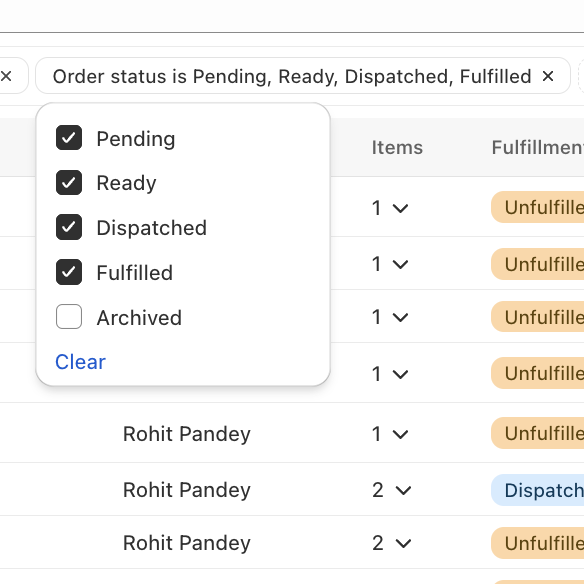
- Order status: Pending, Ready, Dispatched, Fulfilled, or Archived — select as many as you need
- Delivery method: Pick Up, Delivery, or Shipping — select as many as you need
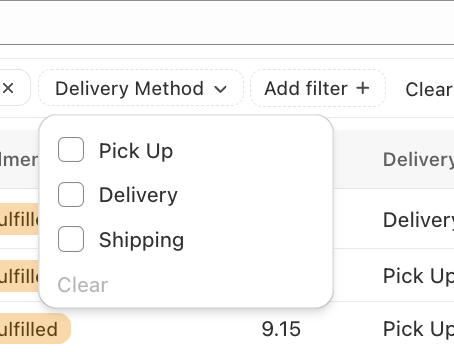
- Location: select one or more store locations — each option is a distinct Bird location, so locations with similar names (for example, “Zone 1” and “Zone 2”) are listed separately
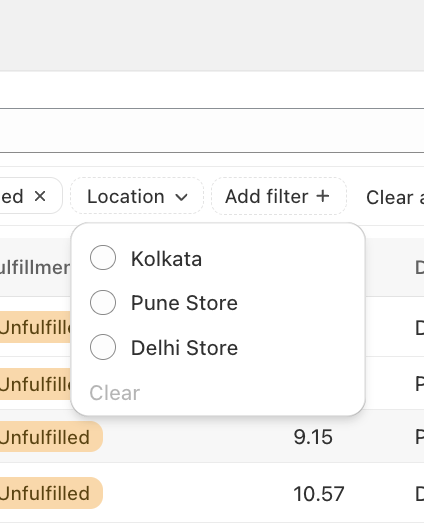
Order status, Delivery method, and Location all let you select multiple options at once.
Select and Export Orders
Export the orders currently in your filtered list.
- Filter the list down to the orders you want (see above)
- Check the box next to any order, or check the header box and click Select all N+ orders to select everything in the filtered list
- In the bulk action bar, click Export and choose Export order details or Export production report, then confirm the recipient emails and click Send
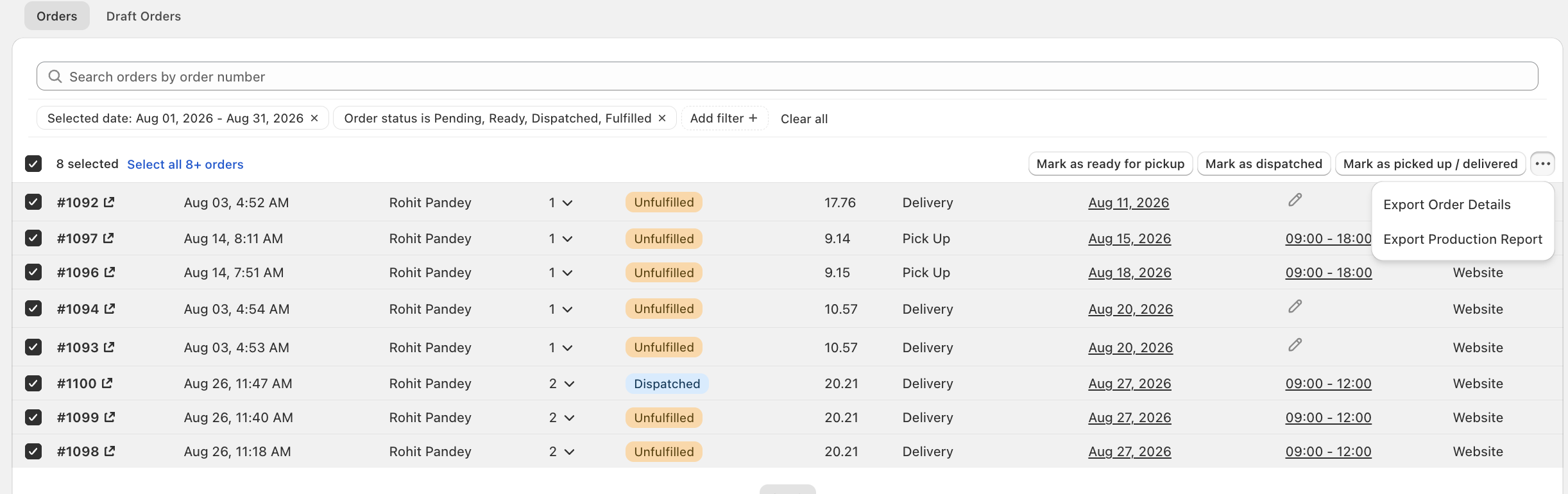
For details on what each export includes, see our Reports: Export Orders & Production Reports. The same selection also lets you bulk-update order status; see Order Status: Update via Bird.
View Orders in Calendar Format
Visualize your schedule at a glance using the built-in calendar view.
- Navigate to Orders in your Bird App dashboard
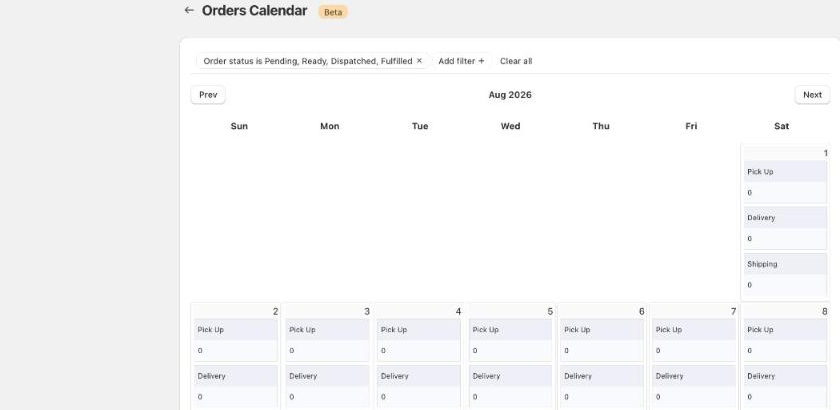
- Click Calendar view in the top right
- View orders by day, broken down by delivery method (Pick Up, Delivery, Shipping) with order counts for each
- Use the same filter pills — Order Status, plus Add filter + for Location or Delivery Method — to narrow what the calendar shows
- Navigate between months using Prev and Next
- Click any calendar day to see detailed orders for that date
Calendar View: What Orders Are Shown
Understanding which orders appear in the calendar view helps you manage your schedule effectively.
The calendar view displays orders with Bird’s scheduling information, including:
- Pending orders - Unfulfilled orders that haven’t been marked ready or dispatched
- Ready orders - Unfulfilled orders marked as ready for pickup
- Dispatched orders - Unfulfilled orders marked as out for delivery
- Fulfilled orders - Orders that have been completed and fulfilled
- Archived orders - Orders that have been archived in Shopify
The calendar view automatically hides:
- Cancelled orders - Orders that have been cancelled
- Draft orders - Draft orders that haven’t been completed
Fulfilled orders remain visible in the calendar view for record-keeping and tracking purposes. The calendar view only hides cancelled or draft orders. There is no way to filter out or hide fulfilled orders from the calendar view. Use list view to filter orders.
Note: Archived orders appear in the calendar count, but when you click on a date to view the order list, archived orders are automatically filtered out from the list view.
Deleting Orders from Bird View
There’s no way to delete or remove orders from the Bird App view, so fulfilled test orders stay visible in both list and calendar view. To clean them up, filter them out instead: exclude fulfilled orders via the Order Status filter, or archive them in Shopify, which hides them from the list view (they’ll still count in the calendar).
Related Articles
Was this article helpful?
Thanks for your feedback!