
 Order Management
Order Status: Update via Bird
B
Written by Bird Pickup & Delivery
Updated October 28, 2026
You can move a Bird pickup or delivery order through its whole lifecycle from the Orders page in the Bird app, without opening Shopify.
- Navigate to Orders in your Bird App dashboard
- Check the box next to any order, or check the header box and click Select all N+ orders to select everything in your filtered list
- In the bulk action bar, click Update status and choose Mark as ready for pickup, Mark as dispatched for delivery, or Mark as picked up / delivered
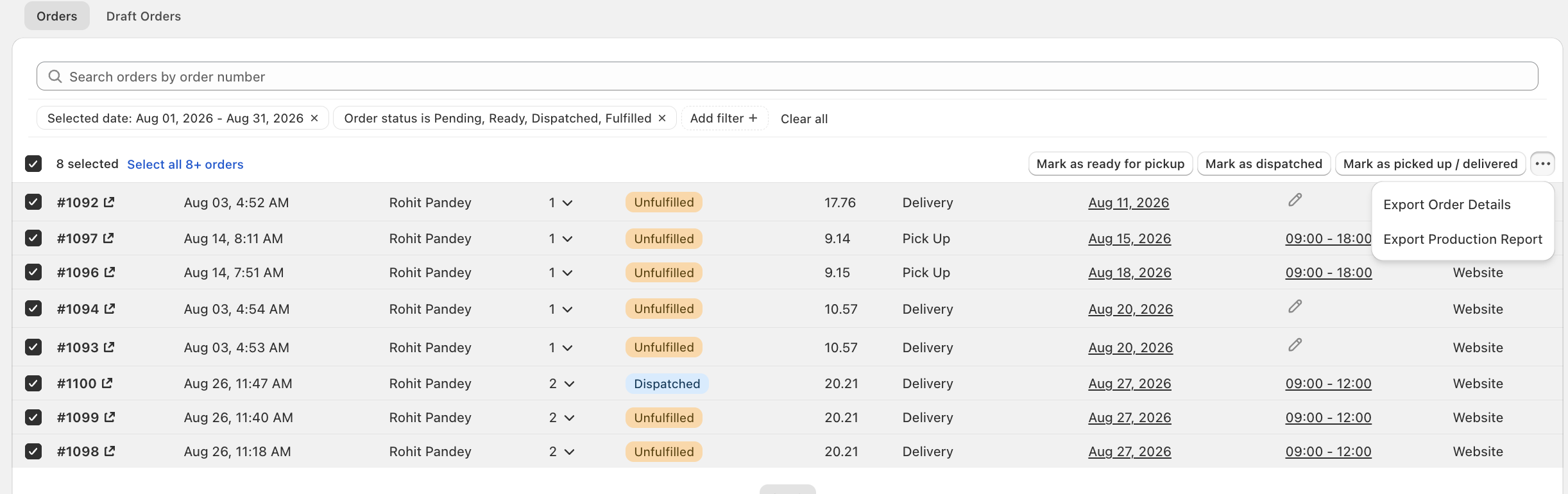
This works the same whether you select one order or hundreds, so it’s the fastest way to update a single order without leaving the Orders list, and the only way to update many at once.
ℹ️
Filter the list first — by date, location, or delivery method — so you’re only selecting orders that should actually move to the same status. See Orders: View, Sort & Filter in Bird.
What Happens After You Mark a Status
- The new status is saved on the order and shows on the Orders page in the Bird app, in Shopify admin, and on the Bird Order Details block.
- The matching customer email goes out, if it’s enabled in Bird Settings > Email notifications. See Customer: Pickup & Delivery Notifications.
If you’d rather update orders one at a time from the Shopify order page instead, see Order Status: Update via Shopify Admin.
Related Articles
Was this article helpful?
Thanks for your feedback!