
 Order Management
Order Status: Update via Shopify Admin
Mark a Bird pickup or delivery order ready, dispatched, or complete without leaving the Shopify order page. Each status also sends the matching customer email, if it’s turned on in Bird Settings > Email notifications.
Update the Status on a Computer
- In your Shopify admin, go to Orders and open the order.
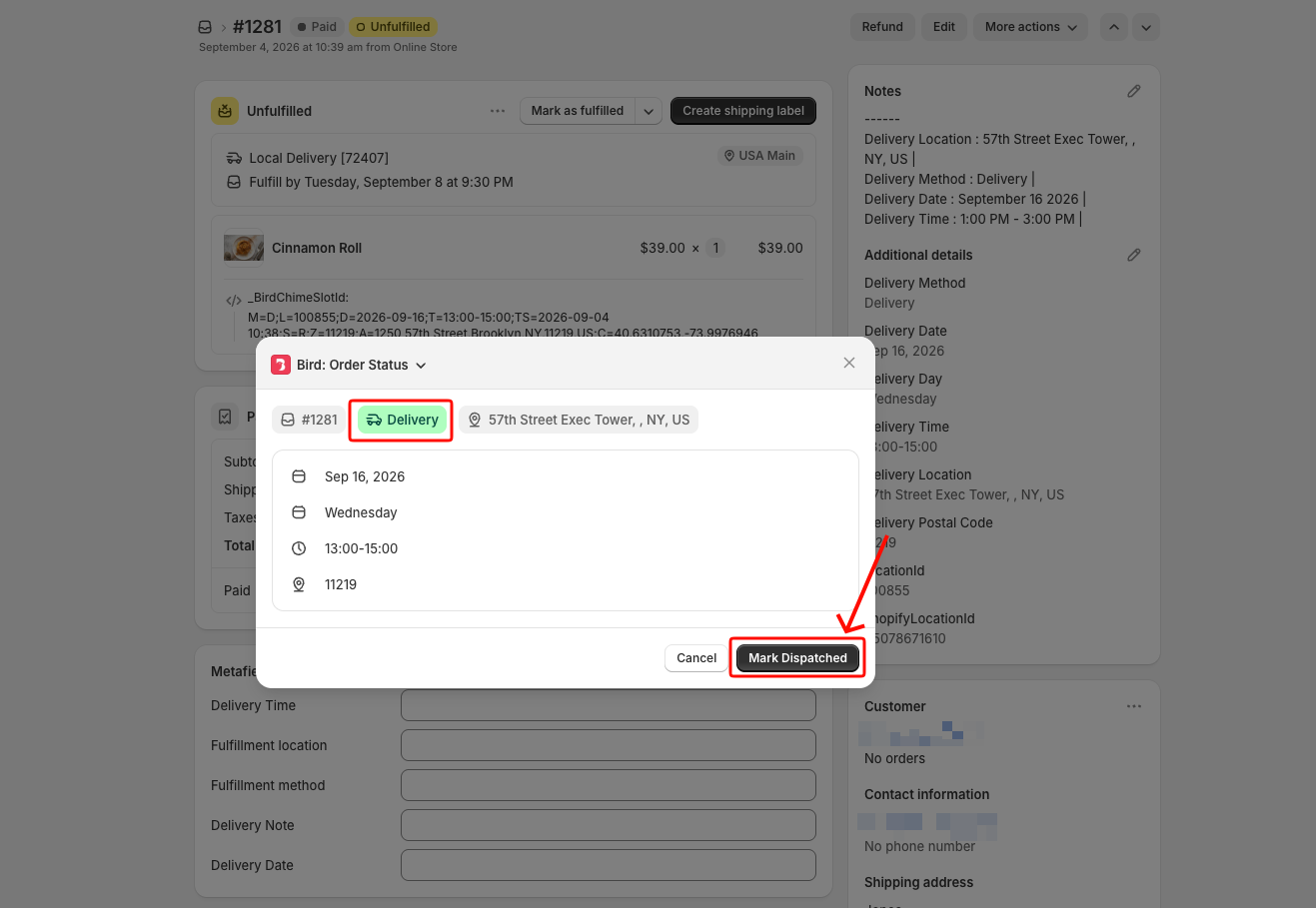
- Click More actions, then select Bird: Order Status under Apps. If you have the Bird Order Details block on the page, you can click Manage Status on it instead.
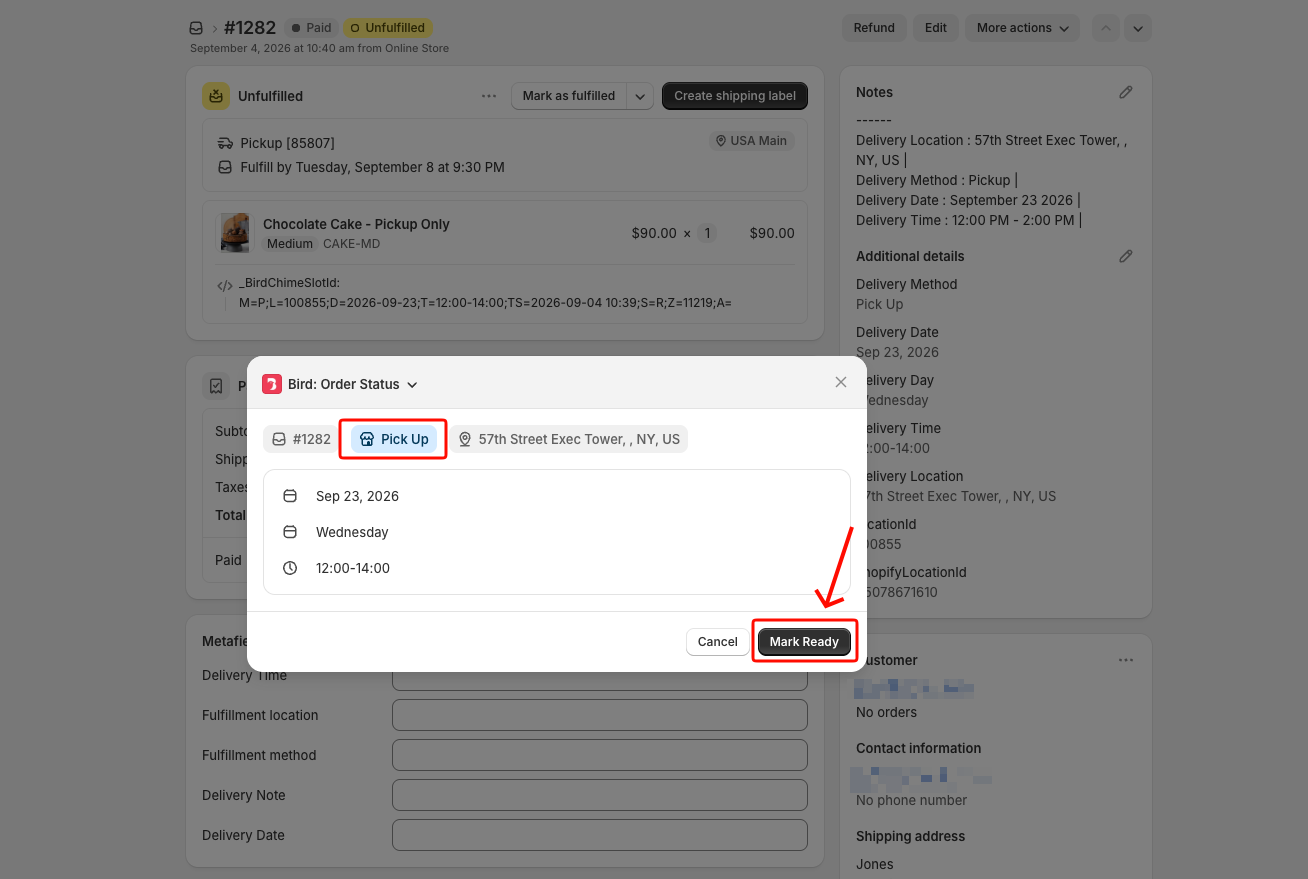
- The window shows the order’s delivery details and one button. Click it to move the order to its next status.
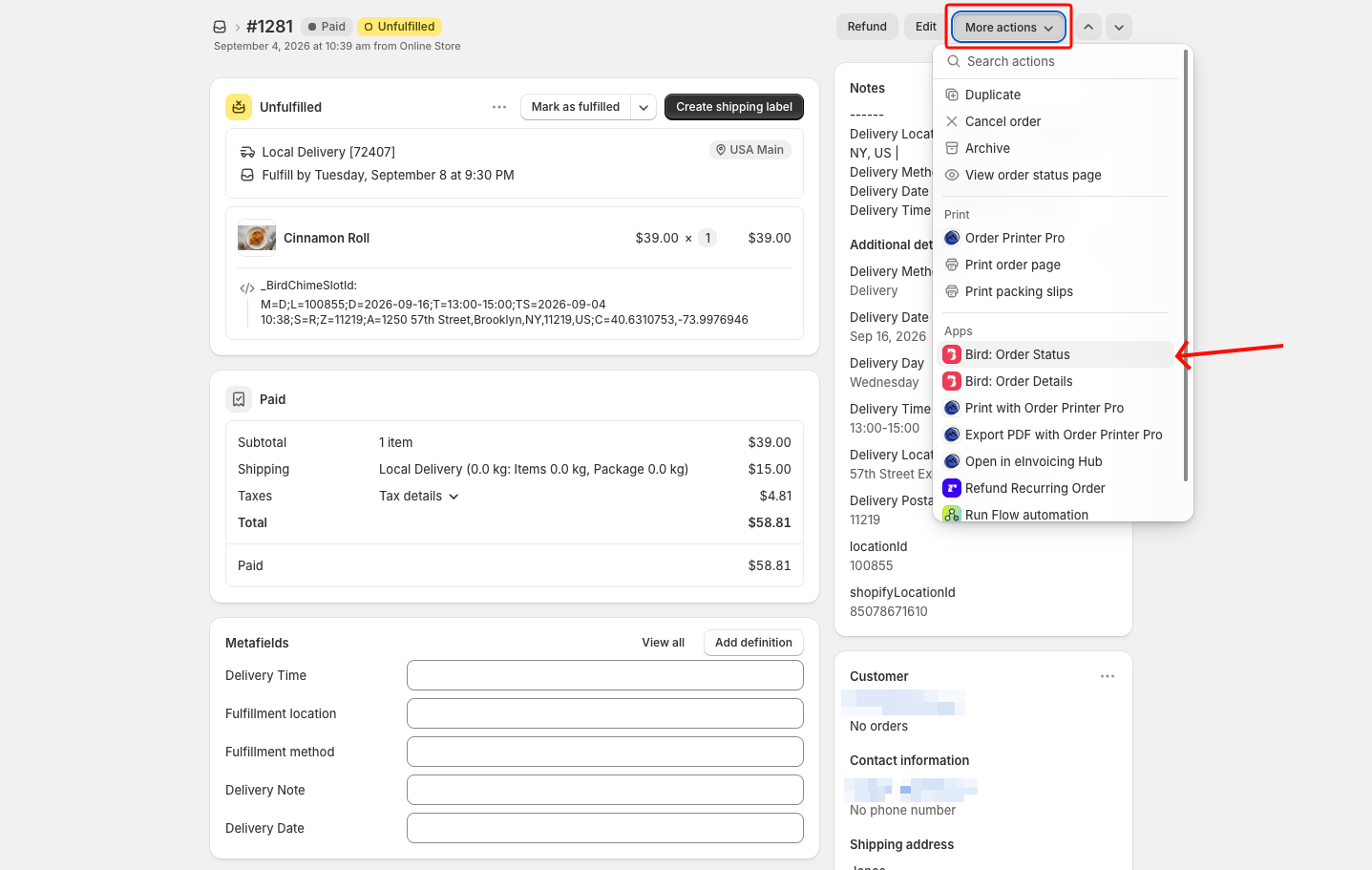
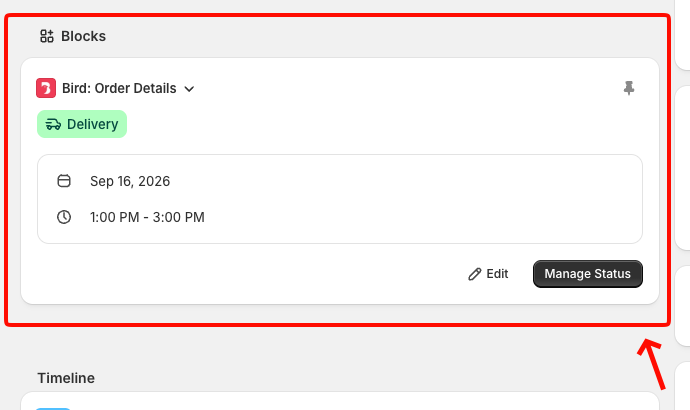
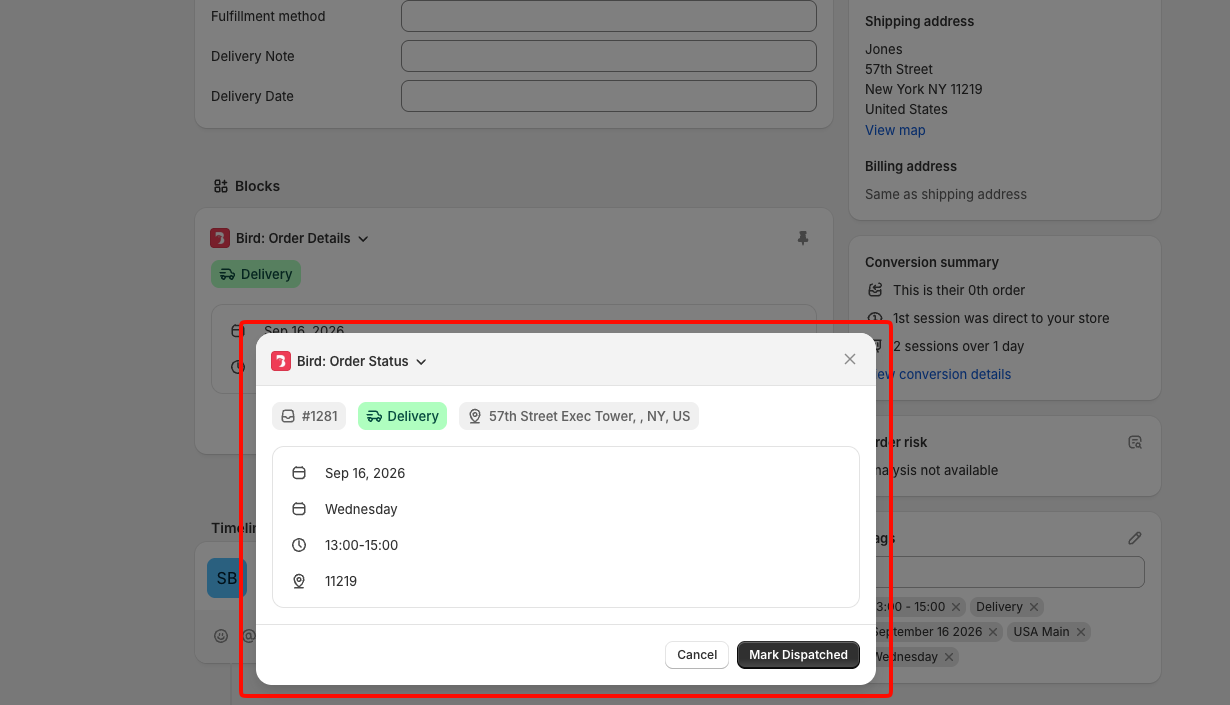
The button changes with the order’s status. Each order takes two clicks:
| Order | First click | Second click |
|---|---|---|
| Pickup | Mark Ready (Ready for Pickup) | Mark Picked Up (Complete) |
| Delivery | Mark Dispatched (Out for Delivery) | Mark Delivered (Complete) |
After the second click the order is complete and the button is gone.
Update the Status on the Shopify Mobile App
This works the same on iPhone, iPad, and Android.
- Open the order in the Shopify app.
- Tap ⋯, then tap Bird: Order Status under App actions.
- Tap ✓ in the top-right corner.
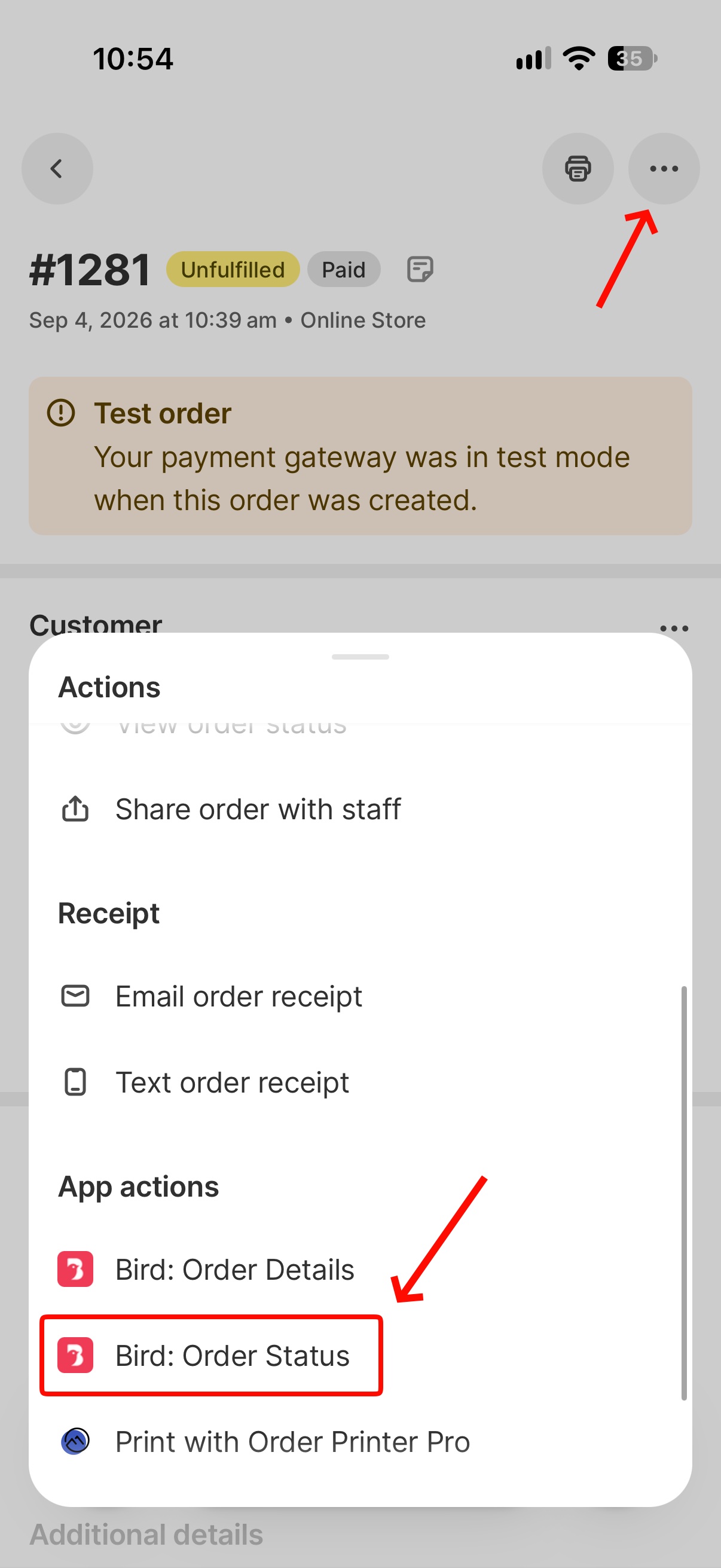
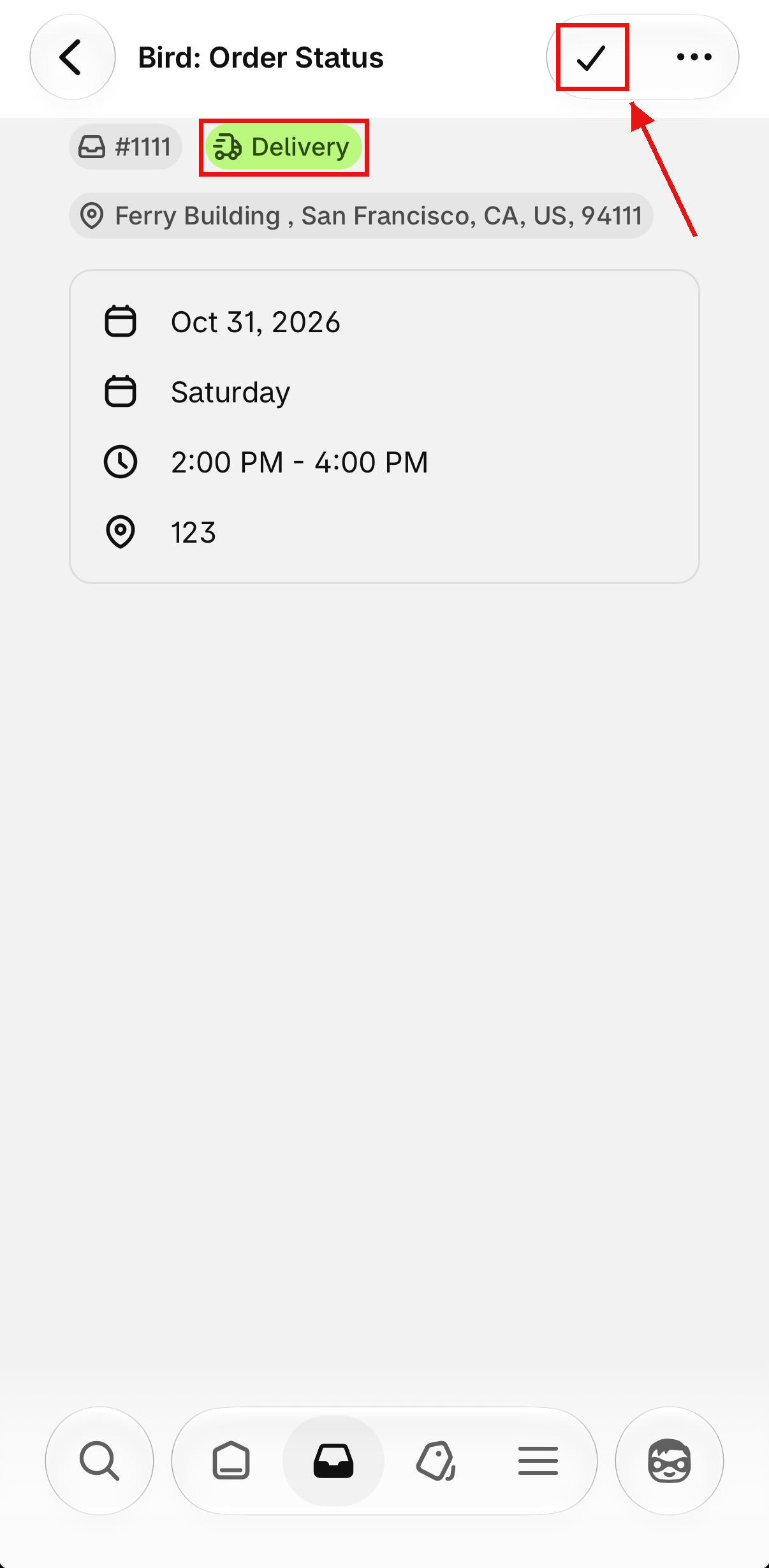
The ✓ has no label. Shopify shows it in place of the Mark Ready or Mark Dispatched button. It sets the same status, so use the table above to know which one. If you’re unsure, open the order on a computer, where the button is labelled.
Check the title says Bird: Order Status. Bird: Order Details has the same ✓, but it only saves the order’s date and location. It doesn’t change the status.
What Happens Next
- The status shows on the Bird Order Details block and on the Orders page in the Bird app.
- The customer gets the matching email, and Shopify’s own shipping email is skipped. See Customer: Pickup & Delivery Notifications.
Don’t use Shopify’s Fulfill button for these orders. It sends Shopify’s shipping email on top of Bird’s, so the customer gets two.
To update many orders at once, use Order Status: Update via Bird.
Troubleshooting
- “This order has already been completed.” Both statuses are marked. There’s nothing left to do.
- “No available actions for this order.” The order has no Bird pickup or delivery details, for example a shipping order or a draft order without Bird: Order Details saved. Fulfil shipping orders with Shopify’s own tools. If the order does have a Bird date, close the window and open it again.
Related Articles
Was this article helpful?
Thanks for your feedback!