
 Order Management
Reports: Set Up Daily & Weekly Automatic Reports
Automated Reports
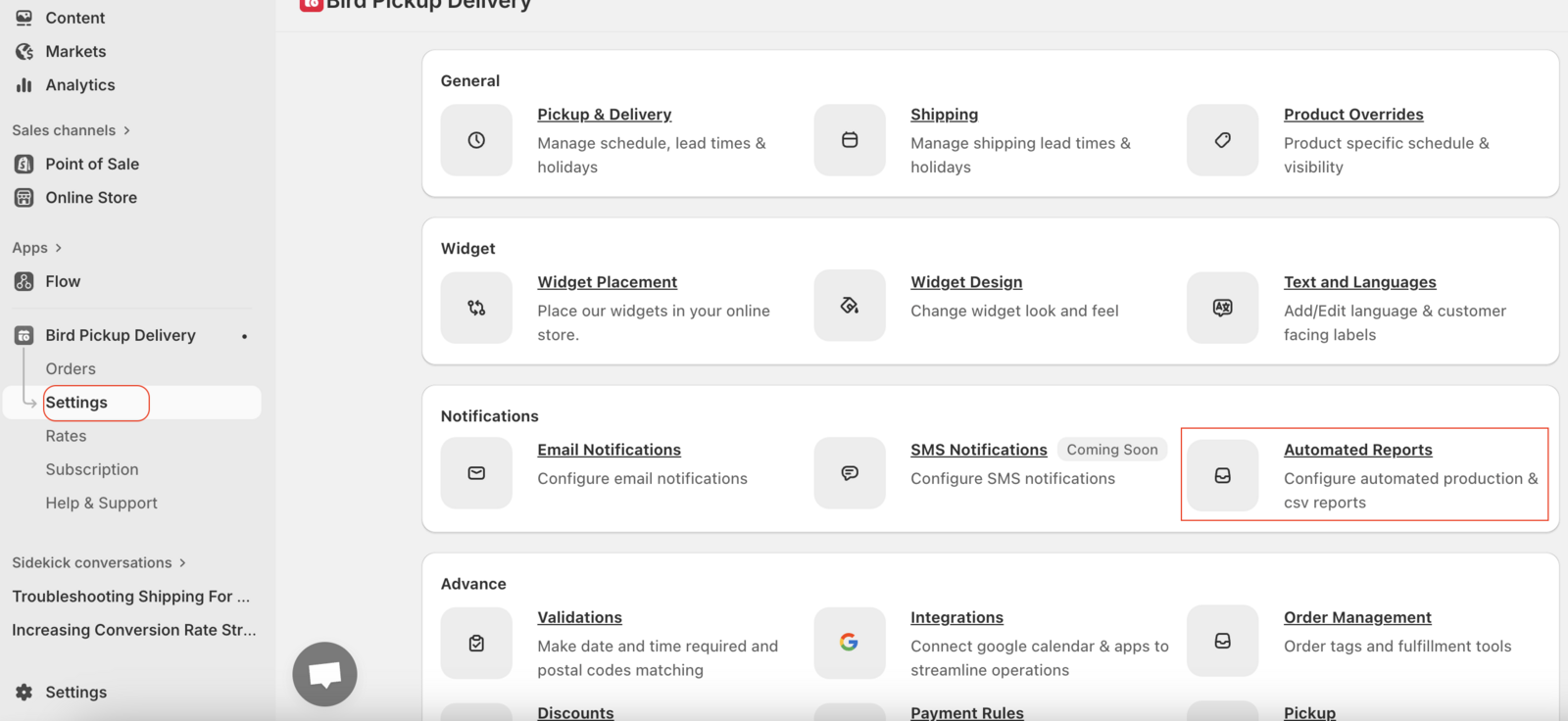
Receive automated reports about your upcoming orders by email. A daily report lists the open orders due the next day, and a weekly report lists the open orders due in the next 7 days. You can include all orders or only those for specific delivery methods.
Plan: Automated reports are available on the Scale plan. See Complete Guide to Our Pricing Plans.
Steps to configure
- Go to Bird Settings > Automated reports
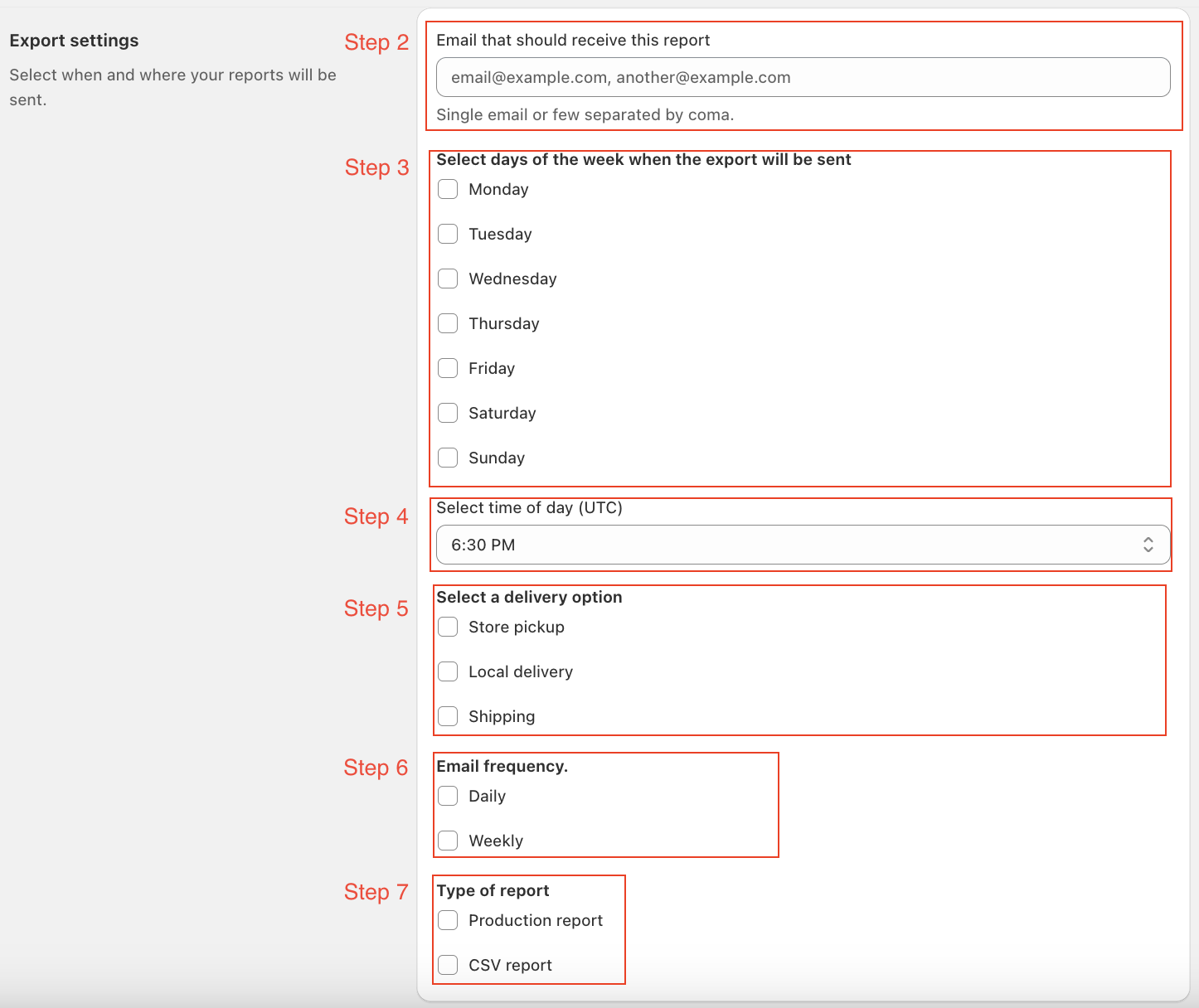
- Under Email that should receive this report, enter one or more emails, separated by commas.
- Under Select days of the week when the export will be sent, tick the days you want the report.
- Under Select time of day, choose when the report is sent. The time is in your store’s time zone.
- Under Select a delivery option, tick Store pickup, Local delivery and/or Shipping.
- Under Report period, tick Daily (open orders due the next day) and/or Weekly (open orders due in the next 7 days).
- Under Type of report, tick Production report and/or Order details report.
- Click Save in the save bar.
You will now receive automated reports on the days and at the time you selected.
Reports set up before October 2026: their send time was moved to your store’s time zone automatically, so they still arrive at the same moment. These older reports also show Filter orders by: Created date lists orders placed in the period, and Selected date lists orders due in the period.
Related Articles
Was this article helpful?
Thanks for your feedback!