
 Integrations
Google Calendar
Automatically sync your Shopify orders to Google Calendar and track delivery and pickup schedules with detailed order information.
Connect Bird Pickup & Delivery to Google Calendar
You’ll sync your Shopify orders to Google Calendar for automatic schedule tracking.
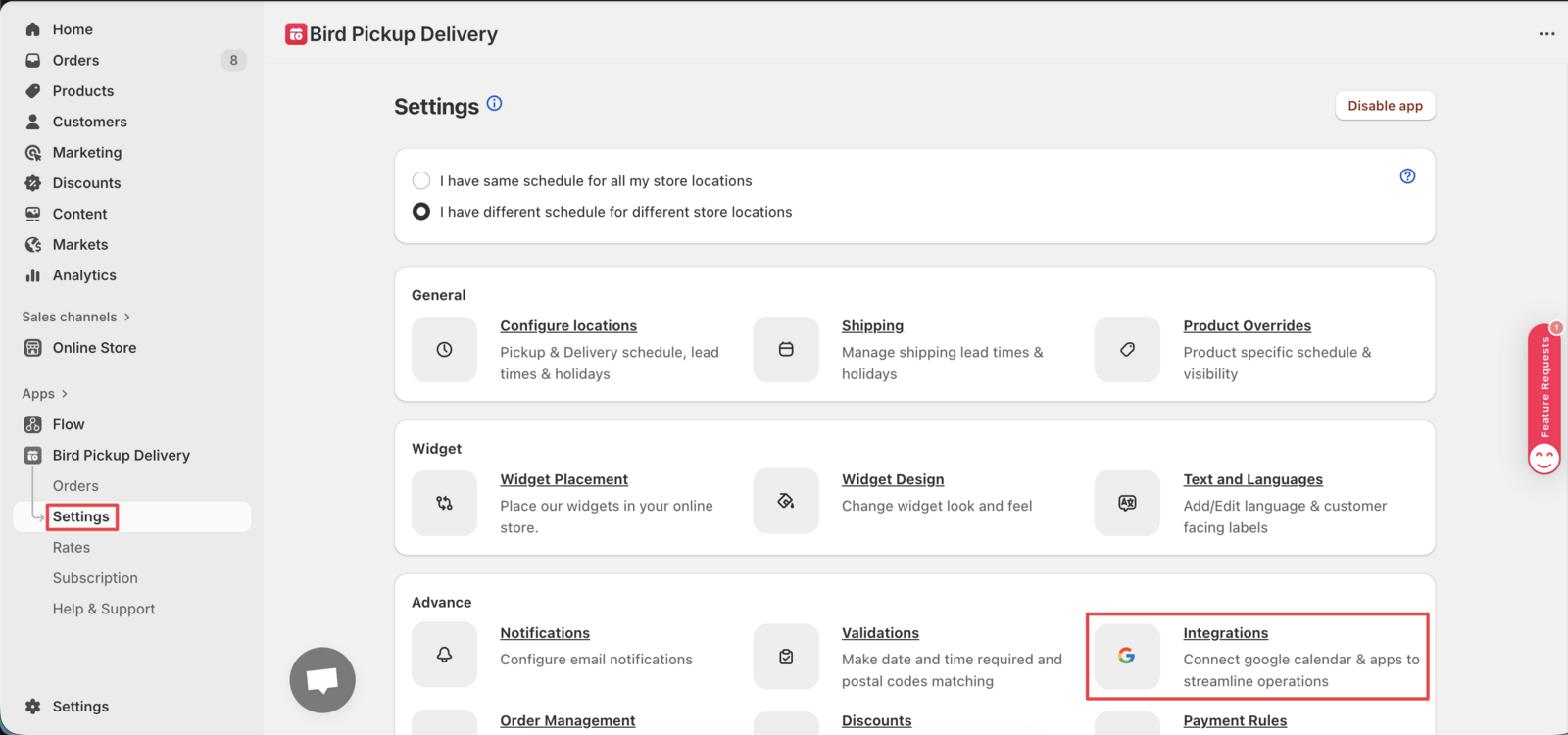
Step 1: Access Google Calendar Integration
- Navigate to Bird App Settings > Integrations > Google Calendar
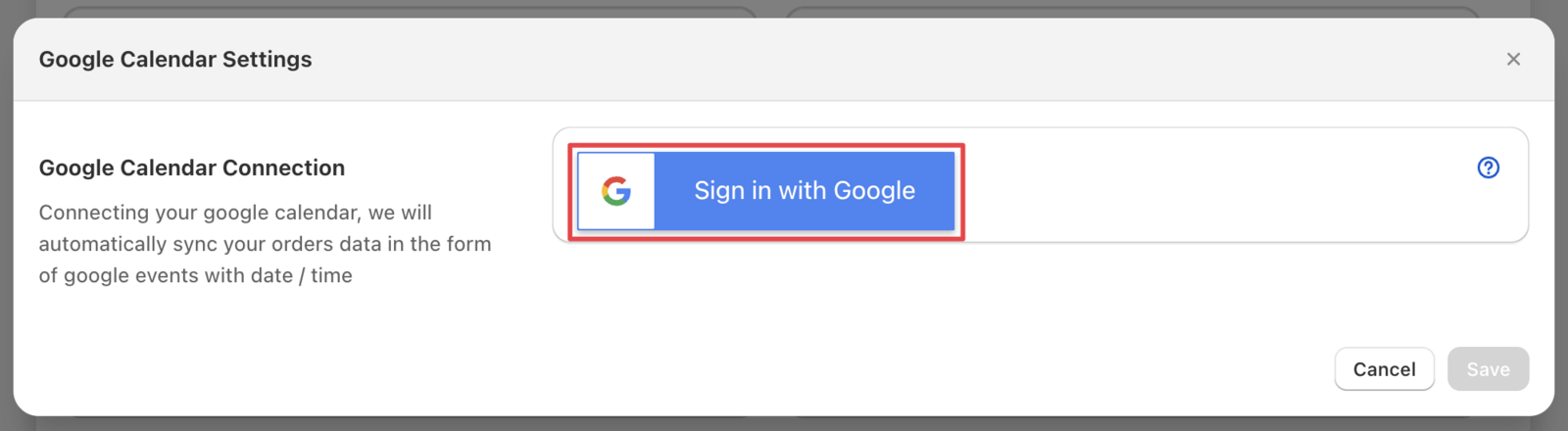
Step 2: Authenticate with Google
- Click Sign in with Google
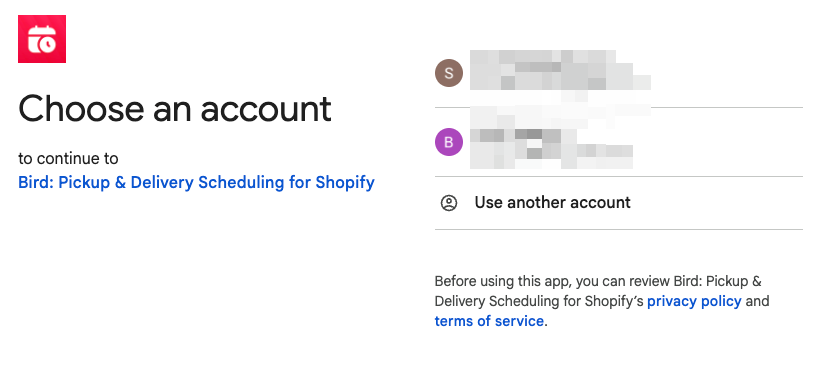
Step 3: Grant Calendar Access
- Select your store’s Google account
- Allow calendar access permissions
- Click Continue
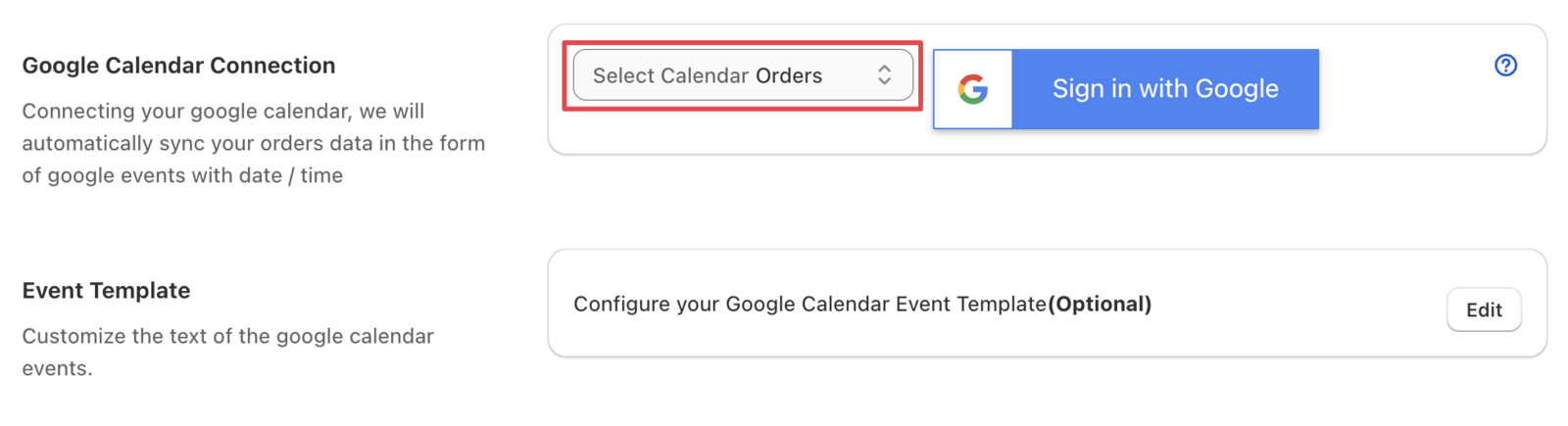
Step 4: Confirm Connection
Your account connects successfully and begins tracking orders automatically.
View Orders in Google Calendar
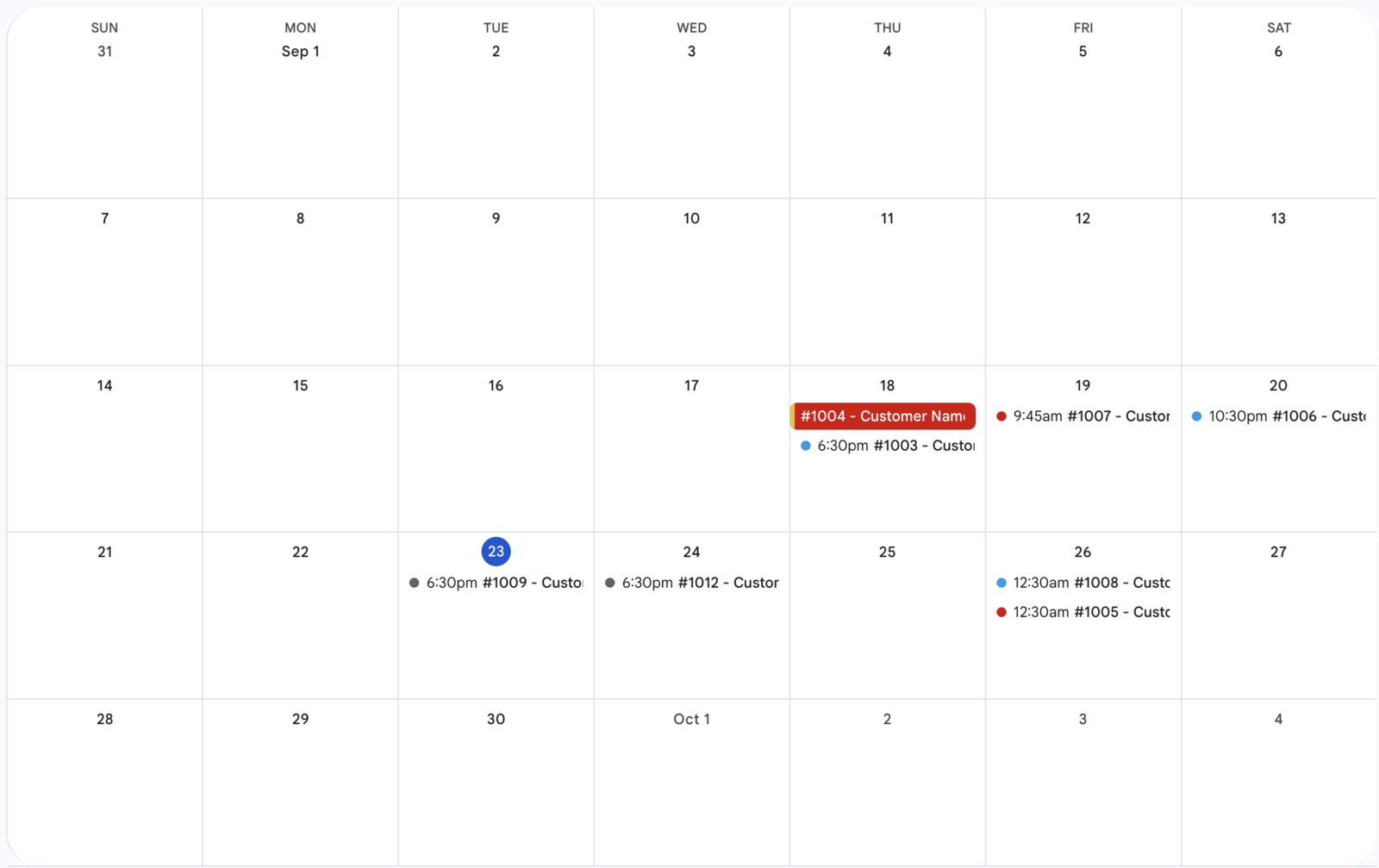
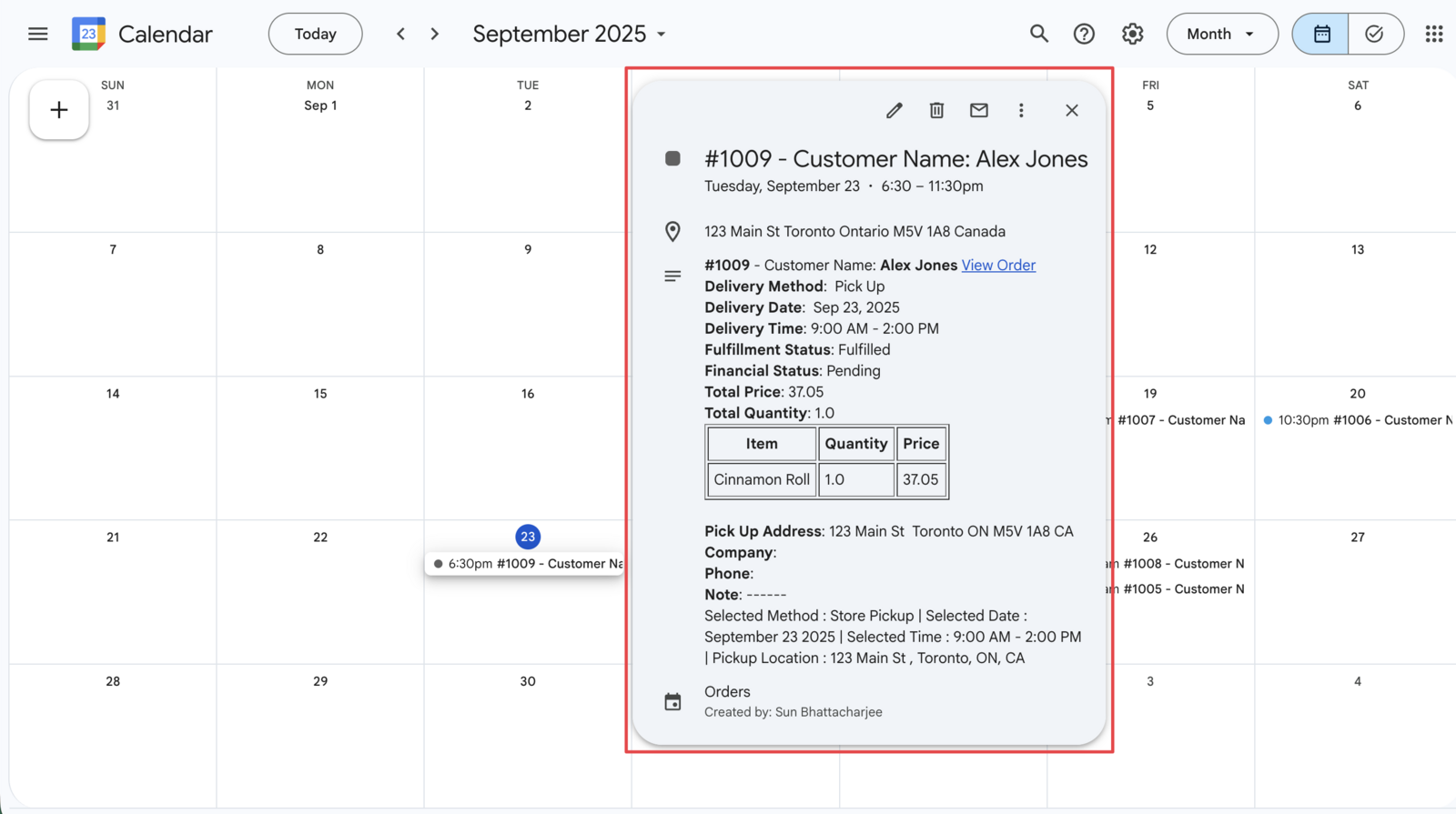
Your Shopify orders now appear as calendar events with complete order details.
Orders display in Google Calendar with delivery/pickup times and order information.
Organize Orders by Location
Assign different Google Calendars to different store locations for better organization.
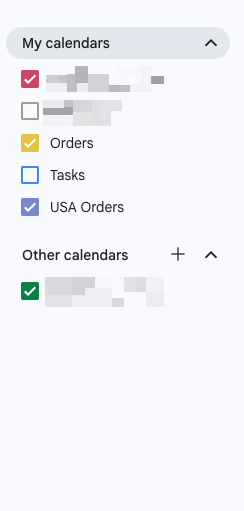
Create Multiple Calendars
- Go to Google Calendar
- Click ”+” next to “Other calendars”
- Select “Create new calendar”
- Name each calendar for a specific location (e.g., “Downtown Store”, “Westside Location”)
Assign Calendars to Locations
- Navigate to Bird Settings > Edit Locations
- Navigate to Configure Locations if you have different schedules for different store locations
- Select your desired location
- Under Internal notifications > Google calendar, choose the calendar from the dropdown
- Click Save
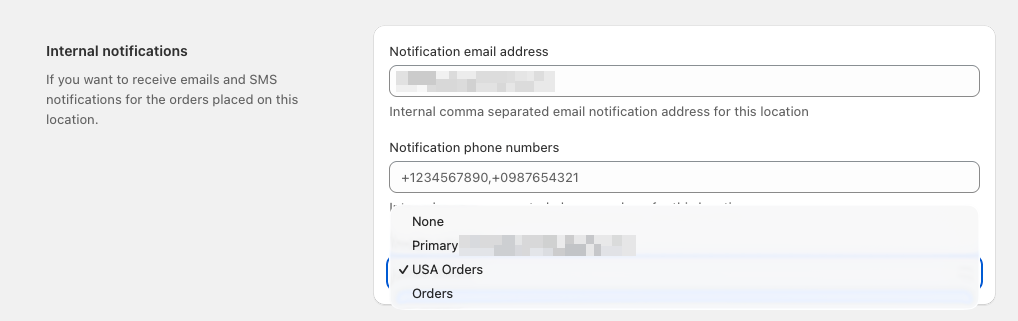
Each location now creates order events in its designated Google Calendar, keeping your pickup and delivery schedules organized by location.
Customize Event Template
Scale Feature: Event template customization is available on the Scale plan.
Customize what information appears in your Google Calendar events.
You can modify both the event title (summary) and the event description to show exactly the order details you need.
Access Event Template Settings
- Navigate to Bird App Settings > Integrations > Google Calendar
- Under Event template, click Edit next to Configure your Google Calendar event template (optional)
What You Can Customize
- Google Calendar summary — The event title that appears in your calendar
- Google Calendar description — The details shown when you click on an event
Available Variables
Use these placeholders to insert order information into your template:
| Variable | Shows |
|---|---|
{{order_name}} |
Order number (#1001) |
{{customer.first_name}} |
Customer’s first name |
{{customer.last_name}} |
Customer’s last name |
{{attributes['Delivery Method']}} |
Pickup or Delivery |
{{attributes['Delivery Date']}} |
Scheduled date |
{{attributes['Delivery Time']}} |
Scheduled time slot |
{{total_price}} |
Order total |
{{shipping_address.address1}} |
Delivery address |
{{shipping_address.city}} |
Delivery city |
{{shipping_address.phone}} |
Customer phone |
{{note}} |
Order notes |
Simply copy any variable and paste it into your template where you want that information to appear.
Click Save after making changes.
FAQs
Can I use multiple Google accounts for different store locations?
You can use different calendars for different store locations, but you will have to be signed in from one Google account.
What order information appears in the calendar events?
Calendar events include customer details, delivery/pickup times, order items, and delivery method for complete order tracking. You can customize the event template to show exactly the information you need.
For more general questions, see our main FAQs page.
Related Articles
Was this article helpful?
Thanks for your feedback!