
 Integrations
Shopify POS
Learn how to integrate Bird Pickup & Delivery with Shopify POS using two dedicated tiles: Bird: Order Details for scheduling new orders, and Bird: View Orders for managing existing ones. Add date and time selection for delivery, pickup (BOPIS, click and collect), and shipping to your in-store orders.
Requirements
- Bird: Order Details (scheduling new orders) requires Shopify POS Pro — it doesn’t work on POS Lite. Bird: View Orders (managing existing orders) works on both POS Lite and POS Pro.
- Shopify Plus stores get POS Pro by default, for up to 20 POS locations. If you’re on Shopify Plus, you likely already meet the Order Details requirement above without a separate upgrade.
- To schedule an order with Shipping as the fulfillment method in Bird: Order Details, your store also needs Shopify’s native Ship all items POS tile added (Shopify POS App > Add Tile > Actions > Ship all items). That tile requires POS Pro on its own, separately from the Bird tiles — see Shopify POS Rates.
- Shopify POS app installed and configured
- Bird Pickup & Delivery app installed in your store
- Admin access to your Shopify store
| Feature | POS Lite | POS Pro |
|---|---|---|
| Bird: Order Details (scheduling) | Not supported | Yes |
| Bird: View Orders (order management) | Yes | Yes |
| Rates in POS | Not supported | Yes |
Note: Orders scheduled through either POS tile count toward your plan’s monthly order limit, the same as storefront orders. See Complete Guide to Our Pricing Plans for plan details.
Limitations
Know these constraints before you build a POS workflow around them:
- No zone validation in POS. Scheduling a Delivery order in POS has no postal code, radius, or driving-distance check of any kind. Staff manually selecting a Location is the only check performed — the zones you’ve configured for the storefront widget are not enforced here. It’s on staff to pick the correct location for the customer’s actual address.
One thing that isn’t a limitation: POS checks slot capacity. Staff can’t schedule an order into a time slot that’s already full, so there’s no double-booking risk here.
(This section will expand as hidden/restricted product handling in POS is confirmed.)
How It Works
Bird Pickup & Delivery integrates with Shopify POS to enable scheduling for all fulfillment types:
- Automatic Sync: Order details created or changed in POS are reflected immediately in Shopify admin, and vice versa
- Notification Integration: Once configured, customer notifications automatically include POS-scheduled details
Add Bird POS Tiles
Add the Scheduling Tile (Order Details)
Add the Bird Scheduling Tile to enable date and time scheduling for new orders.
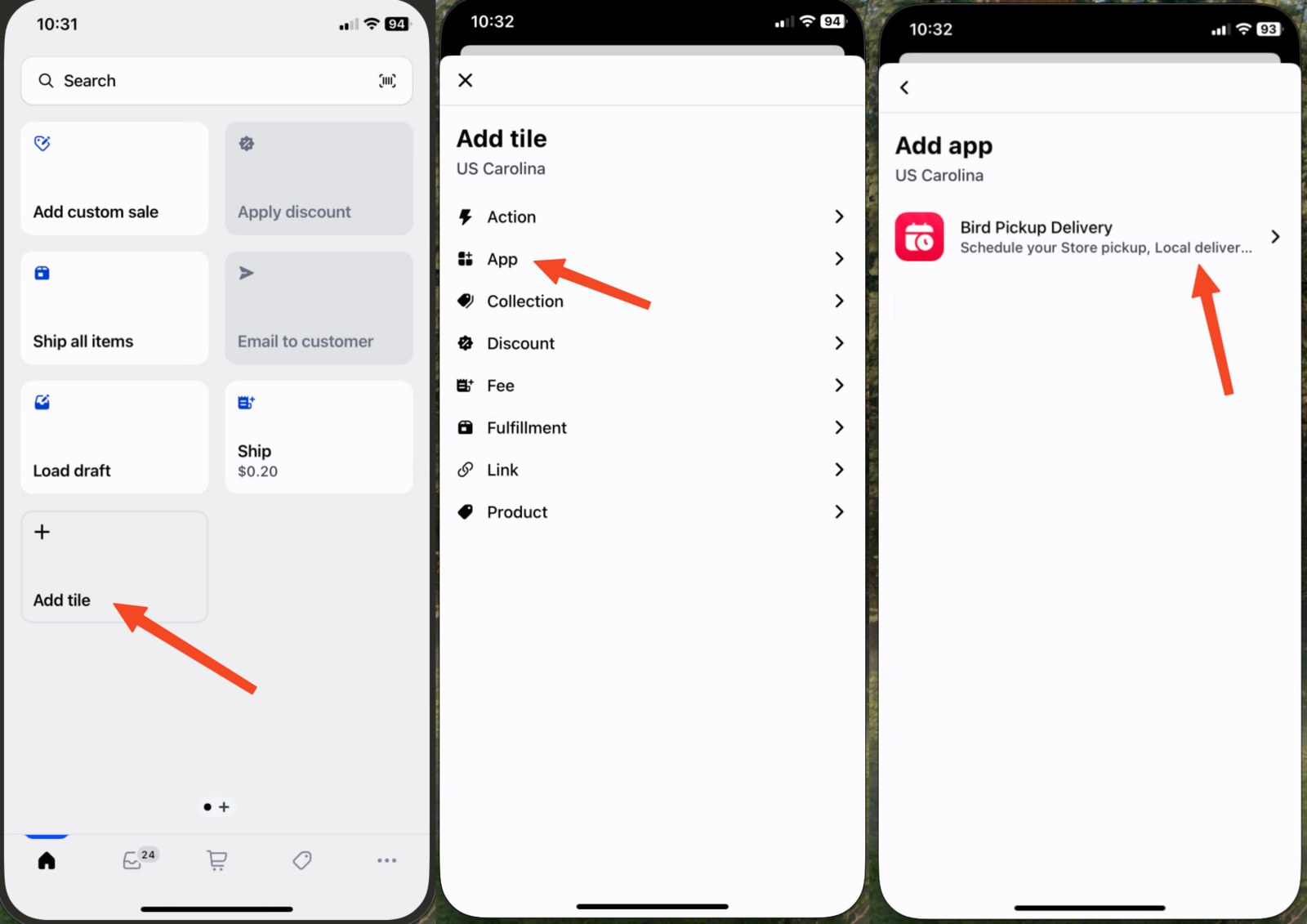
- Open Shopify POS on your device
- Tap Add Tile > App > Bird Pickup Delivery
- Select Bird: Order Details (POS UI extension)
- Tap Save
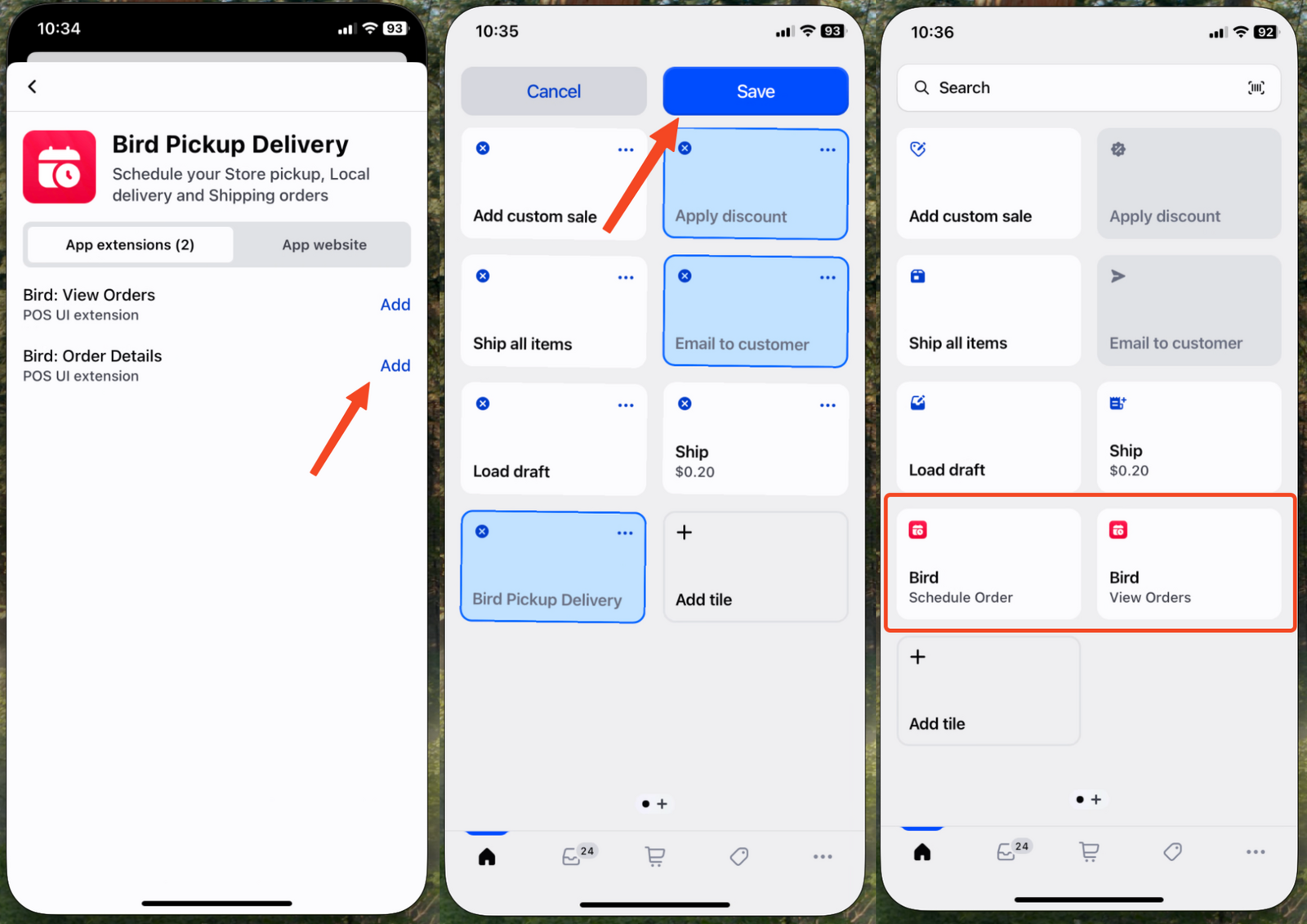
Add the Order Management Tile (View Orders)
Add the Bird Order Management Tile to view, filter, and manage all scheduled orders.
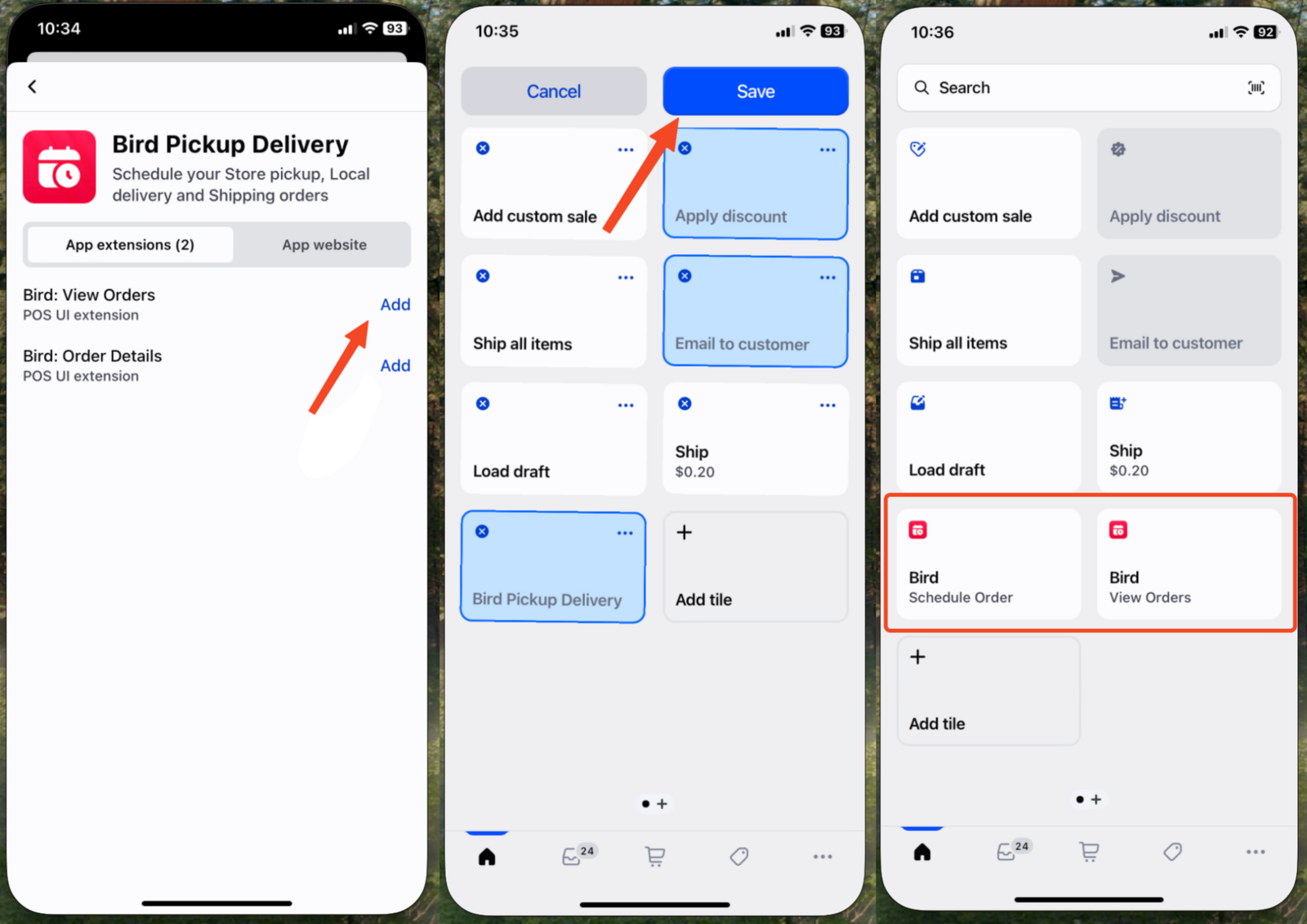
- Tap Add Tile > App > Bird Pickup Delivery
- Select Bird: View Orders (POS UI extension)
- Tap Save
New Order Scheduling (Scheduling Tile)
Use the Bird Scheduling Tile to schedule delivery dates, pickup times, and shipping details for new customer orders.
Configure Order Details
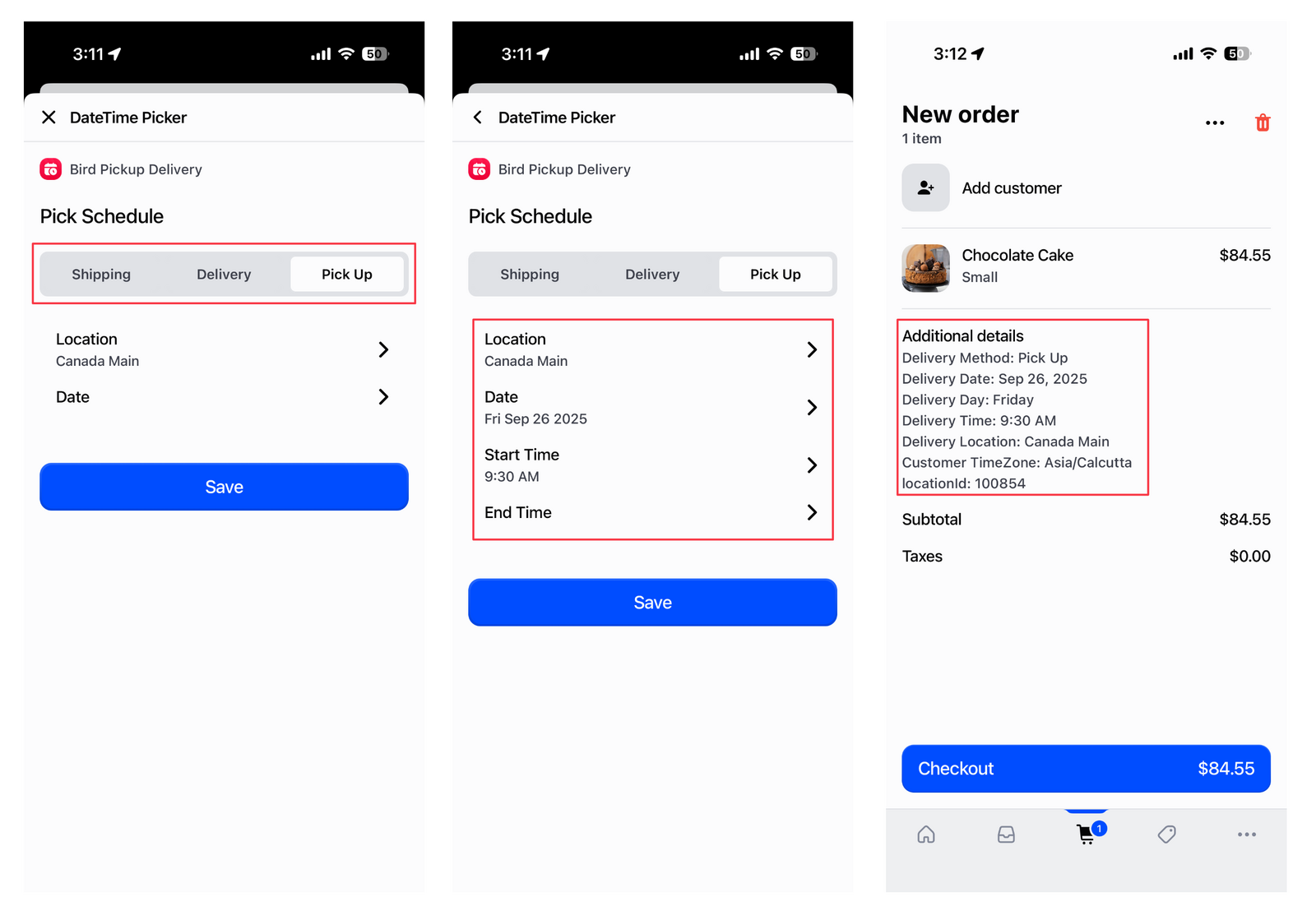
Configure delivery, pickup, or shipping details for customer orders during checkout.
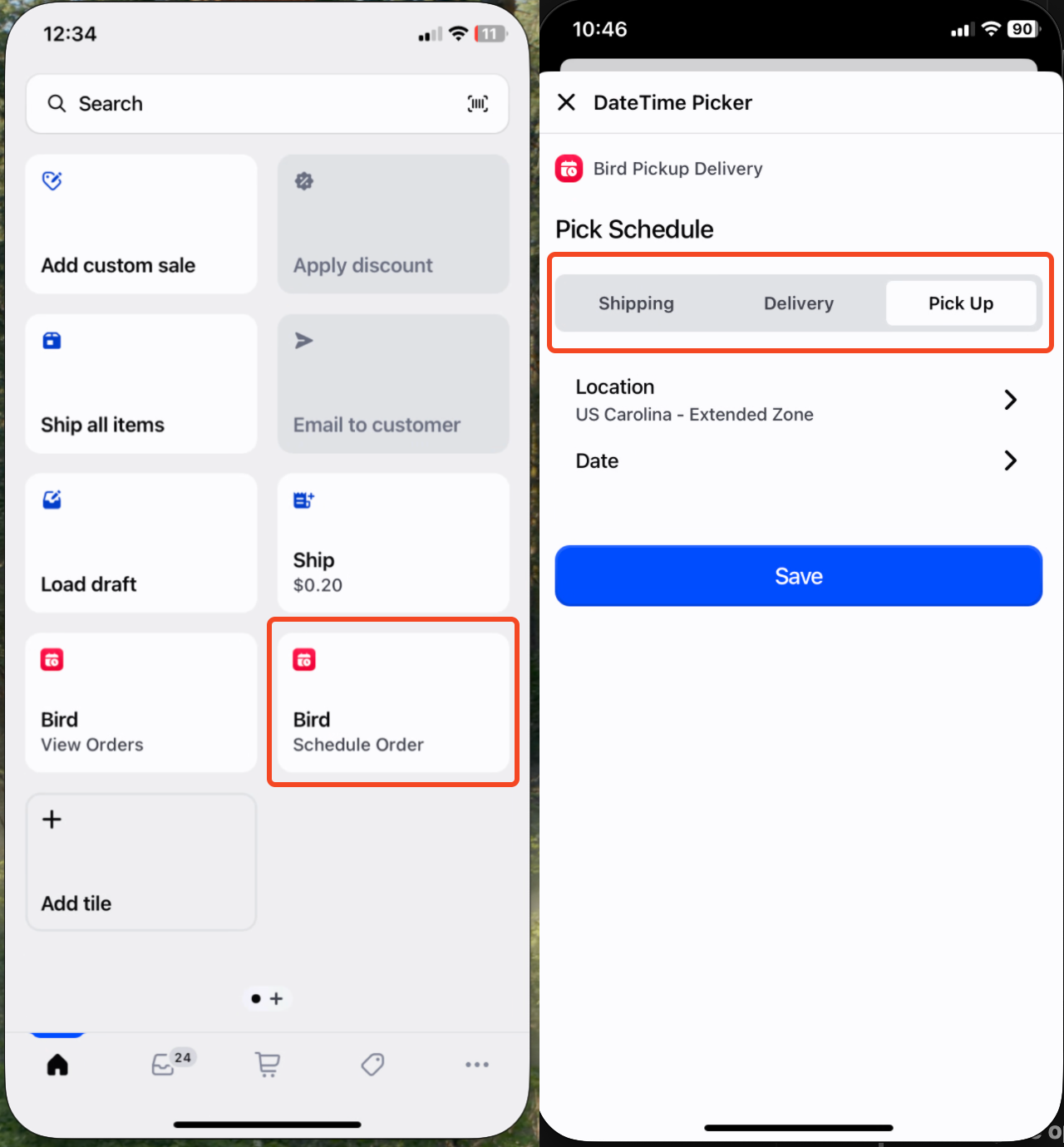
- Open the Bird Order Details tile in your POS interface
-
Select your delivery or pickup method for the order:
- Shipping: For standard shipping orders. Requires the native Ship all items tile — see Requirements.
- Delivery: For local delivery orders
- Pick Up: For customer pickup orders
-
Configure order details as needed:
- Location: Choose your fulfillment location (required for Delivery/Pickup orders). For Delivery orders, this manual selection is the only zone check performed — see Limitations.
- Date: Select the preferred delivery/pickup date
- Start Time: Choose the preferred time slot start
- End Time: Choose the end time (creates a time range)
Once you save these details, matching pickup, delivery, or shipping rates appear automatically when you proceed to checkout in Shopify POS via the native Ship all items tile. If the rate you expect doesn’t show up, see Shopify POS Rates for troubleshooting.
Here’s what the Bird Order Details tile can and can’t check when you schedule a Delivery order:
| Field | Available in Bird: Order Details (POS) |
|---|---|
| Fulfillment method (Shipping / Delivery / Pickup) | Yes |
| Location | Yes |
| Date | Yes |
| Start Time / End Time | Yes |
| Postal code or address validation | Not supported |
Postal code and radius validation configured for your storefront widget are not enforced when scheduling orders in POS. Selecting a Location is the only check performed.
Order Management (Order Management Tile)
Use the Bird Order Management Tile to view, manage, and update all existing scheduled orders.
Access Order Management
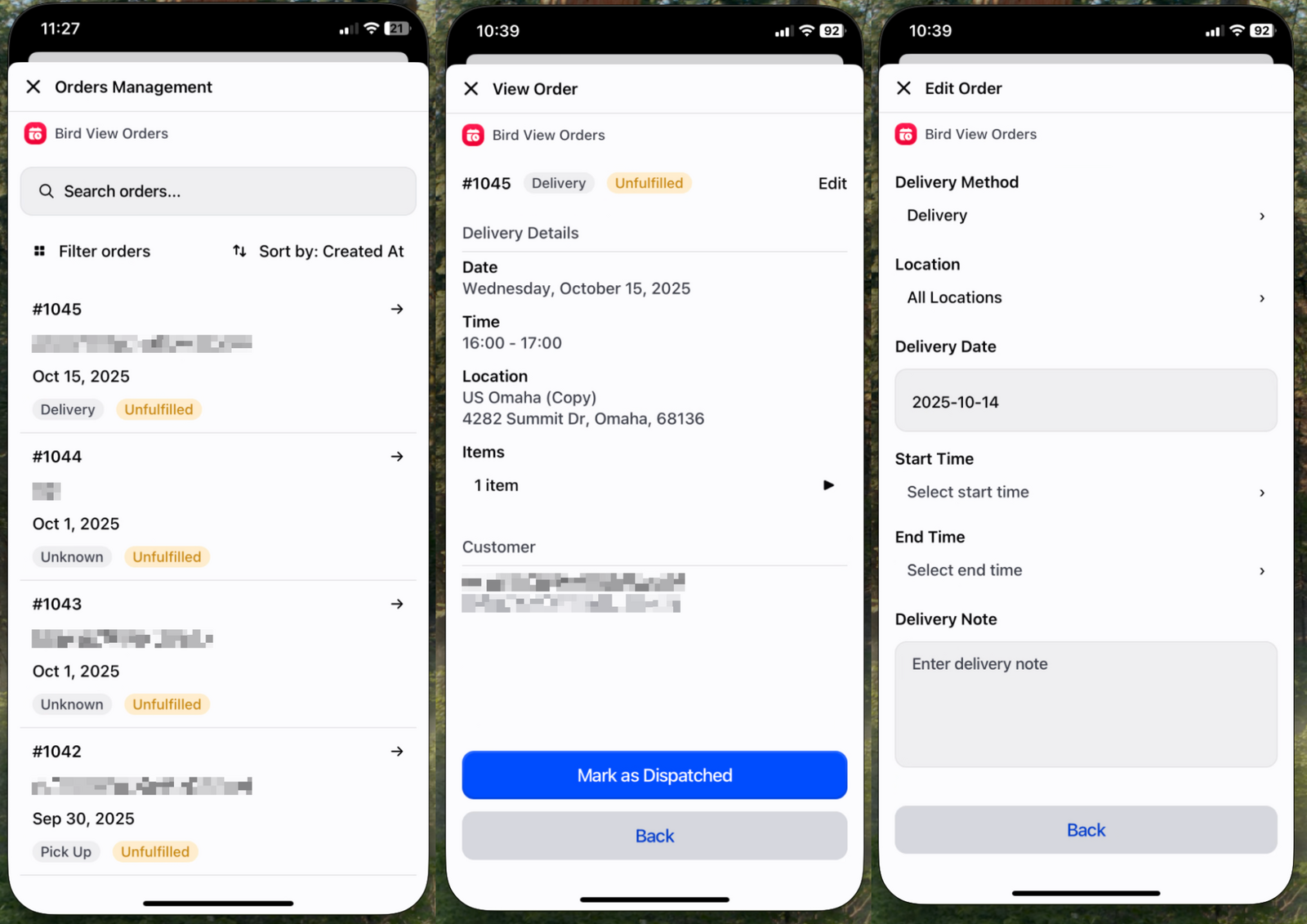
View and manage all scheduled orders from your POS interface.
- Open the Bird View Orders tile in your POS interface
- The system displays a comprehensive list of orders filtered by default to your current POS location
- Search for specific orders using the search functionality
- Browse through orders to find the one you need to manage
Note: The location filter automatically applies to your physical POS location by default. You can remove or change this filter if you need to view orders from other locations.
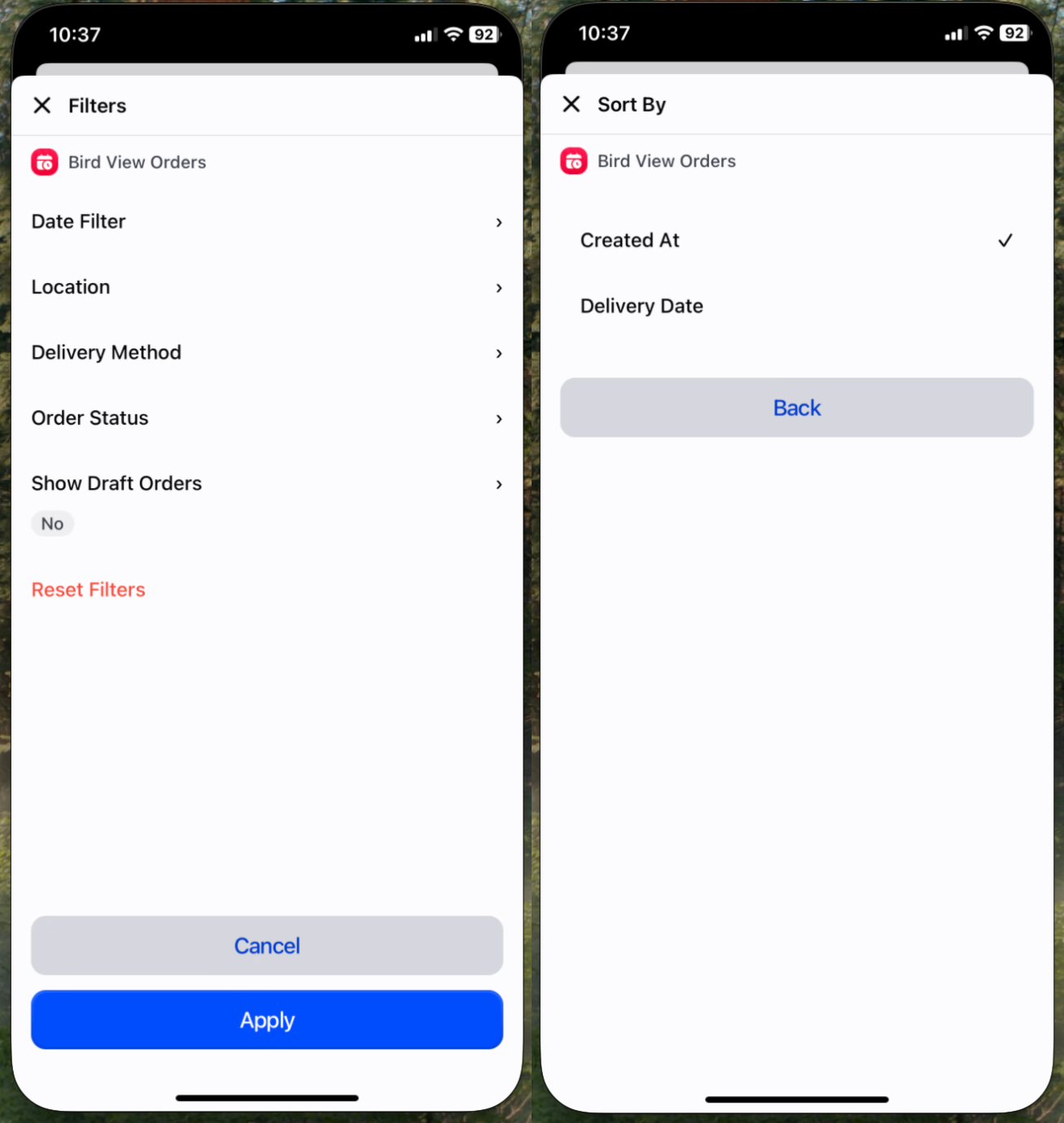
Filter and Sort Orders
Narrow down the order list before opening a specific order.
The order list view provides several management tools:
Filtering Options
- Date Filter: Filter orders by specific date ranges
- Location Filter: Show orders for specific fulfillment locations
- Delivery Method Filter: Filter by Shipping, Delivery, or Pickup
- Order Status: Filter by order status (Pending, Ready, Dispatched, Fulfilled, Archived)
- Show Draft Orders: Toggle to view draft orders in the orders list
Sorting Options
- Sort by Created At: View orders in the order they were created
- Sort by Delivery Date: Organize orders by their scheduled delivery date
View Order Details
Access detailed information about any scheduled order.
- Click on any order from the list
- The order details screen displays:
- Order number and customer information
- Scheduled date and time
- Delivery method (Shipping/Delivery/Pickup)
- Assigned location
- Delivery notes (if any)
- Order status
Update Order Status
Update the order status as you fulfill each order.
- Open the order details for the order you want to manage
- Click the appropriate status button (Mark as Ready for Pickup, Mark as Dispatched, or Mark as Complete)
- The order status updates automatically in both POS and Shopify admin
- Customer notifications are sent based on your configured settings
Edit Order Details
Modify order details after they’ve been created.
- Open the order details for the order you want to edit
- Click “Edit” to access the editing interface
-
Modify any of the following properties:
- Delivery Method: Change between Shipping, Delivery, or Pickup
- Location: Update the fulfillment location
- Delivery Date: Change the scheduled date
- Start Time: Modify the time slot start
- End Time: Adjust the time slot end
- Delivery Note: Update or add special instructions
- Save your changes - updates are reflected immediately in both POS and Shopify
Changes update immediately across all systems.
Troubleshooting
If Bird tiles are not loading, showing a permissions screen, or displaying an error:
- Ensure the Shopify POS app and your device OS are updated to the latest version
- Check staff permissions: Shopify Admin > Settings > Users and permissions > [Staff member] > Point of Sale — enable POS access and assign a role
- Delete and re-add the Bird tiles from your POS home screen
- Close and reopen the Shopify POS app
Permissions are managed in Shopify Admin, not in the Bird app. Only store owners or admins can update staff permissions.
Related Articles
Was this article helpful?
Thanks for your feedback!