
 Integrations
Shopify Flow
Automatically trigger Shopify Flow workflows when orders are created or updated in your store.
Connect Bird Pickup & Delivery with Shopify Flow to automate order workflows. Shopify Flow lets you create automated workflows triggered by events. This integration sends order events from the app to your Flow workflows. You can automate notifications, inventory updates, team assignments, and more.
This integration requires a Growth plan or above.
How to Enable the Integration
- Go to Bird Settings > Integrations
- Find Shopify Flow in the Automation category and click the tile
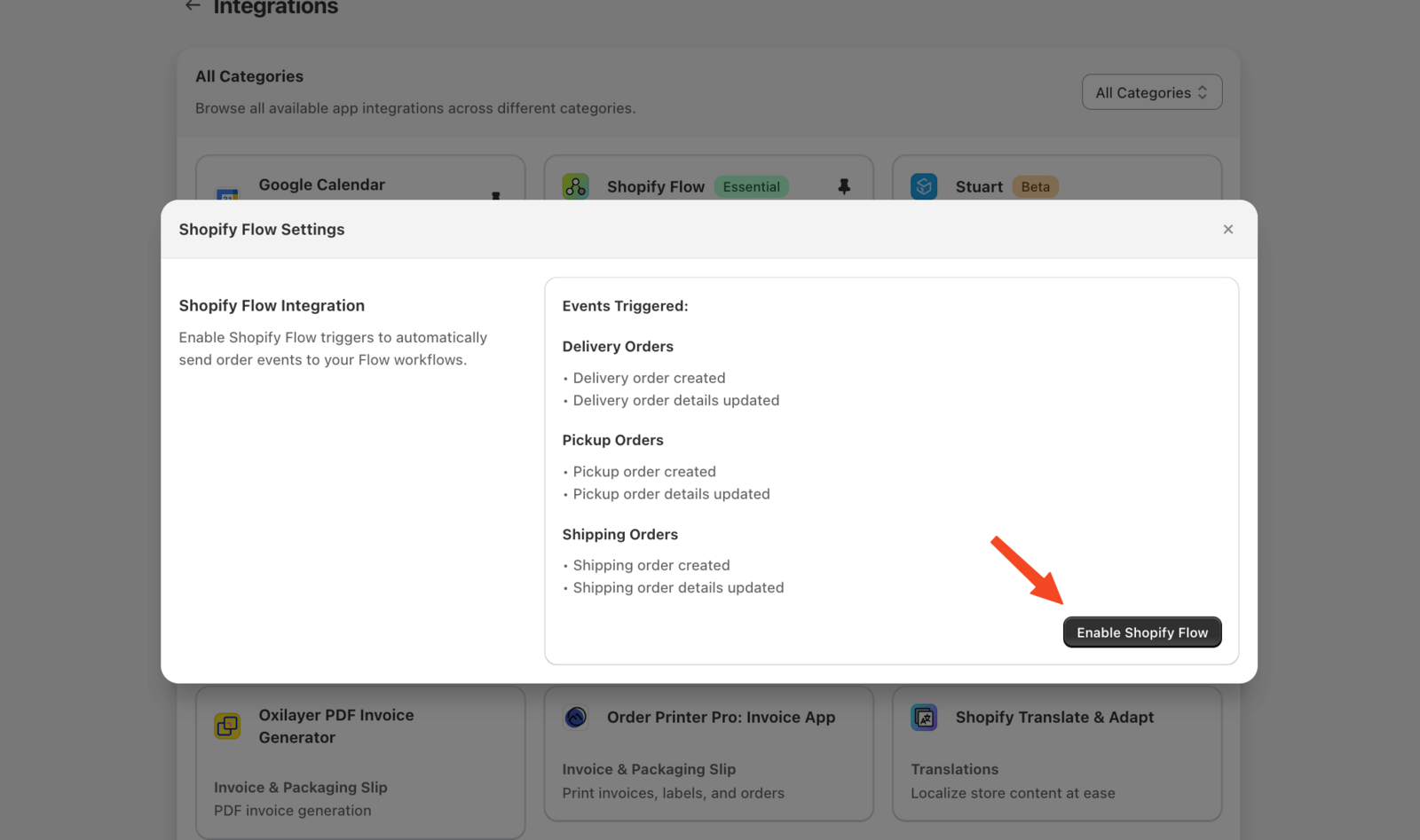
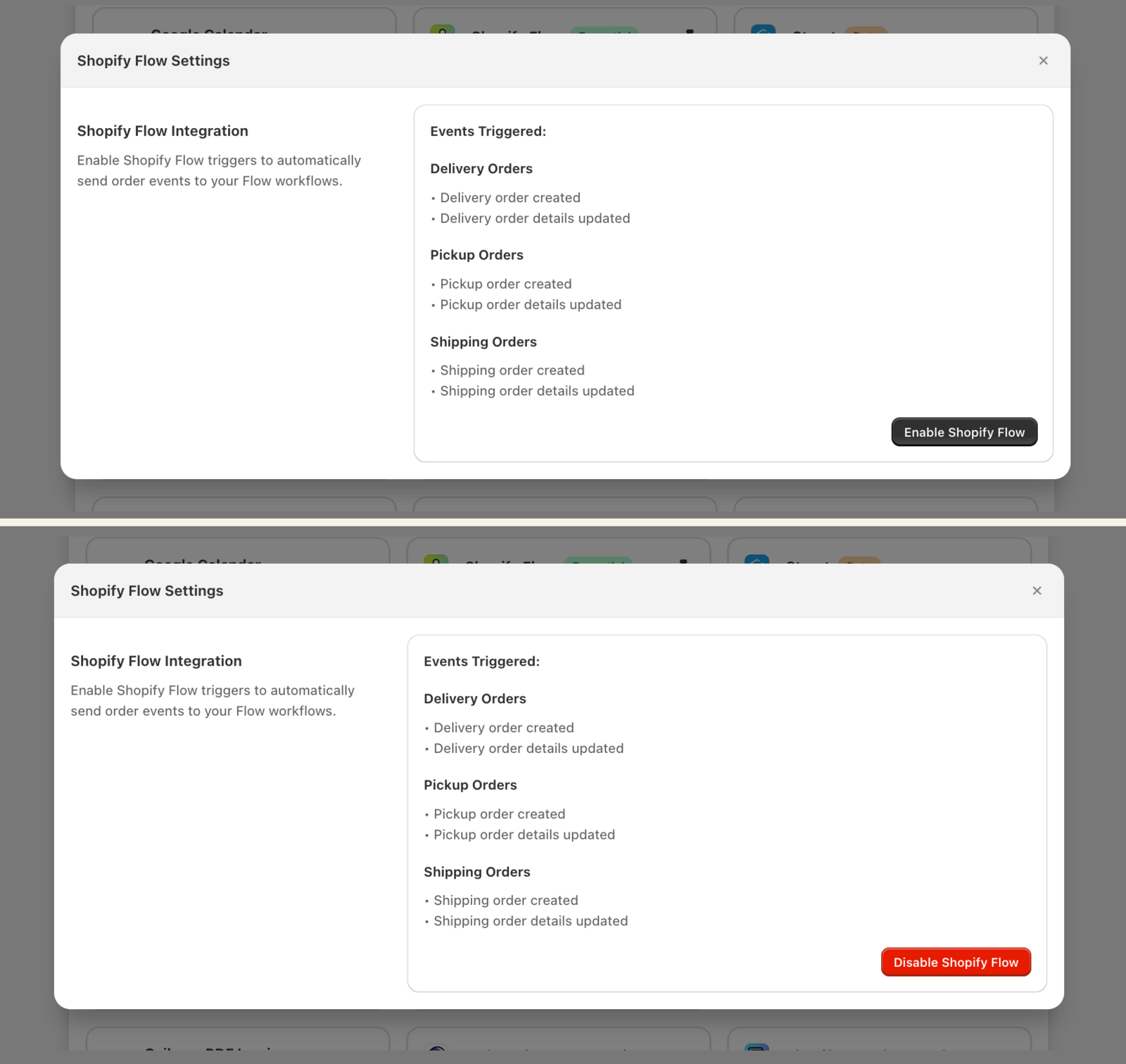
- In the Shopify Flow settings window, click Enable Shopify Flow
How to Set Up Your Flow Workflow
- Go to Shopify admin > Shopify Flow app
- Click Create workflow
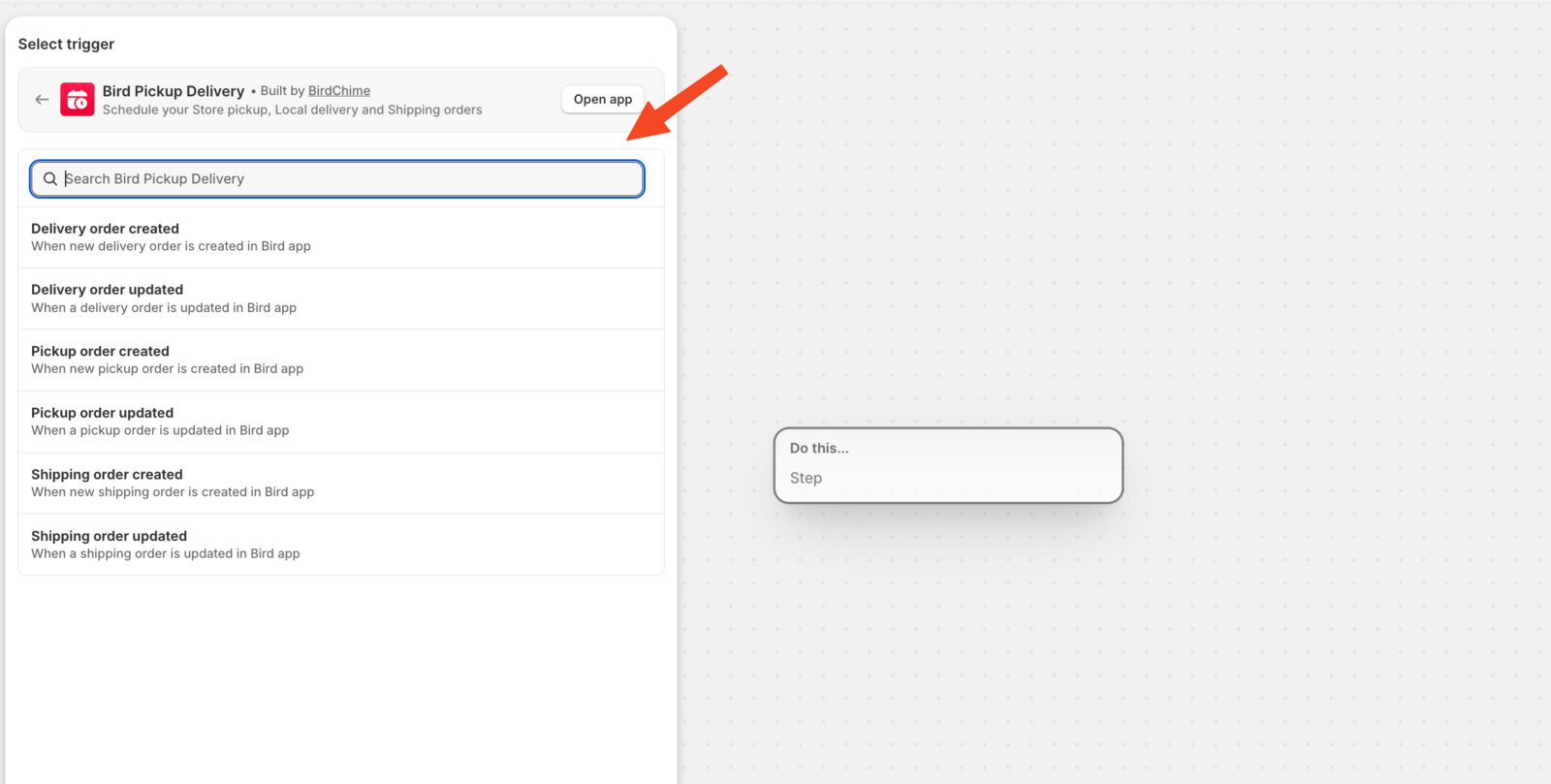
- Click Select a Trigger
- Search for “Bird Pickup Delivery”
- Select a trigger from the list
- Configure your workflow actions
- Click Turn on Workflow
Available Events
Bird Pickup & Delivery schedules Store pickup, Local delivery, and Shipping orders. These triggers are available in Shopify Flow:
-
Delivery Orders
- Delivery order created
- Delivery order updated
-
Pickup Orders
- Pickup order created
- Pickup order updated
-
Shipping Orders
- Shipping order created
- Shipping order updated
-
All Orders
- Order edited
When Events Trigger
- Created events trigger when customers place new orders with a delivery method.
- Updated events trigger when delivery method, date, time, or location attributes change.
- Order edited triggers when you or your staff change an order’s delivery method, date, time or location from the Orders page in Bird.
Available Actions
Bird Pickup & Delivery provides these actions in Shopify Flow:
- Increment delivery date - Automatically increments the delivery date of an order based on a specified interval and count. Use this action to schedule recurring deliveries for subscription orders.
- Order ready for pickup - Marks a pickup order as ready, the same as marking it ready in Bird.
- Order out for delivery - Marks a local delivery order as out for delivery.
- Order complete - Marks a pickup or local delivery order as complete.
The status actions follow the same order as in Bird:
- Order ready for pickup works on pickup orders only, and Order out for delivery on local delivery orders only.
- Order complete works only after the order is ready (pickup) or out for delivery (local delivery).
- Shipping orders, cancelled orders and orders that are already complete are skipped.
- The actions only run while the integration is enabled in Bird.
Example Use Cases
- Mark pickup orders as ready automatically when another step in your workflow finishes, such as a packing or inventory app, by adding the Order ready for pickup action
-
Alert your team when an order’s delivery details are changed, using the Order edited trigger
- Send notifications when delivery orders are created
- Send order invoices automatically when delivery orders are created
- Assign orders to teams based on pickup location
- Update inventory when shipping orders are placed
- Send reminders when delivery dates change
- Route orders when pickup locations change
- Automatically increment delivery dates for subscription orders when billing succeeds
Example Workflow: Send Order Invoice Automatically When Delivery Orders are Created
- Create a new flow in Shopify Flow
- Select “Select trigger” > Search “Bird Pickup Delivery” > Choose “Delivery order created”
- Add action: “Send Order Invoice”
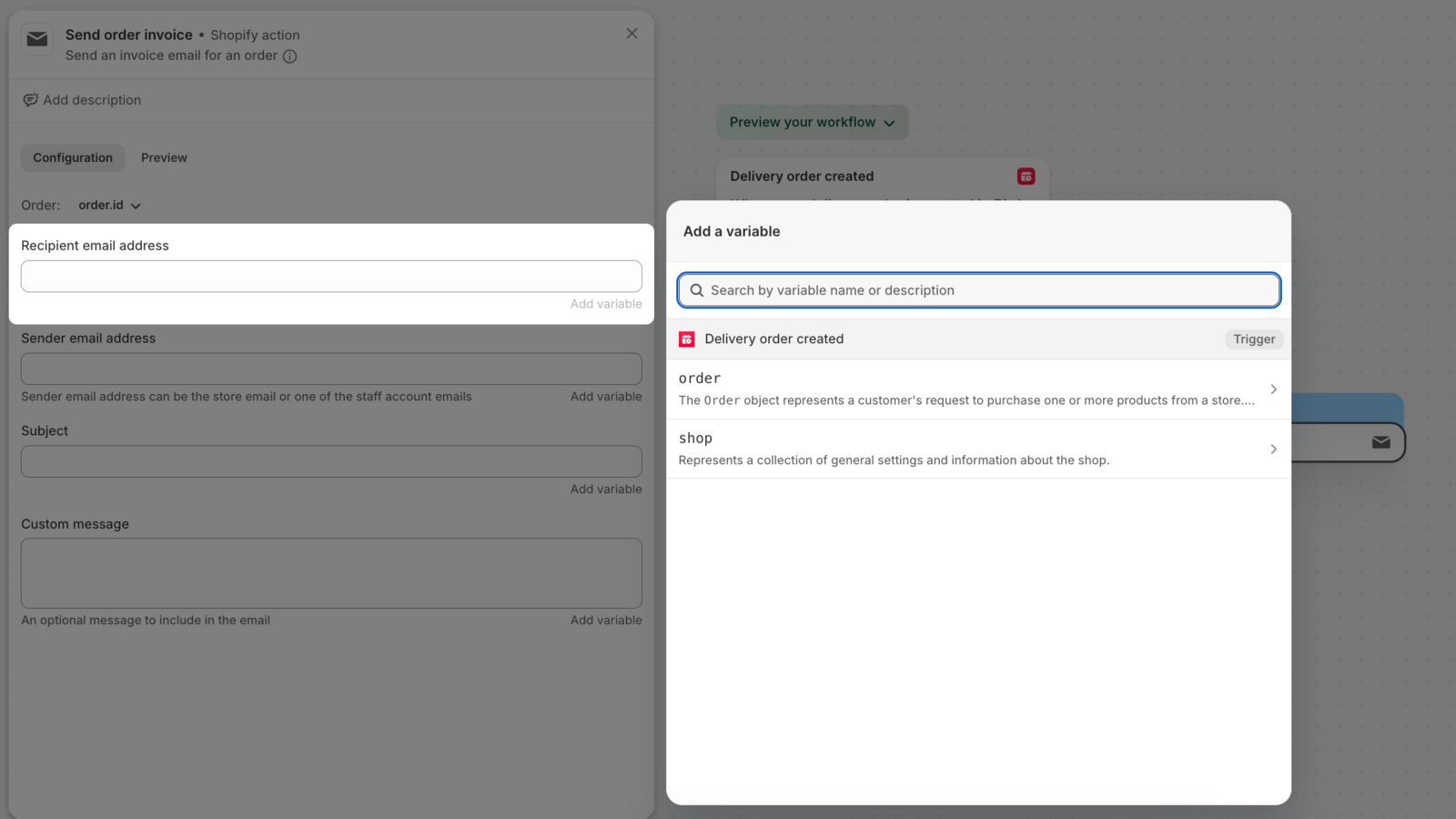
- Click the Send Order Invoice action node
- In configuration, click “Add variable” to see all available fields from the trigger
- The dropdown shows all available order and shop data fields. For the complete data structure, see the Order data and Shop data Shopify documentation
- Click Turn on Workflow
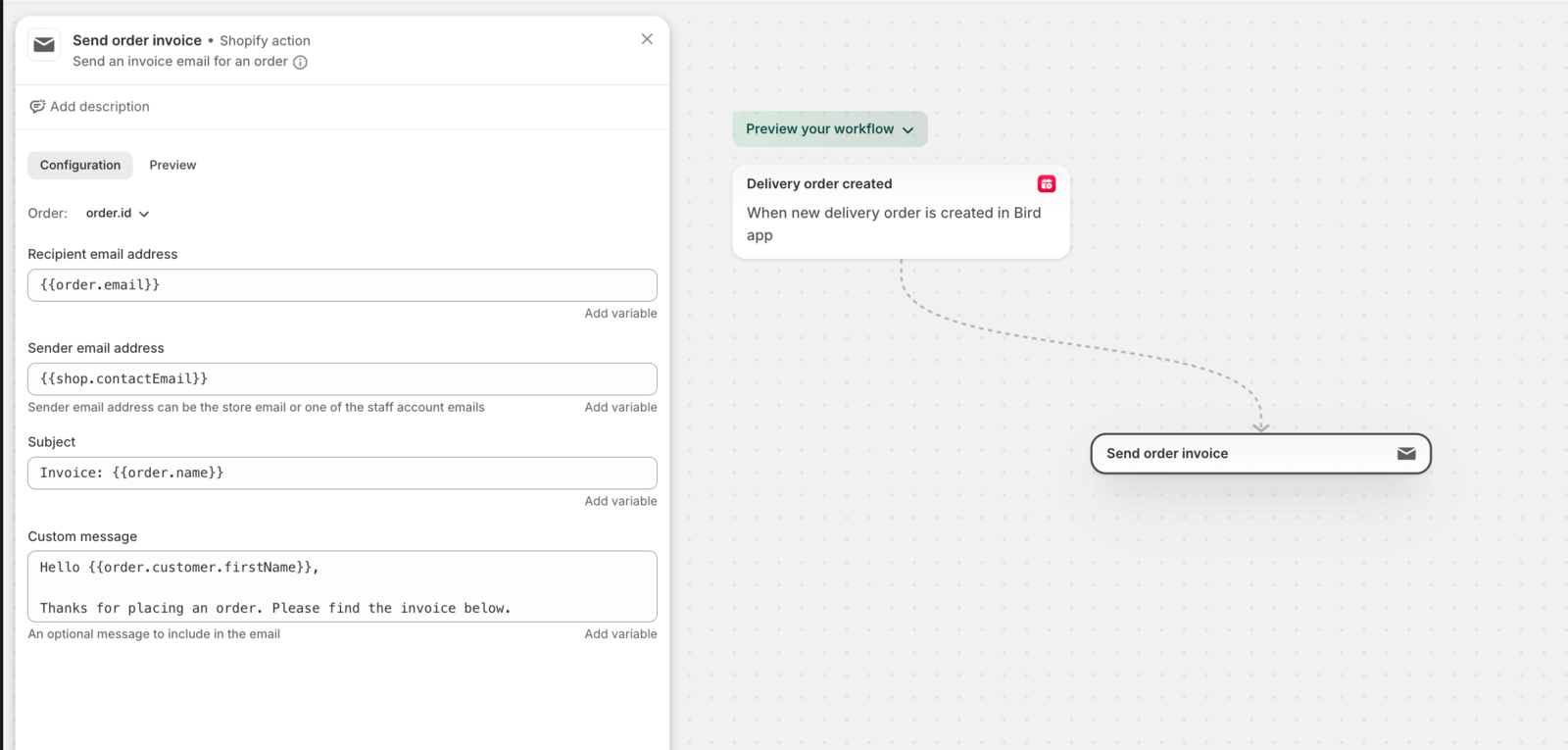
Your workflow will now send invoices automatically when delivery orders are created.
Example Workflow: Automate Delivery Date Increments for Subscription Orders
Use the Increment delivery date action to automatically update delivery dates when subscription billing succeeds. This works with subscription apps like Appstle, Recharge, and others that expose billing success triggers.
For a complete step-by-step guide, using Appstle Subscriptions as the example, see Subscription Delivery Dates with Shopify Flow
Note: The Increment delivery date action works with any subscription app that exposes billing success triggers and interval variables.
How to Disable the Integration
You’ll temporarily stop sending events to your Flow workflows without deleting them.
- Go to Bird Settings > Integrations
- Click Shopify Flow
- Click Disable Shopify Flow
Your Flow workflows remain active but won’t receive new events until you re-enable the integration.
That’s it. Events will stop sending immediately.
Troubleshooting
Events Not Triggering
Verify your integration setup to ensure events are being sent.
- Check integration is enabled in Bird Settings > Integrations
- Verify you have Growth plan or above
- Ensure Shopify Flow workflow is active and turned on
- Confirm you selected the correct trigger from Bird Pickup Delivery app
Updated Events Not Working
Understand when updated events trigger to troubleshoot workflow issues.
- Updated events only trigger when delivery method, date, time, or location changes
- Verify by manually updating one of these fields in Bird app orders page
- Changes to other order attributes won’t trigger updated events
Best Practices
- Add conditions to filter events (e.g., order value, customer tags)
- Test with simple actions first before building complex workflows
- Use the Order data and Shop data available directly in the trigger; click “Add variable” in action configuration to see all available fields
- Monitor workflow performance in Shopify Flow dashboard
Related Articles
- Delivery Date in Order Metafields via Shopify Flow
- Appstle Subscriptions
- Can the delivery date be automatically added as a Shopify order tag?
- Can I automatically tag orders by delivery method or location?
Support
You’ll get help quicker by providing specific details about your setup.
- Check the troubleshooting section above
- Contact support with your shop domain and the trigger name you’re using
Was this article helpful?
Thanks for your feedback!