
 Shipping
Shipping: Product Availability
Control which products customers can select for shipping using Shopify product tags. Restrict shipping to specific products or exclude products based on your business needs.
Table of Contents
- What Product Availability Does
- How Product Availability Works
- Step-by-Step Configuration
- Mixed Cart Behavior
- Common Use Cases
- Quick Reference
What Product Availability Does
What this feature does:
- Restricts shipping availability using Shopify product tags
- Evaluates the entire cart content to determine if shipping is available
- Controls which products can be shipped
- Works alongside Shopify inventory management
What this feature does NOT do:
- Does not manage inventory or stock levels (managed in Shopify)
- Does not control shipping rates or pricing
- Does not automatically assign tags to products (you must tag products in Shopify)
- Does not validate product weight or dimensions
- Does not hide the widget for specific products (use Widget Visibility instead)
How Product Availability Works
Navigation: Bird Settings > Shipping > (Product availability)

All Products
Default setting. Shipping is available for all products in your store.
Configuration:
- Select All Products option (selected by default)
- Click Save
Include Products Tagged With
Shipping is ONLY available if ALL products in the cart have the specified tag.
Configuration:
- Select Include Products Tagged With
- Enter product tag(s) in the search field (e.g., “Shippable”, “Standard-Ship”)
- Click Save
Example: Tag products with “Shippable” and set include rule for “Shippable”
- Cart has 3 items (all tagged “Shippable”) → Shipping Available
- Cart has 2 items tagged “Shippable” + 1 untagged item → Shipping Not Available (one item missing tag)
Exclude Products Tagged With
Shipping is UNAVAILABLE if ANY product in the cart has the specified tag.
Configuration:
- Select Exclude Products Tagged With
- Enter product tag(s) in the search field (e.g., “No-Ship”, “Oversized”)
- Click Save
Example: Tag large furniture with “No-Ship” and set exclude rule for “No-Ship”
- Cart has 5 standard-sized items → Shipping Available
- Cart has 5 standard-sized items + 1 large sofa tagged “No-Ship” → Shipping Not Available
Step-by-Step Configuration
Step 1: Access Product Availability Settings
- Go to Bird Settings > Shipping
- Scroll to Product availability section
Note: You’ll see three options:
- All Products (default)
- Include Products tagged with
- Exclude products tagged with
Step 2: Add Tags to Products in Shopify
If you plan to use “Include Products tagged with” or “Exclude products tagged with” mode, set up tags in Shopify first:
- Go to Shopify Admin > Products
- Click on a product
- Scroll to Tags section under Product Organization
- Enter the tag(s) you want to use (e.g., “shippable”, “no-ship”, “oversized”)
- Click Save
- Repeat for all products that need these tags
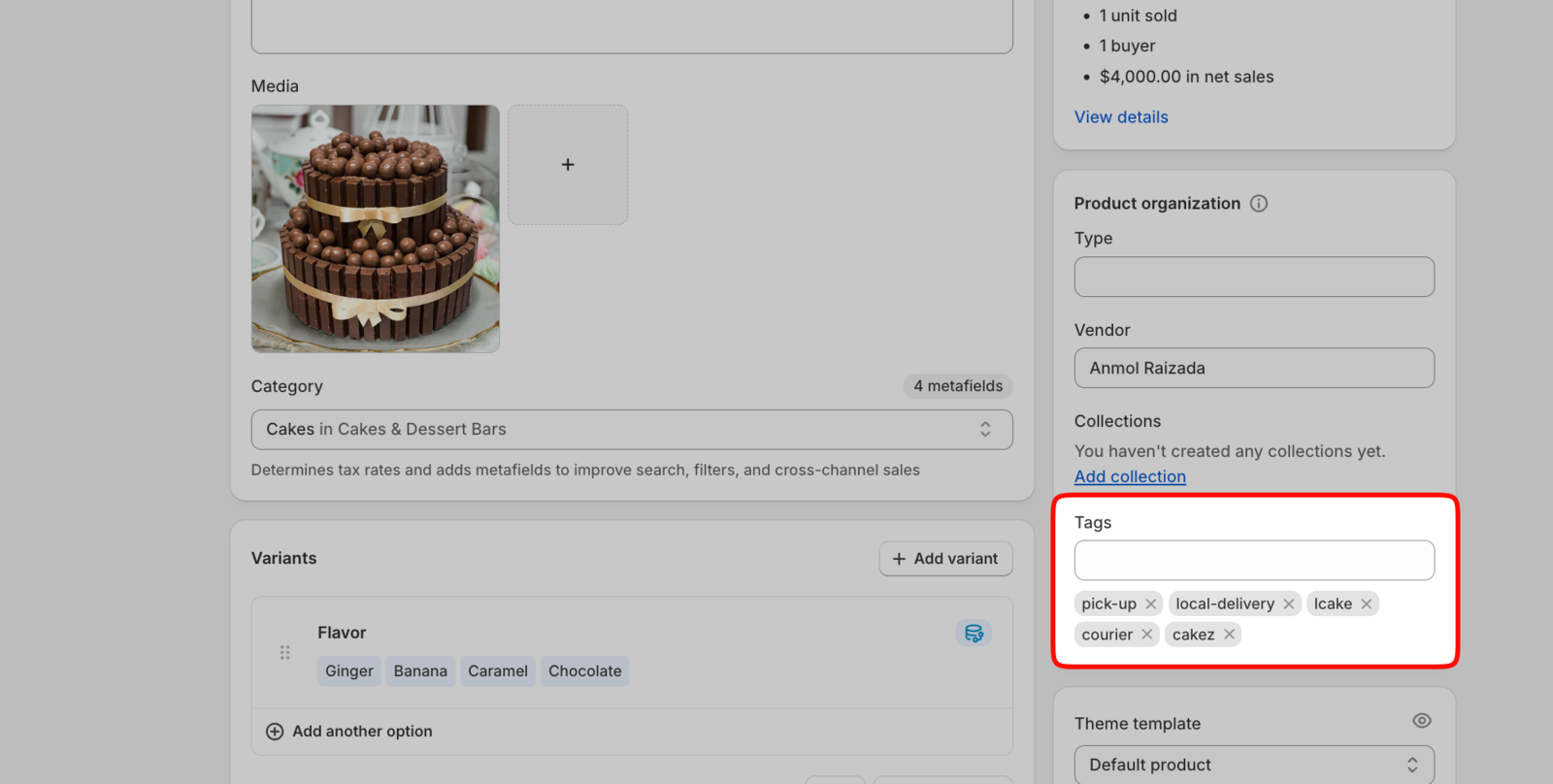
Important:
- If you just added a tag, wait a few seconds for it to appear in Bird app’s autocomplete
- Tags must exist in Shopify before they can be selected in Bird app
Step 3: Choose Your Availability Mode
Select one of the three modes:
Option A: All Products (Default)
- Select All Products
- Click Save
- No additional configuration needed
- All products are available for shipping
Option B: Include Products Tagged With
- Select Include Products tagged with
- Start typing a tag name in the search field
- Select tag from the autocomplete dropdown
- Repeat to add multiple tags (if needed)
- Click Save
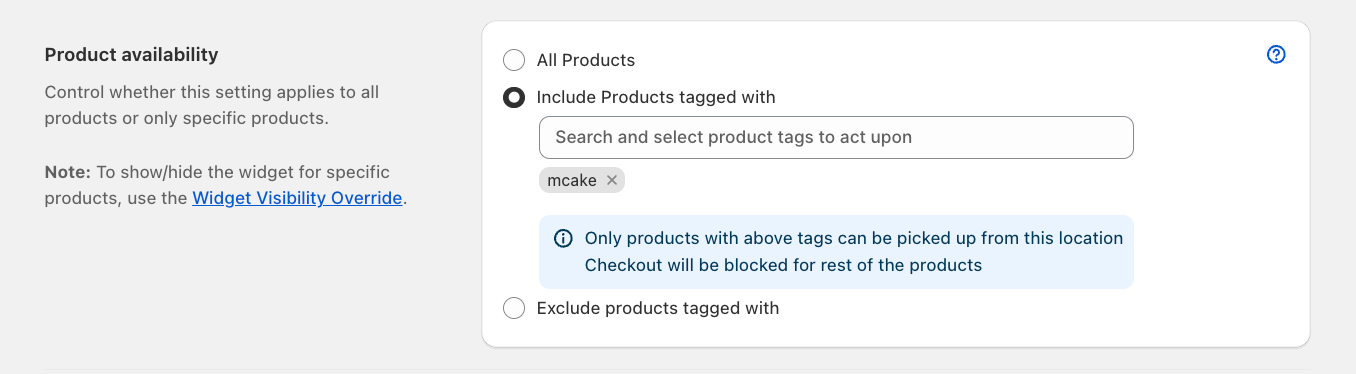
Option C: Exclude Products Tagged With
- Select Exclude products tagged with
- Start typing a tag name in the search field
- Select tag from the autocomplete dropdown
- Repeat to add multiple tags (if needed)
- Click Save
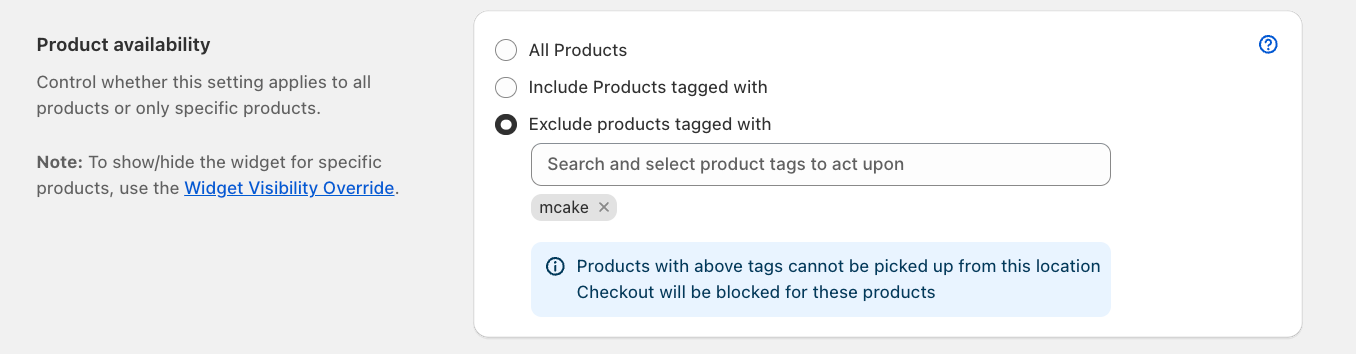
Mixed Cart Behavior
Important: Rules apply to the entire cart, not individual products.
Include Mode Behavior
Rule: Shipping only available if ALL products have the required tag
| Scenario | Result |
|---|---|
| Cart with 5 items, all tagged “Shippable” | Shipping Available ✓ |
| Cart with 5 items, 4 tagged “Shippable”, 1 untagged | Shipping Not Available ✗ |
| Cart with 1 item tagged “Shippable” | Shipping Available ✓ |
Exclude Mode Behavior
Rule: Shipping unavailable if ANY product has the excluded tag
| Scenario | Result |
|---|---|
| Cart with 5 items, none tagged “No-Ship” | Shipping Available ✓ |
| Cart with 5 items, 1 tagged “No-Ship”, 4 untagged | Shipping Not Available ✗ |
| Cart with 5 items, all tagged “No-Ship” | Shipping Not Available ✗ |
Common Use Cases
Hazardous Materials
Goal: Prevent shipping for hazardous items
Solution:
- Tag products: “Hazmat”
- Select: Exclude Products Tagged With
- Enter tag: “Hazmat”
- Result: Any cart containing hazardous materials cannot use shipping
Quick Reference
Availability Options:
- All Products: Shipping available for everything (default)
- Include Products Tagged With: Shipping only if ALL items have tag
- Exclude Products Tagged With: Shipping blocked if ANY item has tag
Key Points:
- Rules apply to entire cart, not individual products
- Tags must be added to products in Shopify Admin > Products
- Multiple tags can be specified (any match applies the rule)
- Test configuration with sample products before going live
Recommended Approach:
- For preventing shipping of specific items, use Exclude mode
- Tag specific items that cannot be shipped (e.g., “No-Ship”)
- This is simpler than tagging all shippable items
Navigation: Bird Settings > Shipping > Product availability
Related Articles
- Widget Visibility. Hides or shows the whole widget based on product tags, SKUs, or customer tags, without changing shipping availability.
- Store Pickup: Product Availability. The same feature, configured for Store Pickup instead of Shipping.
- What is the difference between Product Availability and Product Override?. A quick side by side of when to use each. Override doesn’t apply to Shipping.
- Why do I see the “Products in the cart are not available” error?
Was this article helpful?
Thanks for your feedback!