
 Widget and Design
Widget Visibility
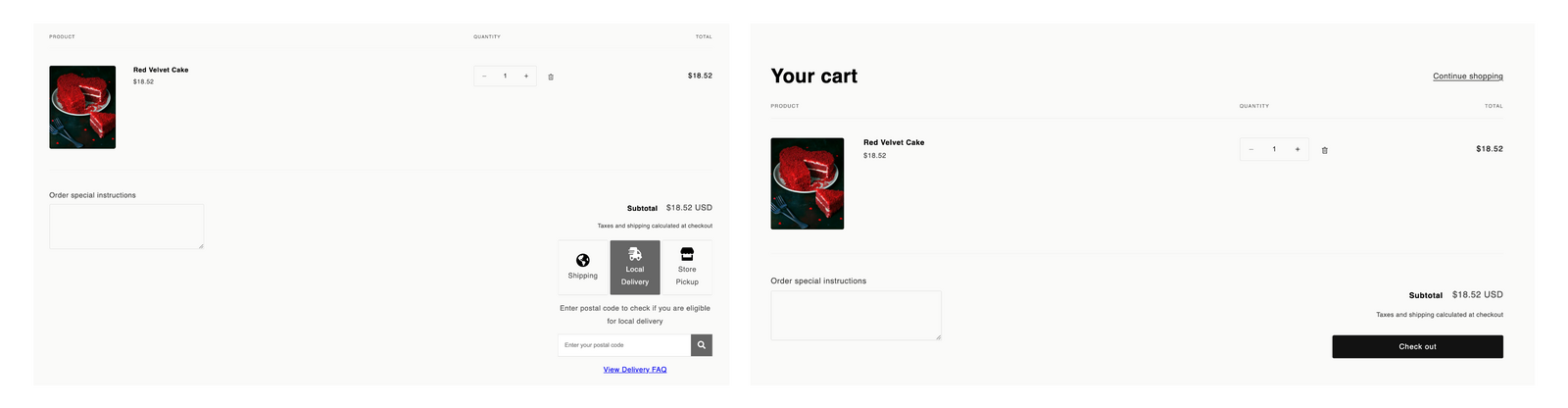
Control which products and customers see the Bird Pickup & Delivery widget in your cart.
Some orders don’t need a pickup or delivery date. A gift card or a digital download never leaves your store, and a wholesale customer might arrange delivery with you directly. Widget visibility lets you hide the widget for those orders, or show it only for the products and customers that need it, using product tags, SKUs, customer tags, or a mix.
Before You Start
- Tag your products in Shopify: Go to Products > select a product > Tags and add a tag such as “giftcard”, “digital” or “wholesale”. You can also target products by SKU instead.
- Tag your customers in Shopify: Go to Customers > select a customer > Tags and add a tag such as “wholesale” or “b2b”.
Tag matching ignores upper and lower case, so “GiftCard” in Shopify matches “giftcard” in Bird.
Need help tagging? See How to Bulk Add Tags to Products in Shopify.
Configure Widget Visibility
Step 1: Open Widget Visibility
- Go to Bird Settings > Widget Visibility
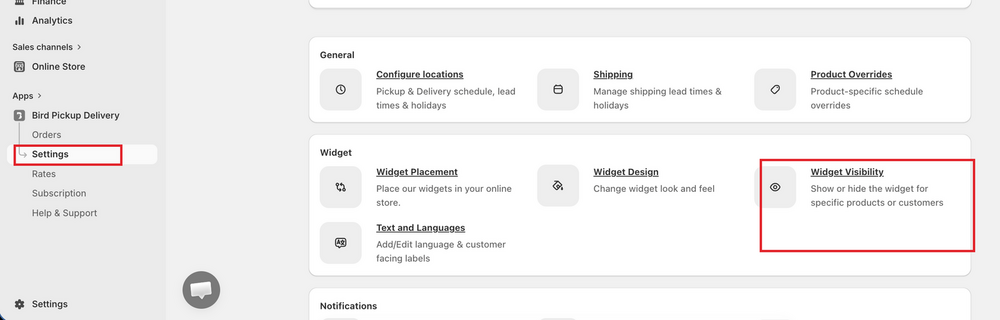
- Select Conditionally show the widget
Always show the widget keeps the widget visible for every product and customer. The fields below only appear when Conditionally show the widget is selected.
Step 2: Choose What to Target
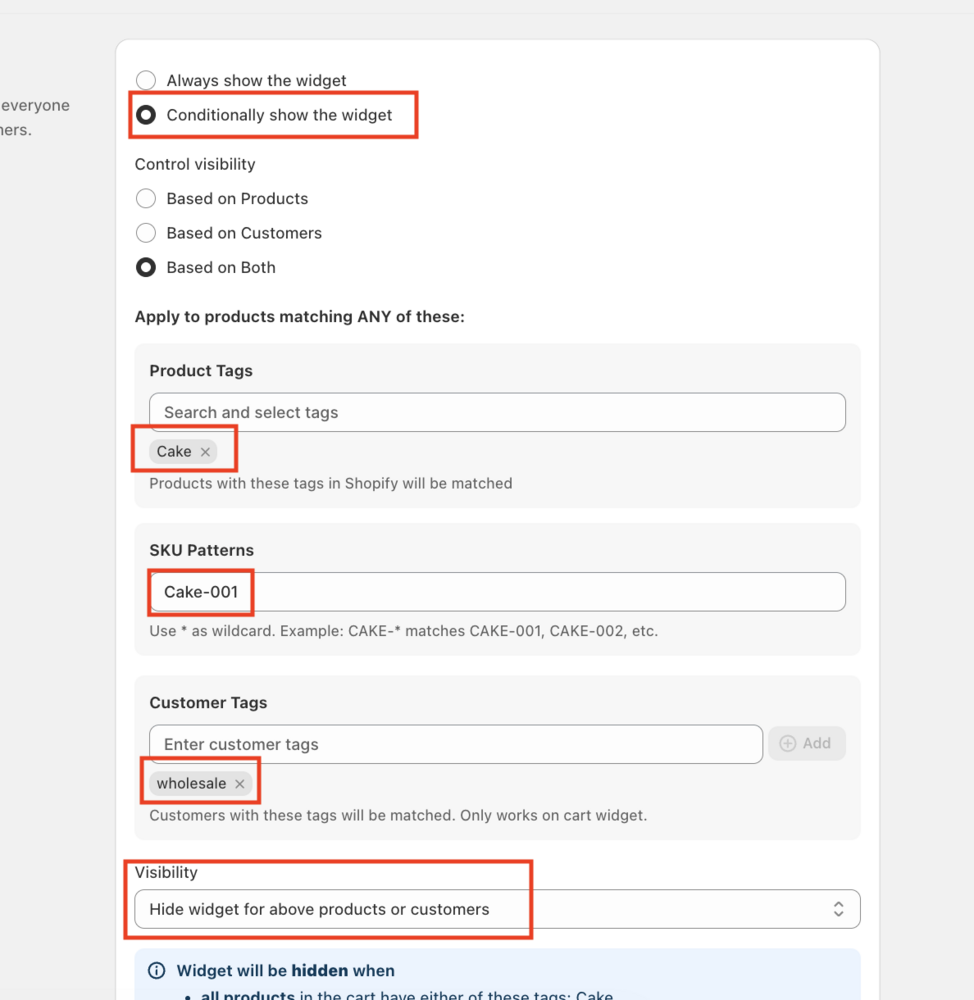
Under Control visibility, pick one option:
-
Based on products: enter Product tags (e.g. “giftcard”) and/or SKU patterns (e.g.
GIFT-*, where*matches anything after the prefix) - Based on customers: enter Customer tags (e.g. “wholesale”, “b2b”)
- Based on both: enter product tags or SKUs, and customer tags
Step 3: Choose the Visibility Rule
Set Visibility to one of:
- Hide widget for above products (or customers): the widget disappears when the rule matches
- Only show widget for above products (or customers): the widget appears only when the rule matches
Below the dropdown, Bird shows a summary of exactly when the widget will be hidden or shown. Read it before saving.
Step 4: Save
Click Save in the save bar at the top of the page.
How Bird Decides
Carts with more than one product
- Hide rules hide the widget only when every product in the cart matches. If a customer adds a “giftcard” product and an untagged shirt, the widget still shows, because the shirt needs a date.
- Only show rules show the widget when at least one product in the cart matches.
If you want the widget hidden for a whole group of products, tag all of them, not just some.
“Based on both” means either one matches
With Based on both, a product counts as a match when it has one of your product tags or SKUs, or when the customer has one of your customer tags. Bird doesn’t require both at once.
Example: you choose Hide widget for above products or customers with the product tag “giftcard” and the customer tag “wholesale”.
- A wholesale customer never sees the widget, whatever is in their cart.
- Everyone else doesn’t see it when their cart contains only gift cards.
The rules apply to the whole widget
Visibility rules hide or show the entire widget: Store Pickup, Local Delivery and Shipping together. You can’t hide just one method, like Local Delivery, while leaving the others. To block one method for certain products, use Product Availability instead. See How do I exclude certain products from specific delivery or pickup options?
Customer tags only work on the cart widget
Customer-tag rules only affect the widget on your cart page. On Shopify Plus stores using the checkout extension, customer tags don’t change what checkout shows.
If You Use Bird Rates
When the widget is hidden, the customer reaches checkout without a Bird selection. Bird can only show a rate for those orders if Fallback Rates are turned on, and there is at least one rate set up for the fallback method. Otherwise checkout shows no rates and the customer can’t complete the order.
This doesn’t apply when your fallback method’s rates come from Shopify rather than Bird, because Shopify shows its own rates whether or not the widget is visible.
Bird warns you about this on the Widget Visibility page. Click Configure rates in that warning to set it up.
Test Your Setup
- Tagged products only: add products with your tags to the cart and check the widget behaves as the summary says
- Mixed cart: add a tagged and an untagged product together
- Customer rules: log in as a customer with your customer tag
- Checkout: if you use Bird Rates, go through to checkout with the widget hidden and confirm a rate appears
Related Articles
- Fallback Rates. What Bird charges at checkout when the widget is hidden.
- Local Delivery: Product Availability. Blocks Local Delivery for tagged products while the widget still shows.
- Store Pickup: Product Availability. Blocks Store Pickup for tagged products while the widget still shows.
- Shipping: Product Availability. Blocks Shipping for tagged products while the widget still shows.
- Local Delivery: Product Override. Changes prep time or available dates for specific products without hiding the widget.
- Store Pickup: Product Override. Changes prep time or available dates for specific products without hiding the widget.
- What is the difference between Product Availability and Product Override?. A quick side by side of when to use each.
- Can I hide the widget for subscriptions, gift cards, or specific products?
- How to Bulk Add Tags to Products in Shopify
Was this article helpful?
Thanks for your feedback!