
 Store Pickup
Store Pickup: Product Override
Use Product Override to set custom lead times and availability rules for individual products in your store pickup workflow.
Plan: Product overrides are available on the Growth and Scale plans. See Complete Guide to Our Pricing Plans.
What is Product Override?
Product Override lets you apply different preparation times and availability rules to specific products for store pickup. Use it to manage products that need more or less time to prepare, or to control when certain products can be ordered for pickup.
Why use Product Override?
- Set flexible lead times for products with different preparation needs
- Control product availability for special dates or limited-time offers
- Prevent pickup orders for specific products on certain dates
How to set up Product Override
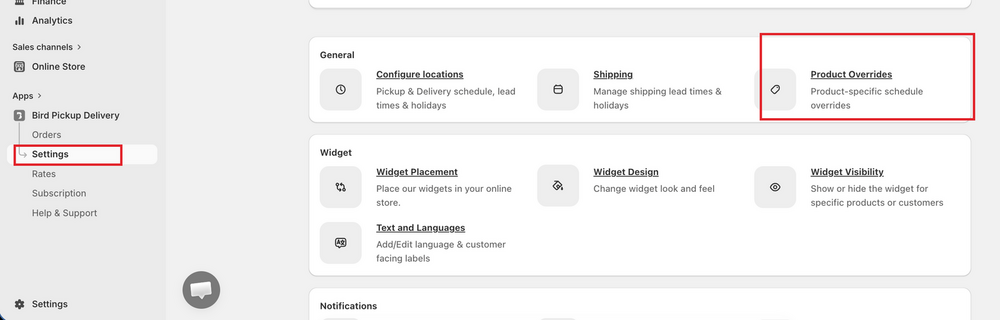
Step 1: Open Product Override settings
- Go to Bird Settings > Product overrides.
Step 2: Add a new override
- Click Add override to open the override settings page.
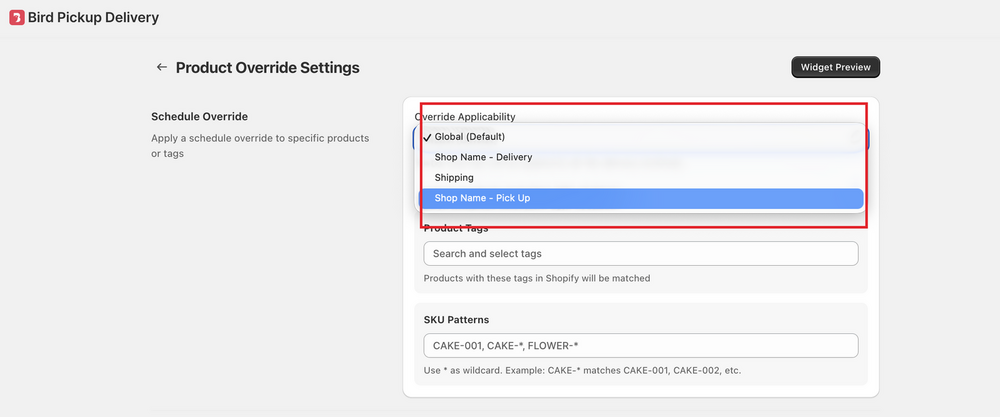
Step 3: Choose applicability
- From Override applicability, select the pickup entry this override applies to, for example Main Street - Pick Up.
- If you have multiple pickup locations, add one override for each. To save time, set up and save the first one, then open it and click Duplicate override. The copy is saved and opened straight away with the same settings, so change its Override applicability to the next location and save. Global (default) only appears on overrides that were already saved as Global; new overrides need a specific location.
Step 4: Target the products
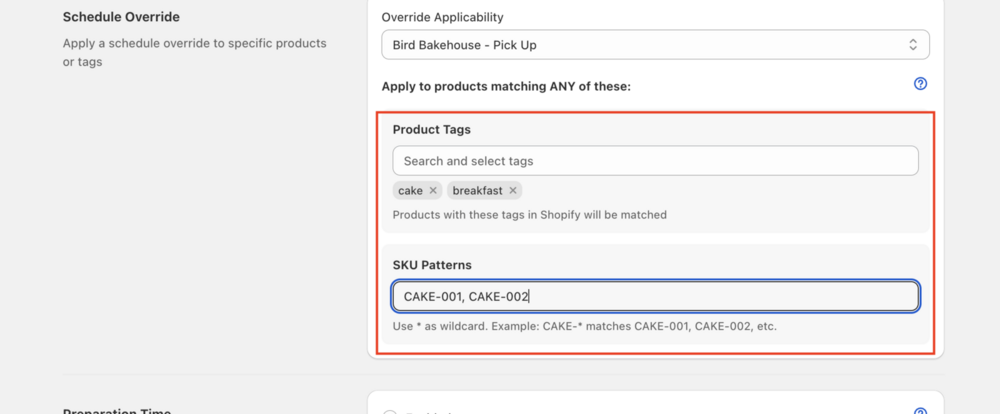
- Under Apply to products matching ANY of these, add Product tags and/or SKU patterns for the products you want to override.
- Use
*as a wildcard. Example:CAKE-*matchesCAKE-001,CAKE-002, etc.
Step 5: Set preparation time
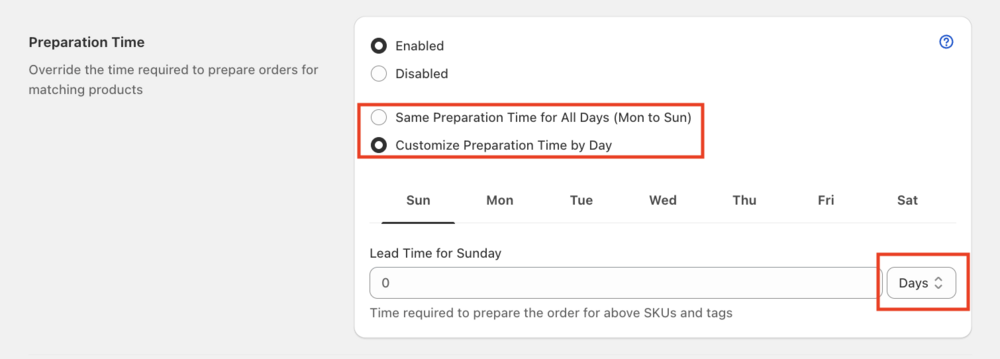
- Set Preparation time to Enabled (or leave Disabled to inherit the default).
- Choose Same preparation time for all days (Mon to Sun) or Customize preparation time by day.
- Enter the Preparation time in days, hours, or minutes per day.
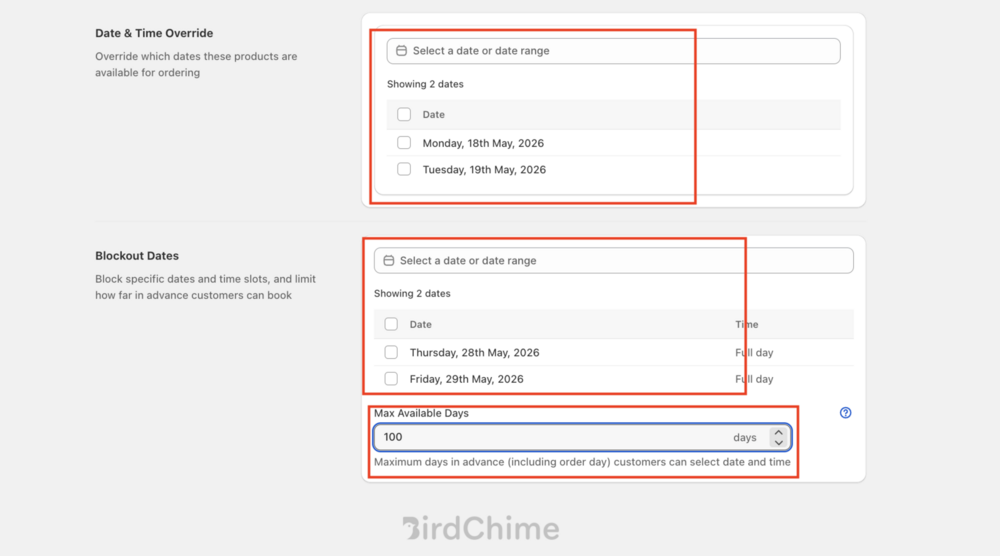
Step 6: Set availability and blockout dates
- Under Availability override, select Override specific dates and keep Override mode on Exclusive dates to make products orderable for pickup only on selected dates.
- Use Blockout dates to prevent pickup orders for products on specific dates.
- Use Max available days to cap how far in advance customers can book.
Step 7: Save and preview
- Click Save to apply your changes.
- Click Widget preview (top right) to see how the widget looks with your new settings.
Widget Preview only reflects settings after they’re saved. If you set a preparation-time override, select Pickup method in the preview and use Change Current Date and Time to confirm the new lead time is being applied.
Key notes and best practices
- You can create multiple overrides for different SKUs or tags.
- If a cart contains products with different overrides, the widget shows only the common available dates.
- An override can open a day that’s closed in your main availability settings, for the products it applies to. See Can I open a specific date when its weekday is closed?.
Related Articles
- Store Pickup: Product Availability. Blocks Store Pickup for tagged products while the widget still shows.
- Widget Visibility. Hides or shows the whole widget based on product tags, SKUs, or customer tags, without changing prep time or availability.
- Local Delivery: Product Override. The same feature, configured for Local Delivery instead of Store Pickup.
- What is the difference between Product Availability and Product Override?. A quick side by side of when to use each.
- Multiple Product Overrides and Date Selection
- Can I set different preparation or lead times for different products?
Was this article helpful?
Thanks for your feedback!