
 Discounts
Shopify Discount Codes
B
Written by Bird Pickup & Delivery
Updated October 3, 2026
Create in Shopify links a code you already made in Shopify Admin to a delivery method. When a customer chooses that method in the Bird widget, Bird adds the code to their cart for them.
Use it when Bird’s own discounts can’t do what you need, for example free shipping, buy X get Y, or a discount only for certain customers. Everything about the discount itself comes from Shopify.
Link a Shopify Code
- In Shopify Admin, go to Discounts and create the discount code. Note the exact code.
- In the Bird app, go to Bird Settings > Discounts
- Click Add. Create in Shopify is already selected.
- Choose the Delivery method: Pick up, Delivery or Shipping
- Enter the Discount code exactly as it is in Shopify
- Click Save discount code
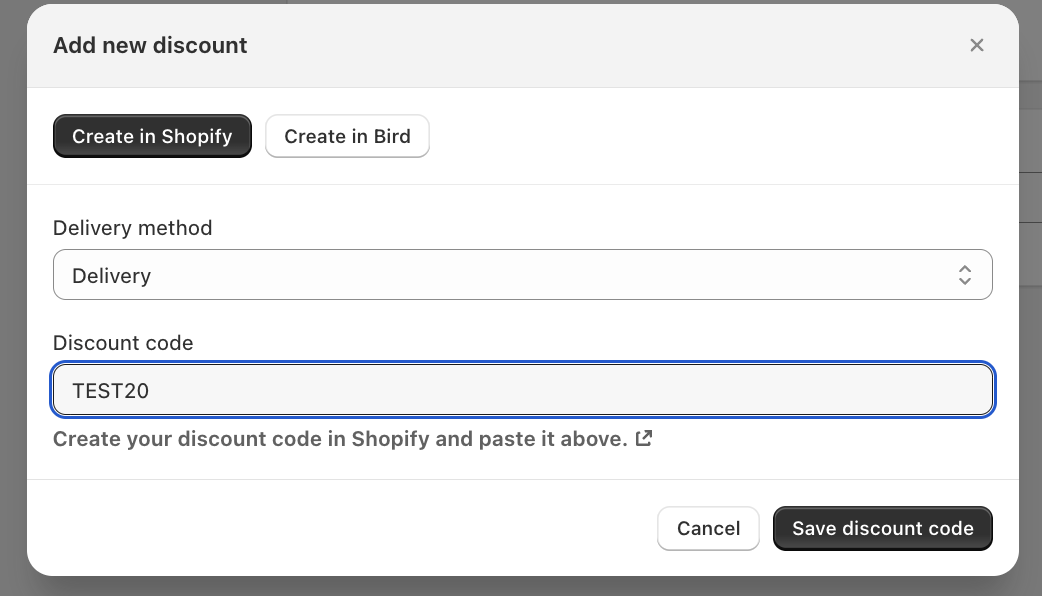
The code appears in the list with the source Created in Shopify.
How It Works
- When the customer chooses the delivery method in the Bird widget, Bird adds your code to their cart.
- If they switch to another method, Bird takes the code off again.
- Any code the customer typed in themselves stays in the cart.
- Whether the code actually gives a discount depends on how you set it up in Shopify: its value, dates, eligibility and which other discounts it can combine with.
Limits
- A Shopify code can’t be limited to one location, to days or times, or to collections. Set those rules on the code in Shopify Admin if Shopify supports them, or use an automatic discount instead.
- Bird doesn’t create or change anything in Shopify. If you delete or expire the code in Shopify, it stops working even though it’s still listed in Bird.
- Adding a code needs the Essential plan.
Related Articles
Was this article helpful?
Thanks for your feedback!