
 Rates
Rates
Combined Shipping Rates (Multiple Profiles)
This article explains why shipping rates look doubled at checkout and how to fix it.
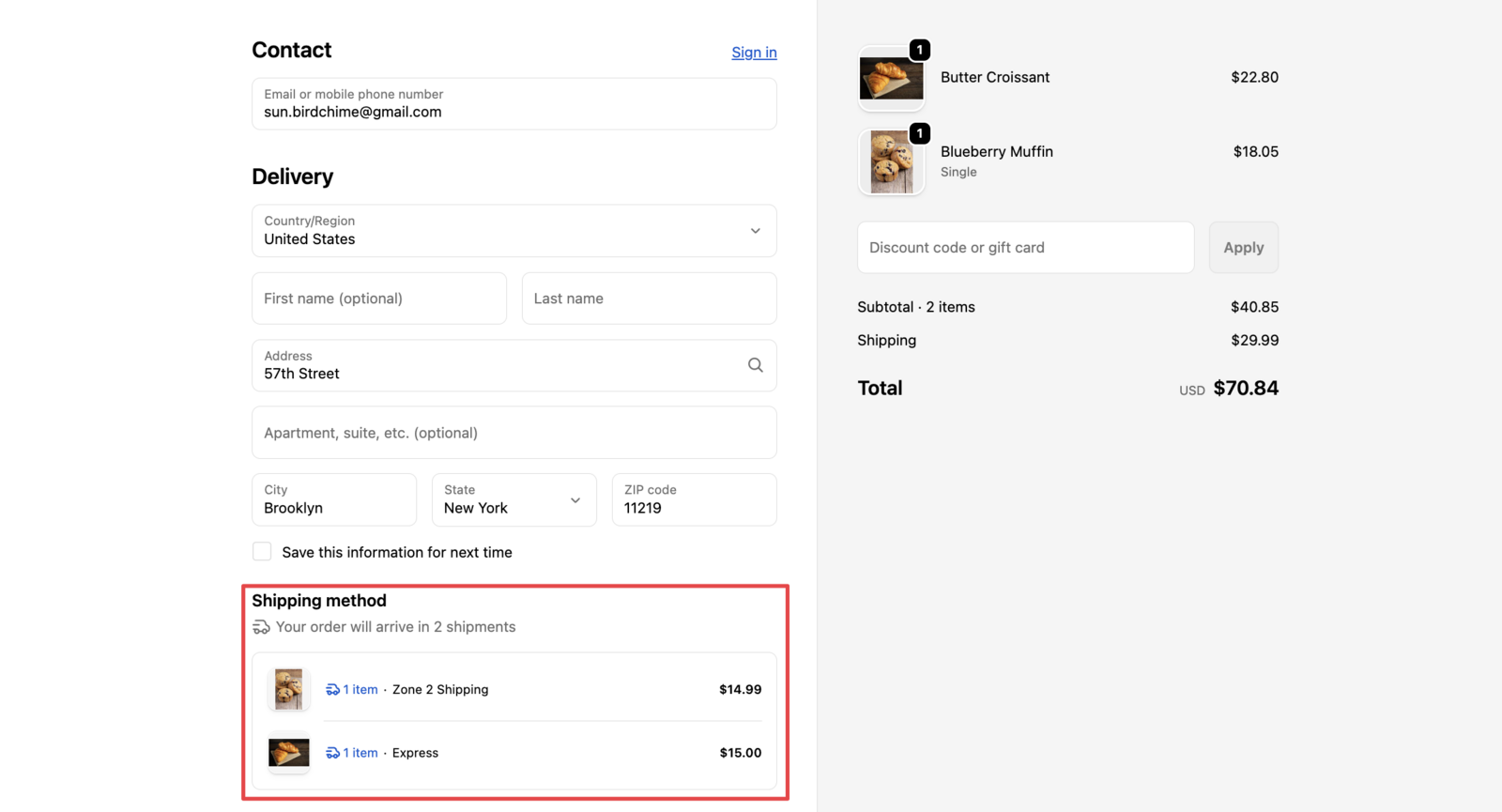
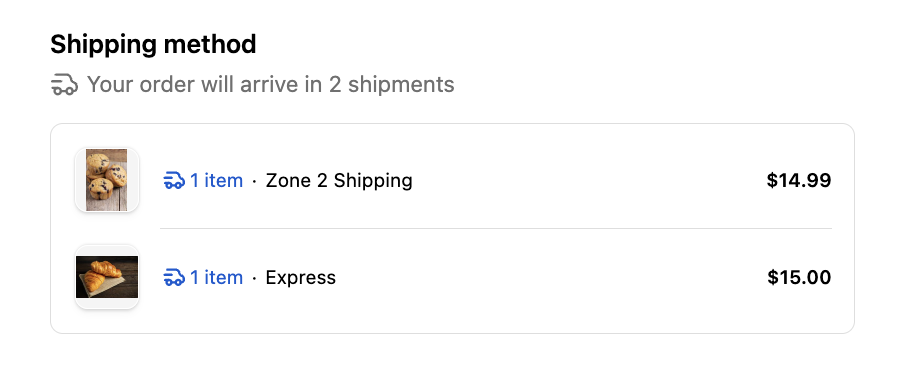
When a cart has products from different Shopify shipping profiles, Shopify adds each profile’s rate together into one total. Customers see a higher shipping cost than they expect and may leave the checkout.
How Combined Shipping Rates Work
Shopify combines shipping rates when:
- Products come from multiple shipping profiles
- Items ship from different locations within profiles
- Each profile has its own rate configuration
Shopify calculates a separate rate for each profile’s products, then shows the combined total at checkout.
Identify the Root Cause
Follow these steps to diagnose combined shipping rates:
-
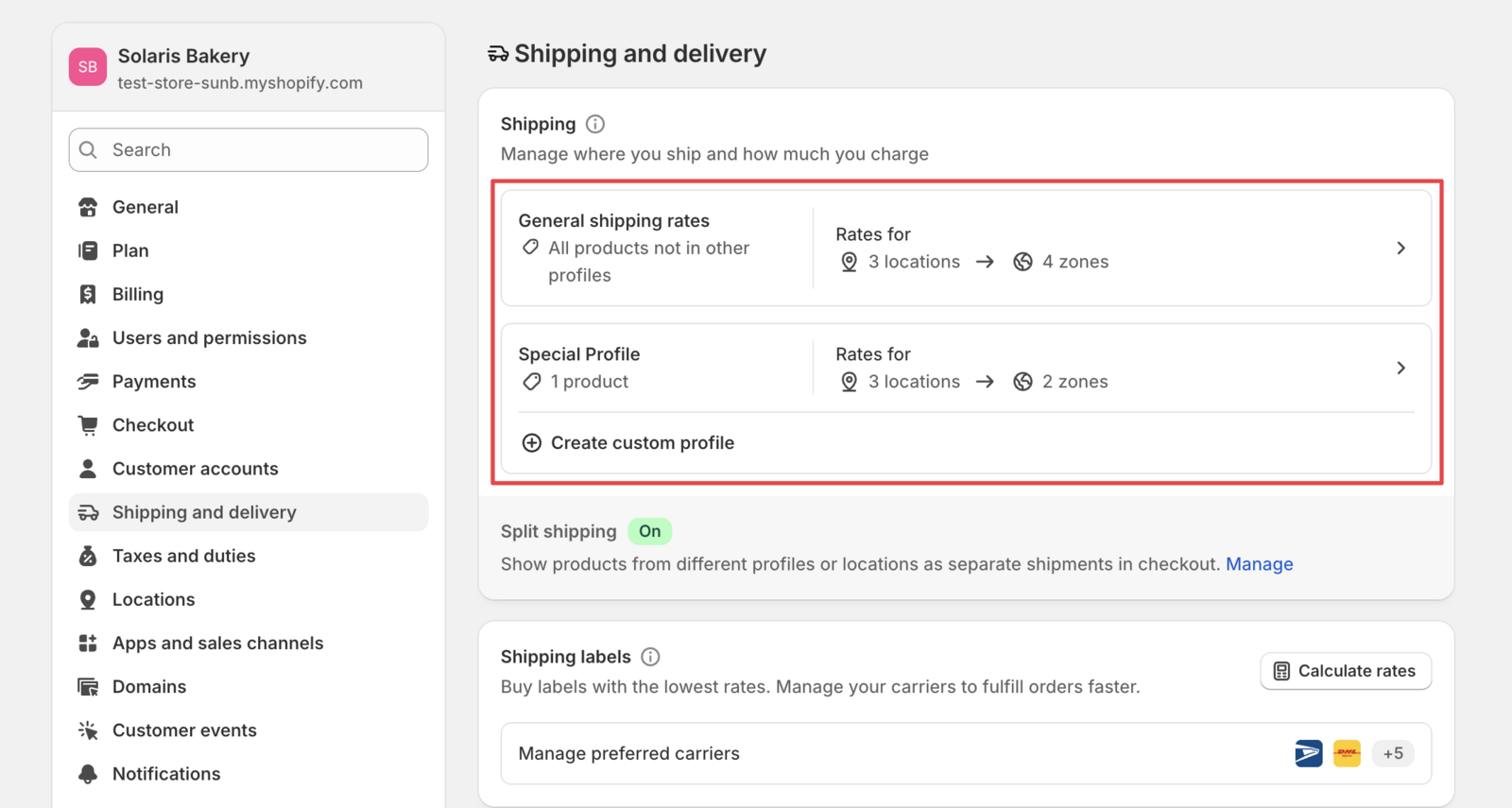
Check your shipping profiles
- Go to Shopify Admin > Settings > Shipping and delivery
- Look for multiple active profiles
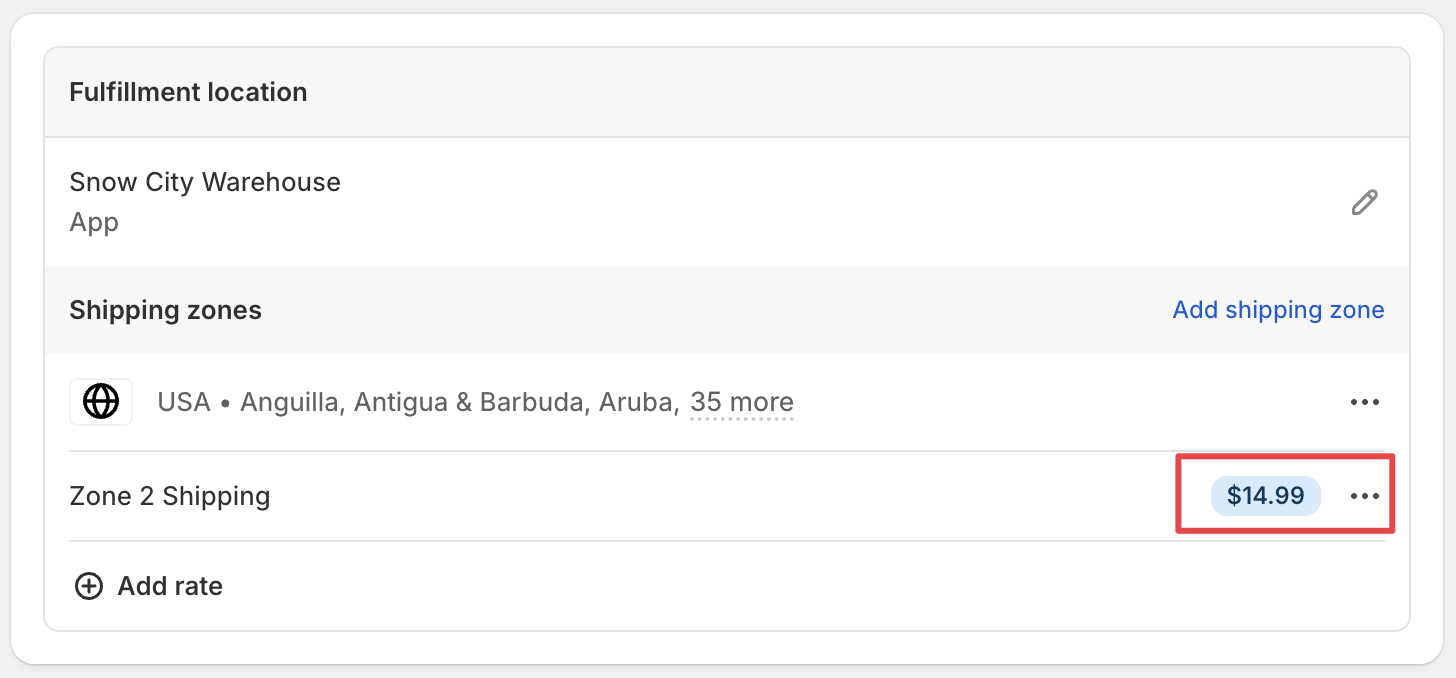
- Review rate configurations in each profile
-
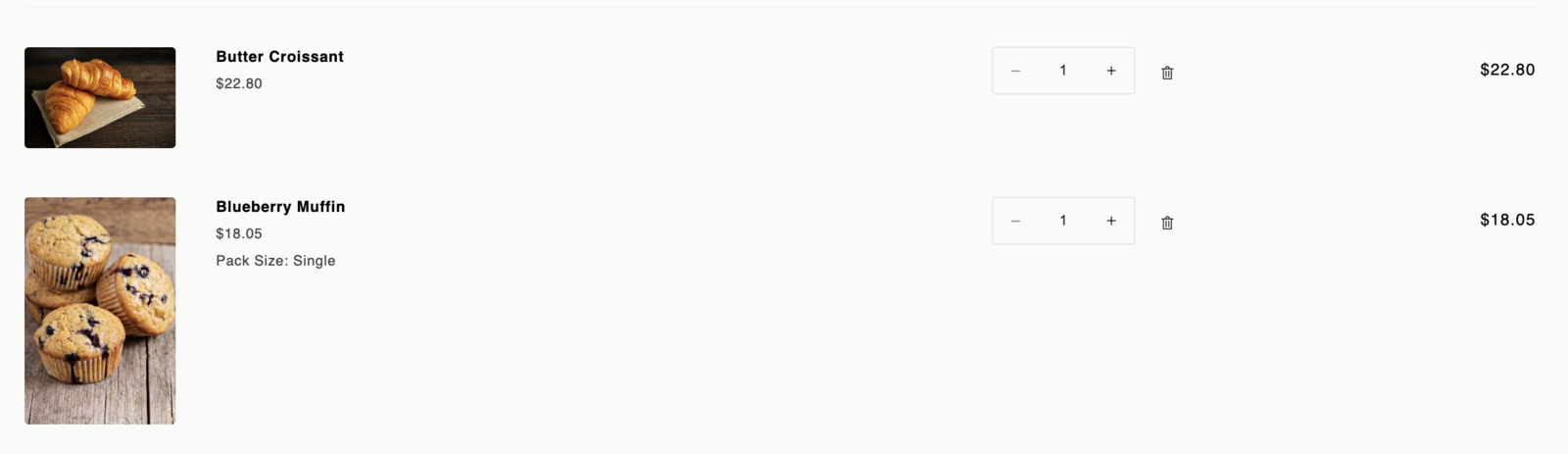
Test with mixed cart items
- Add products from different profiles to cart
- Check the shipping rate calculation
- Verify the combined total
Solutions to Manage Combined Rates
Option 1: Consolidate Shipping Profiles
- Move products that ship the same way into a single profile
- Keep separate profiles only for products that truly need different rates
- Simplify your shipping structure
Option 2: Adjust Rate Calculations
- Set lower base rates in each profile
- Use conditional rates based on order value
- Configure free shipping thresholds
Best Practices
- Keep profiles minimal: Use only necessary shipping profiles
- Test thoroughly: Verify rates with various product combinations
- Communicate clearly: Inform customers about combined shipping
- Monitor regularly: Check for unexpected rate combinations
For details on how Shopify combines rates, see the Shopify Help Center.
FAQs
Why do I see different shipping rates for the same products?
Shipping rates vary based on the profile each product belongs to. Products in different profiles may have different rate structures.
Can I prevent rate combination?
Yes, by keeping the products in one shipping profile (Option 1). Shopify combines rates whenever a cart has products from more than one profile, so moving them into one profile stops it.
How do I know which products are in which profiles?
Open each profile in Shopify Admin > Settings > Shipping and delivery to see the products it contains.
Will customers be charged twice for shipping?
No. Customers pay one combined shipping total, not a separate charge for each profile.
For more general questions, see our main FAQs page.
Related Articles
Was this article helpful?
Thanks for your feedback!