
 Rates
Rates
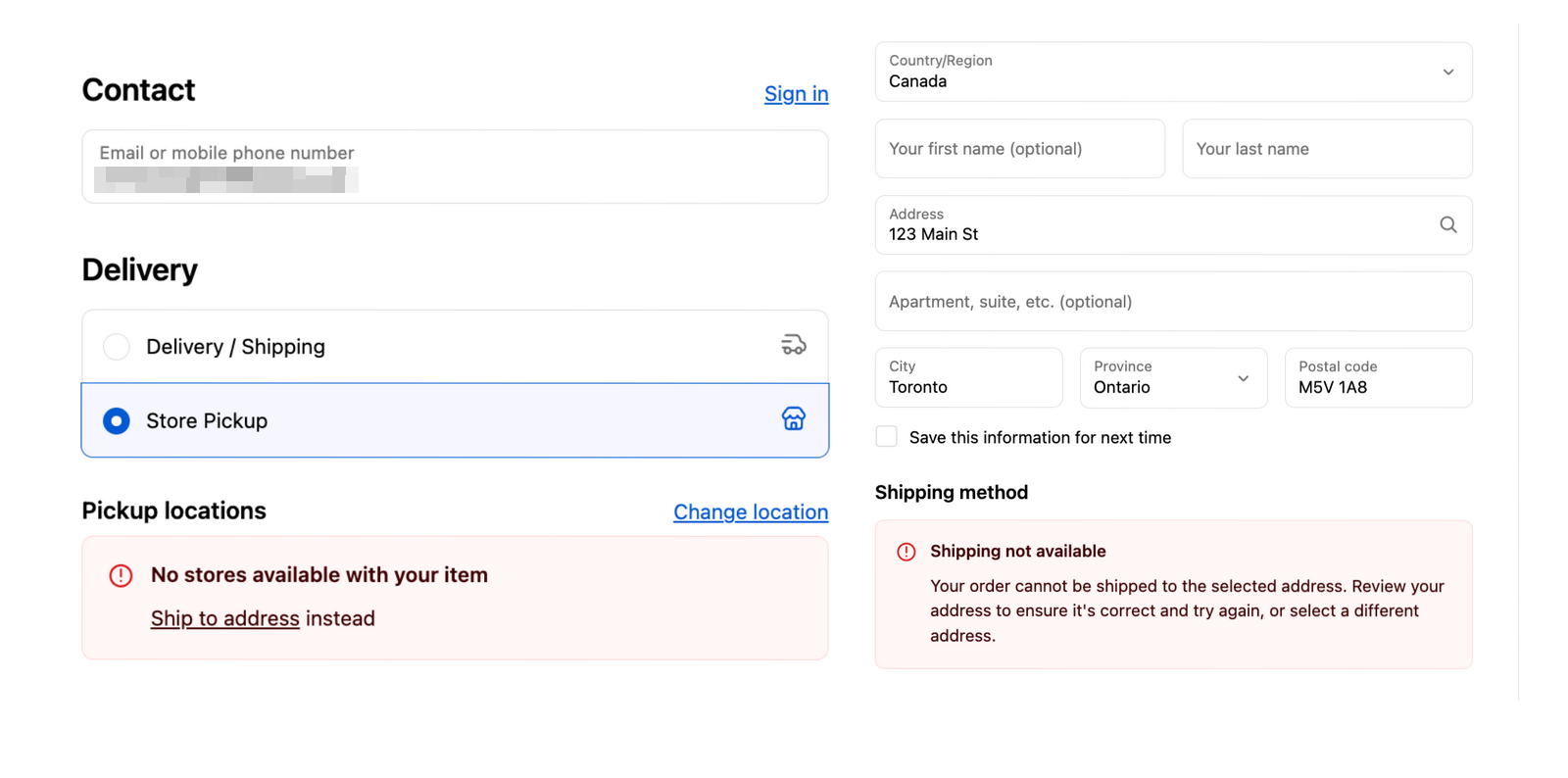
Rate Errors at Checkout
This article helps you find and fix the rate errors that stop customers from completing checkout.
When no rate shows, or the wrong one does, customers can’t place the order or pay the wrong amount. Each issue below lists the cause and the fix.
Quick Navigation
General Rate Issues
Location Not Enabled in Product Inventory
Problem: Products aren’t available at specific locations.
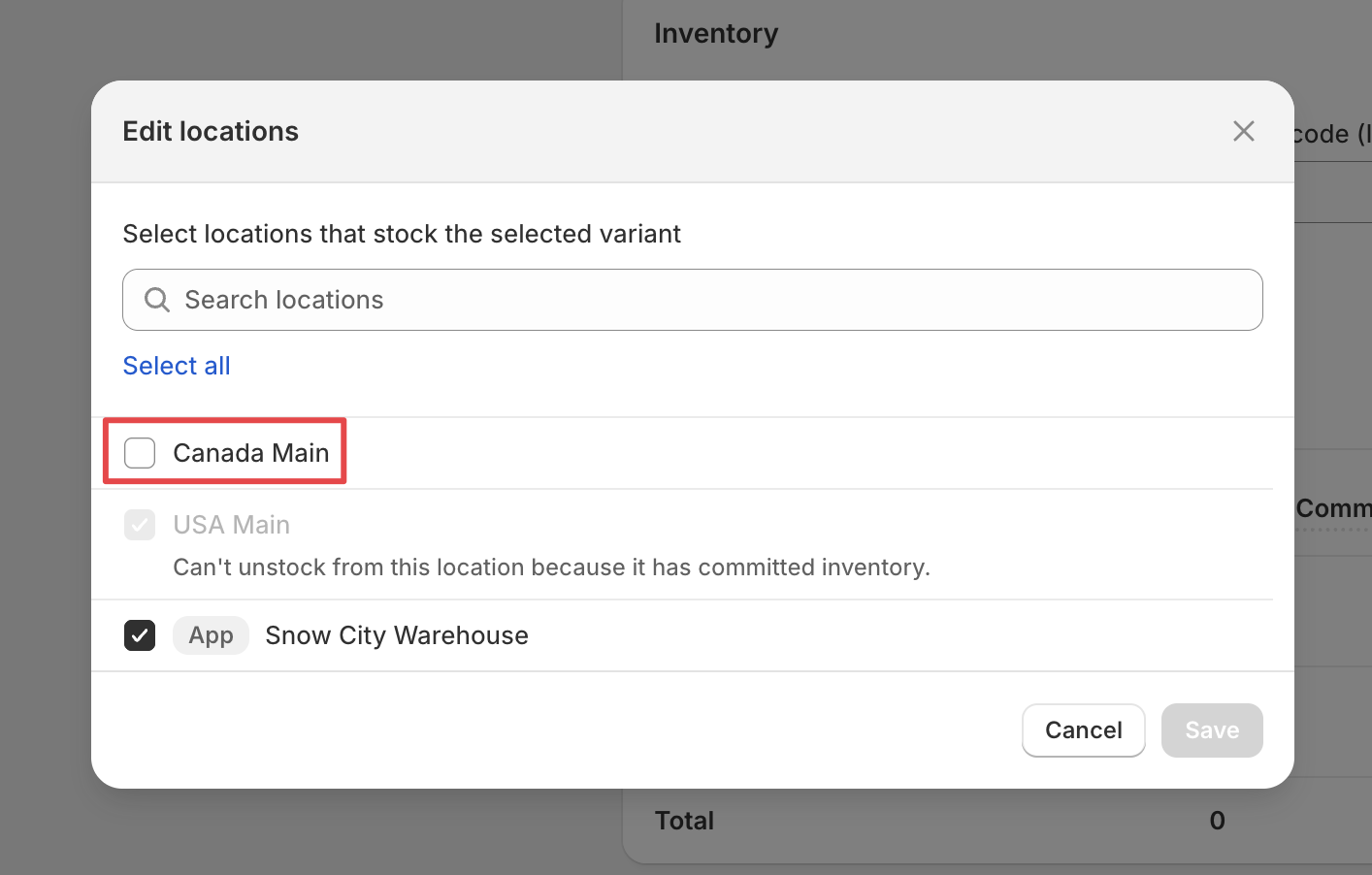
Solution:
- Go to Shopify Admin > Products
- Select your product
- Navigate to Inventory
- Click Edit Locations
- Enable the required locations
That’s it! Your product will now be available at all enabled locations.
Product Out of Stock at Location
Problem: Customers can’t order because inventory is depleted.
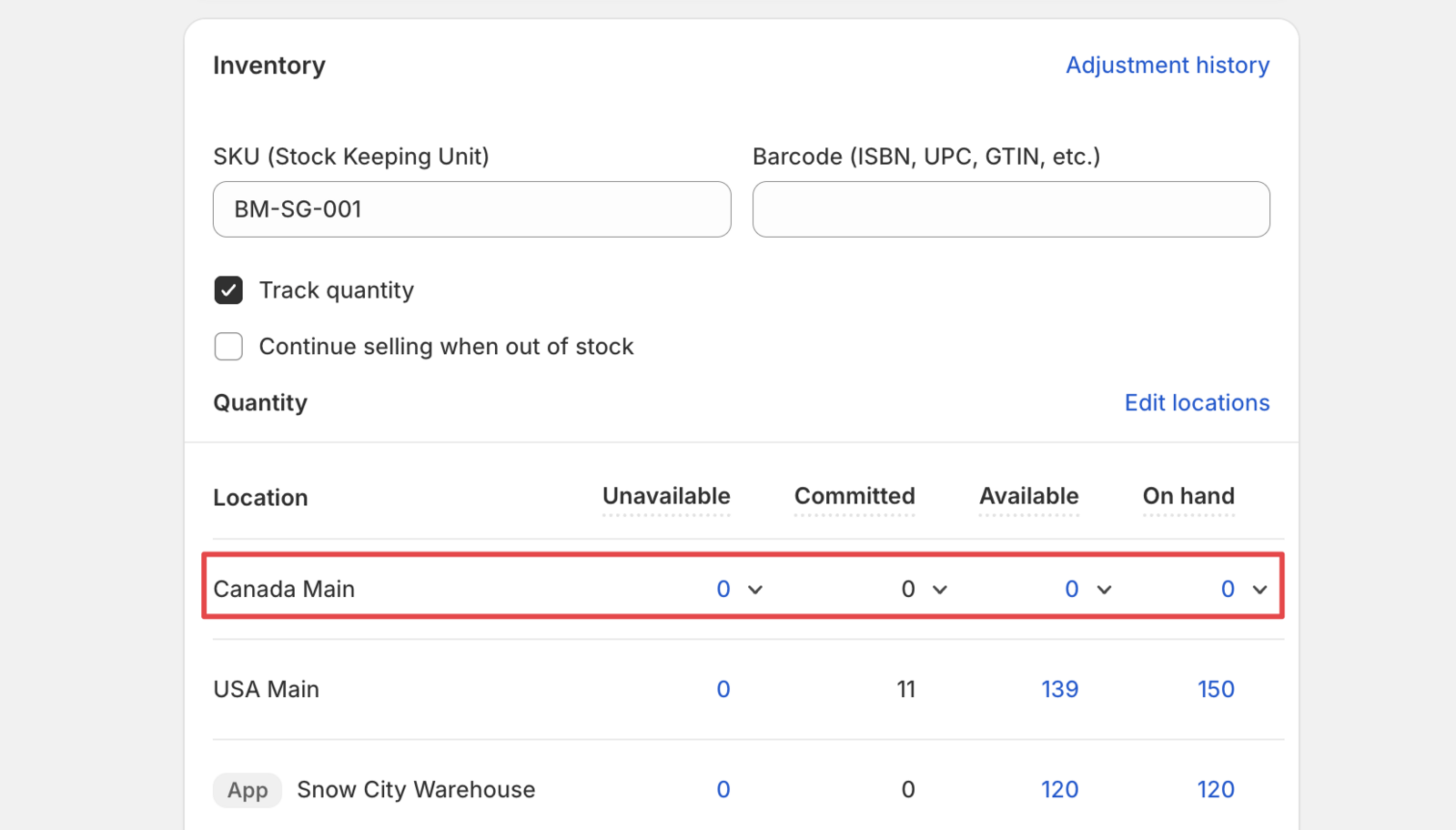
Solution: Add stock to the depleted location in your inventory management.
Product Not Marked as Physical
Problem: Checkout shows no delivery or shipping step, or no rates, for a product.
Cause: Shopify treats a product without This is a physical product turned on as an item that doesn’t need shipping, so checkout doesn’t ask for delivery details or show rates for it.
Solution: Turn on This is a physical product for the product. See How to Mark Products as Physical Products in Shopify.
Location Not Enabled for Online Orders
Problem: Locations exist but can’t fulfill online orders.
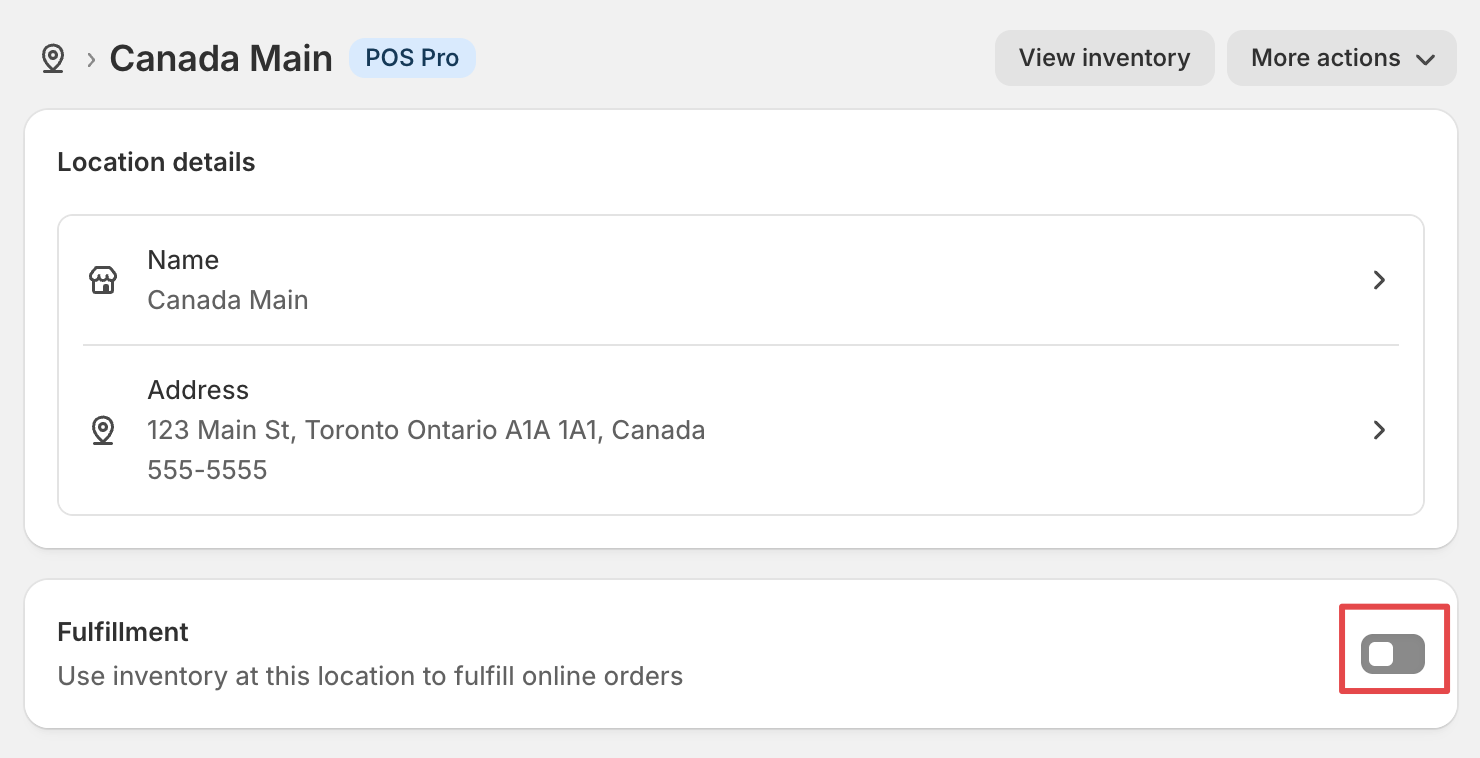
Solution: Enable “Fulfill online orders” for each location in your Shopify settings.
Invalid Store Location Address
Problem: Shopify can’t validate your store’s physical address.
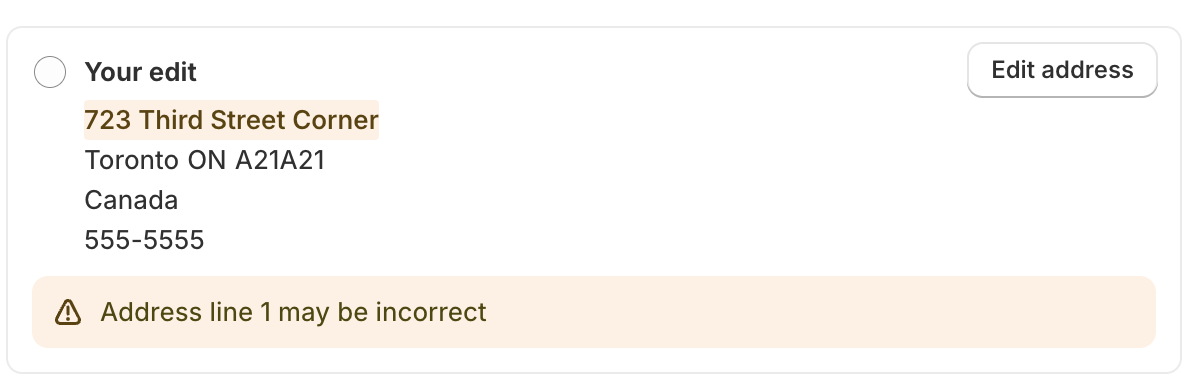
Solution: Enter a complete, valid address in Shopify Admin > Settings > Locations.
Cart Below Minimum Order Value
Problem: Customer’s cart total doesn’t meet your minimum order requirement.
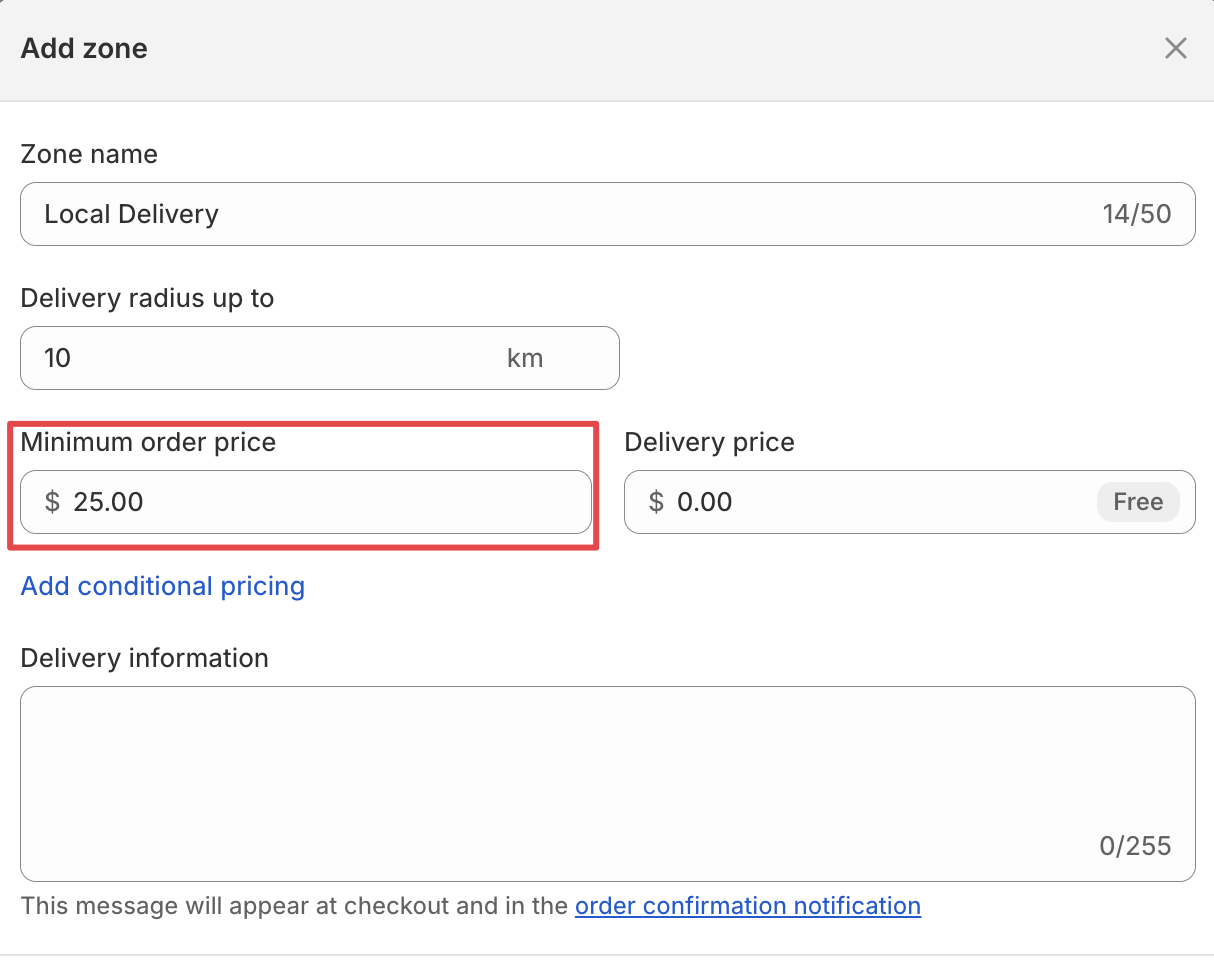
Solution: Lower your minimum order value or guide customers to add more items. See Minimum Order Value.
Third-Party App Conflicts
Problem: Other apps interfere with your delivery rates.
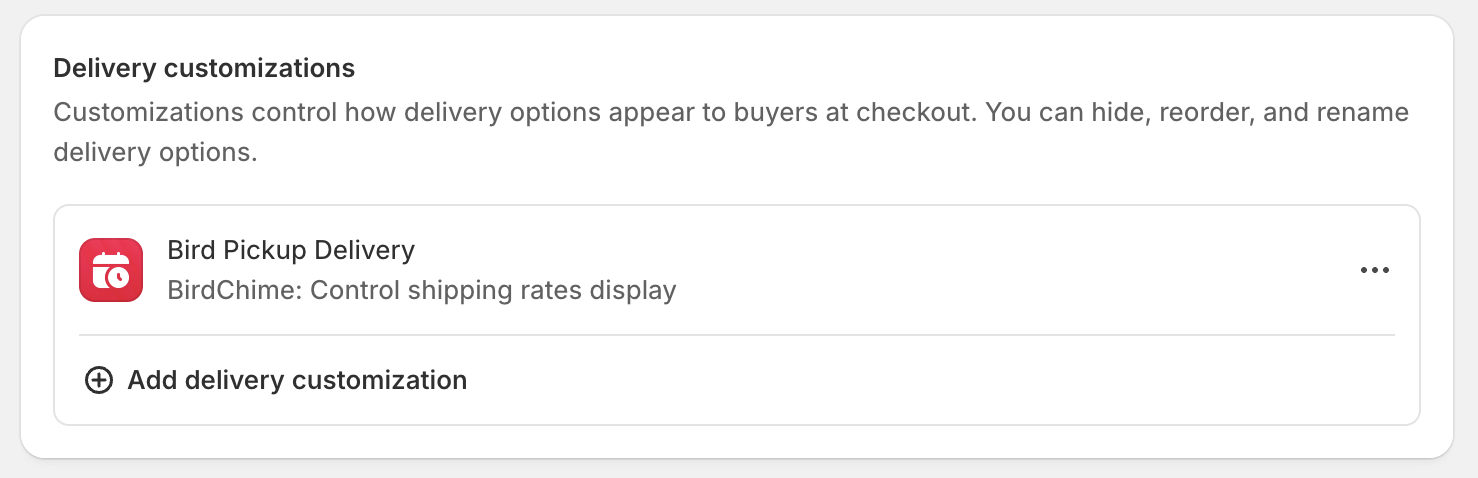
Solution: Check Shopify Admin > Settings > Shipping and delivery > Delivery customizations for conflicting apps. Turn them off one at a time to find the one causing the problem.
Order Came From Another Sales Channel
Problem: Customers ordering through Facebook, Pinterest, or the Shop app, or buying a product with the Bird widget hidden, see no rates at checkout.
Solution: These orders reach checkout without a Bird selection. Turn on Fallback Rates so Bird shows your local delivery or shipping rates instead.
Subscription Products in Cart
Problem: Customers see “Shipping not available” when subscription products are in the cart alongside regular products.
Solution:
- In the Bird app, go to Rates > Rates engine and choose Bird Rates with CCS. Carrier-Calculated Shipping (CCS) is required when using subscription apps.
- Remove any manually created rates from your Shopify shipping profile (Shopify Admin > Settings > Shipping and delivery). With CCS, Bird manages all rates, so manual rates in the shipping profile conflict with CCS and cause errors.
Local Delivery Rate Issues
Customer Address Outside Delivery Zone
Problem: Customer’s postal code or address falls outside your delivery radius.
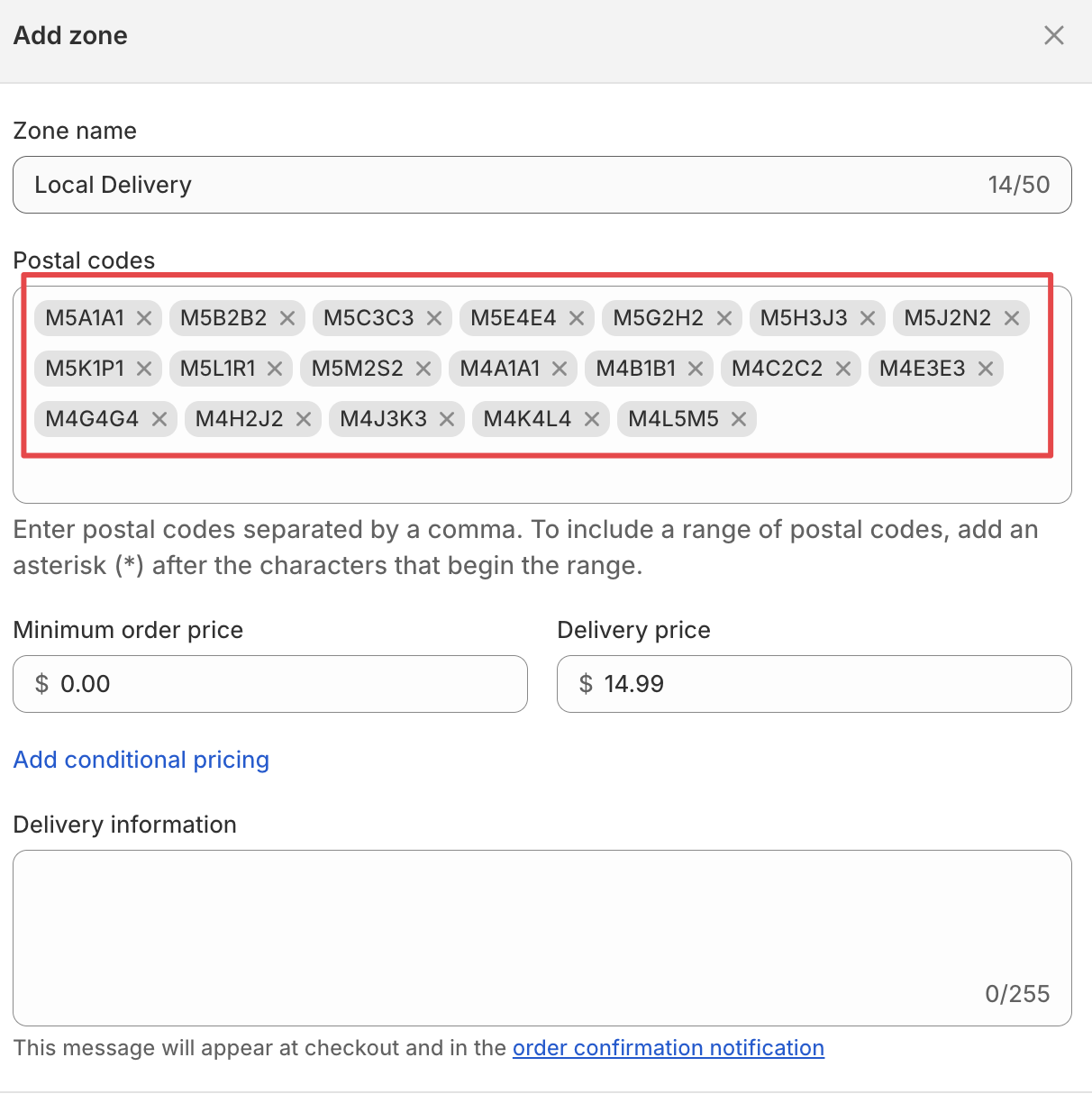
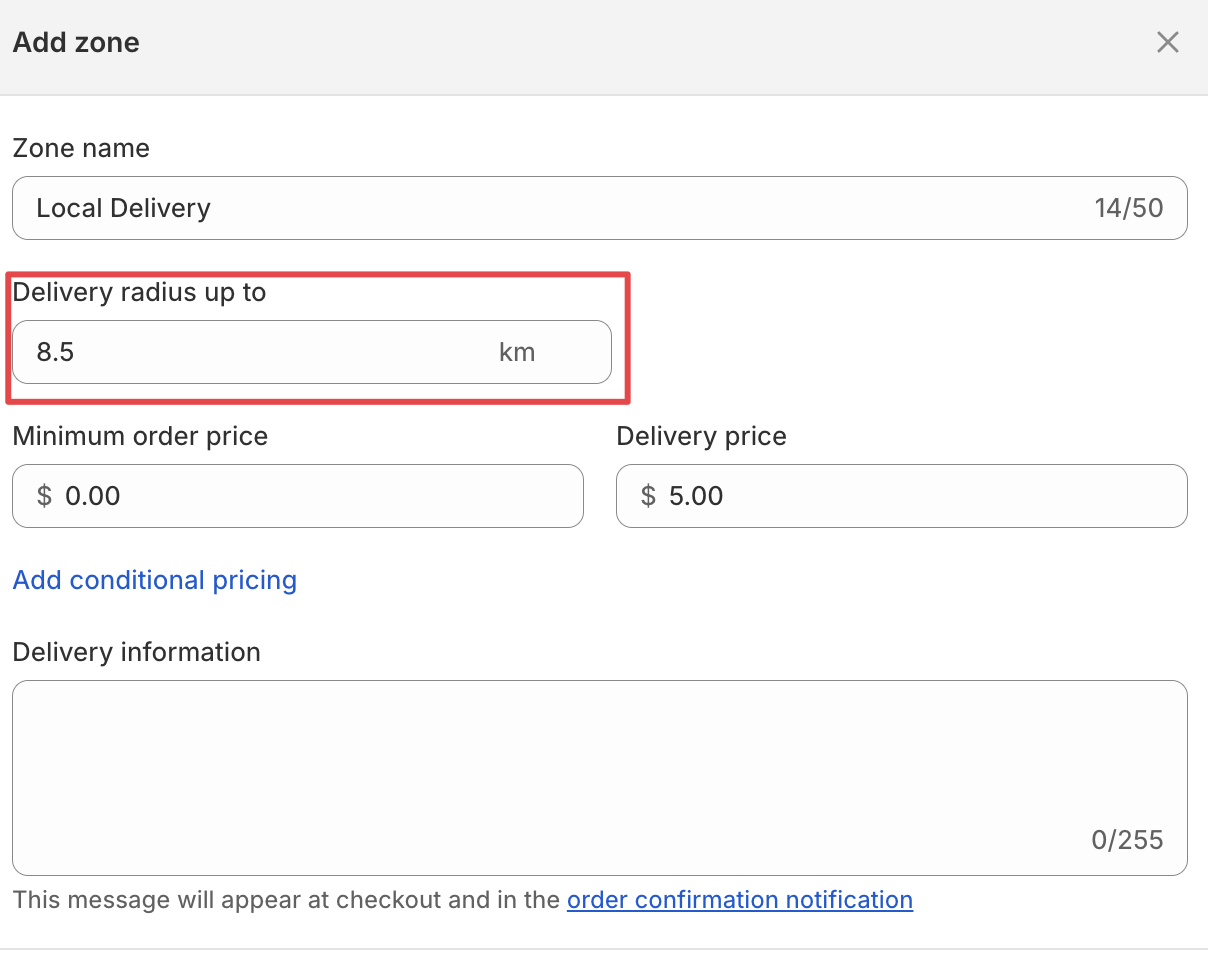
Solution: Expand your delivery zones or add the customer’s postal code to your delivery areas.
Apple Pay Not Showing Local Delivery Rates
Problem: Customers using Apple Pay see incorrect delivery rates or no delivery options, even though they are within the local delivery zone.
Cause: Apple Pay can fetch shipping rates but not Shopify’s native local delivery rates.
Workaround: Switch from Shopify’s native local delivery rates to Bird’s delivery rates.
Store Pickup Rate Issues
Location Not Enabled for Pickup
Problem: Store locations exist but aren’t configured for customer pickup.
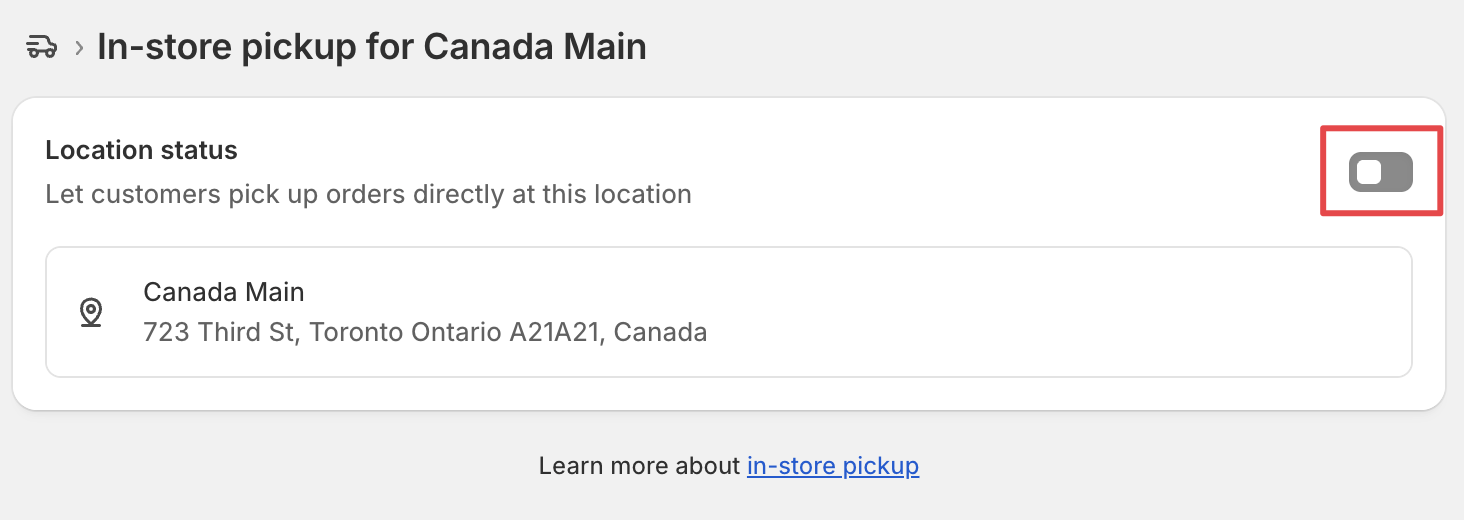
Solution: Enable pickup options for each location in your Bird Pickup & Delivery settings.
No Pickup Locations Available
Problem: All locations are missing required address information.
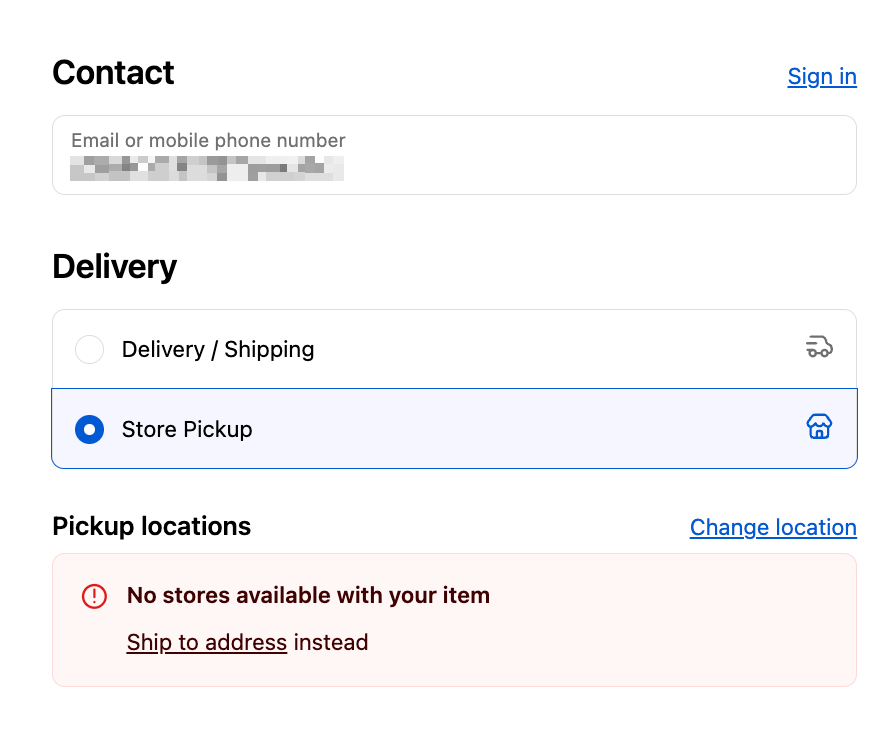
Solution:
- Go to Shopify Admin > Settings > Locations
- Select each location
- Add complete street address
- Save the location
That’s it! Your locations will now be available for pickup orders.
Duplicate Pickup Option at Checkout
Problem: Checkout shows Shopify’s own Pickup option next to the method the customer chose in the Bird widget. Customers who chose local delivery or shipping can switch to free pickup and skip the delivery or shipping charge, and customers who chose pickup are asked to choose it again.
Cause: Shopify’s built-in store pickup is still turned on. Bird only narrows Shopify’s pickup options when the customer chose pickup in the widget, so for local delivery and shipping orders the native pickup option stays available.
Solution: Turn off Shopify’s built-in store pickup. See How to Disable Shopify’s Built-in Store Pickup and Why Do I Need to Disable Built-in Shopify Pickup?. If you’re on Shopify Plus and use Bird’s checkout extension, you don’t need to do this.
Apple Pay Showing Incorrect or No Pickup Rates
Problem: Customers using Apple Pay see incorrect or no pickup rates at checkout.
Cause: For store pickup, Bird fills the store address into checkout so that rates are calculated correctly. Apple Pay replaces it with the customer’s saved Apple Pay address, so pickup rates are wrong or missing.
Shipping Rate Issues
Bird Shipping Rate Conditions Not Met
Problem: The customer’s cart or address doesn’t meet the conditions of any of your Bird shipping rates, so no shipping rate shows.
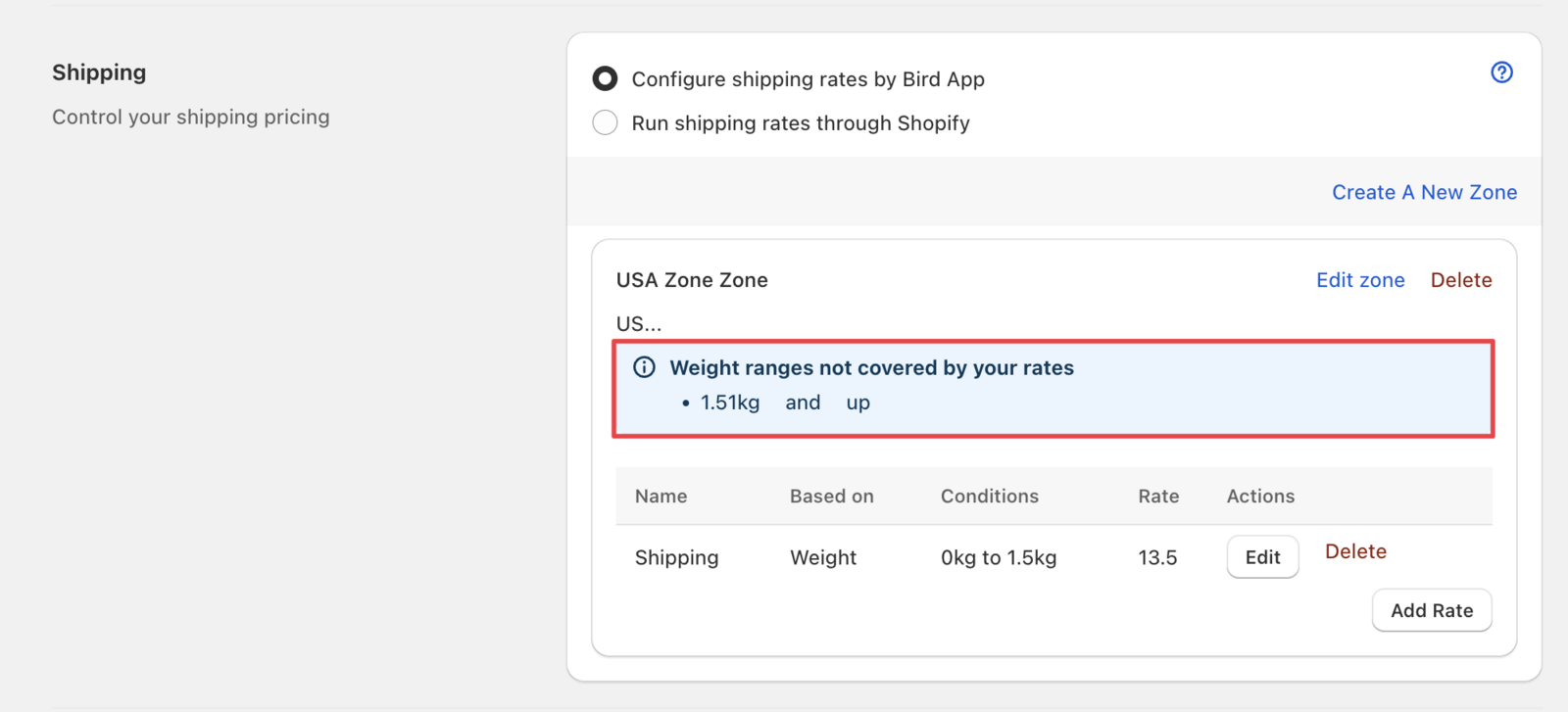
Solution: In the Bird app, go to Rates > Shipping. Check that at least one rate covers the customer’s country or region and that the cart meets its conditions (price, weight, or the others you set). See Shipping Rates.
Shopify Admin Shipping Rules Not Met
Problem: Customer’s order value falls outside your Shopify delivery rates.
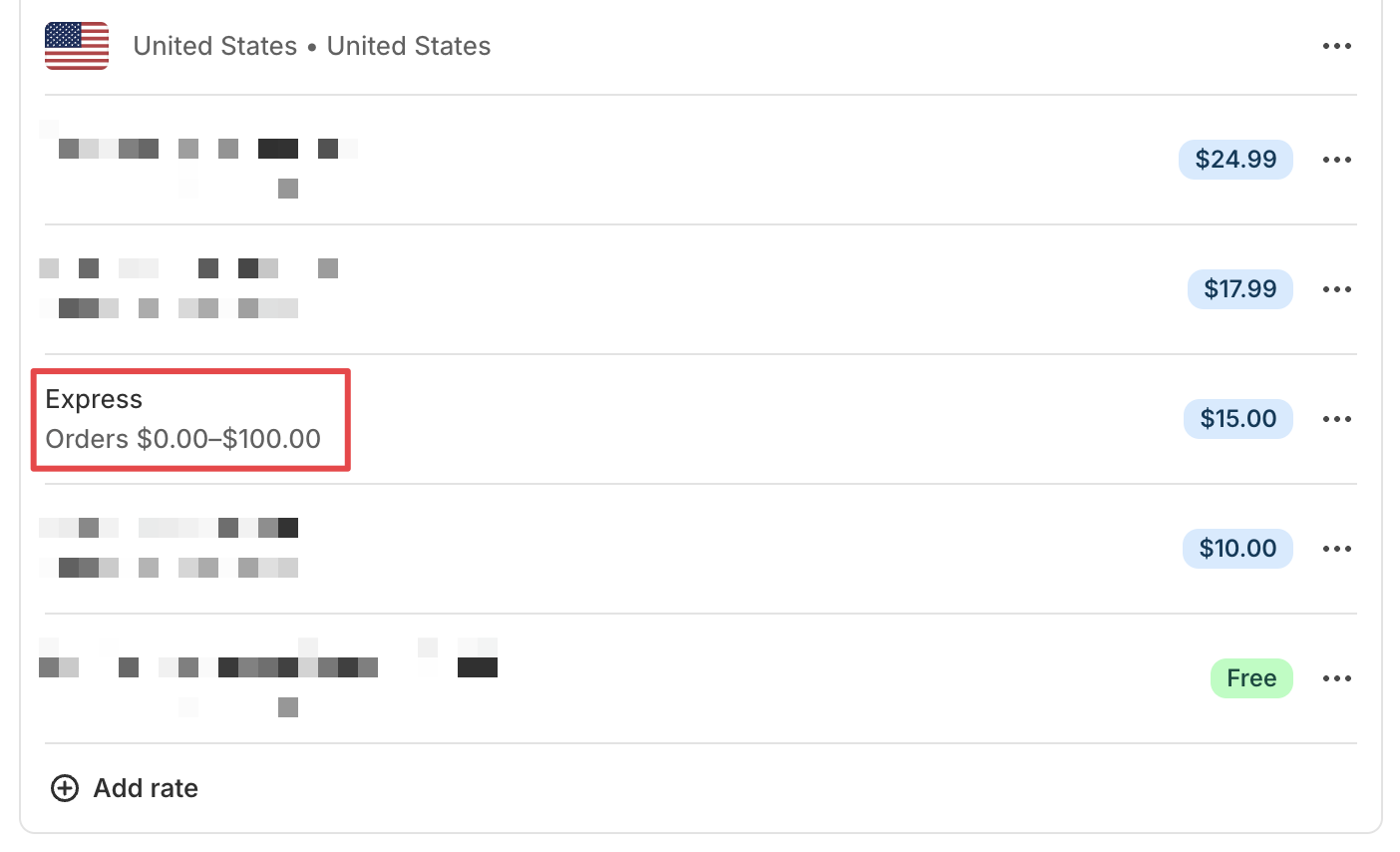
Solution: Update your shipping zones in Shopify Admin > Settings > Shipping and delivery.
FAQs
Why do I see “no shipping methods available” errors?
This usually means your product inventory, location settings, or delivery zones need configuration. Check the General Rate Issues section above.
How do I know if my location address is valid?
Shopify will show a validation error if the address is incomplete or invalid. Add a complete street address to resolve this.
What should I do if third-party apps conflict with my rates?
Check your Shopify delivery customization settings and temporarily disable conflicting apps to test.
Why do I see the “Products in the cart are not available” error?
This message appears when product tags in your Product Availability settings don’t match the items in the customer’s cart. Excluded products block that delivery method for the whole order. See Why Do I See the “Products in the Cart Are Not Available” Error? to resolve it.
For more general questions, see our main FAQs page.
Related Articles
Was this article helpful?
Thanks for your feedback!