
 Rates
Rates
Minimum Order Value
This article shows you how to set a minimum order value for local delivery, store pickup or shipping, so customers can’t check out until their cart reaches it.
A minimum keeps small orders from costing you more to fulfil than they earn. Each delivery method has its own minimum, and with multiple locations each location can have its own for delivery and pickup. Minimum order value needs the Essential plan or higher.
Set a Minimum for Local Delivery or Store Pickup
- In the Bird app, go to Bird Settings > Pickup & delivery. If you have multiple locations, go to Bird Settings > Configure locations and select the location instead.
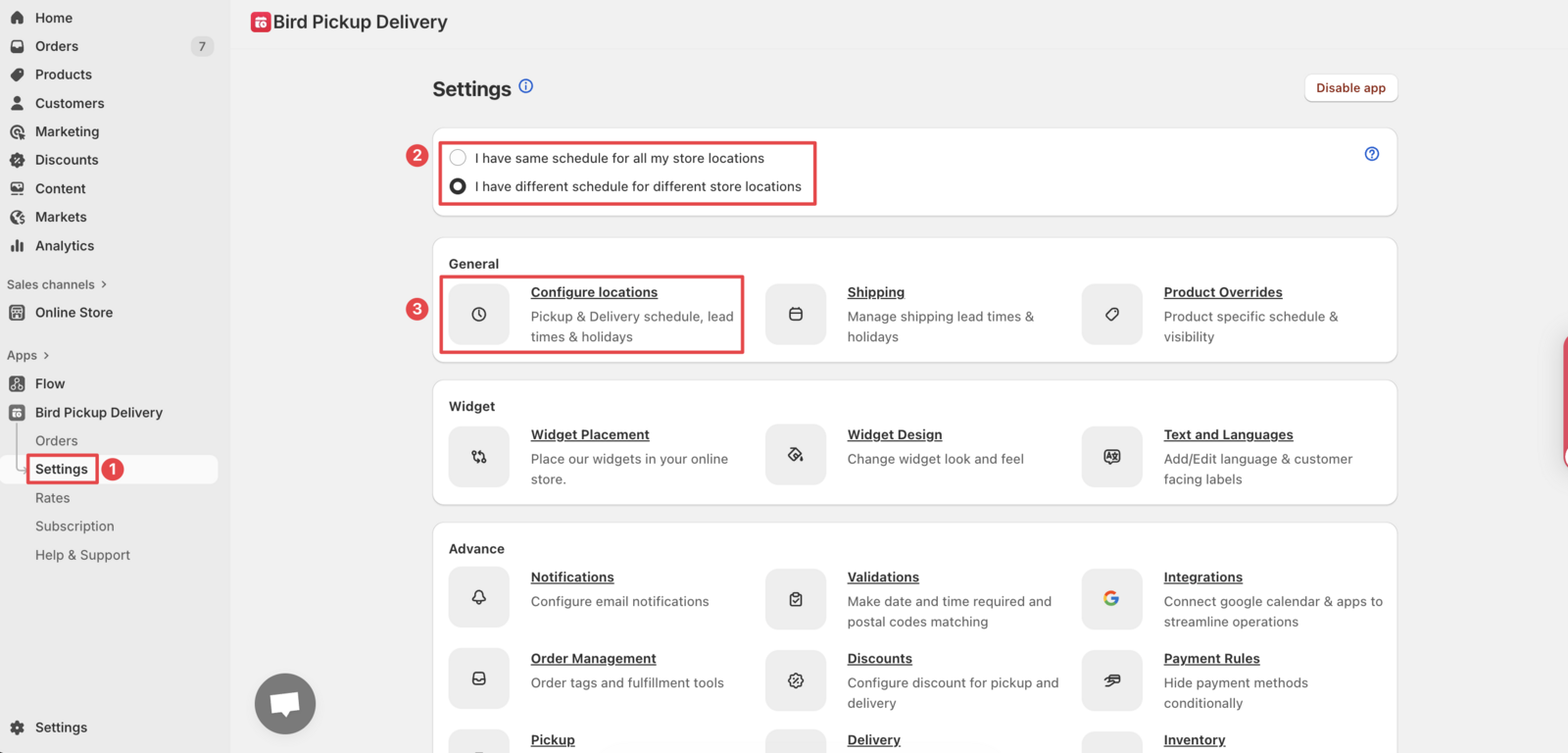
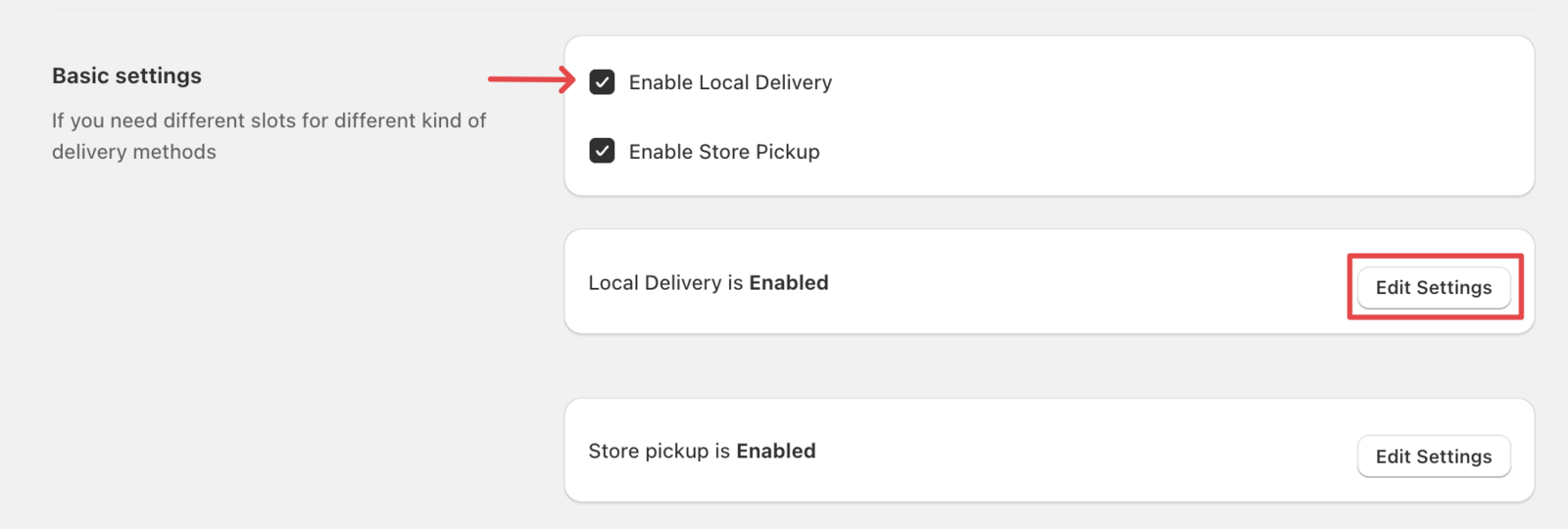
- Click Edit settings next to local delivery or pickup.
- Scroll to Order value validation and enter the amount in the Minimum order value field (decimals allowed). Leave it empty to turn the minimum off.
- Click Save.

Repeat for the other method, and for each location that needs a minimum.
Set a Minimum for Shipping
- Go to Bird Settings > Shipping.
- Scroll to Order value validation and enter the amount in the Minimum order value field.
- Click Save.
The shipping minimum applies to your whole store, not per location.
What Customers See
When the cart total is below the minimum for the method the customer picked, the cart widget shows a minimum order message and blocks the checkout button until they add more items.
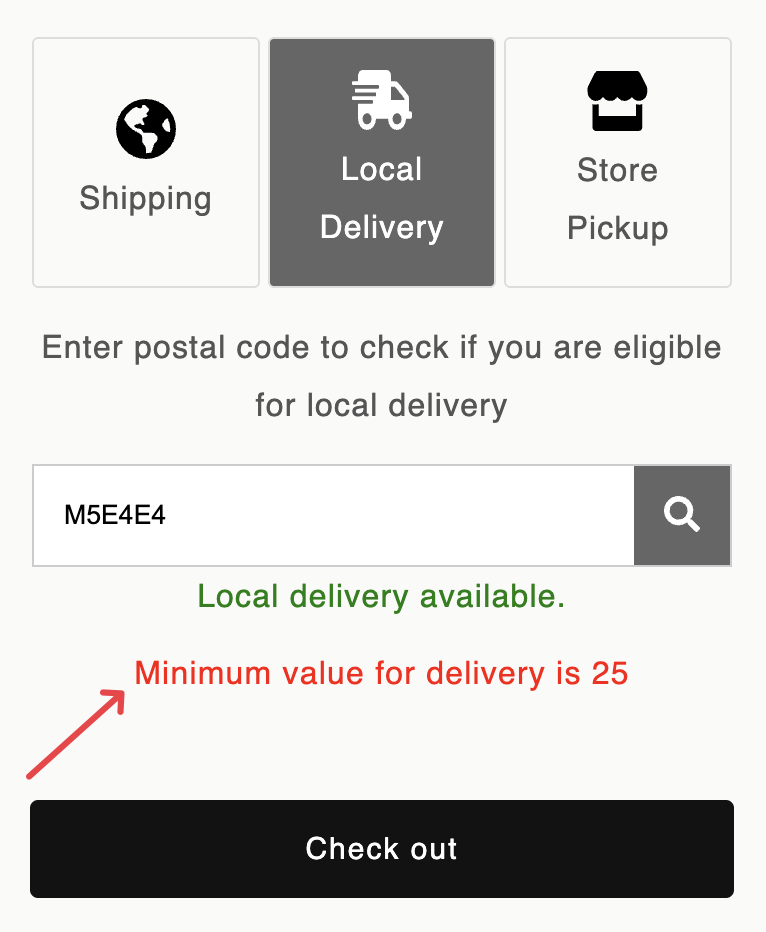
You can change the wording in Bird Settings > Text and languages. See Minimum Order Value Errors.
For troubleshooting, see Cart Below Minimum Order Value.
How Discount Codes Affect the Minimum
The widget checks the cart total on the cart page. Whether a discount counts depends on where the customer applies it.
Discounts Applied on the Cart Page
The discount lowers the cart total, and the widget checks the discounted total. If it drops below your minimum, the customer can’t proceed until they add more items.
Example: Your minimum is USD 45. A customer’s cart is USD 50, and a cart-page discount brings it to USD 30. Checkout is blocked because USD 30 is below USD 45.
Discounts Applied at Checkout
The customer has already passed the check on the cart page, so a discount entered at checkout doesn’t affect it. The order can go through even if the final total falls below your minimum, or to USD 0.
Example: Your minimum is USD 45. A customer’s cart is USD 50, so they pass. At checkout they apply a code that brings the total to USD 0, and they can still place the order.
Discounts Overview apply at checkout, so they don’t affect the minimum.
Related Articles
Was this article helpful?
Thanks for your feedback!