
 Rates
Rates
Delivery Rates
Set up local delivery rates that charge the right amount based on the order, the location, and the delivery slot.
Delivery rates decide what customers pay at checkout when they choose local delivery in the Bird widget. You can use one set of rates everywhere or give each location its own.
Where to Set Delivery Rates
In the Bird app, go to Rates and scroll to the Delivery section.
Same Rates for All Locations
Use this when every location and delivery zone charges the same.
- Select I have same rates for all my store locations or delivery zones.
- Click Add rate.
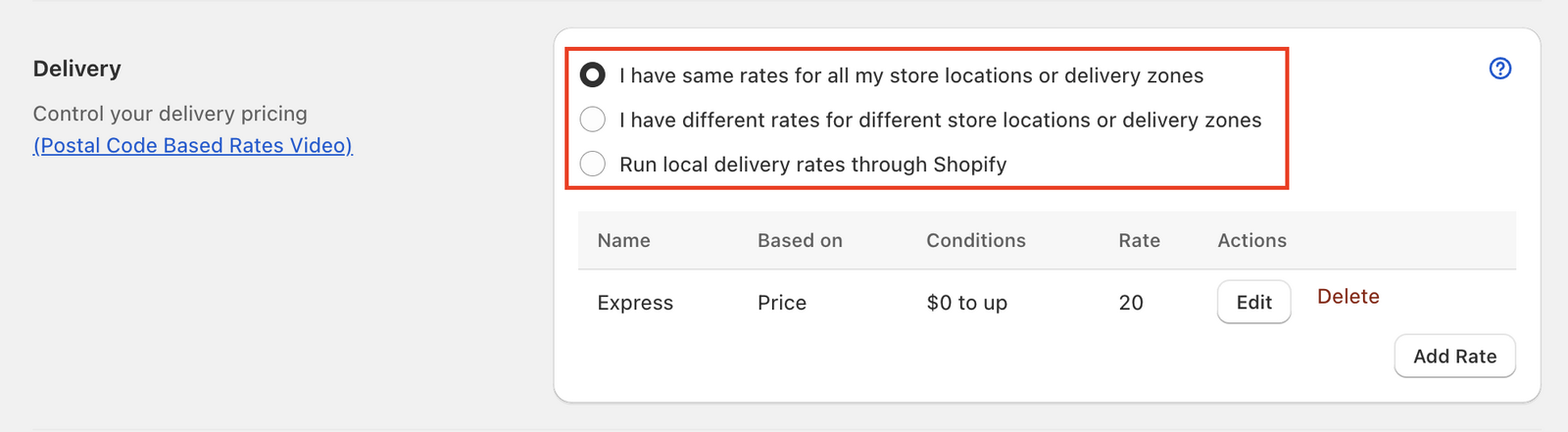
Different Rates per Location
Use this when each location or delivery area has its own prices.
- Select I have different rates for different store locations or delivery zones.
- Click Add rates next to the location. Once a location has rates, the button reads Add rate.
This option needs multiple locations set up in Bird. If you see Multi-location not configured in settings, click Edit settings and choose I have different schedule for different store locations. To price by postal code or distance, see Delivery Zones: Postal Code and Delivery Zones: Distance.
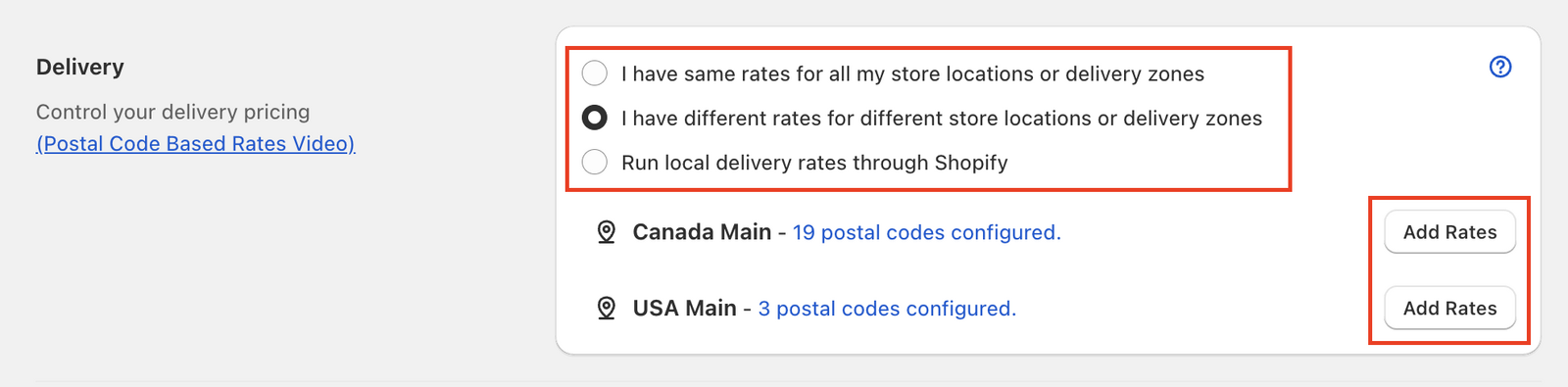
To use Shopify’s own local delivery rates instead, select Run local delivery rates through Shopify. See Shopify Rates for Local Delivery.
Create a Delivery Rate
- Enter a Name, for example “Local Delivery”. Customers see this at checkout.
- Choose a condition in Based on and fill in its values.
- Enter the Rate amount. Enter 0 for free delivery.
- Click Save.
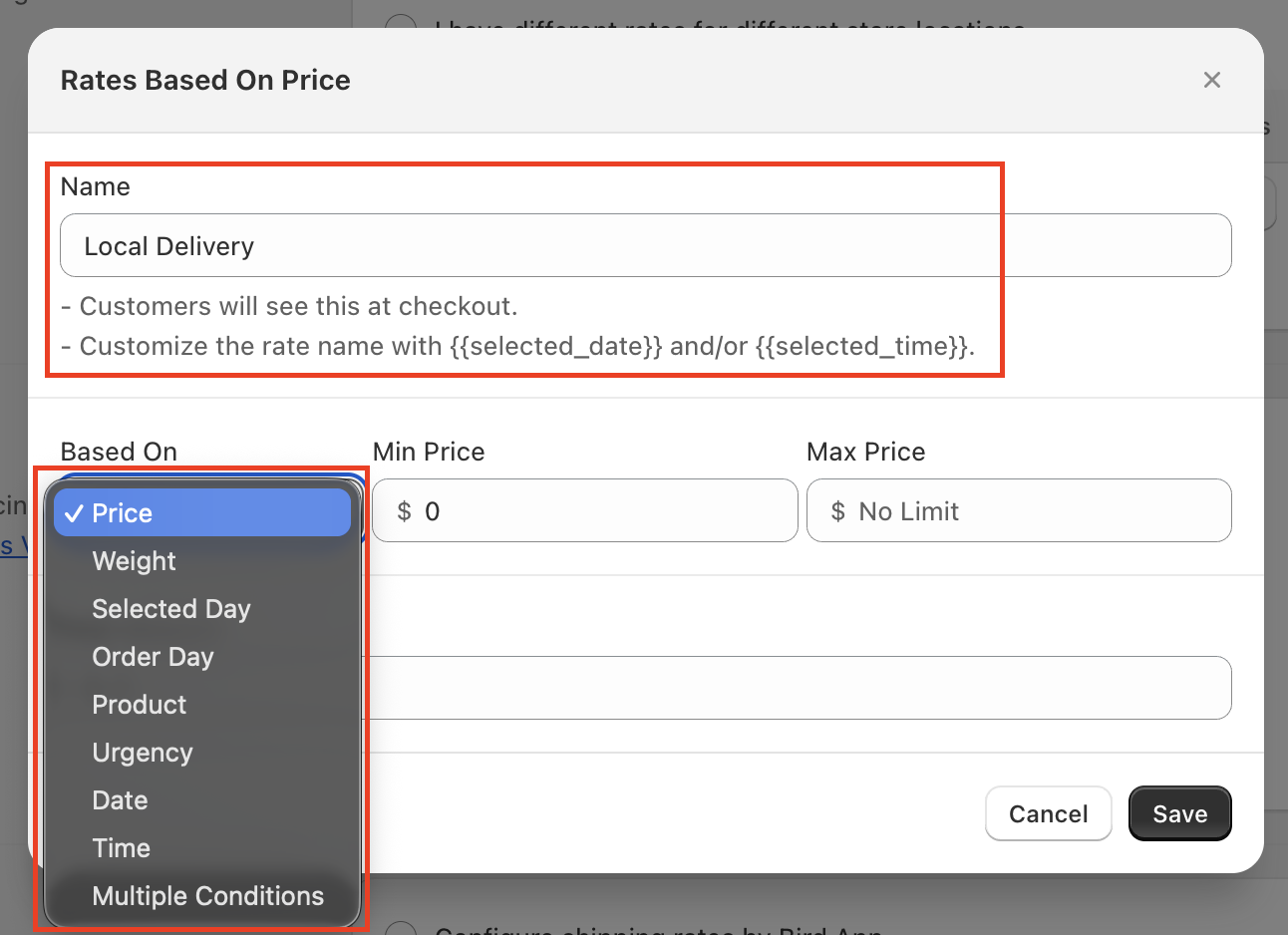
You can use any of the nine conditions in Based on: Price, Weight, Selected day, Order day, Product, Urgency, Date, Time, and Multiple conditions. See Rate Conditions: Price, Weight & Order Rules for what each one does, its plan, and examples.
Common Mistakes to Avoid
- Gaps in coverage: if your lowest price or weight rate starts above 0, orders below it get no delivery rate. Start your first range at 0, and check the Rate coverage gaps notice on the Rates page for ranges or days no rate covers.
- Overlapping conditions: when two rates cover the same date range, time slot, or price range, both qualify. Make tiers that shouldn’t overlap stop where the next one starts.
- Editing rates in Shopify Admin: make changes in the Bird app only. See Don’t Edit Rates in Shopify Admin.
- Not testing: rates go live as soon as you save them. Place a test order for each rate to confirm the right price shows.
Related Articles
Was this article helpful?
Thanks for your feedback!