
 Rates
Rates
Delivery Zones: Postal Code
This article helps you charge different local delivery rates for different areas, based on the customer’s postal code (ZIP code).
You can charge less for nearby areas and more for far-away ones. Each zone can have its own delivery rates, minimum order value and schedule.
Choosing a Zone Type
Bird offers two kinds of delivery zones. Pick the one that matches how you think about your delivery area.
- Postal code zones (this article): you list the postal codes each zone serves. Best when your delivery areas line up with postal codes.
- Distance zones: the customer enters their address, and Bird measures how far it is from your store, either in a straight line (radius) or by road (driving distance). You need a Google Maps API key. Best when postal codes don’t match your delivery areas, or your country doesn’t use them (for example, the UAE, Qatar or Hong Kong). See Delivery Zones: Distance.
When Two Suburbs Share a Postal Code
Each postal code can belong to only one zone (see Local Delivery: Postal Code Validation). So postal code zones can’t charge two suburbs differently, or deliver to one and not the other, when they share a postal code. Use distance zones instead.
Example: Suburb A (4km from your store) and Suburb B (9km away) share postal code 2340. You want to charge $15 for A and $25 for B.
- Duplicate your main location once per suburb, keep your store’s address on each copy, and rename each copy after its suburb.
- Give the Suburb A zone a 5km limit and a $15 rate, and the Suburb B zone a 10km limit and a $25 rate.
A customer 4km away fits both zones. Both zones share the same address, so Bird picks the one with the smaller limit and charges $15. A customer 9km away only fits the 10km zone and pays $25. The shared postal code never comes into it.
Postal Code Zones Overview
Each zone is a copy of your main store location in Bird, with its own list of postal codes, rates and requirements. Zones often represent suburbs or neighborhoods.
Example setup:
- Main Store Location: $10 delivery rate
- West Zone (nearby): $20 delivery rate, $50 minimum order
- East Zone (far away): $30 delivery rate, $50 minimum order
At checkout, Bird shows the rate of the zone that serves the customer’s postal code.
Create Delivery Zones
Step 1: Turn On Different Schedules per Location
- Go to Bird Settings.
- If you see I have different schedule for different store locations at the top of the page, select it. If you see a Configure locations tile instead, this is already on.
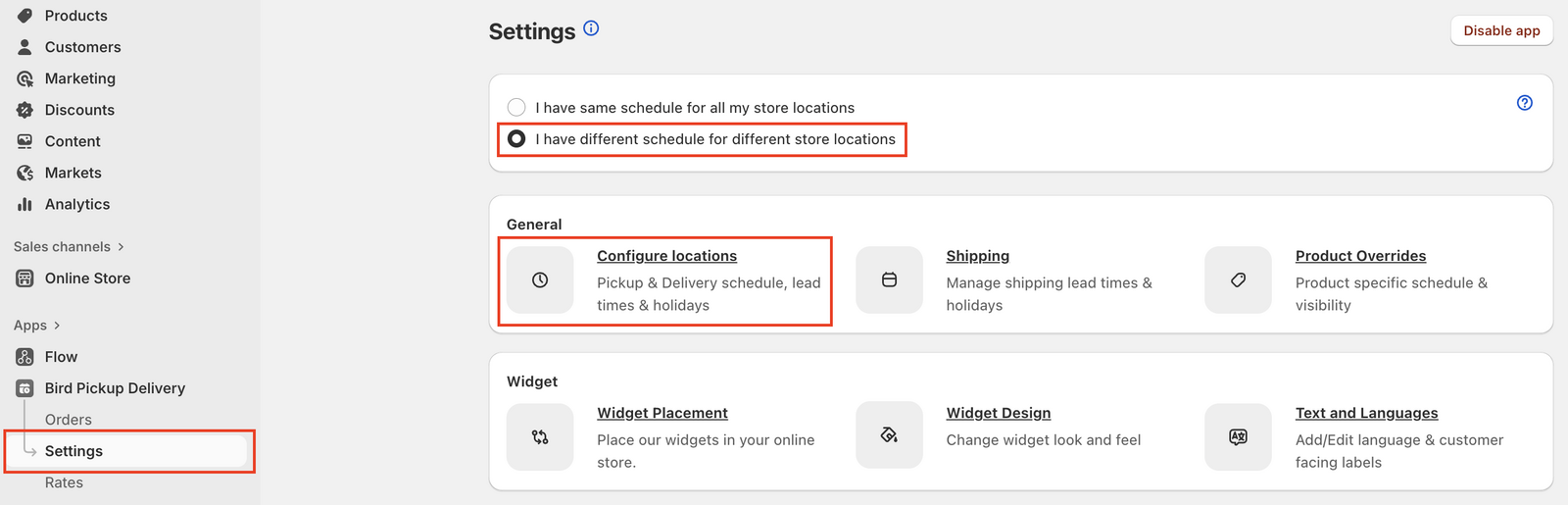
For more on this mode, see Set Up Different Schedules for Multiple Store Locations.
Step 2: Duplicate Your Main Location
- Go to Bird Settings > Configure locations.
- Select your main store location.
- Scroll down and click Duplicate location.
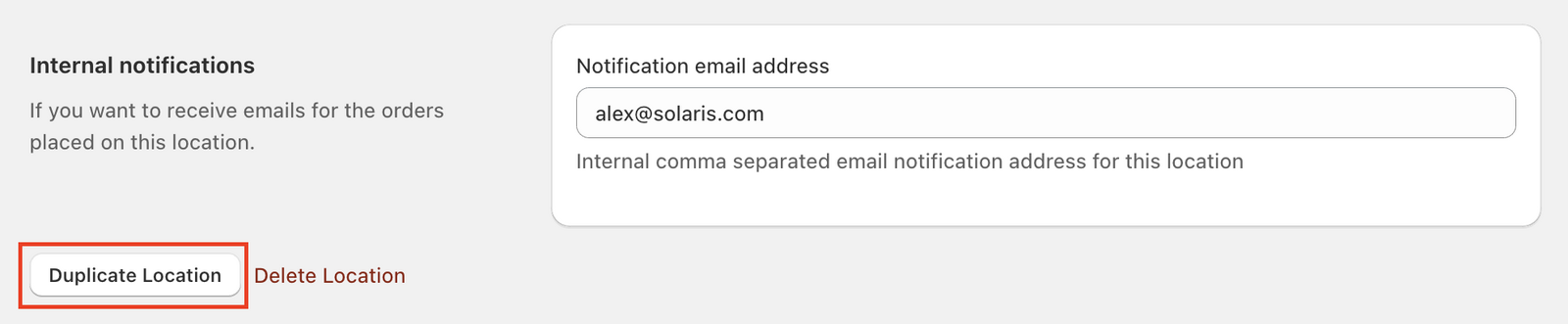
The duplicated location becomes a zone that shares inventory with your main location. It exists only in Bird Pickup & Delivery and doesn’t create a new Shopify location.
Step 3: Name the Zone
- Rename the duplicated location (for example, “East Zone”, “West Zone”, “Nearby” or “Far away”).
- Add any address for the zone.
- Click Save.
Repeat Steps 2 and 3 for each zone you need. For example, one zone for nearby postal codes and one for far-away postal codes.
Step 4: Set Postal Codes for Each Zone
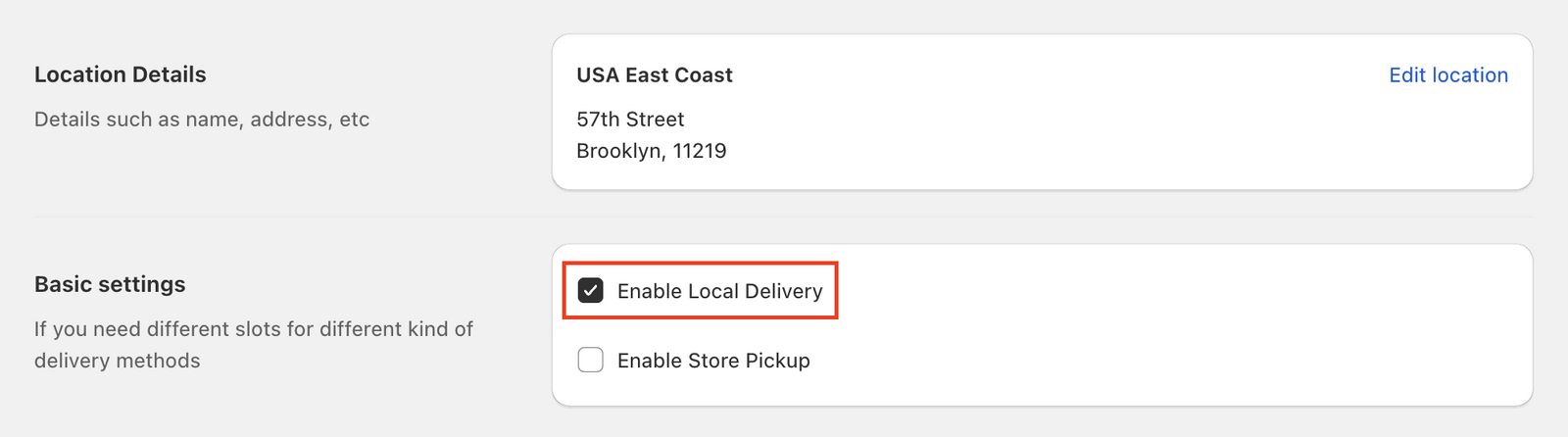
- In the zone, check Enable local delivery.
- Click Edit settings for local delivery.
- Go to Local delivery zip/postal codes.
- Enter the postal codes this zone serves in ZIP / postal codes. Each postal code can only be in one zone.
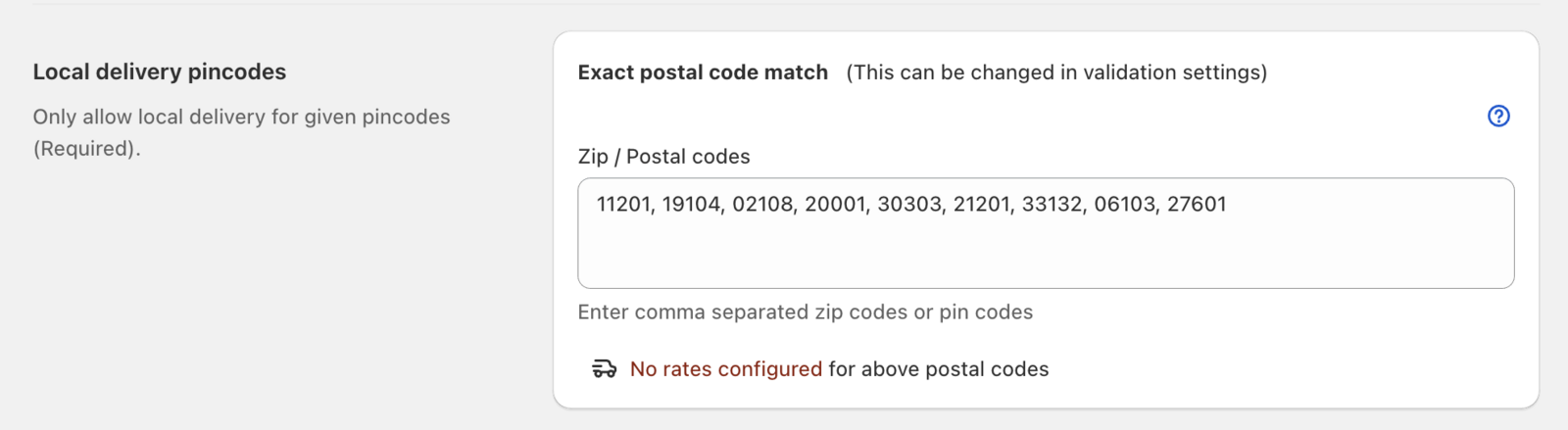
Step 5: Set a Minimum Order Value
Below the postal codes, use Order value validation to set the zone’s minimum order value.

Set Zone Rates
Step 6: Add Delivery Rates for Each Zone
- In the Bird app, go to Rates.
- In the Delivery section, select I have different rates for different store locations or delivery zones.
- Add rates for each zone. See Delivery Rates for rate conditions.
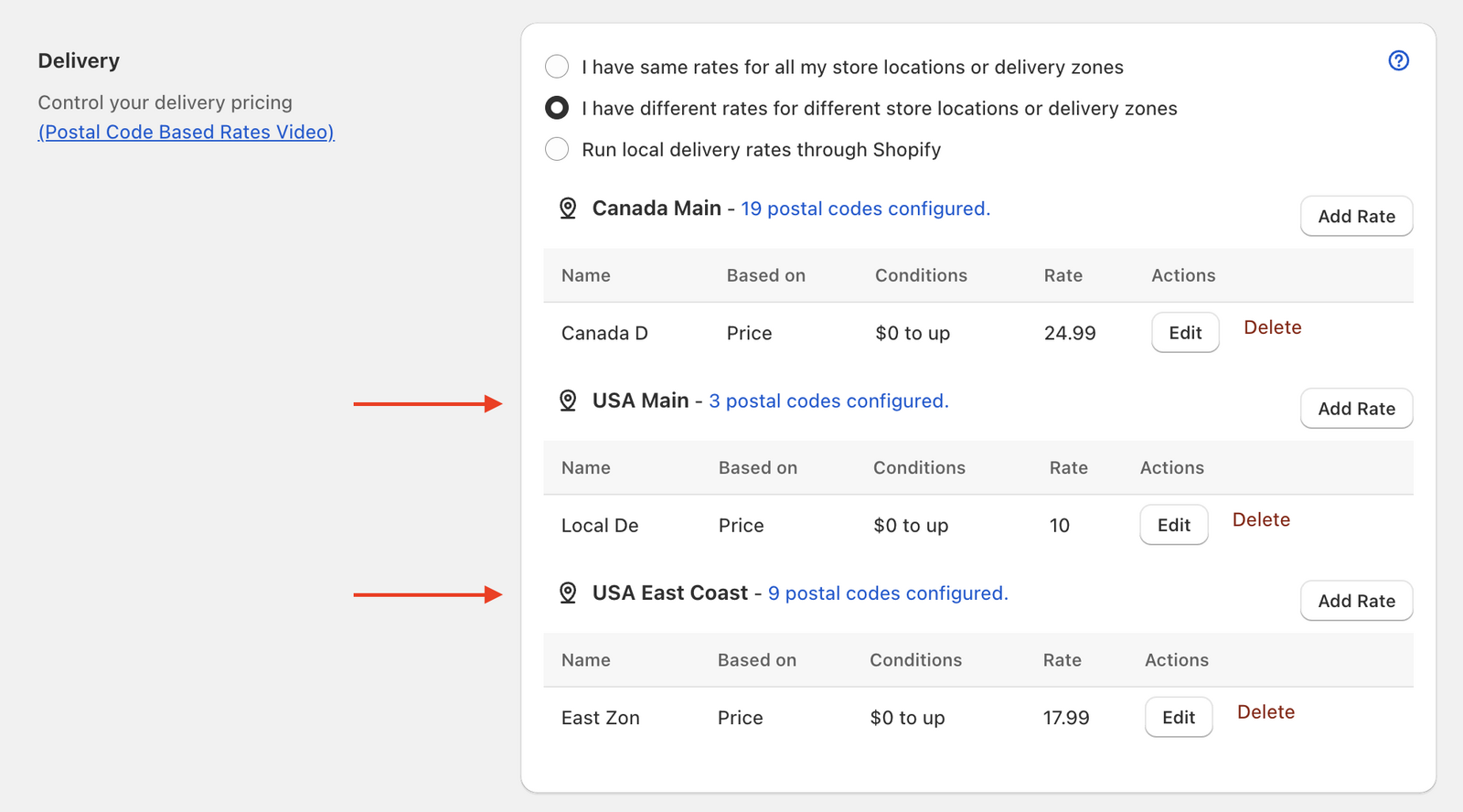
Test the setup with a few postal codes from each zone to check that the right rate shows.
Optional: Postal Code Validation at Checkout
Stop customers from changing their postal code at checkout, so they always get the rate for the zone they picked in the cart.
- Go to Bird Settings > Validations > Postal code validation settings.
- Enable Revalidate delivery location postal code in checkout.
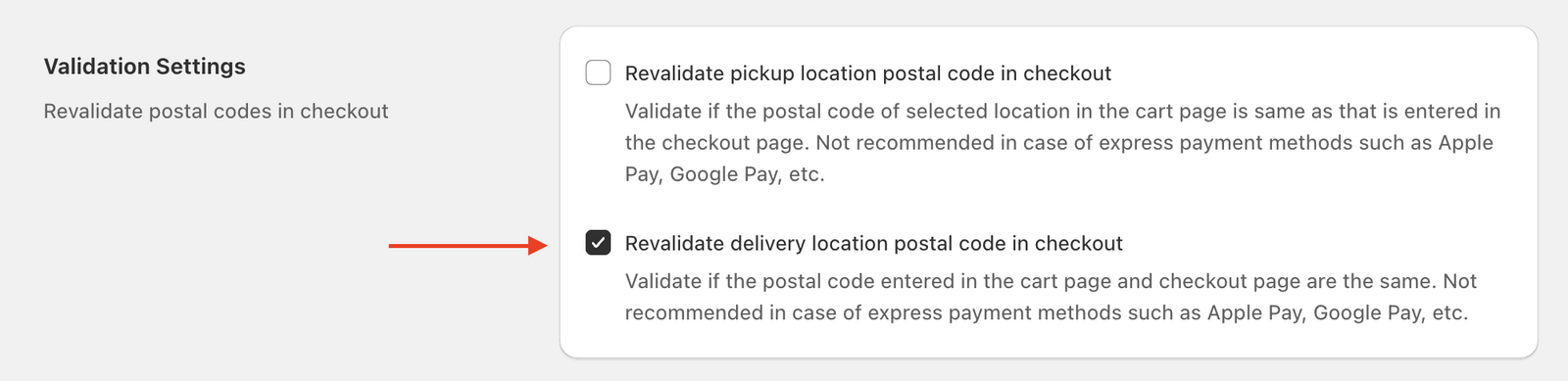
For the full setup, including the postal code checker header, see Set Up Postal Code Validation for Local Delivery.
FAQs
Can I create more than two zones?
Yes. Duplicate your main location as many times as you need. Zones don’t count toward your plan’s location limit.
Do the zones share inventory?
Yes. All zones share inventory with your main store location. Zones exist only in Bird and don’t create separate Shopify locations.
Can I set different schedules for each zone?
Yes. Each zone can have its own delivery schedule, rates and minimum order value.
What happens if a postal code isn’t assigned to any zone?
Local delivery isn’t available for that postal code. Add it to the zone that should serve it.
Can my zones share one daily order limit?
Yes. The main location’s daily limit can cover the store and all its zones together. See Shared Order Limits Across Zones.
What if two suburbs share the same postal code?
Use distance zones. See When Two Suburbs Share a Postal Code.
For more general questions, see our main FAQs page.
Related Articles
Was this article helpful?
Thanks for your feedback!