
 Rates
Rates
Rate Conditions: Price, Weight & Order Rules
This is the reference for every condition you can put on a Bird rate, from order value and weight to the delivery day and time slot.
A rate only shows at checkout when the order meets its condition. Picking the right condition, and the right values, is what makes the correct price appear for each order.
How Conditions Work
Every rate has one condition, chosen in the Based on dropdown when you add or edit a rate. The same conditions are available for pickup, delivery, and shipping rates.
- In the Bird app, go to Rates and open the Pickup, Delivery, or Shipping section.
- Click Add rate. For shipping, click Add rate inside a shipping zone.
- Enter a Name. Customers see this at checkout.
- Choose a condition in Based on and fill in its values.
- Enter the Rate amount. Enter 0 for a free rate.
- Click Save.
Bird checks your rates after the customer picks a method, location, date, and time in the Bird widget. Every rate whose condition the order meets qualifies, and Manage visibility decides which qualifying rates the customer sees.
Conditions at a Glance
| Based on | Checks | Plan |
|---|---|---|
| Price | Cart total | All plans |
| Weight | Total cart weight | All plans |
| Selected day | Day of the week the customer picked | Growth |
| Order day | Day of the week the order is placed | Growth |
| Product | SKUs in the cart | Growth |
| Urgency | Days between today and the picked date | Growth |
| Date | The date the customer picked | Growth |
| Time | The time slot the customer picked | Growth |
| Multiple conditions | Several of the above at once | Growth |
Conditions marked Growth appear under Requires Growth plan in the dropdown. If your store moves to a plan below Growth, rates that use these conditions stop showing at checkout. See the plan comparison.
Condition Reference
Price
Charges a rate when the cart total is between Min Price and Max Price. Leave Max Price empty for no upper limit.
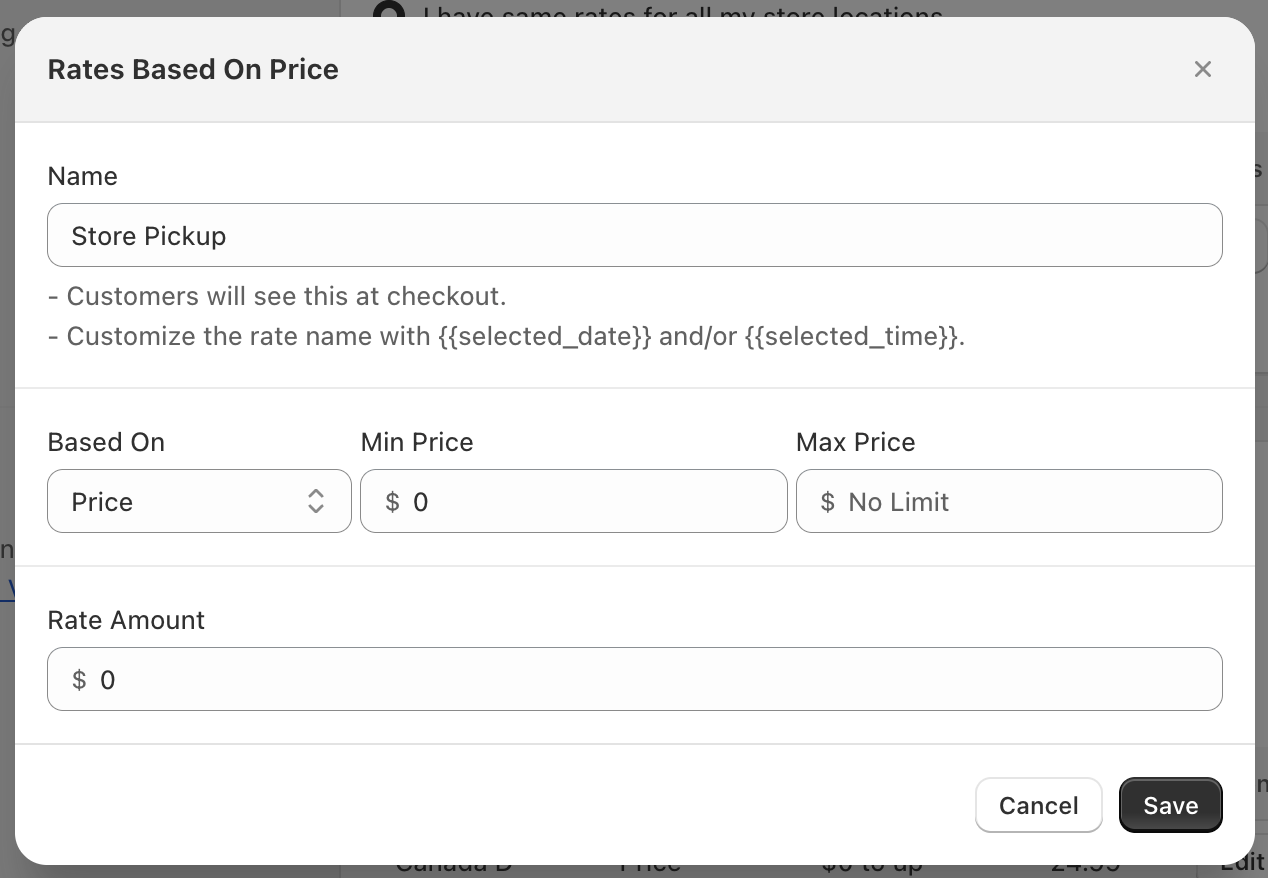
Example: Min Price 0, Max Price 49.99, Rate amount $10. A second rate with Min Price 50, no Max Price, Rate amount $0 gives free delivery on orders of $50 or more.
Weight
Charges a rate when the total weight of the cart is between Min Weight and Max Weight. Leave Max Weight empty for no upper limit.
Values use the unit set in Weight format on the Rates page (grams by default, or kg, lb, or oz). Bird converts each product’s Shopify weight into that unit and adds up the cart. If you change the unit later, your existing numbers are not converted, so check your weight rates. See Weight Format.
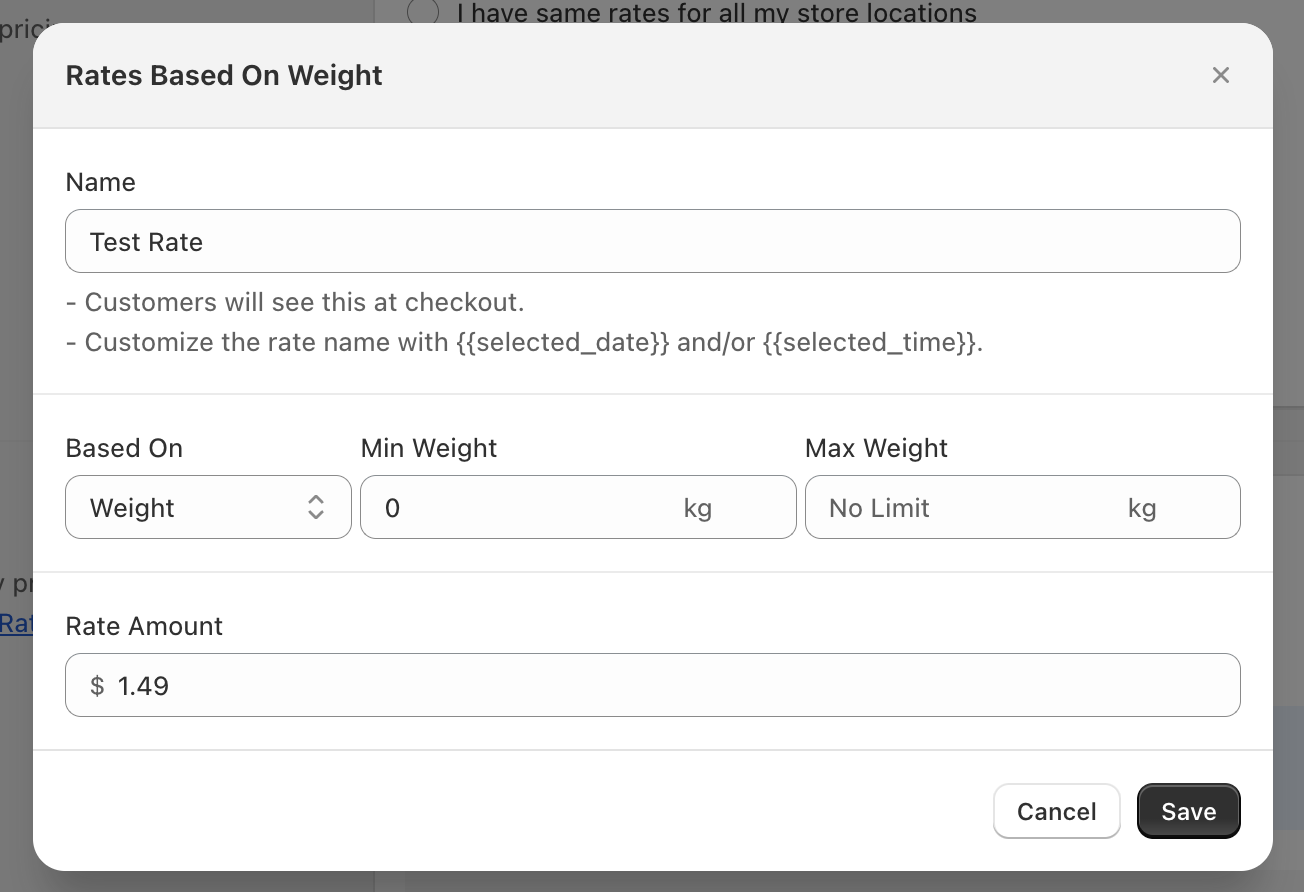
Example: With the unit set to kilograms, Min Weight 0 and Max Weight 5 costs $5, and Min Weight 5 with no Max Weight costs $15.
Selected Day
Charges a rate when the pickup, delivery, or shipping date the customer picked falls between Start Day and End Day. It looks at the day they picked, not the day they order.
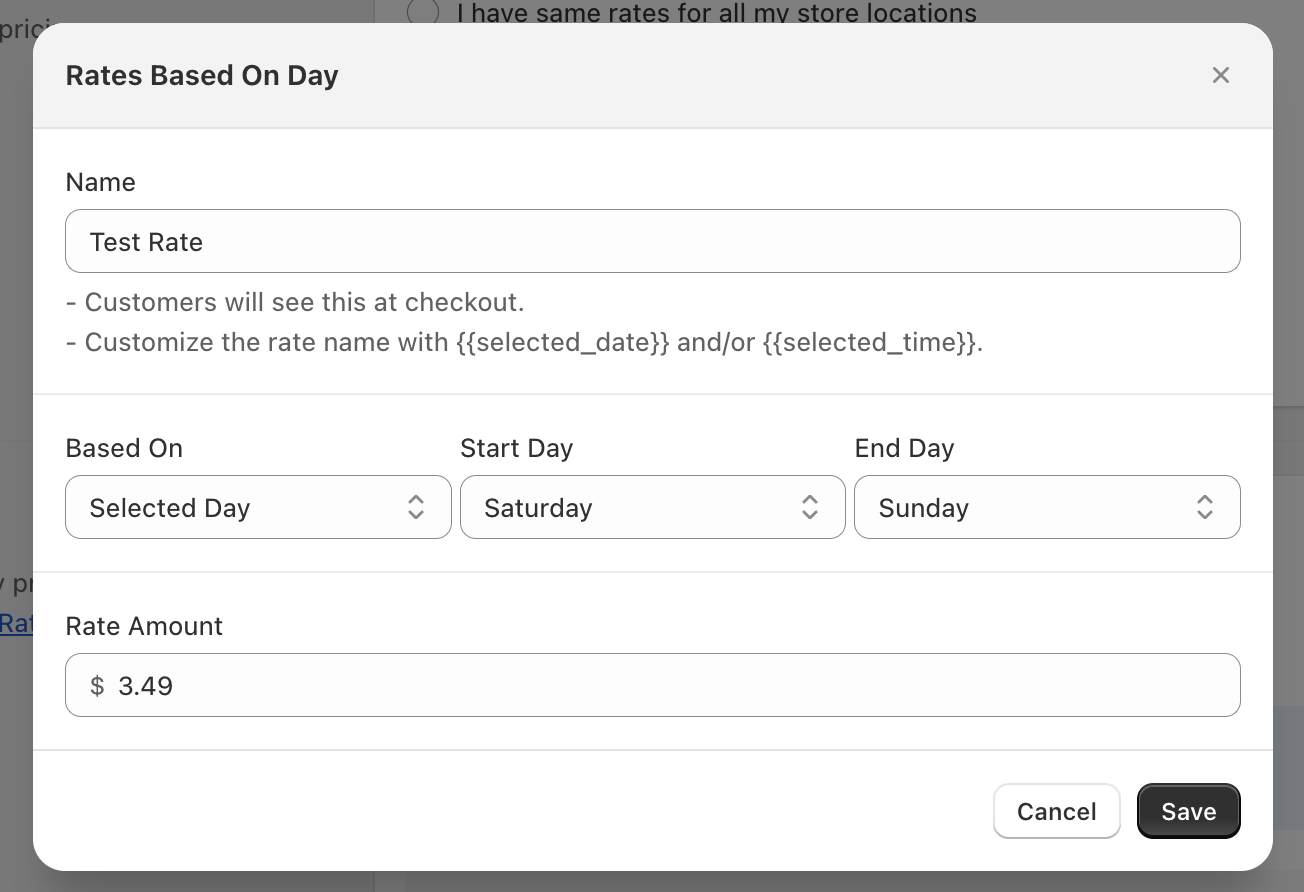
Example: Monday to Friday costs $10. A second rate for Saturday to Sunday costs $15.
Order Day
Charges a rate based on the day of the week the order is placed, whatever date the customer picks for fulfillment. Set a start and end day.
Example: Orders placed on a Saturday pay a $5 weekend-order fee, no matter which delivery date the customer picks.
Product
Charges a rate based on the SKUs in the cart. Enter one or more SKUs in Enter SKUs, separated by commas. Use * as a wildcard, for example CAKE-* matches every SKU that starts with “CAKE-“. Then choose in Any or all:
- Any product matches given SKUs: the rate qualifies when at least one item in the cart matches.
- All products match given SKUs: the rate qualifies only when every item in the cart matches.
This condition uses SKUs, not Shopify product tags. To change lead time or availability by product, see Same-Day or Next-Day Delivery for Specific Products.
Example: A rate for SKU PRODUCT-XL with Any product matches given SKUs costs $20, so any cart containing that item gets the $20 rate.
Urgency
Charges a rate based on how many days away the picked date is, counted from today in your store’s time zone. Set Min Days and Max Days. 0 is today, 1 is tomorrow.
Use this for same-day or rush fees next to a standard rate. They are two separate rates. The customer just picks a date, and whichever rate matches that date applies.
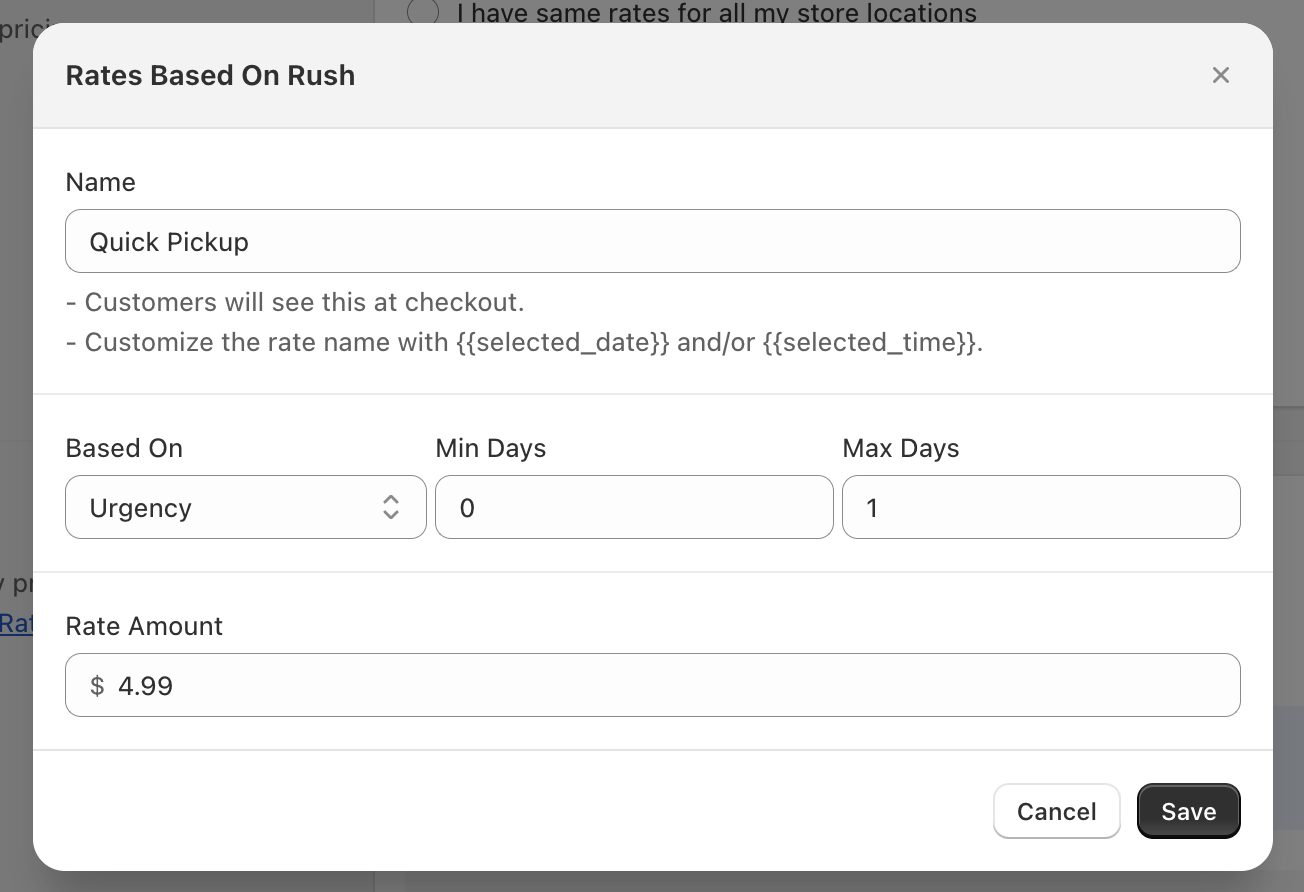
Example: Min Days 0, Max Days 0 costs $20 (same day). Min Days 1, Max Days 1 costs $15 (next day). Min Days 2 with no Max Days costs $7.
Date
Charges a rate when the date the customer picked falls inside a date range you choose on the calendar.
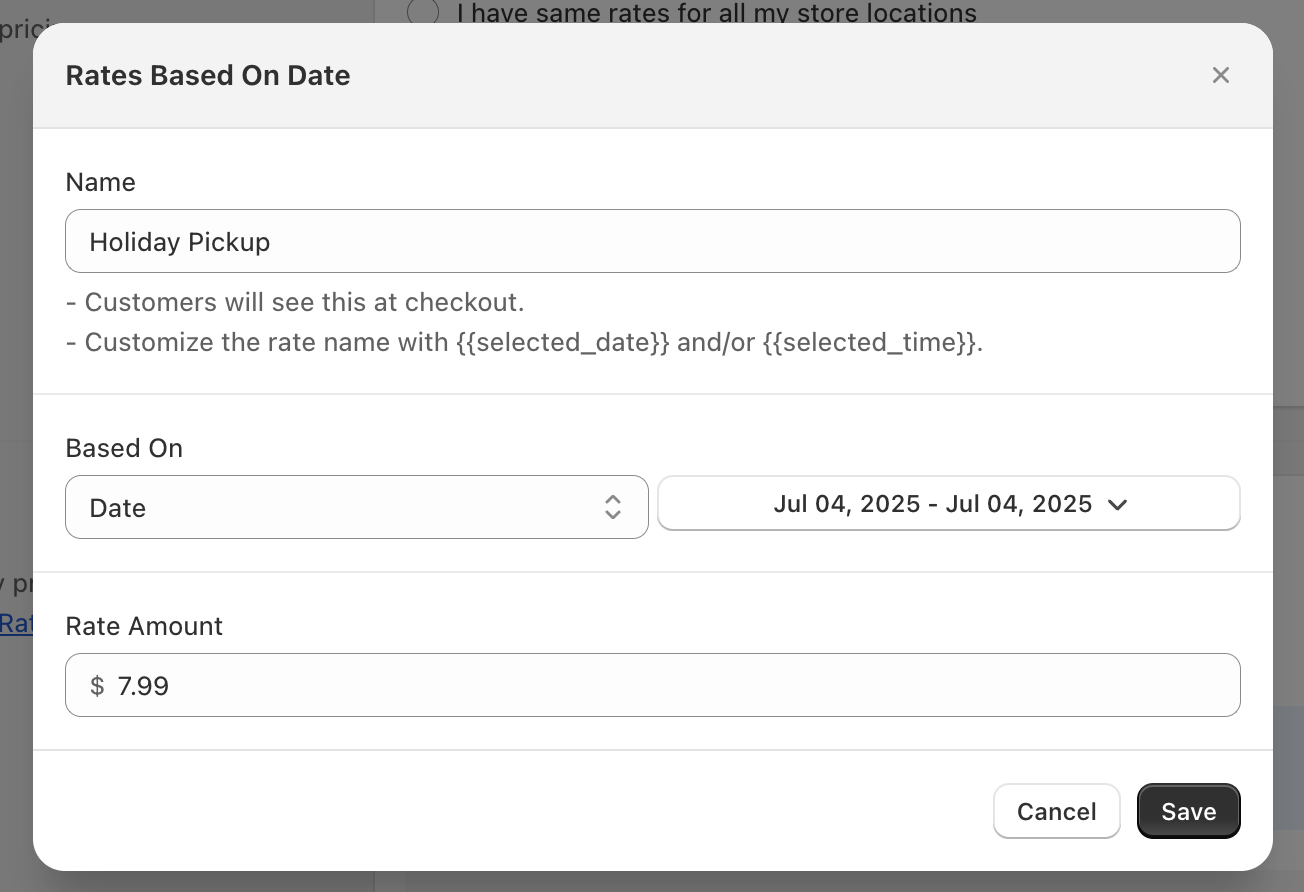
Example: $20 for December 20 to 31, alongside a $10 rate for the rest of the year.
Time
Charges a rate when the time slot the customer picked starts and ends between Min Time and Max Time. It only works for methods where customers pick a time slot, and the range can’t cross midnight.
Example: A slot between 8:00 AM and 12:00 PM costs $8. A second rate for slots between 12:00 PM and 6:00 PM costs $5.
Multiple Conditions
Combines several conditions on one rate. Choose Multiple conditions in Based on, then click Add condition for each condition you need. The rate only qualifies when the order meets every condition.
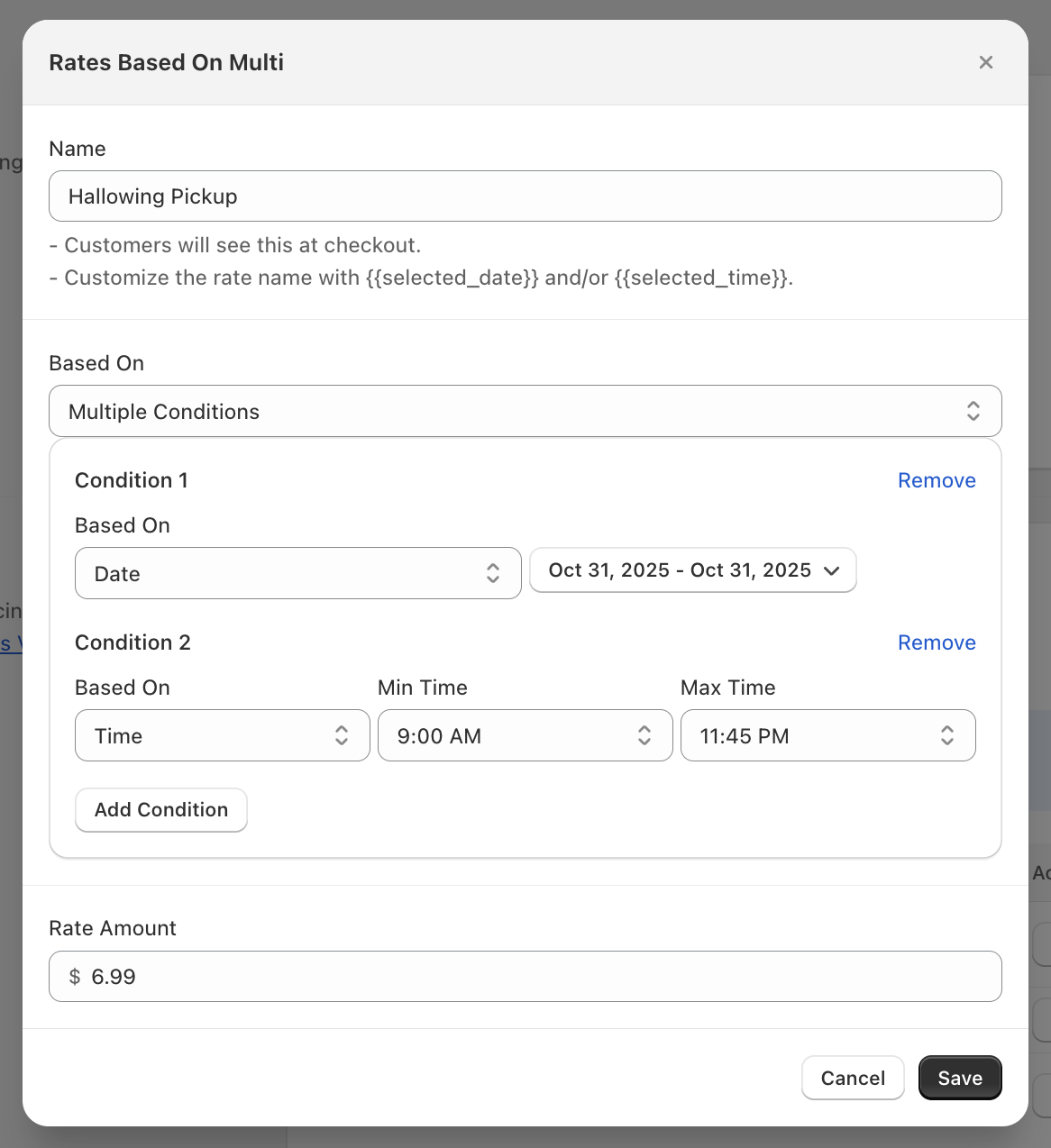
Example: Urgency with Min Days 0 and Max Days 1, plus Weight with Min Weight 20 (in kg), costs $30. Heavy orders wanted today or tomorrow get this rate.
Tips for Setting Values
- Cover every order. If your lowest Price or Weight rate starts above 0, orders below it get no rate. The Rates page shows a Rate coverage gaps notice listing any price ranges, weight ranges, or days no rate covers.
- Watch for overlaps. When two ranges overlap, both rates qualify for the same order and the Manage visibility setting decides which ones show.
- Day ranges run Monday to Sunday. Set the start day before the end day. For a range that wraps past Sunday, such as Saturday to Monday, create two rates: Saturday to Sunday, and Monday to Monday.
- One rate per tier. For rush tiers, weekday and weekend prices, or price bands, create one rate for each tier with non-overlapping values.
- Test before you rely on it. Rates go live as soon as you save them, so place a test order for each tier.
Related Articles
Was this article helpful?
Thanks for your feedback!