
 Rates
Rates
Pickup Rates
Set up free or paid pickup rates for one or all of your store locations.
Pickup rates decide what customers pay at checkout when they choose store pickup in the Bird widget. You can keep pickup free, or charge based on conditions such as order value, the pickup day, or how soon the customer wants the order.
Where to Set Pickup Rates
In the Bird app, go to Rates and scroll to the Pickup section.
Same Rates for All Locations
Use this when every store charges the same for pickup.
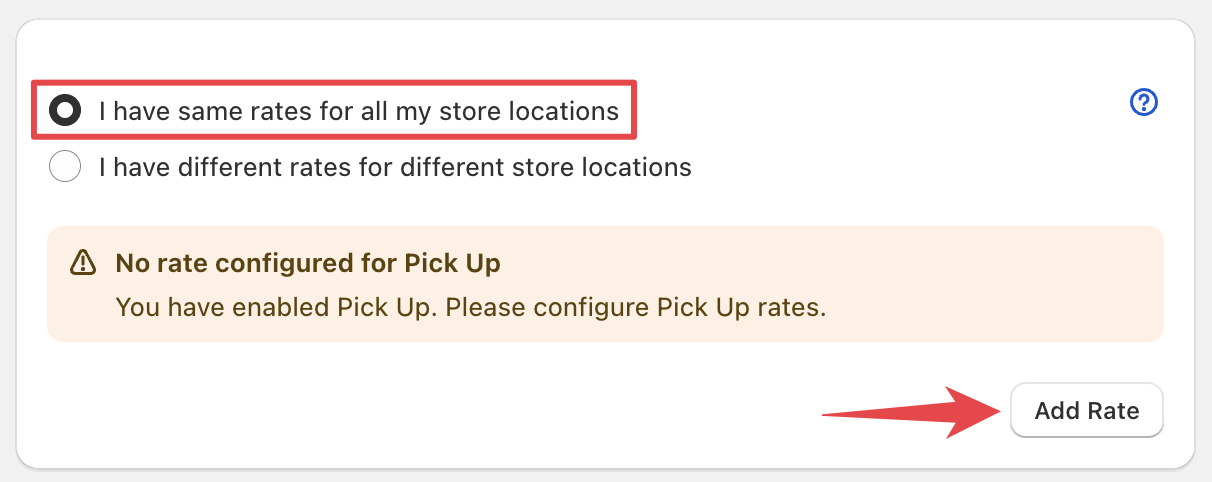
- Select I have same rates for all my store locations.
- Click Add rate.
Different Rates per Location
Use this when each store has its own pickup prices.
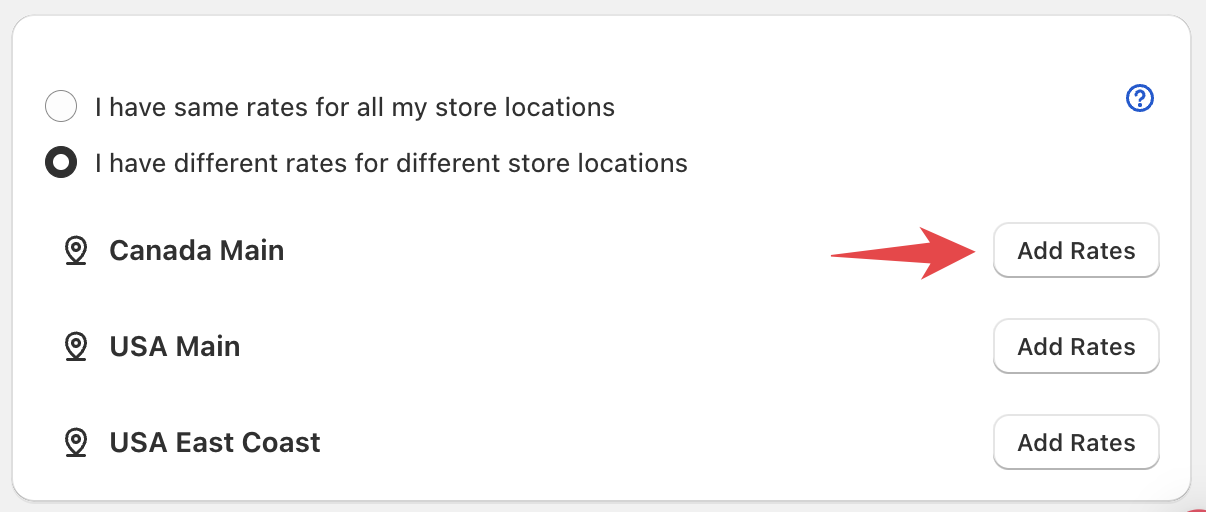
- Select I have different rates for different store locations.
- Find the location in the list.
- Click Add rates next to that location. Once a location has rates, the button reads Add rate.
Create a Pickup Rate
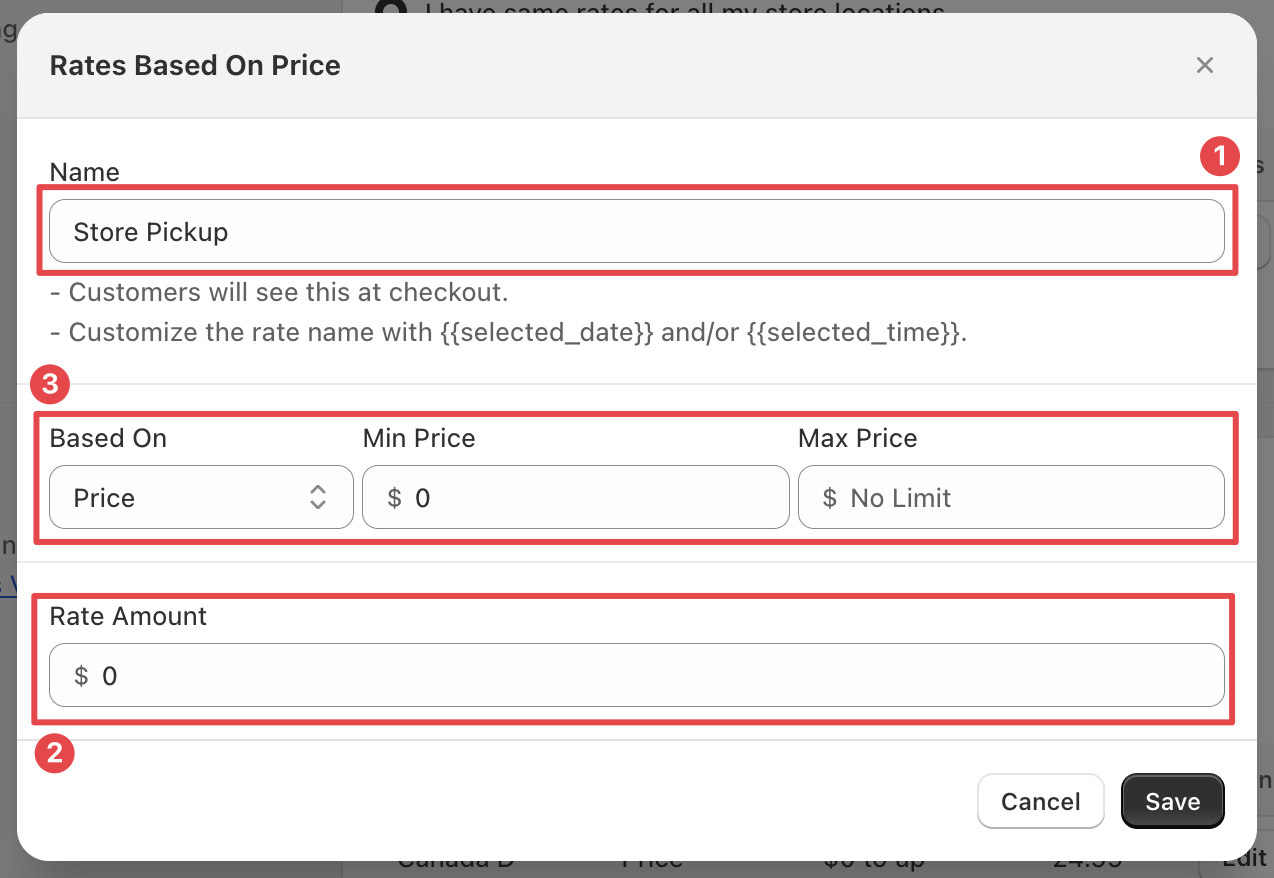
- Enter a Name, for example “Standard Pickup” or “Rush Pickup”. Customers see this at checkout.
- Choose a condition in Based on and fill in its values.
- Enter the Rate amount. Enter 0 for free pickup.
- Click Save.
Every condition (price, weight, selected day, order day, product, urgency, date, time, and multiple conditions) works for pickup. See Rate Conditions: Price, Weight & Order Rules for what each one does, its plan, and examples.
Pickup Tips
- Free pickup: enter 0 as the Rate amount. If you leave it blank, Bird saves it as 0.
- Weekday and weekend prices: create two rates based on Selected day. For example, a weekday rate of $7 for Monday to Friday and a weekend rate of $3.49 for Saturday to Sunday.
- Same-day and next-day pickup: create two rates based on Urgency. For example, Min Days 0 and Max Days 0 for $20 (same day), and Min Days 1 and Max Days 1 for $15 (next day). Keep the day ranges from overlapping.
Apple Pay Limitation
For store pickup, Bird fills the store address into checkout so pickup rates are calculated correctly. Apple Pay replaces it with the customer’s saved Apple Pay address, which can lead to wrong or missing pickup rates. See Rate Errors at Checkout for what to do.
Related Articles
Was this article helpful?
Thanks for your feedback!