Bird Pickup & Delivery Bird Pickup & Delivery
Back to Rates
Rates

How to Configure Shipping Rates

Updated June 5, 2026

Configure shipping rates for single or multiple zones using the Bird App. Control delivery costs based on various conditions.

Create Shipping Zones

Navigate to the Rates section in your Bird App dashboard.

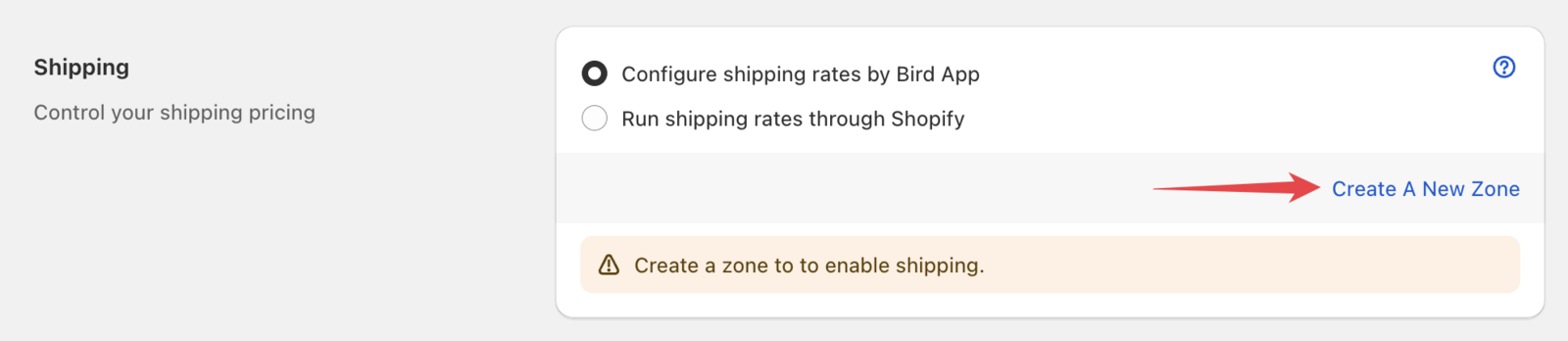
  1. Scroll to the Shipping section
  2. Click “Create a New Zone” to set up shipping rates for a new zone

Bird App Rates section showing the Shipping area with "Create a New Zone" button highlighted

Configure Zone Settings

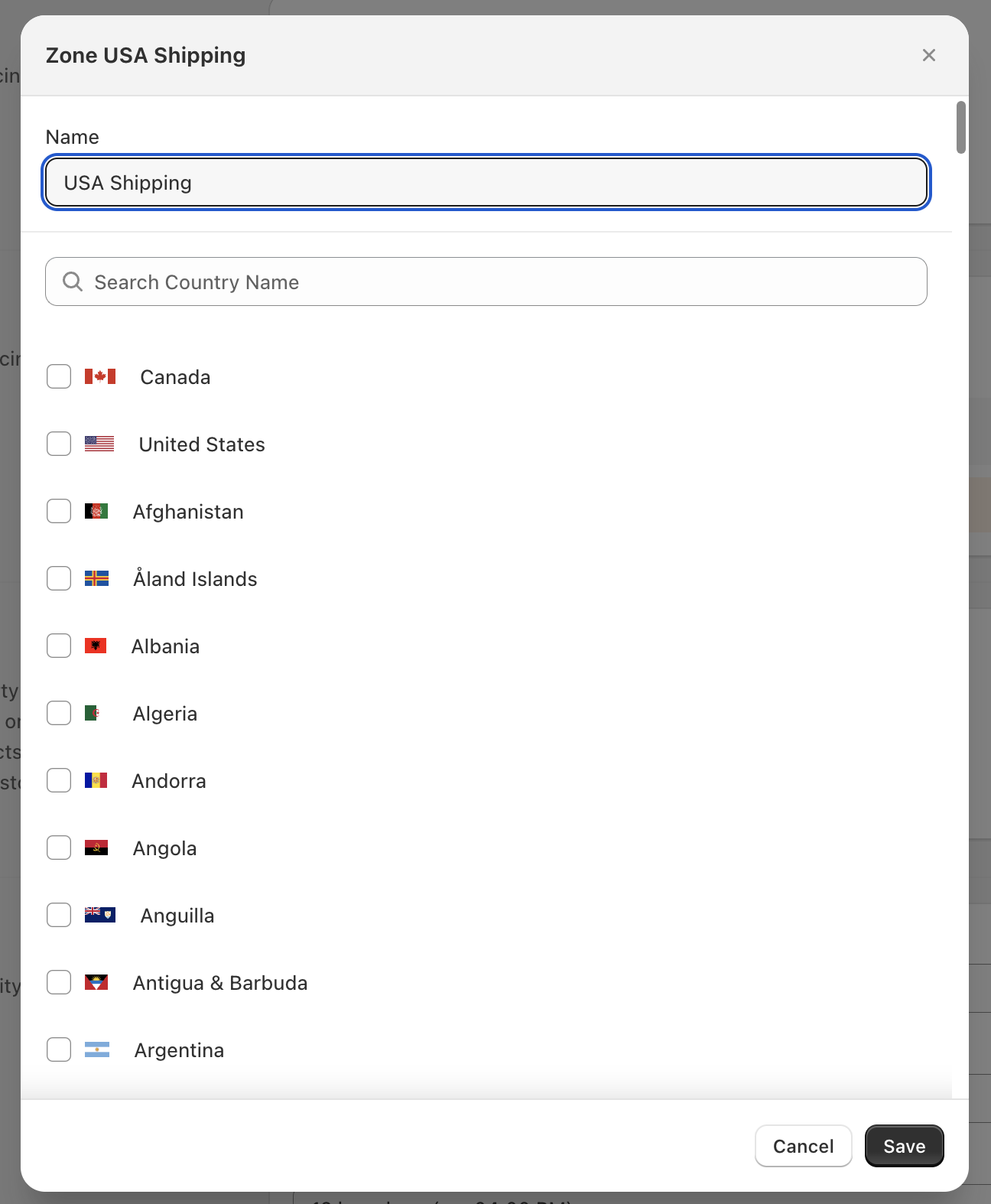
Enter zone details and select target countries.

  1. Enter your Zone Name
  2. Select the Country for your shipping rates

Zone configuration form showing fields for Zone Name and Country selection

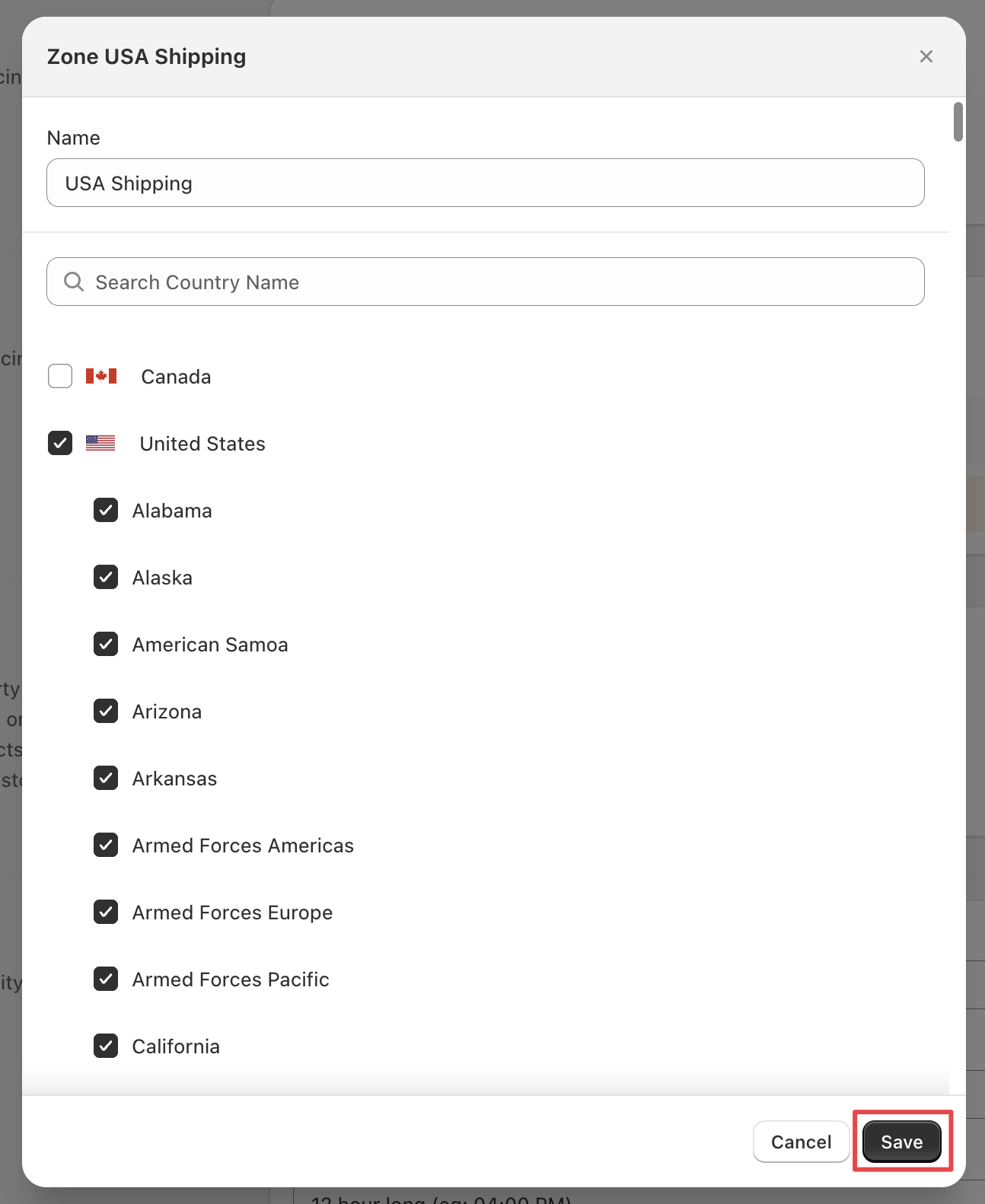
  1. Choose specific Country and states for targeted rates and Save

Expanded zone configuration showing country and state selection options

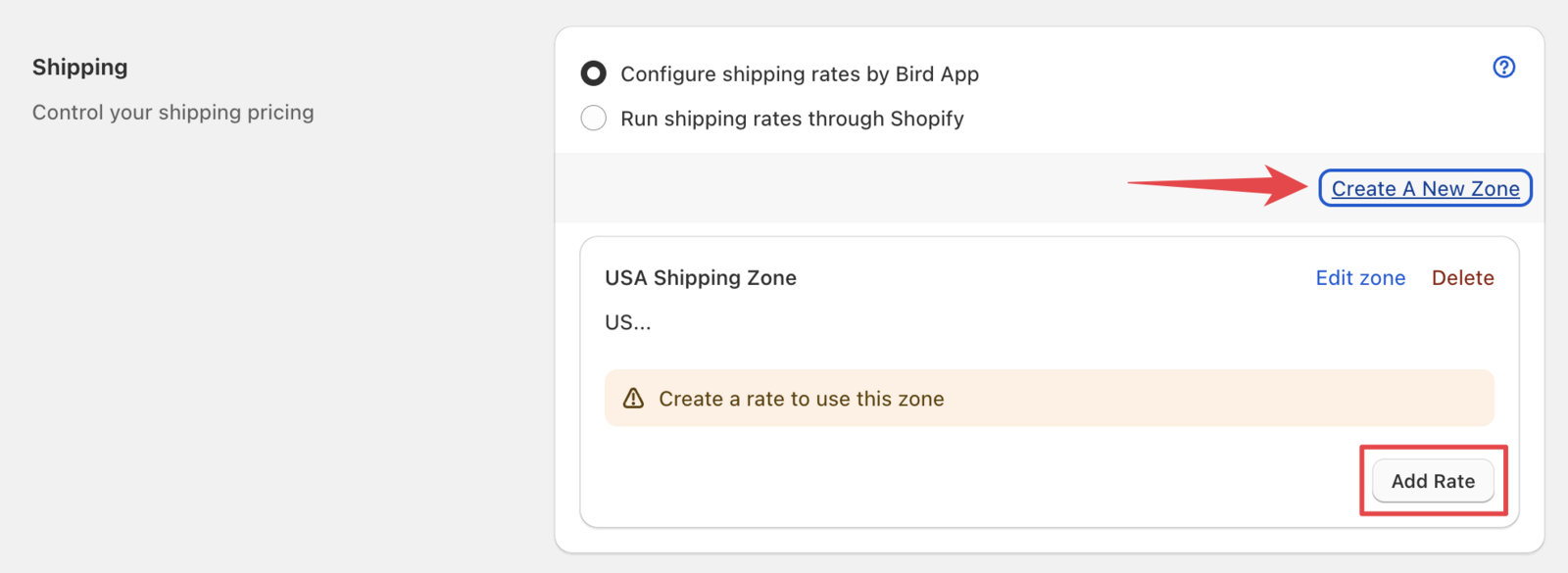
  1. Click “Add rate” to configure rates for this zone

Zone Management:

  • “Create a New Zone” - For new geographic areas or different rate structures
  • “Edit zone” - To modify existing zones or add more rates to current zones

Zone management interface showing options to edit zones or create new ones

Set Rate Conditions

Configure rate names and select pricing conditions.

  1. Enter your Rate name
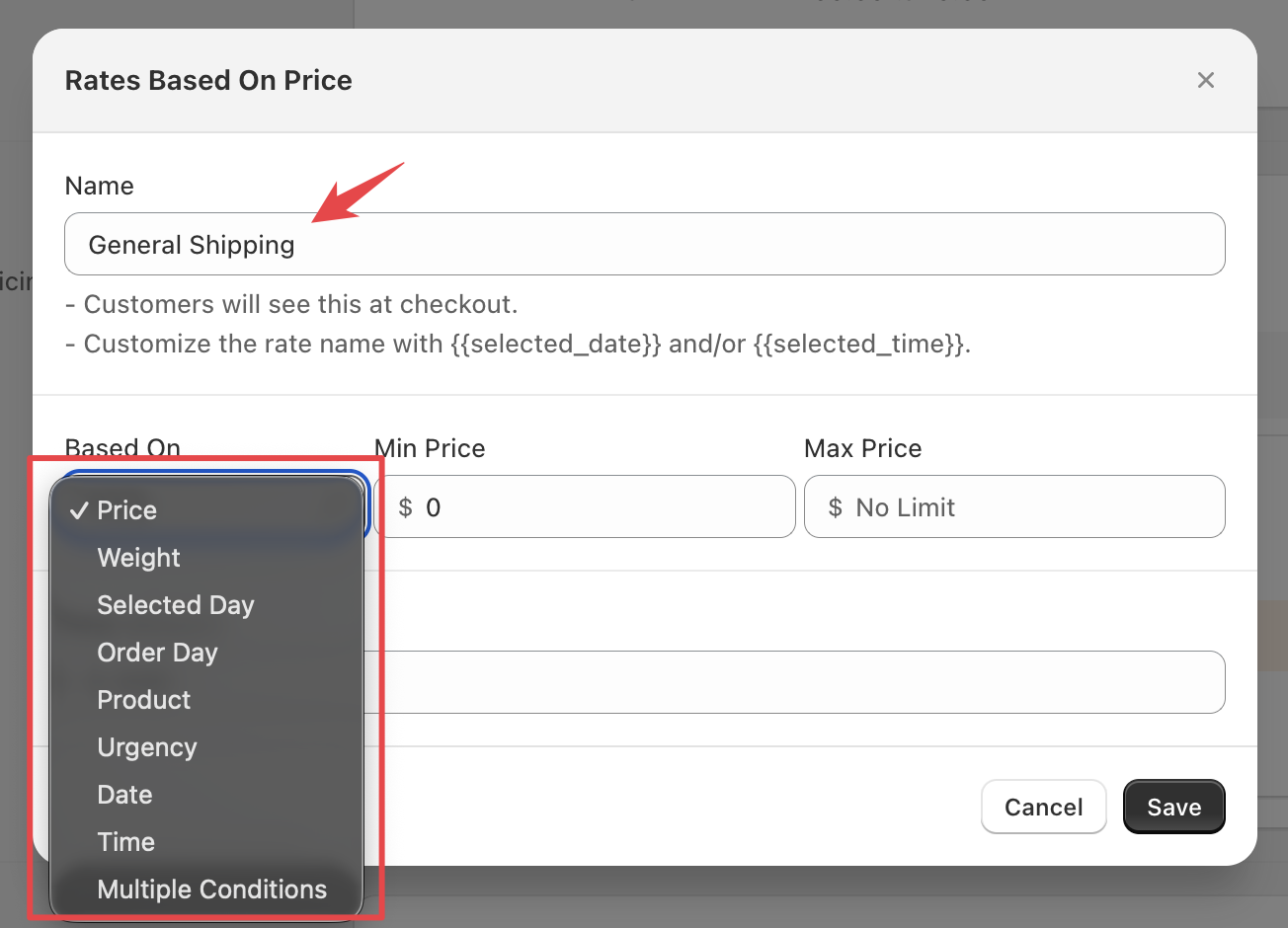
  2. Select your desired Condition type

Rate configuration form showing Rate Name field and Condition dropdown selection

Configure Rate Values

Enter values based on your selected condition type.

Most commonly used: Price, Weight, and Day conditions. Advanced options: SKU, Rush, Time, Date, and Multiple conditions.

Price-Based Rates

Set minimum and maximum order prices.

Price condition configuration showing minimum and maximum order price fields

Weight-Based Rates

Configure rates based on order weight.

Weight condition configuration showing minimum and maximum order weight fields

Day-Based Rates

Set rates for specific days.

Example: Charge $10 Monday-Friday and $15 Saturday-Sunday

  • First rate: Start day Monday, End day Friday, Rate $10
  • Second rate: Start day Saturday, End day Sunday, Rate $15

Day condition configuration showing start and end day selection with rate field

SKU-Based Rates

Configure product-specific rates.

SKU condition configuration showing product SKU input and corresponding rate field

Rush/Urgency Surcharge Rates

Charge surcharge rates for urgent or same-day shipping.

Example: Charge extra for same-day or next-day delivery

  • Min Rush Day: 0 (Today)
  • Max Rush Day: 1 (Tomorrow)

Rush condition configuration showing minimum and maximum rush day fields

Time-Based Rates

Configure rates for specific time periods.

Example: Set different rates for morning vs. afternoon delivery slots

Time condition configuration showing minimum and maximum time period fields

Date Range Rates

Set rates for specific date ranges.

Date condition configuration showing calendar date range selection

Multiple Conditions

Combine multiple criteria for complex rates.

Example: Set rates based on both day and price conditions

Multiple conditions configuration showing "Add condition" button

Click “Add condition” to include multiple criteria.

Your shipping rates are now active and ready for customers.

Was this article helpful?