
 Rates
Rates
Shopify Rates for Local Delivery
Use Shopify’s built-in local delivery rates for your Bird delivery orders instead of setting delivery rates in the Bird app.
This suits stores that already price local delivery in Shopify and only need Bird for delivery dates and times. When you choose Run local delivery rates through Shopify in the Bird app, Bird uses your Shopify local delivery settings instead of Bird delivery rates.
Set Up Shopify Local Delivery
Step 1: Open Local Delivery Settings
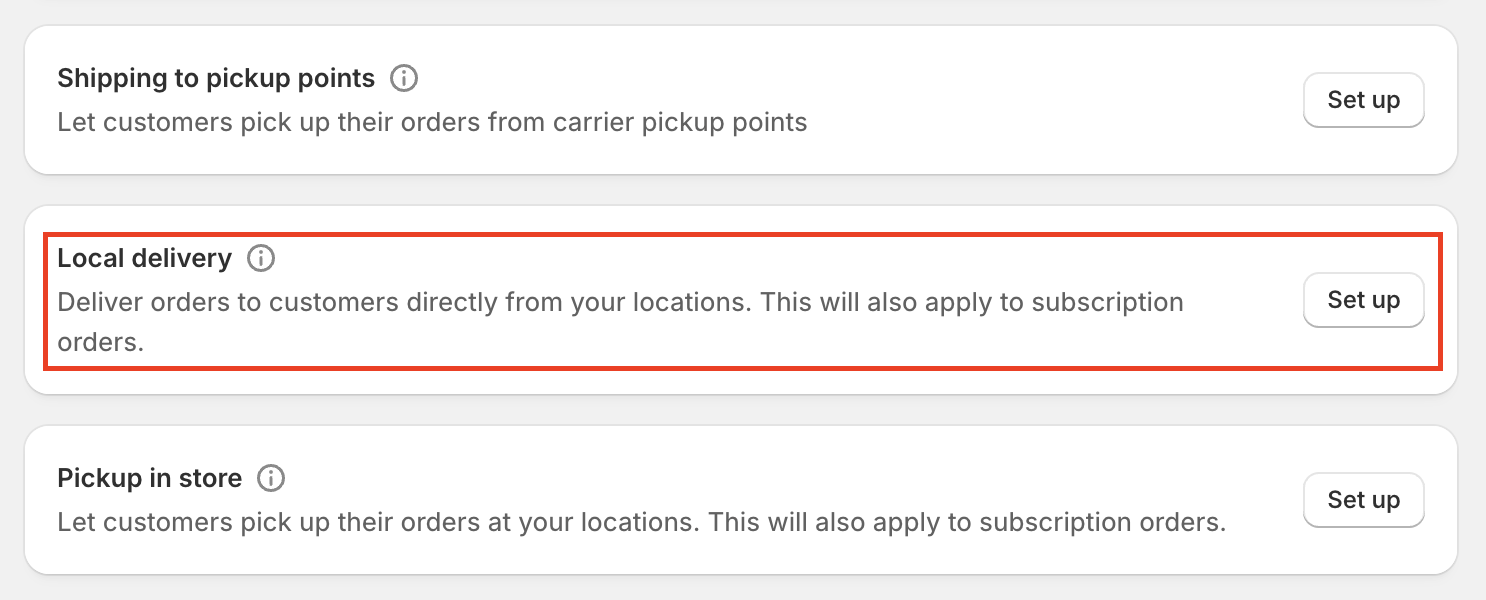
- Go to Shopify Admin > Settings > Shipping and delivery.
- Scroll down to the Local delivery section.
Step 2: Turn On Local Delivery
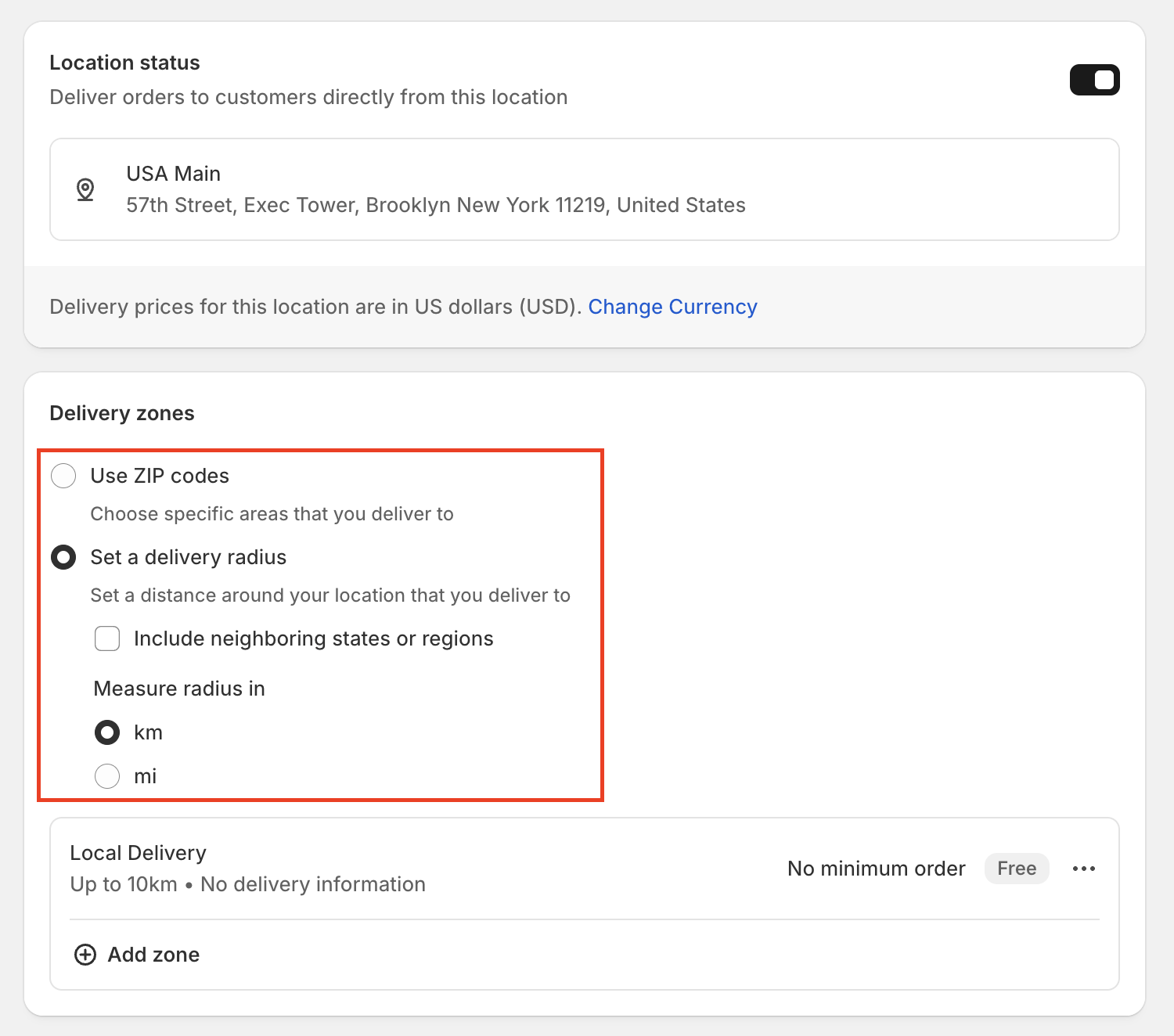
- Click the location you want to deliver from.
- Turn on local delivery for that location.
- Choose your delivery area:
- Radius: a distance from your store (for example, 10 km)
- Postal codes: specific ZIP or postal codes
Step 3: Set Delivery Pricing
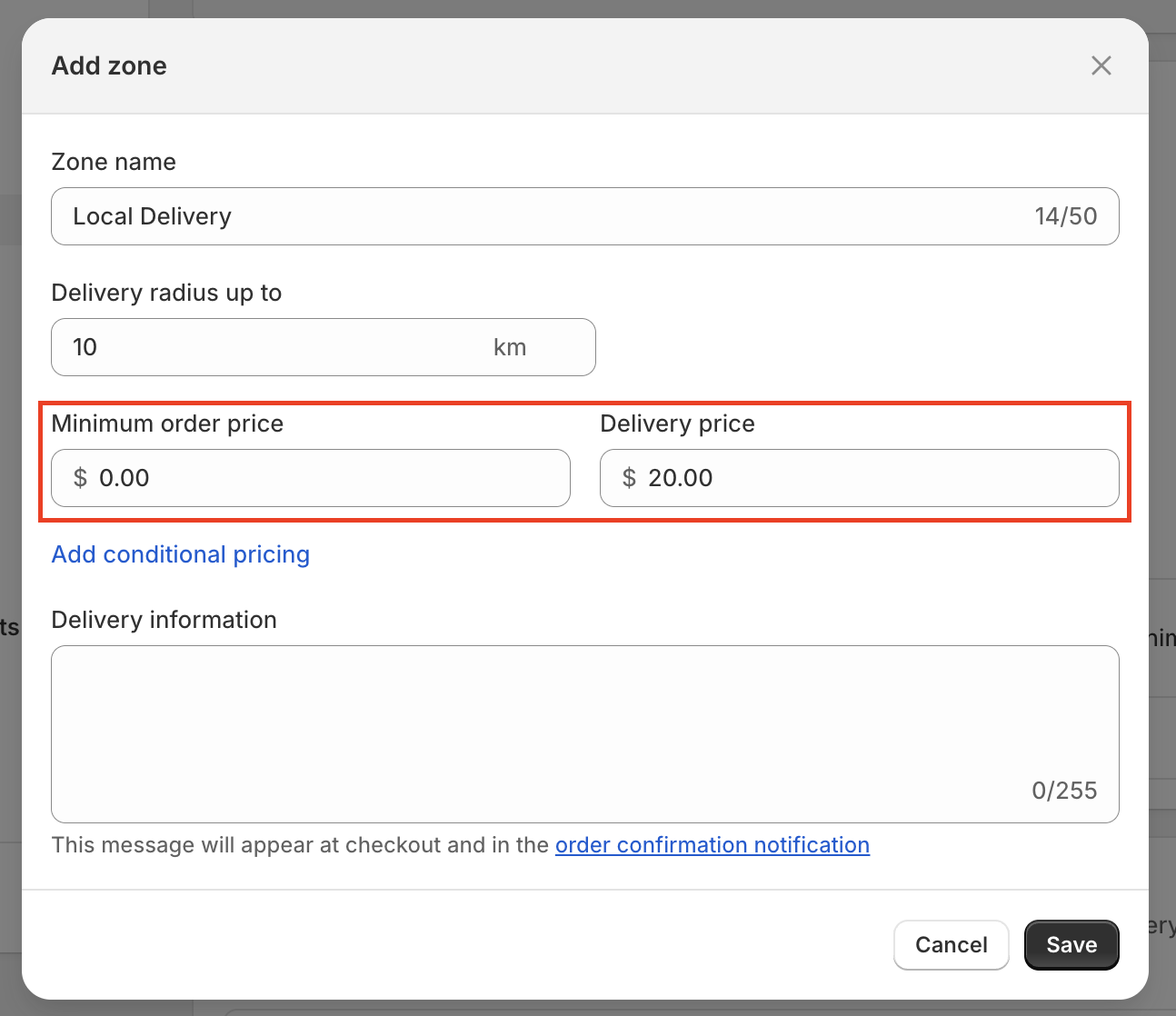
- Set your delivery pricing, for example:
- Free delivery for orders above a certain amount
- A fixed delivery fee for all orders
- Conditional pricing, such as $5 for orders from $20 to $50 and free for orders over $50
- Click Save.
Connect Bird to Shopify Local Delivery Rates
- In the Bird app, go to Rates.
- In the Delivery section, select Run local delivery rates through Shopify.
Bird saves the choice straight away. An Edit in Shopify link appears in the Delivery section, which opens your Shopify local delivery settings.
Bird now uses your Shopify local delivery rates for all local delivery orders. If you haven’t finished the Bird rates setup guide, Shopify rates are used by default.
Shopify Local Delivery Limitations
- No date or time pricing: Shopify’s local delivery rates can’t change based on the day, date, or time slot the customer picks in the Bird widget.
- Separate from shipping: you can’t combine local delivery with shipping zone rates for the same area.
- Customer choice: if an address qualifies for both local delivery and shipping, the customer must choose one.
- Apple Pay not supported: Apple Pay can fetch shipping rates but not Shopify’s native local delivery rates, so customers paying with Apple Pay may see wrong rates or no delivery rates. Switch to Bird delivery rates to fix this.
For pricing by day, time slot, urgency, or other conditions, use Bird delivery rates instead. See Rates Overview and Rate Conditions: Price, Weight & Order Rules.
Related Articles
Was this article helpful?
Thanks for your feedback!