
 Order Management
Draft Orders: Add Delivery Date & Time to Invoices
Display delivery date and time information on your draft order invoices.
This guide shows you how to configure Bird Pickup & Delivery to automatically add delivery scheduling details to your draft order invoices.
Enable Order Notes with Date/Time
Configure Bird App to automatically generate order notes containing delivery information.
- Navigate to Bird App Settings > Order Management.
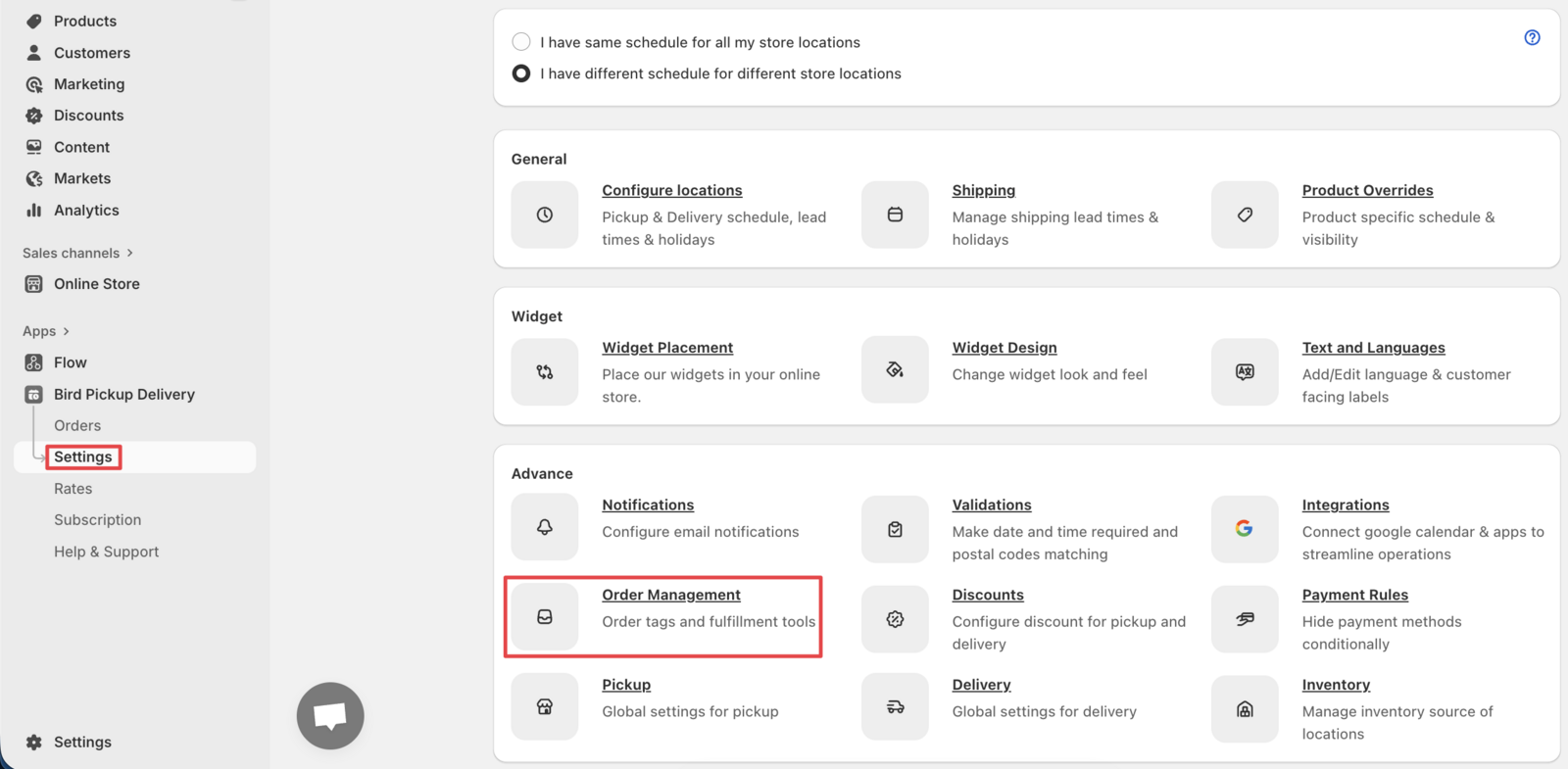
- Scroll down to Order notes and fulfillment and enable the “Append Date/Time to order note” checkbox. This automatically adds date/time information to order notes.
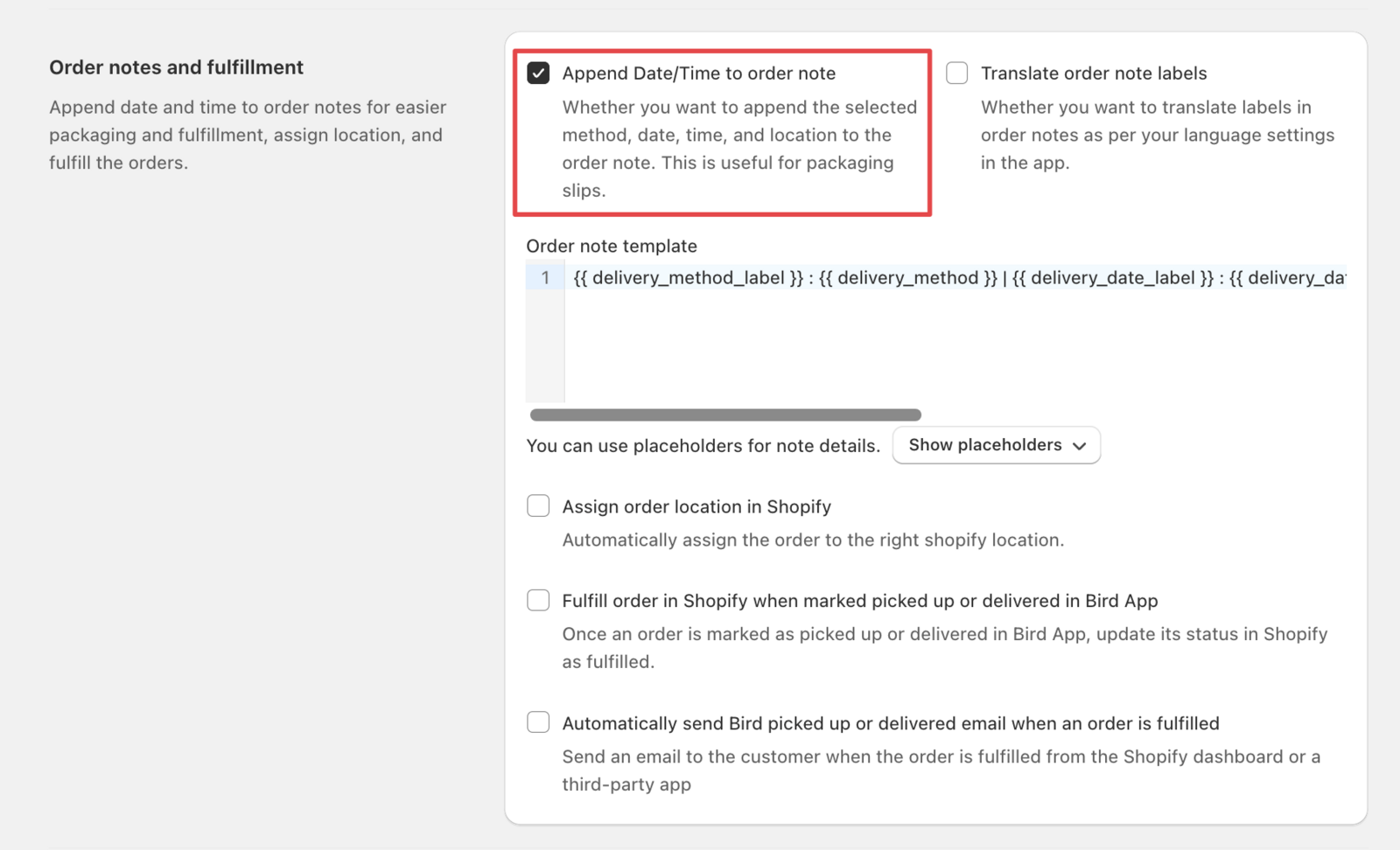
- Verify the order note updates with delivery information by placing a test order after enabling this option
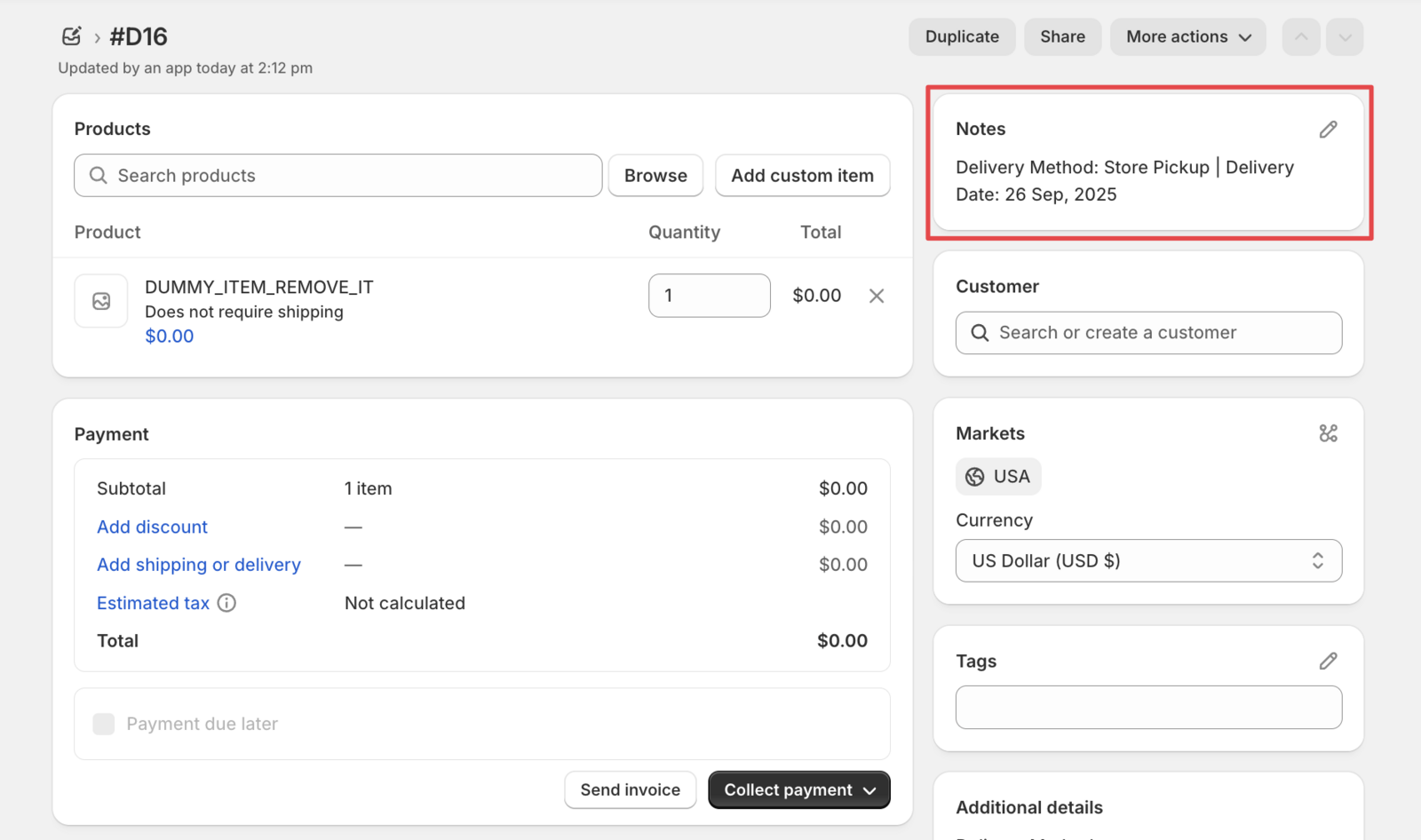
Configure Draft Order Invoice Template
Update your Shopify draft order invoice template to display the delivery information.
- Go to Shopify Settings > Notifications > Customer Notifications.
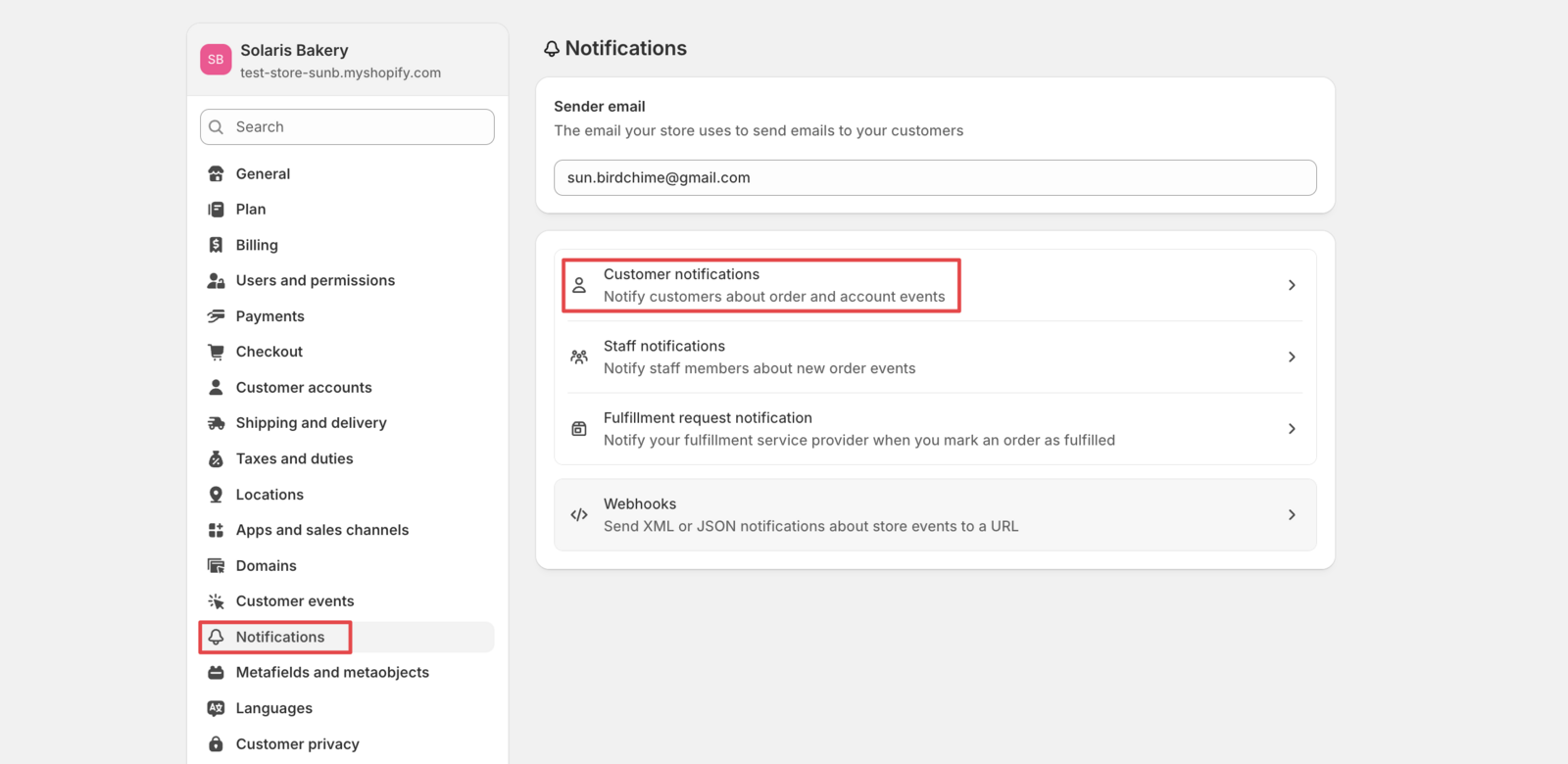
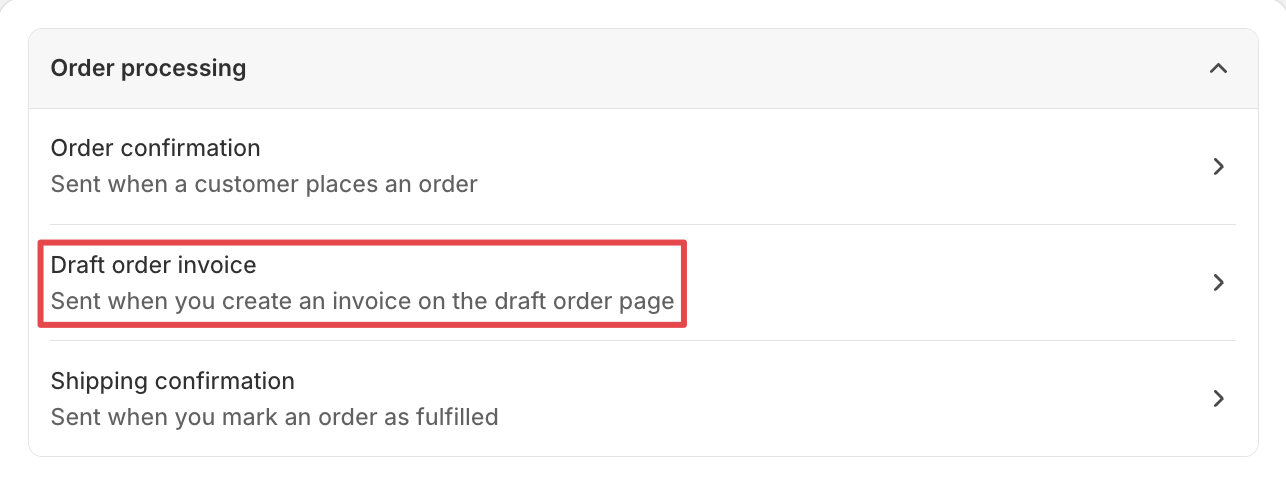
- Click Draft order invoice.
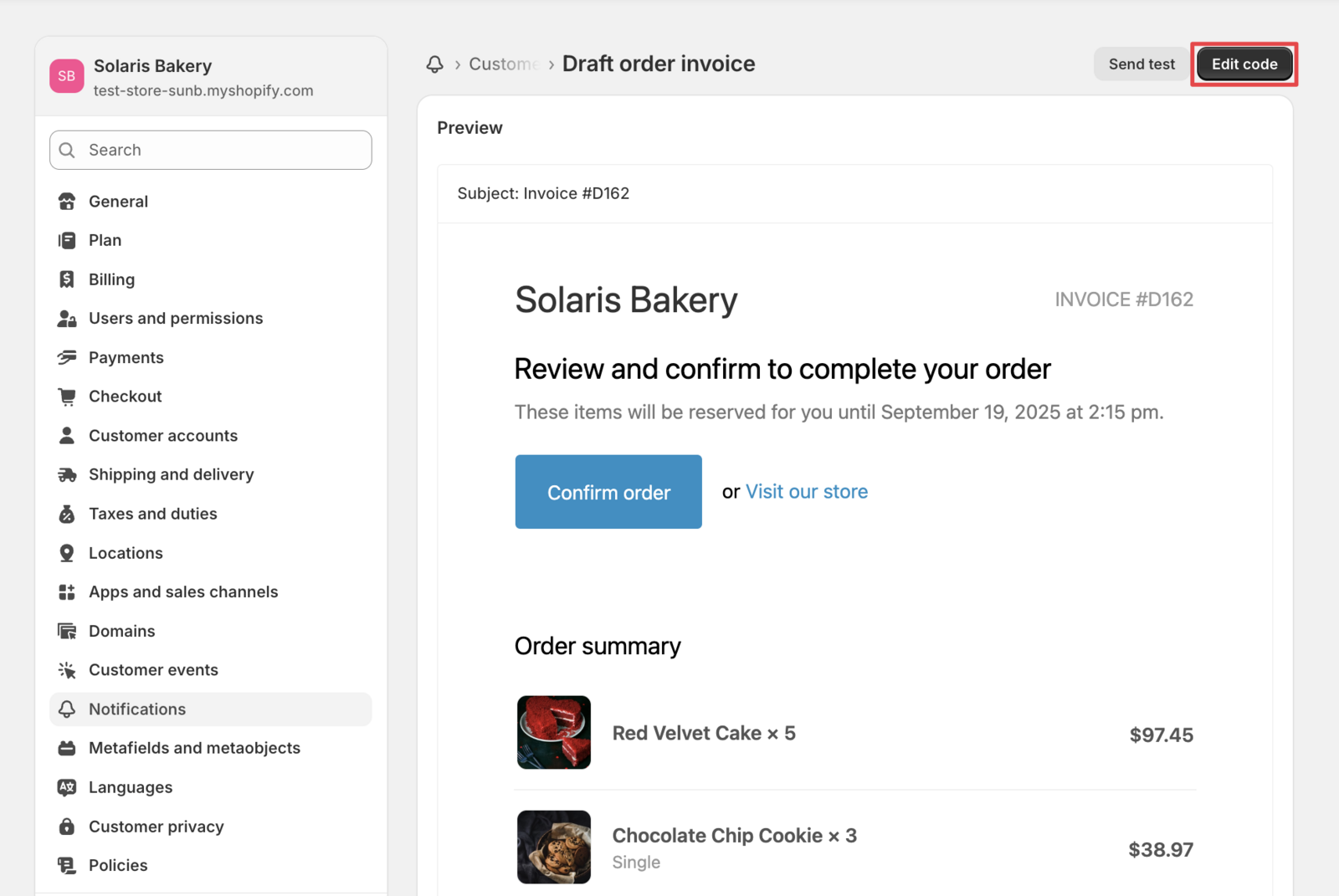
- Click Edit code to modify the template.
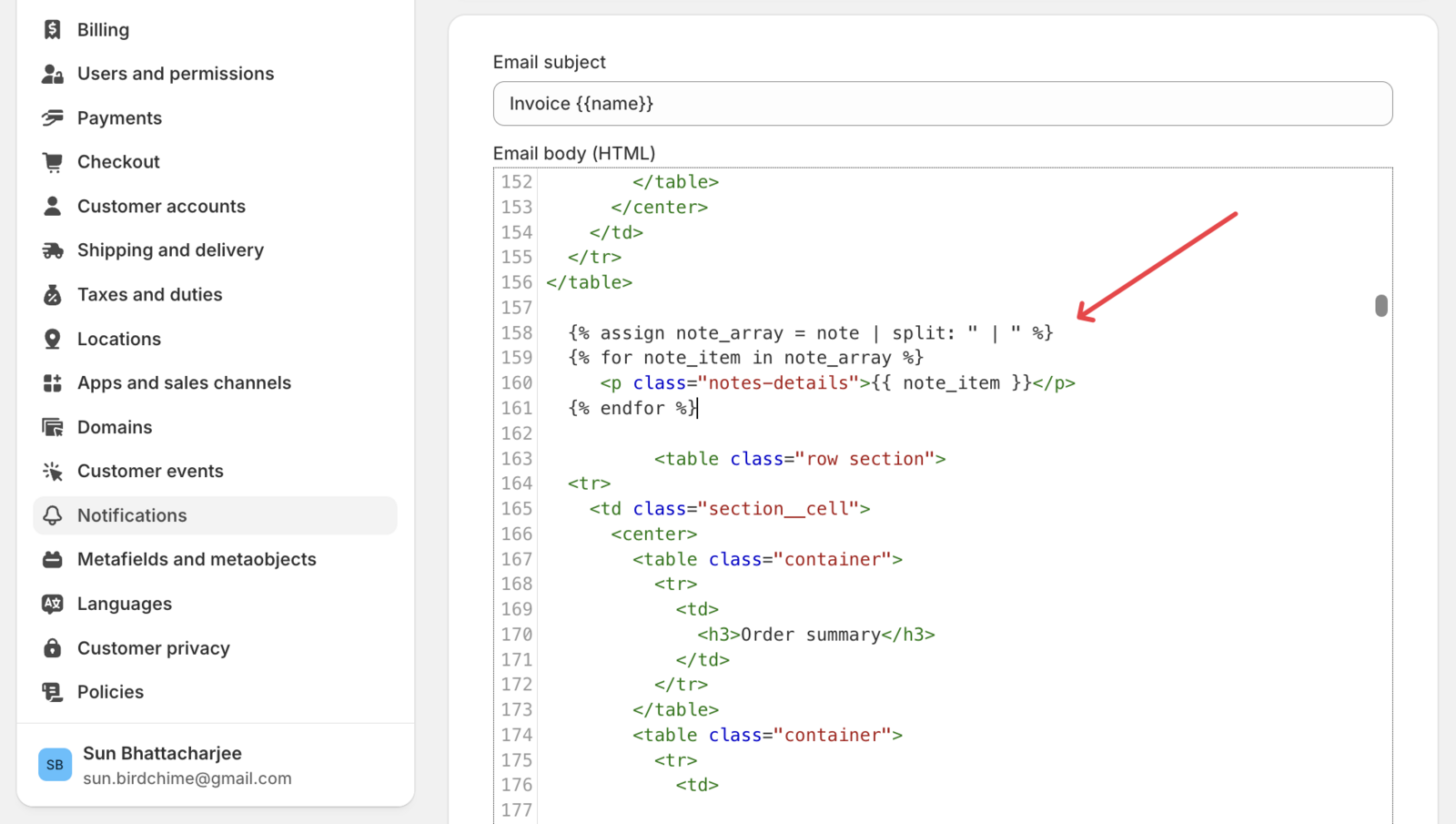
- Copy this code to display order notes:
{% assign note_array = note | split: " | " %}
{% for note_item in note_array %}
   <p class="notes-details">{{ note_item }}</p>
{% endfor %}
- Paste the code above the order summary table for optimal placement.
- Click Save to apply your changes.
Customize Order Note Labels
Personalize the delivery information labels to match your brand voice.
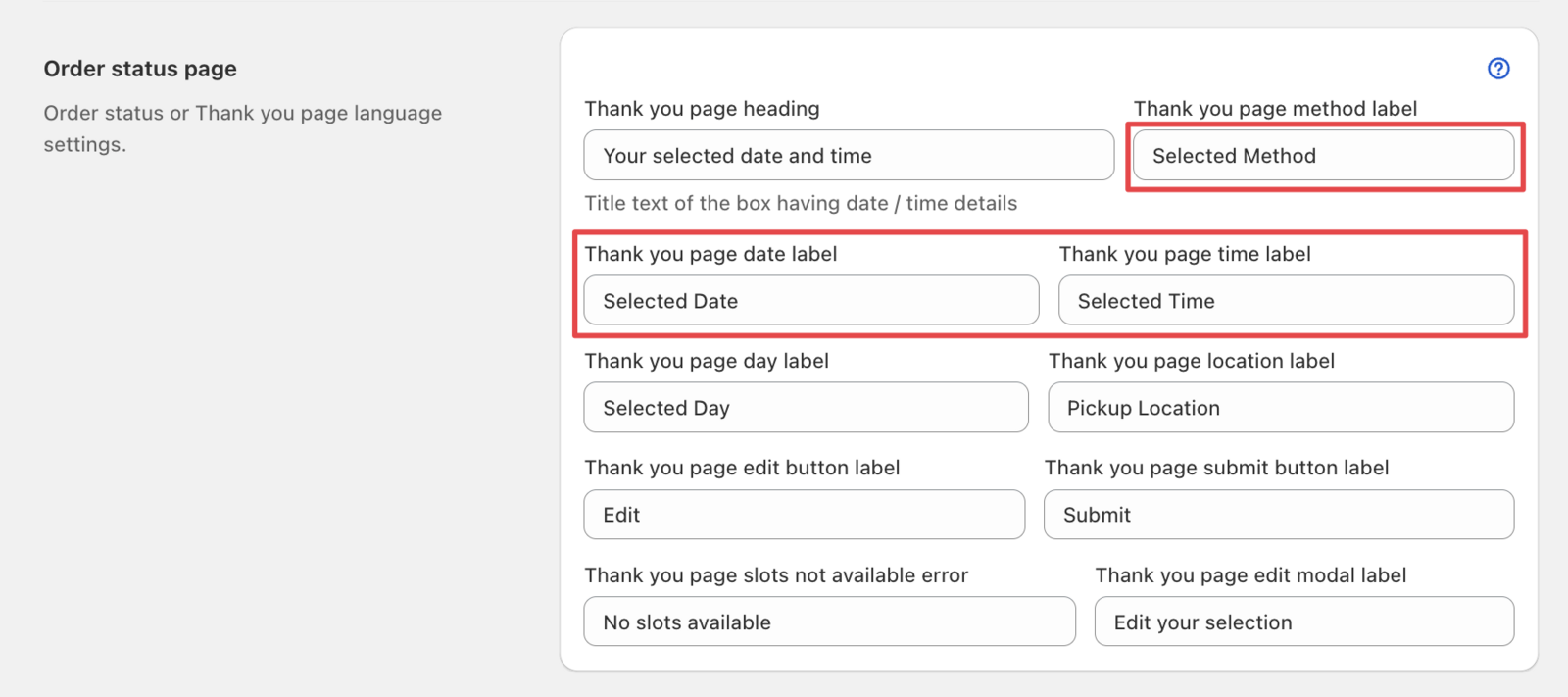
- Go to Bird Settings > Order management > Order notes and fulfillment, make sure Append date/time to order note is checked, then enable Translate order note labels.
-
Navigate to Bird App Settings > Text and Languages. The page opens directly on your default language — use the language dropdown next to the page title to switch to another one.
-
Update the delivery-related labels as needed for your business.
Test Your Configuration
Verify the delivery information appears correctly on your draft order invoices.
Go to your draft order edit page in Shopify admin and send a test invoice to see the delivery information display.
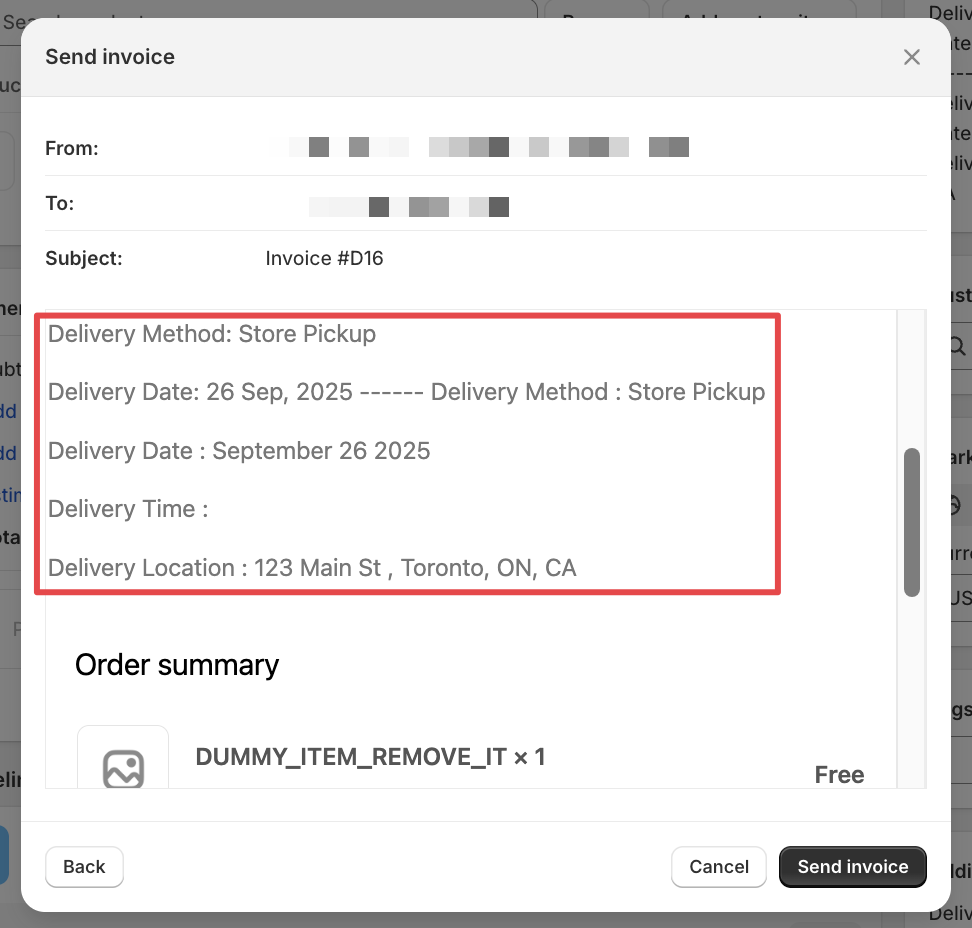
That’s it! Your draft order invoices now automatically include delivery date and time information, improving customer communication and reducing support inquiries about order scheduling.
Related Articles
Was this article helpful?
Thanks for your feedback!