
 Order Management
Draft Orders: Create with Delivery Date & Time
You’ll learn how to create draft orders with specific delivery dates and times, then convert them to completed orders in both Shopify and Bird Pickup & Delivery.
A draft order with date and time lets you pre-configure delivery or pickup details before collecting payment. This ensures accurate scheduling and customer communication from the start.
How to Create a Draft Order with Date and Time
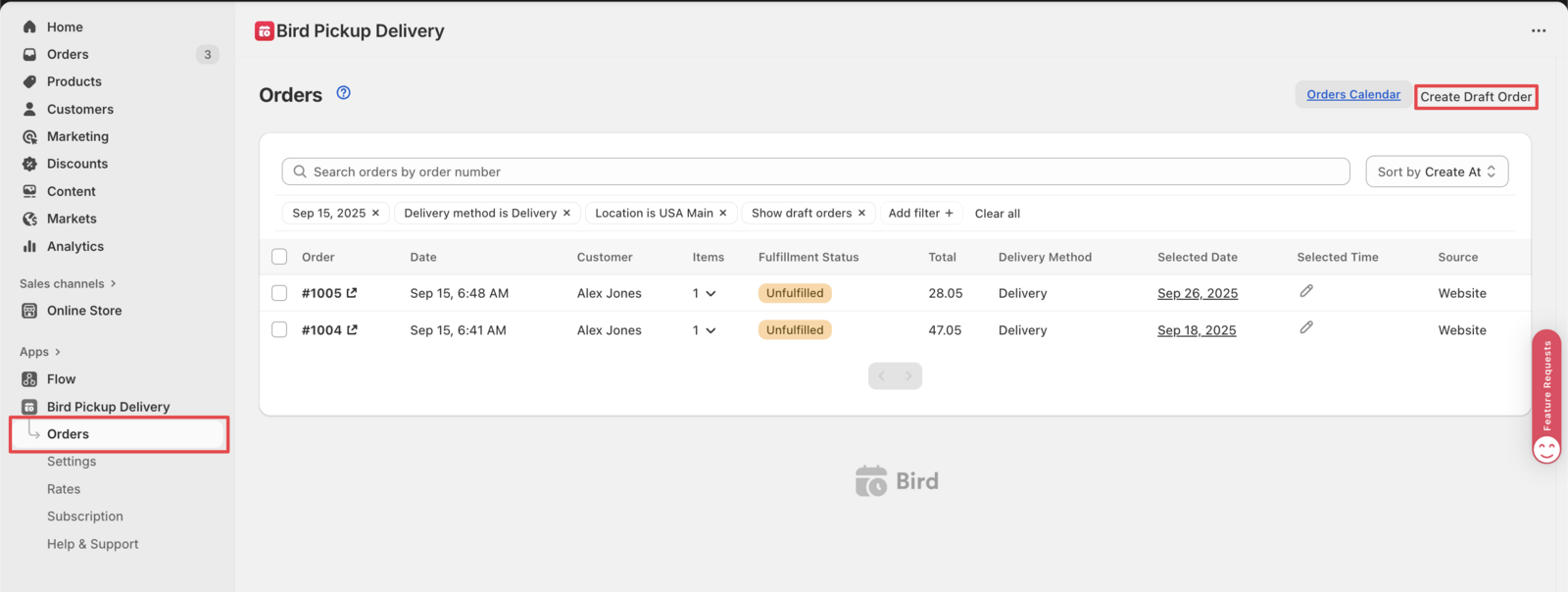
Step 1: Access the Draft Order Creator
- Navigate to Orders in your Bird Pickup & Delivery app
- Click Draft order
Step 2: Configure Delivery Details
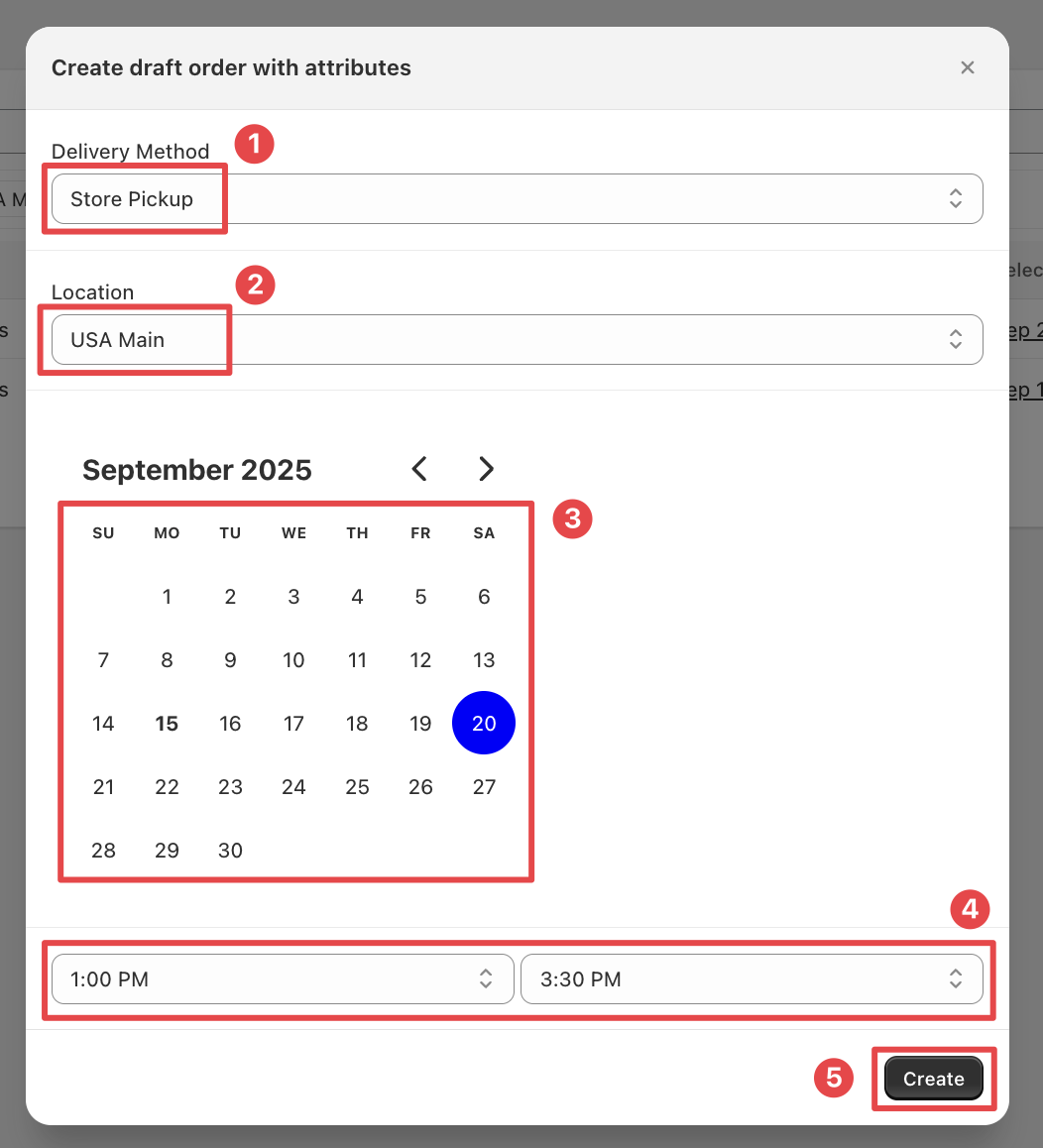
- In the Create draft order with attributes window, select your Delivery method (Local delivery, Store pickup, or Shipping)
- Select the Location you want to attribute to this order (not shown for Shipping)
- Choose the delivery date from the calendar
- Pick the delivery time slot
- Click Create
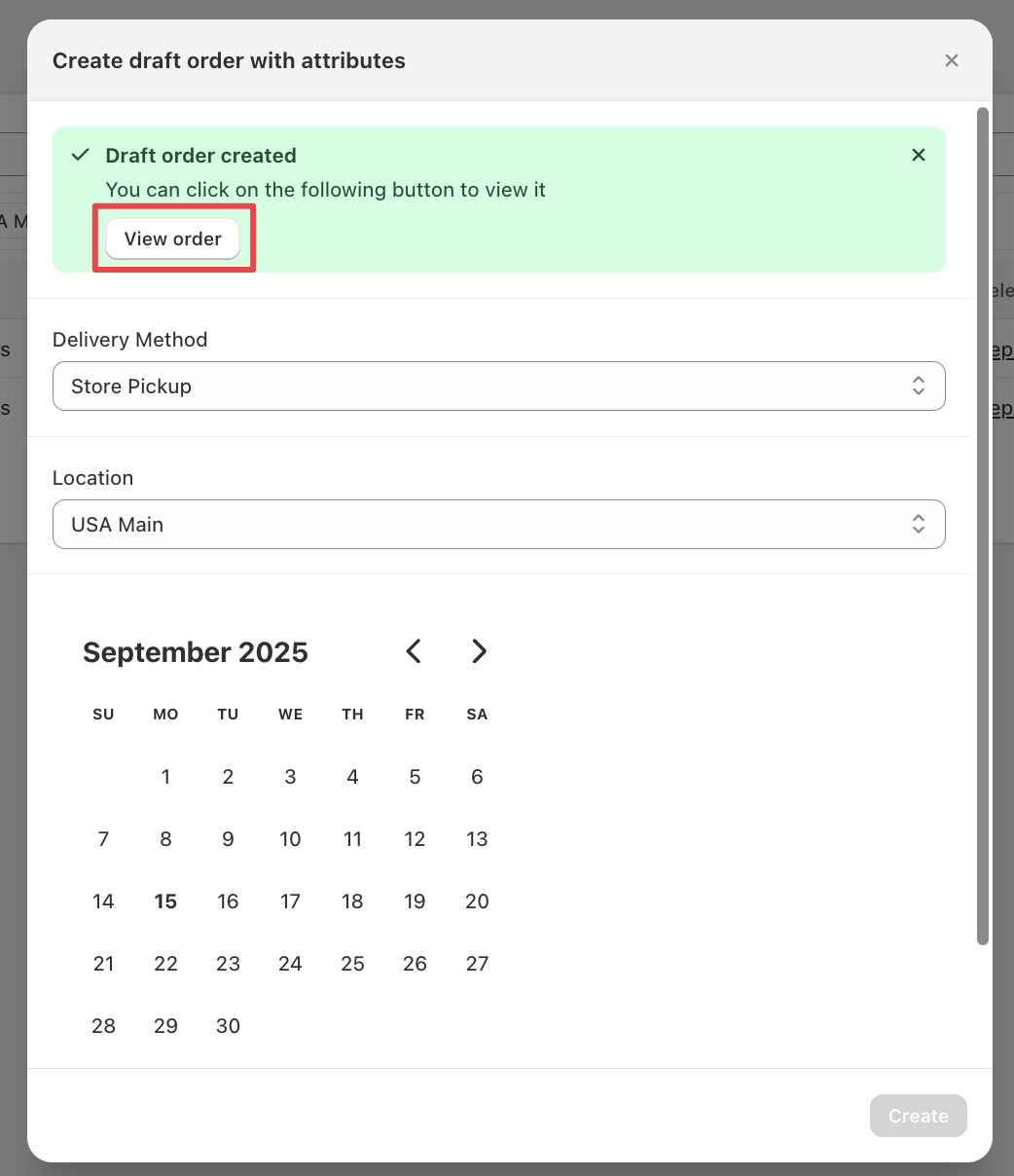
Step 3: Access the Draft Order in Shopify
- After creation, click View order in the Draft order created banner
- This redirects you to your Shopify admin
Step 4: Complete the Order in Shopify
- Remove the dummy product from the draft order
- Add your actual products to the order
- Select or add the customer information
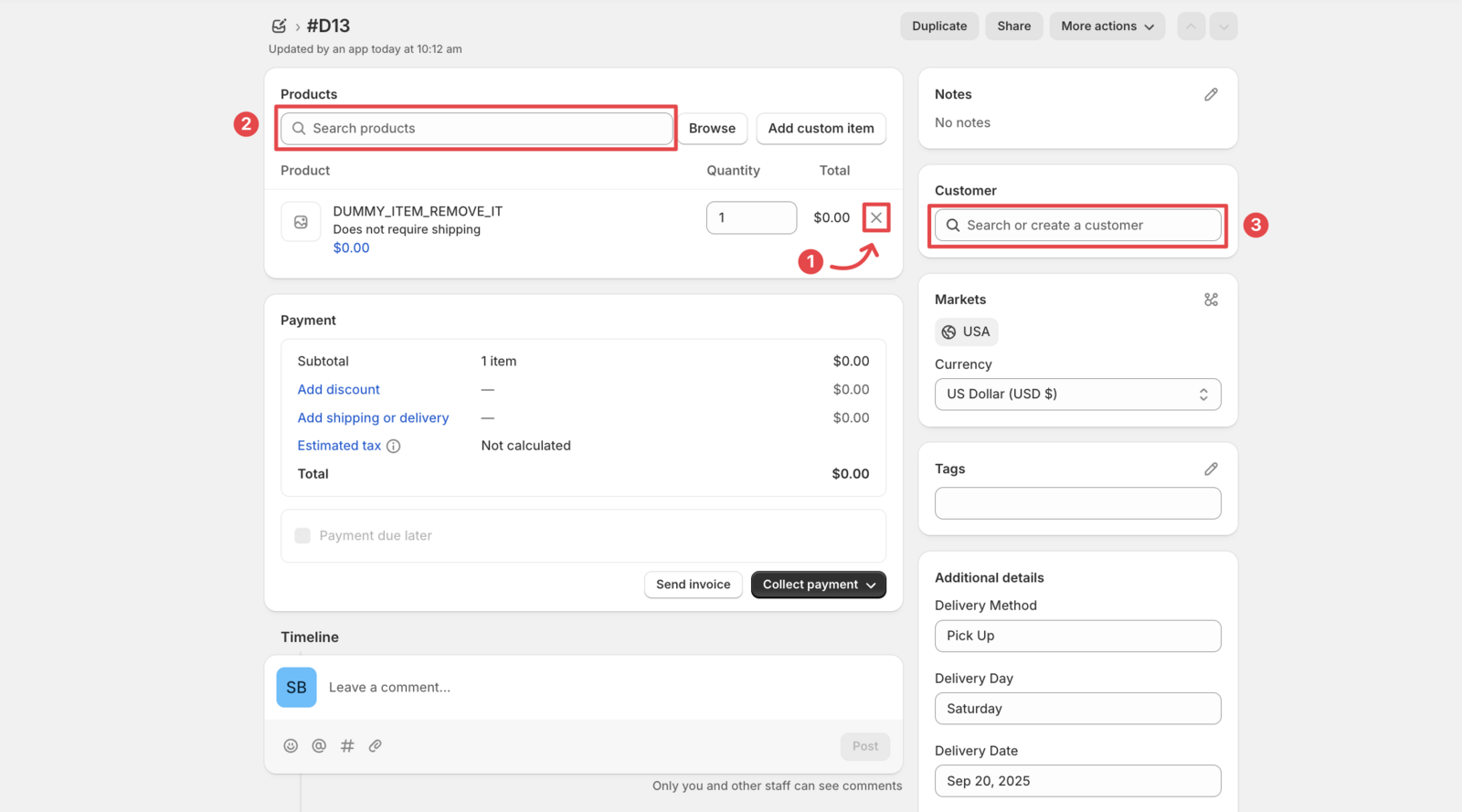
- Click Collect payment and record the payment method
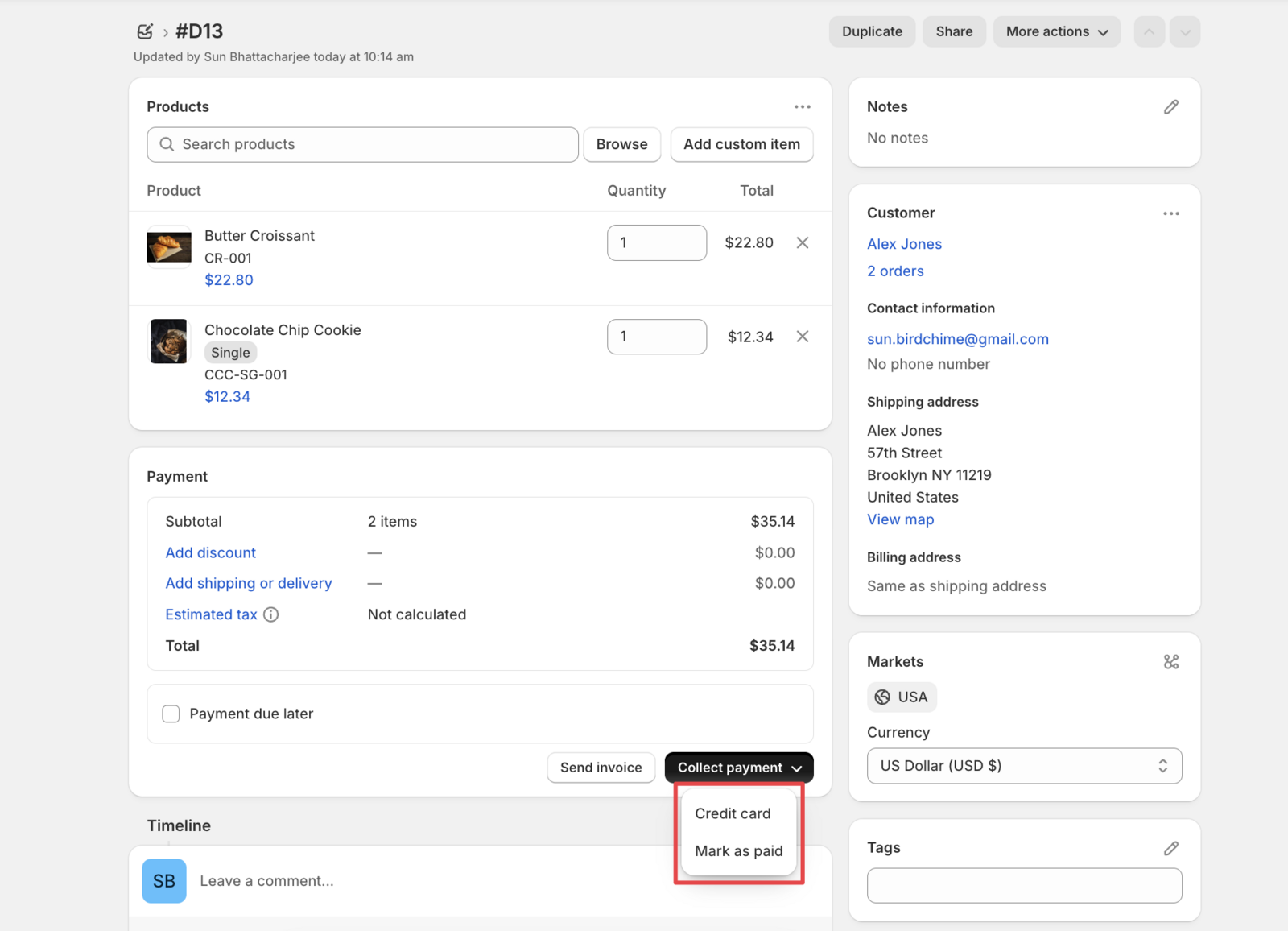
- Click Create order in the dialog that appears
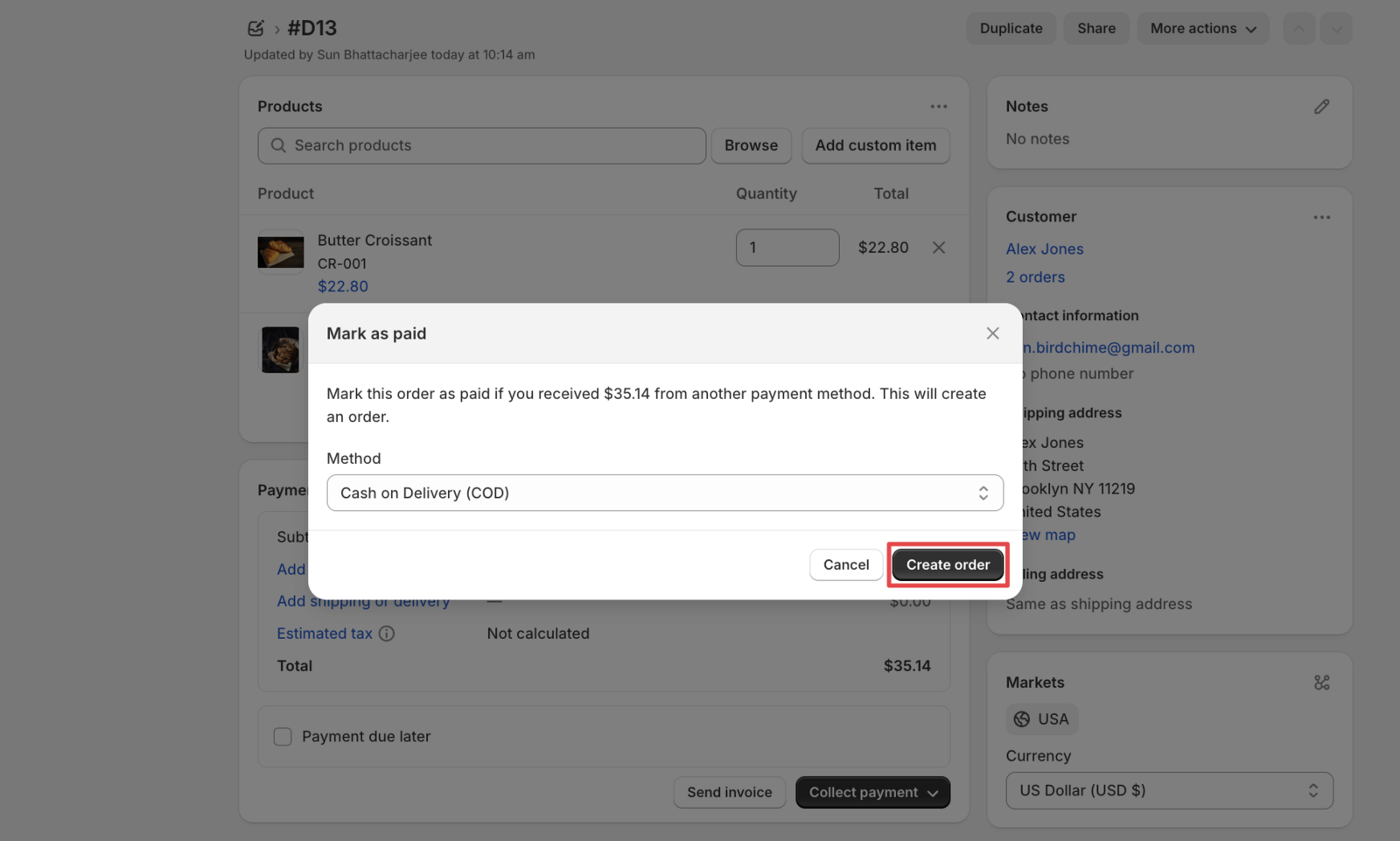
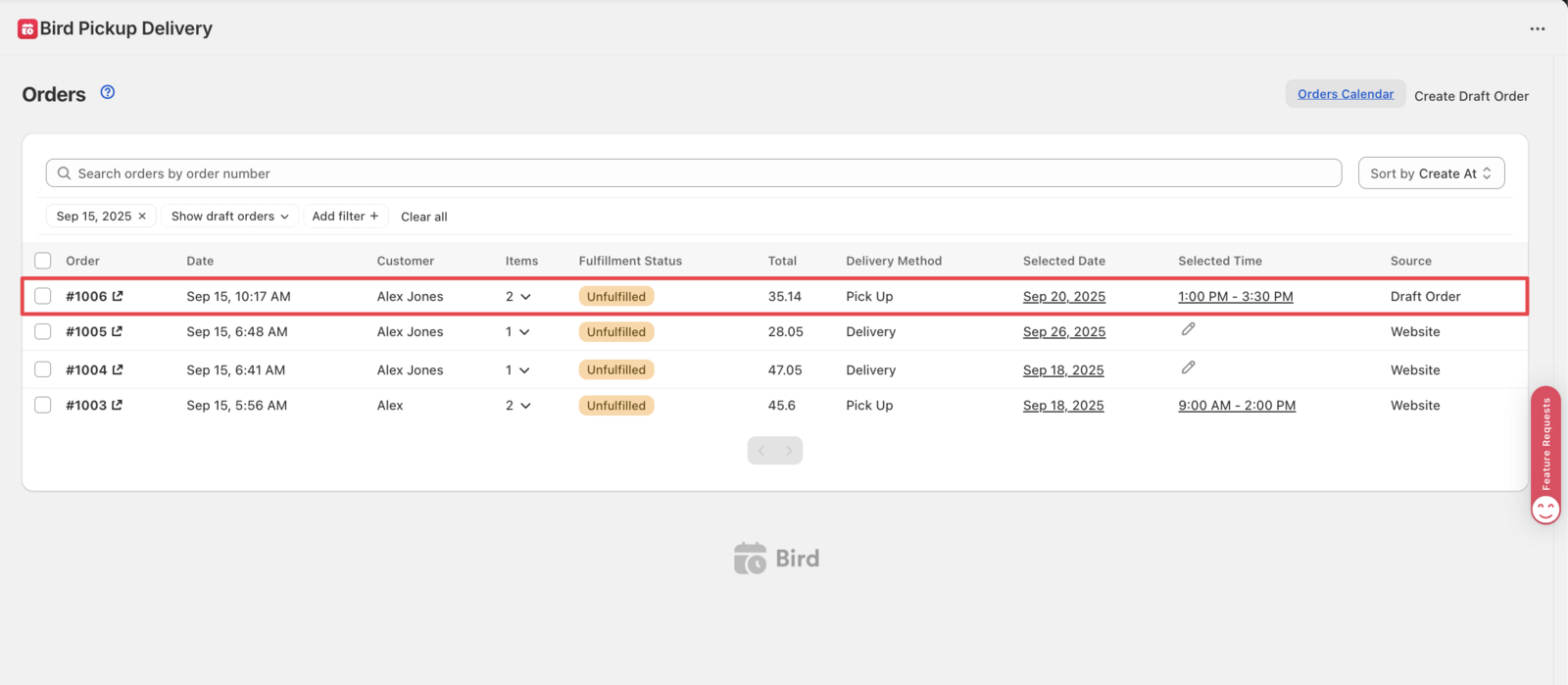
Your order now exists in both Shopify and Bird Pickup & Delivery.
Step 5: Verify Order in Bird Pickup & Delivery
- Return to your Shopify orders page
- Confirm your new order appears with the correct date and time
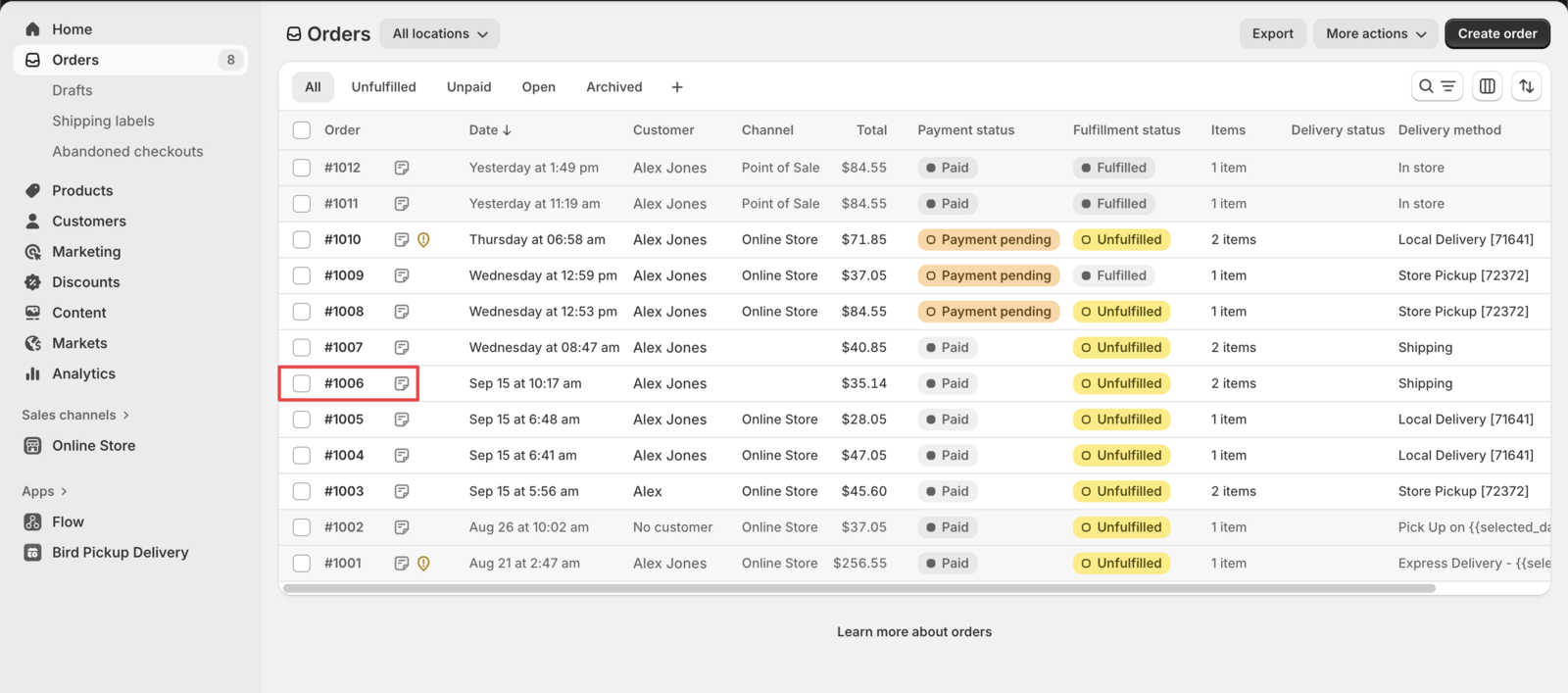
That’s it! Your draft order with date and time is now a completed order in both systems.
Adding Bird Shipping Rates to a Draft Order
If your store uses Bird’s Carrier Calculated Shipping (CCS) rates engine, Bird will calculate and return the correct shipping rates directly within the draft order.
Before Bird can calculate rates, two things must be in place on the draft order:
- A customer with a shipping address — Bird uses this to match the applicable delivery zone and rates
- Bird: Order Details saved — if you followed Steps 1–5 above, this is already set. For a pre-existing Shopify draft order, open More actions → Bird: Order Details, select the delivery method, date, and time slot, then save
Created this draft order using Bird’s Draft order button? Your order details are already saved from Step 2. Confirm the customer has a shipping address and proceed.
How to Add the Shipping Rate
- Open the draft order in Shopify Admin and confirm the customer’s shipping address is visible
-
In the Payment section, click Add shipping or delivery
-
Bird returns the rates that match your configuration — select the appropriate rate
- Proceed to Collect payment to complete the order
Bird: Order Details must be saved before requesting rates. If order details have not been saved, Bird has no context to calculate rates and the rate list will be empty.
Rates Not Appearing?
- The customer must have a shipping address on the order
- Bird: Order Details must be saved with a delivery method, date, and time slot
- CCS must be enabled: Bird App → Rates → Rates Engine → Bird Rates with CCS
- CCS requires a Shopify, Advanced, or Plus plan — it is not available on Starter or Basic plans
For CCS setup instructions, see Does the Bird app integrate with carrier-calculated shipping rates?
Related Articles
Was this article helpful?
Thanks for your feedback!