
 Notifications
Customer: Remove Shopify's Estimated Delivery from Order Confirmation Emails
Shopify’s order confirmation email shows its own Estimated delivery date by default. Once Bird adds its own delivery date and time to that same email, the two can say different things and confuse the customer. Here’s how to remove Shopify’s version and leave only Bird’s.
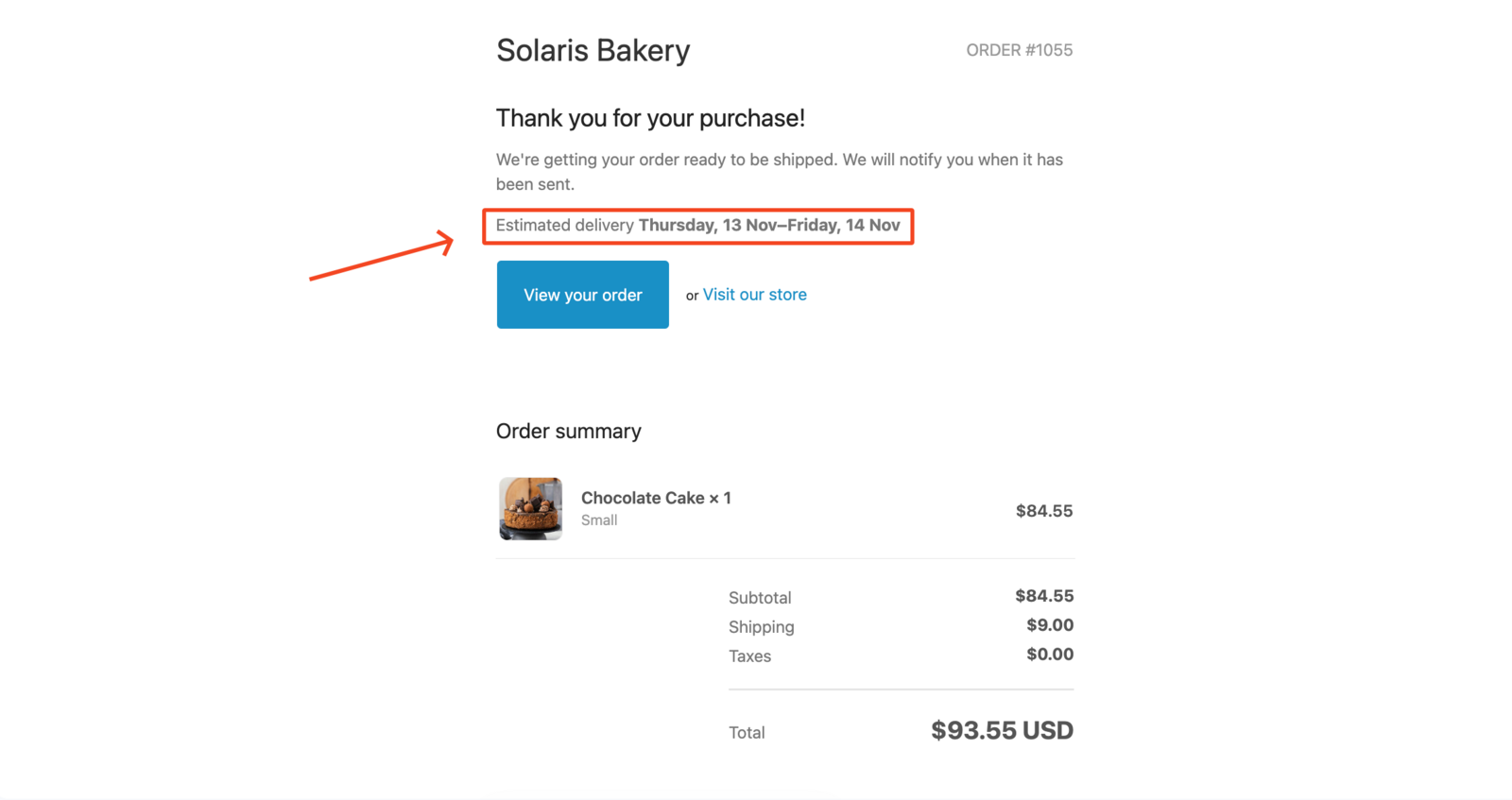
Back up your current template before editing it. If something goes wrong, use Shopify’s Restore to Default button.
-
Go to Bird Settings > Email notifications > Edit order confirmation email
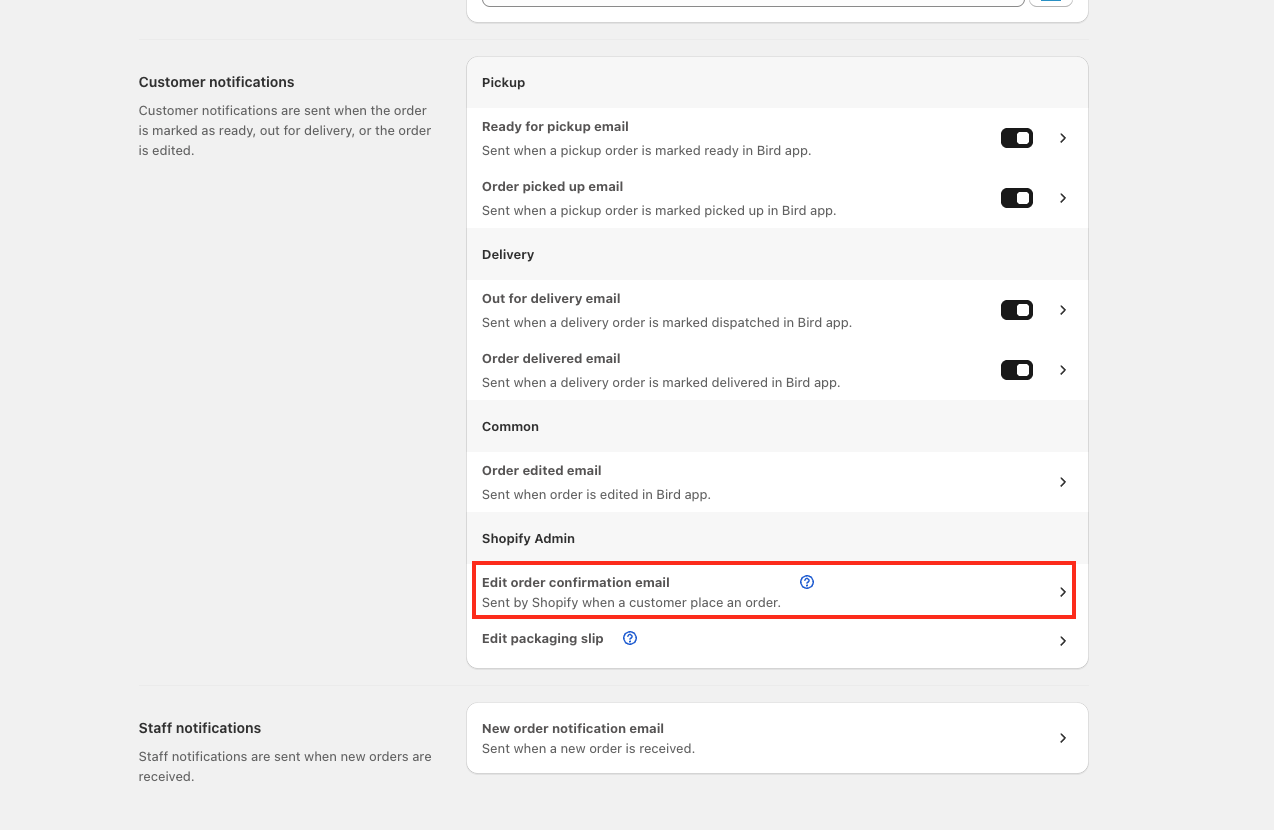
- Search the template code for “Estimated delivery”
-
Select the highlighted code and comment it out: press Cmd + / (Mac) or Ctrl + / (Windows)
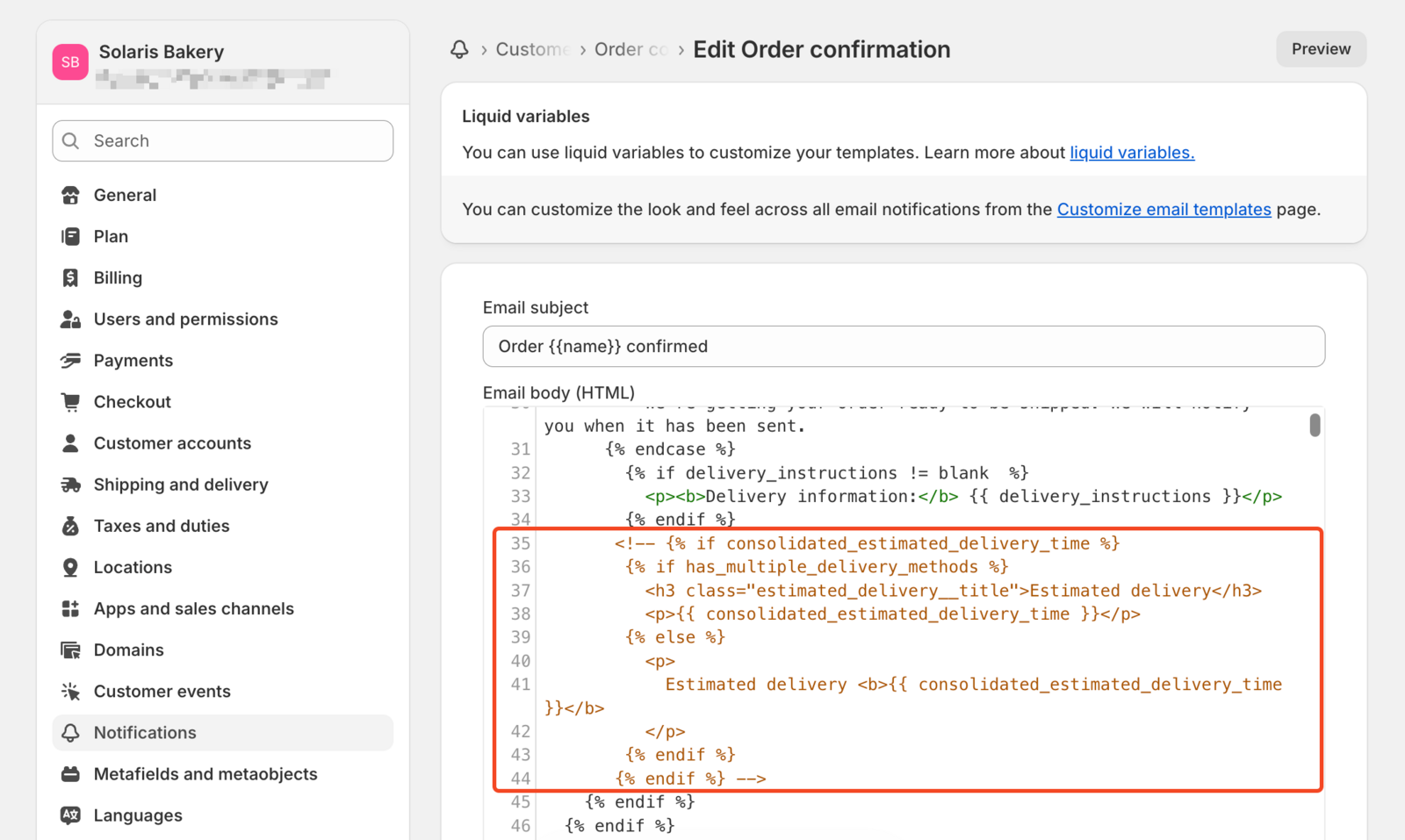
-
Save. Your order confirmation email now looks like this:
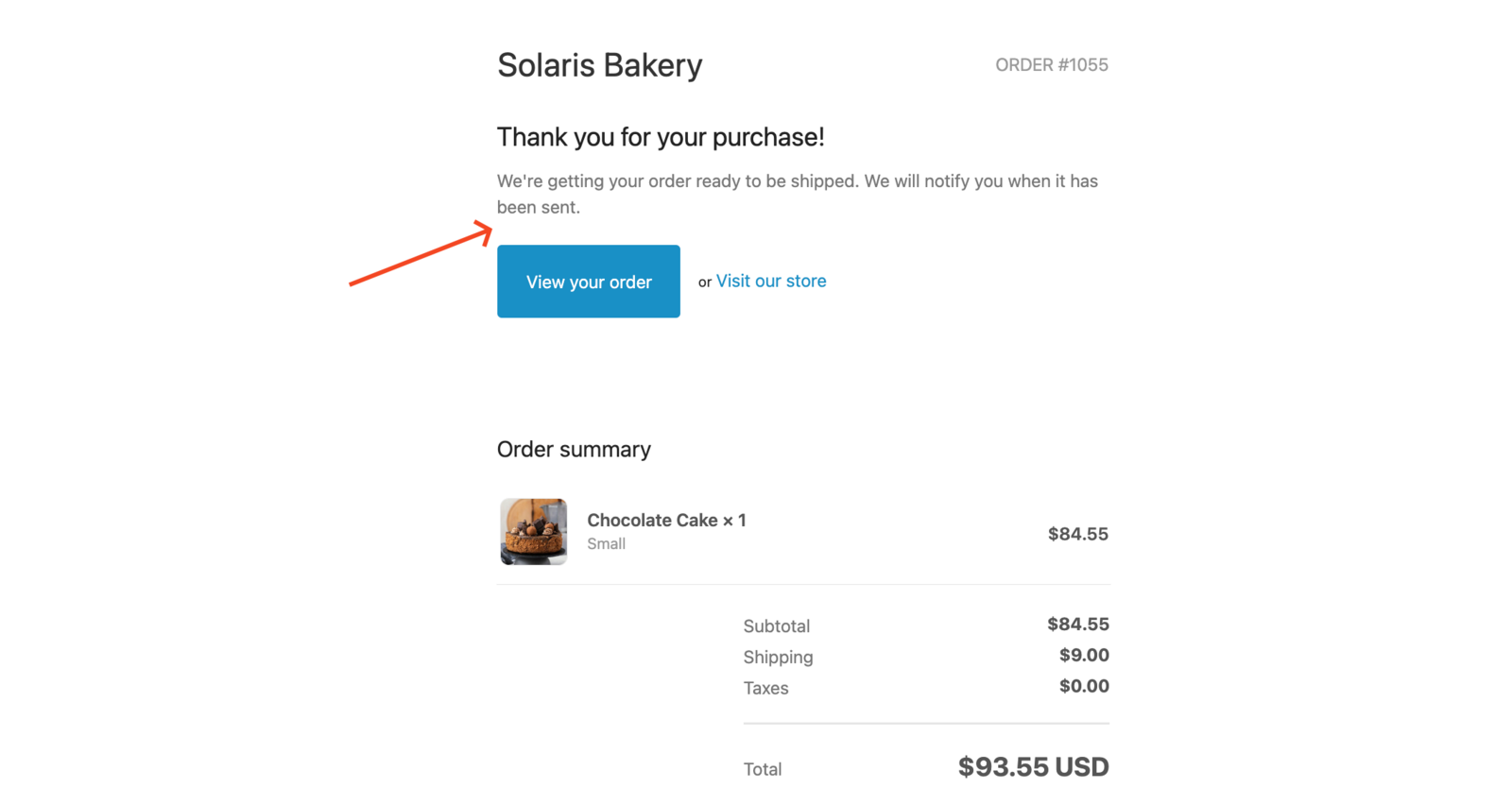
Place a test order or resend the order confirmation email from an existing order’s timeline in Shopify to confirm the change.
Related Articles
Was this article helpful?
Thanks for your feedback!