
 Getting Started
Verify Your Widget Setup: Place a Test Order
Test your Bird Pickup & Delivery widget setup by placing a complete order to ensure everything works correctly.
After configuring your widget, you need to verify that customers can successfully select delivery dates, choose pickup times, and complete orders. This test confirms your setup is ready for real customers.
Test your widget step by step
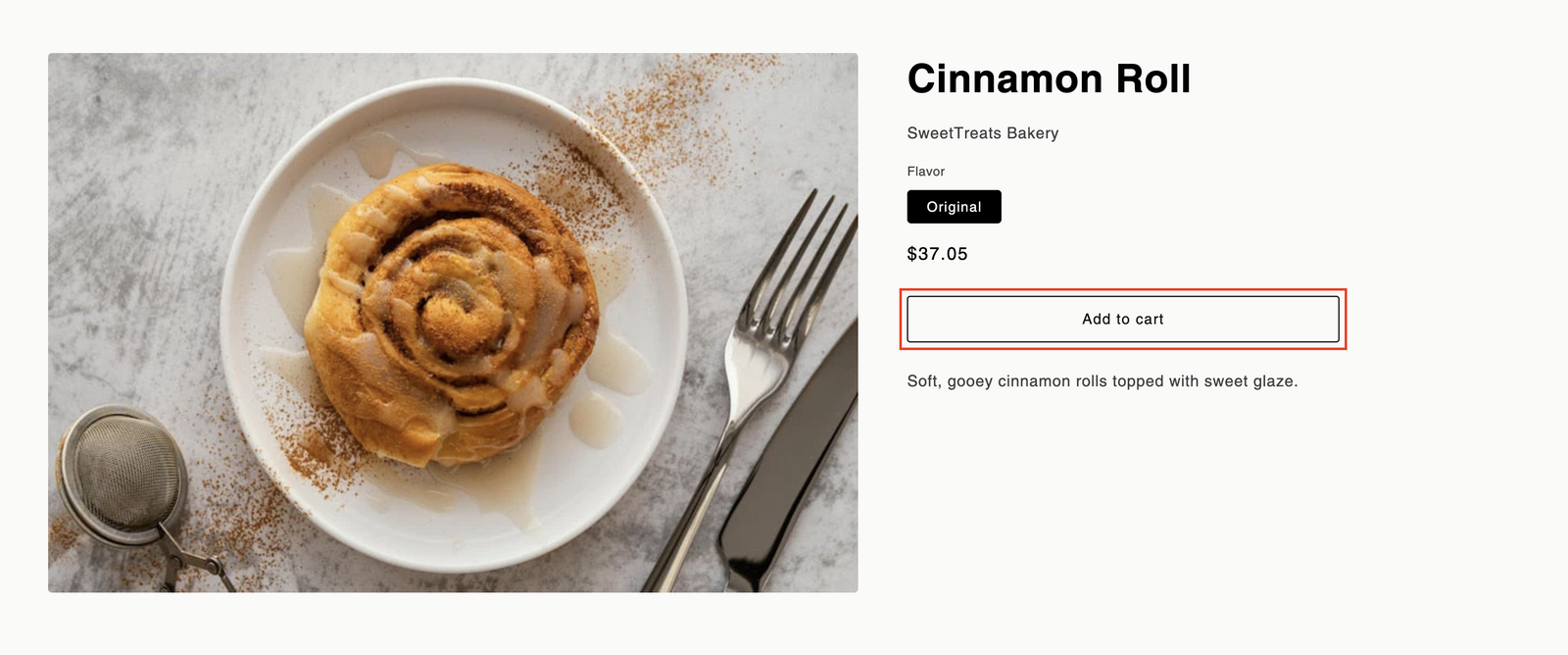
1. Add a product to cart
Navigate to any product page in your store and click Add to cart.
2. Configure delivery preferences
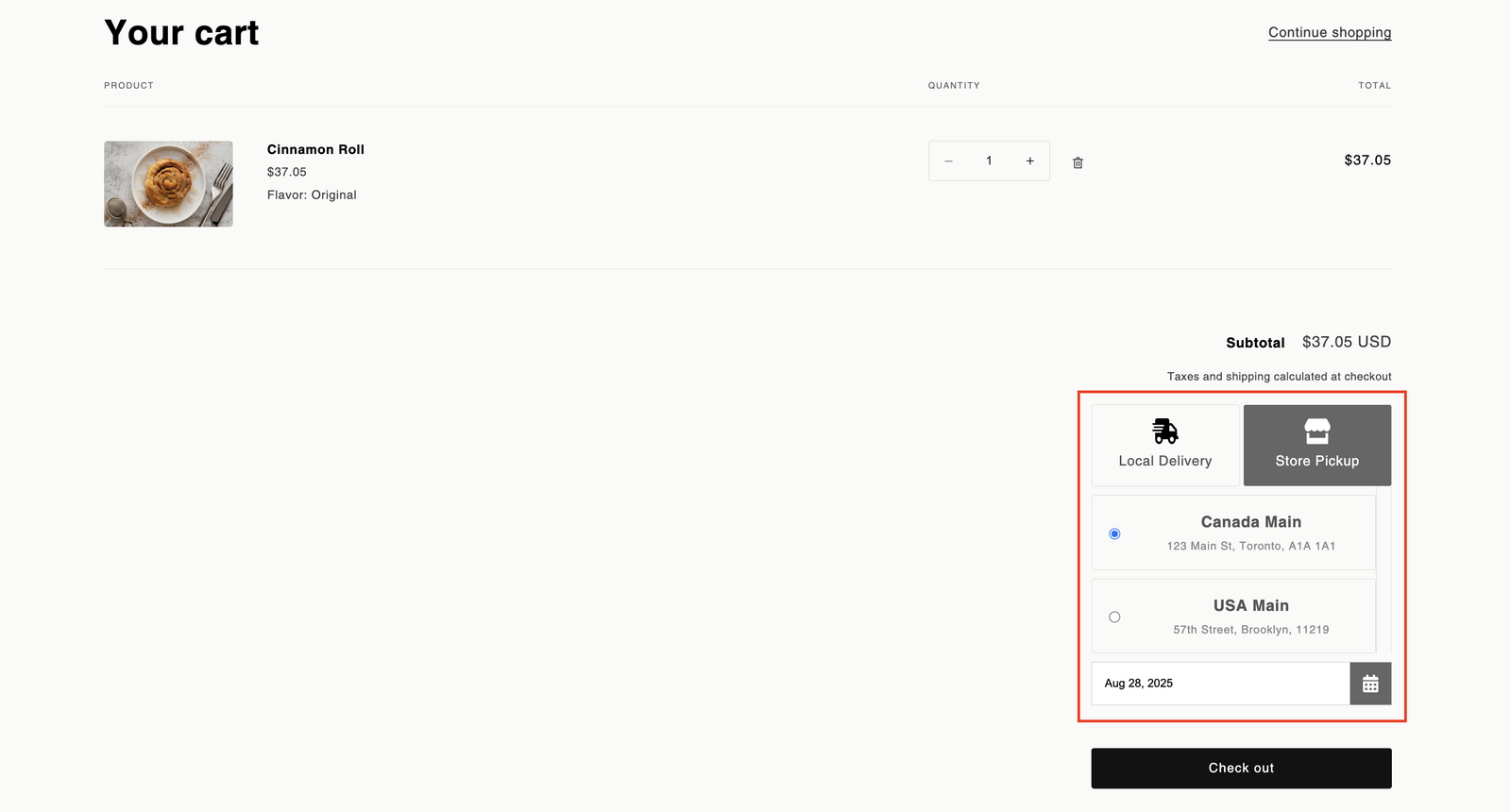
On the cart page, locate the Bird Pickup & Delivery widget. Select your preferred delivery method and choose a date and time slot.
3. Complete checkout
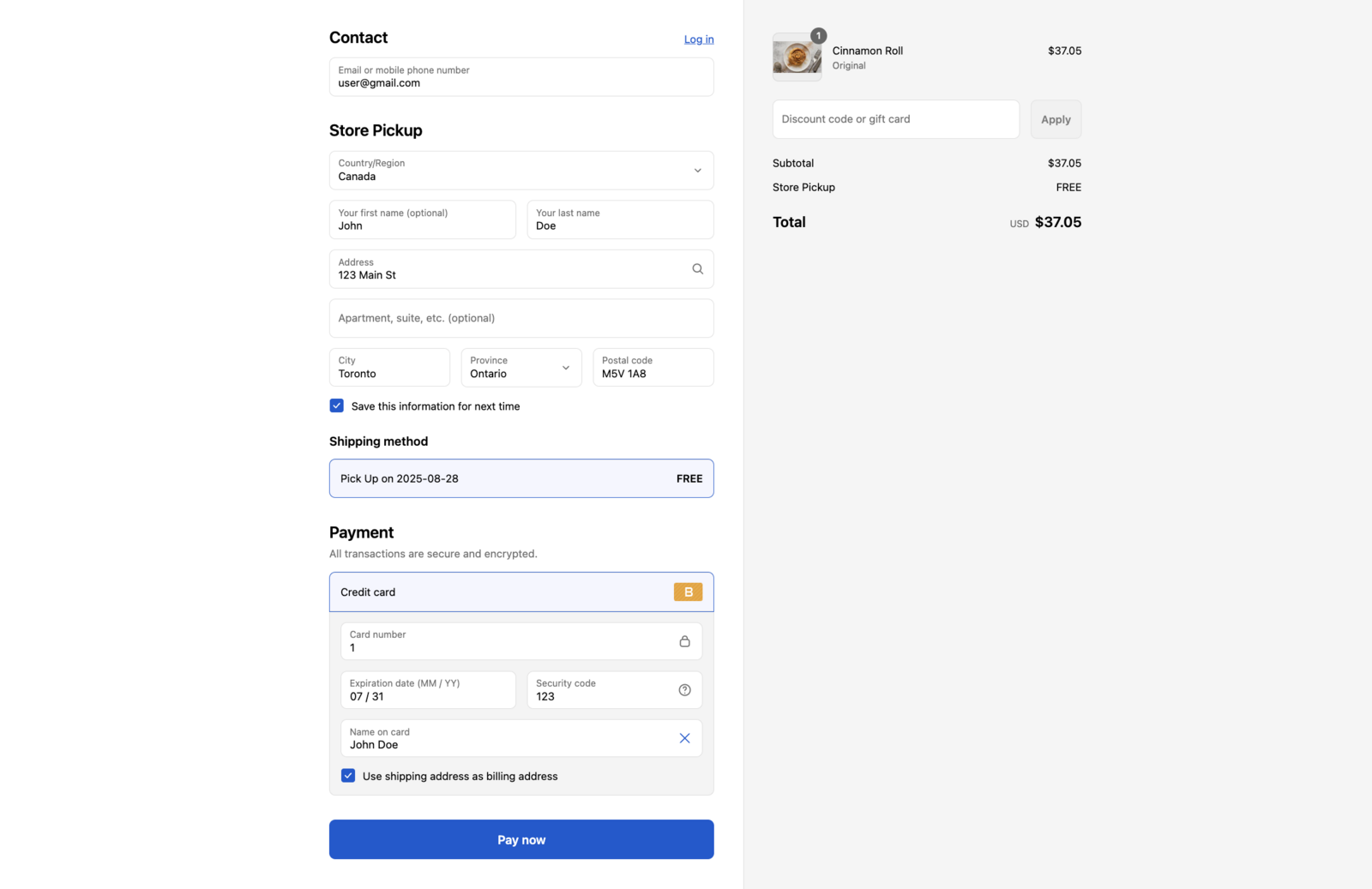
Complete any missing customer information on the checkout page. You may generate discount code to offset the order cost. Click Pay Now to proceed with the test order.
4. Check Shopify order details
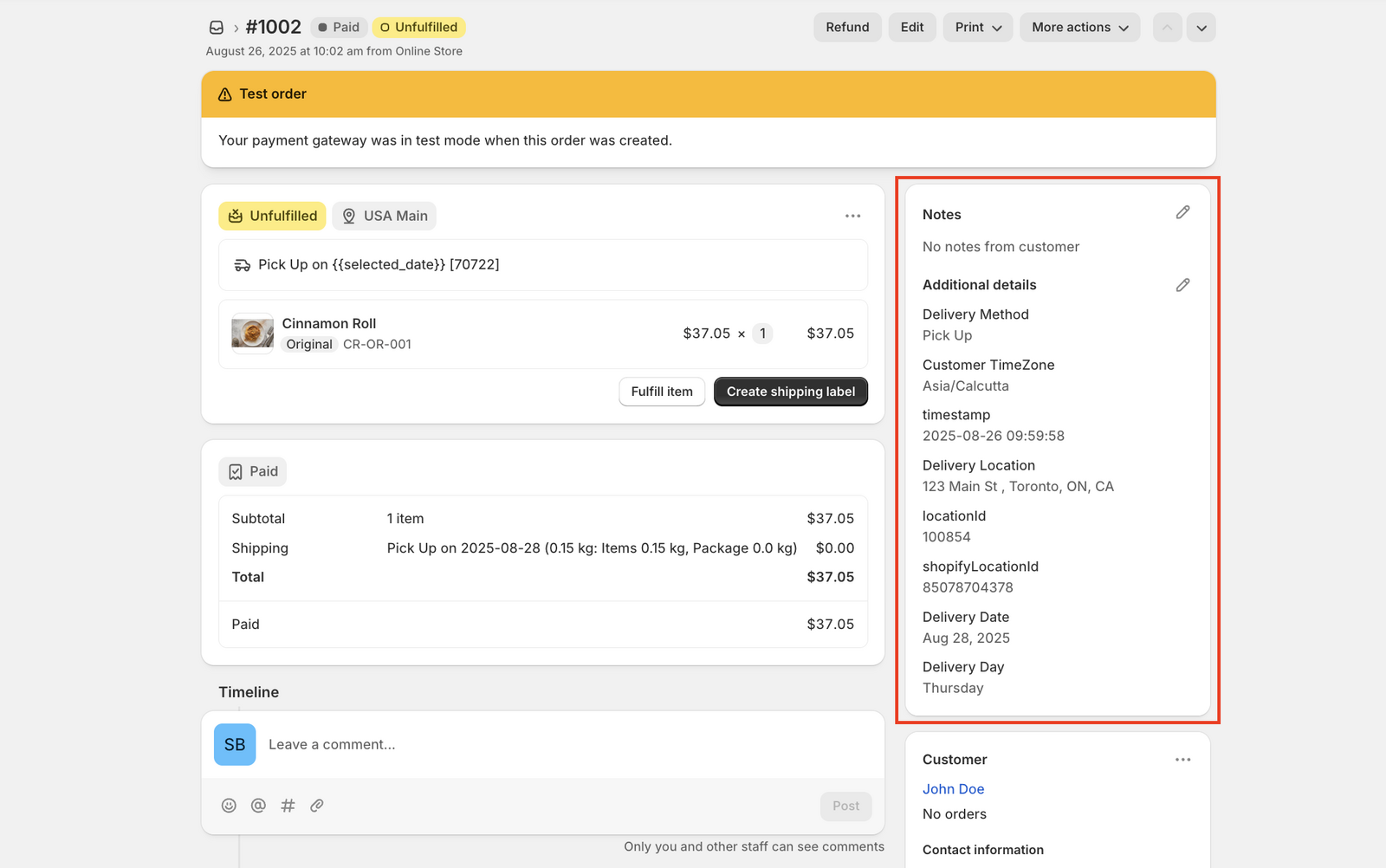
Navigate to your Shopify admin → Orders → click on your test order. Verify that delivery date, time, and method appear in the order details.
5. Verify thank you page display (Optional)
If you have already How to Enable Date and Time on Thank You Order Status Page, review the order confirmation page to ensure delivery details are visible.
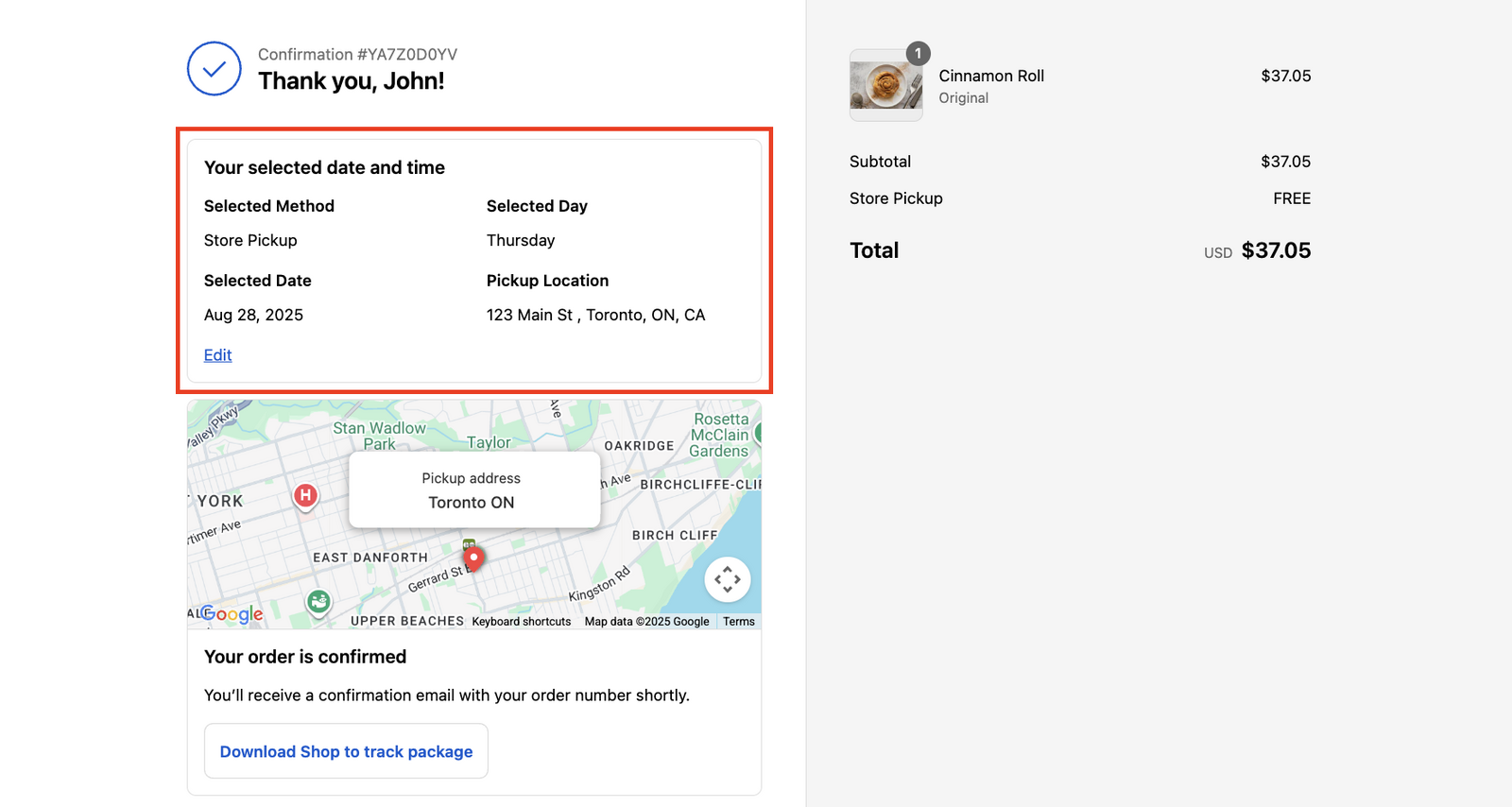
Note: This step is optional and won’t affect your widget setup verification. Skip it if you haven’t configured the thank you page display yet.
Related Articles
Was this article helpful?
Thanks for your feedback!