
 Getting Started
Bird Pickup & Delivery: Full App Setup Guide
Get your Shopify store fully configured for Store Pickup, Local Delivery, and Shipping with the Bird app by following these 8 simple steps.
This guide matches the Setup Guide checklist in your Bird App dashboard, so you can complete each step there as you go.
Before setup, make sure your products are marked physical in Shopify, with inventory assigned to your locations (Bird doesn’t manage inventory itself). Otherwise, checkout won’t collect a delivery or shipping address. See How to Mark Products as Physical Products in Shopify if you’re not sure yours are.
This guide covers the cart-page widget, the default setup for all stores. On Shopify Plus, you can use Bird’s Checkout Extension instead, which lets customers pick delivery details directly in checkout rather than the cart.
Step 1: Configure Store Pickup
Set up your store pickup locations and business hours.
Or click Configure pickup on the Setup Guide checklist in your dashboard to jump straight to Location Settings.
- Go to Bird Settings, then under General, click Configure locations
- Select a location
- Under Basic settings, check Enable Store Pickup, then click its Edit Settings
- Choose how customers select a pickup schedule: Only Date, Date & Time, Date & Time Range, or No Date & Time
- Set your operating hours
- Configure preparation times
- Add blockout dates
- Store pickup is configured and active
Store Pickup: Configure Availability
Step 2: Configure Delivery
Set up local delivery availability for the same location.
Or click Configure delivery on the Setup Guide checklist in your dashboard to jump straight to Location Settings.
- In the same location’s settings (Configure locations, under General in Bird Settings), go to Basic settings, check Enable local delivery, then click its Edit settings
- Choose how customers select a delivery schedule, using the same four options as pickup
- Set your operating hours
- Configure preparation times
- Add blockout dates
- Local delivery is configured and active
Delivery zones and pricing are configured separately, in Step 5: Configure Rates below.
Local Delivery: Configure Availability
Step 3: Configure Shipping
Configure shipping calendar and availability settings.
Or click Configure shipping on the Setup Guide checklist in your dashboard to jump straight to the shipping settings.
- Go to Bird Settings, then under General, click Shipping
- Check Enable shipping in Basic settings
- Go to Configure Availability
- Set your operating hours
- Configure preparation times
- Add blockout dates
- Shipping calendar is configured and active
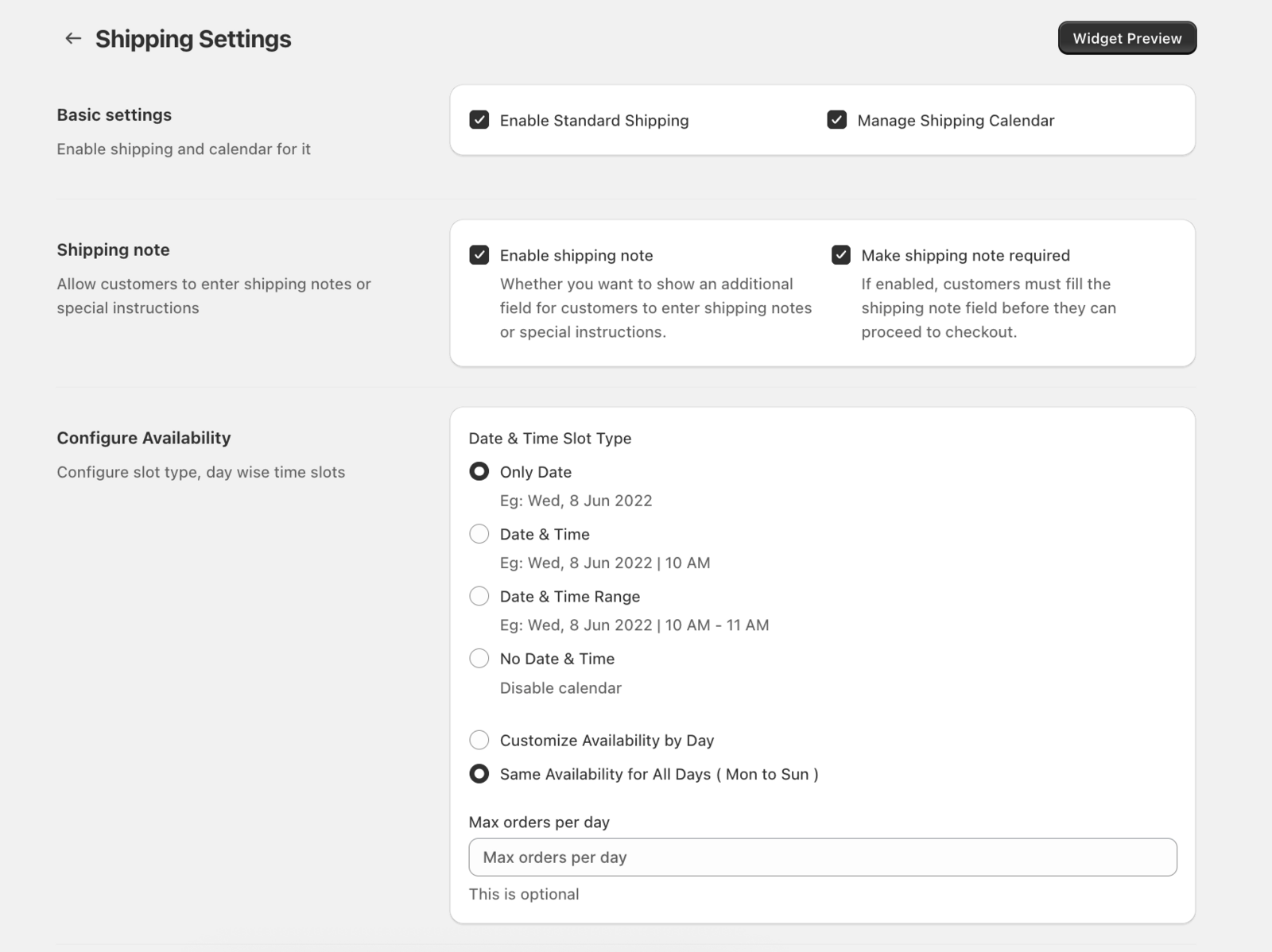
Note: Shipping zones and rates are configured separately, in Step 5: Configure Rates below or in Shopify Admin.
Step 4: Widget Placement in Cart
Add the delivery date picker to your cart page.
Or click Configure widget on the Setup Guide checklist in your dashboard to jump straight to Widget placement.
- Go to Bird Settings, then under Widget, click Widget placement
- Select your active theme
- Click Add Widget in theme
- Turn on Bird App’s App Embed
- Verify the widget appears on your cart page
App Embed Block, not App Block. The dashboard shows two options: App Embed Block (recommended, stable and battle-tested) and App Block (discouraged, since enabling both at once causes conflicts). If App Embed Block is already enabled (green), you’re done with this step.
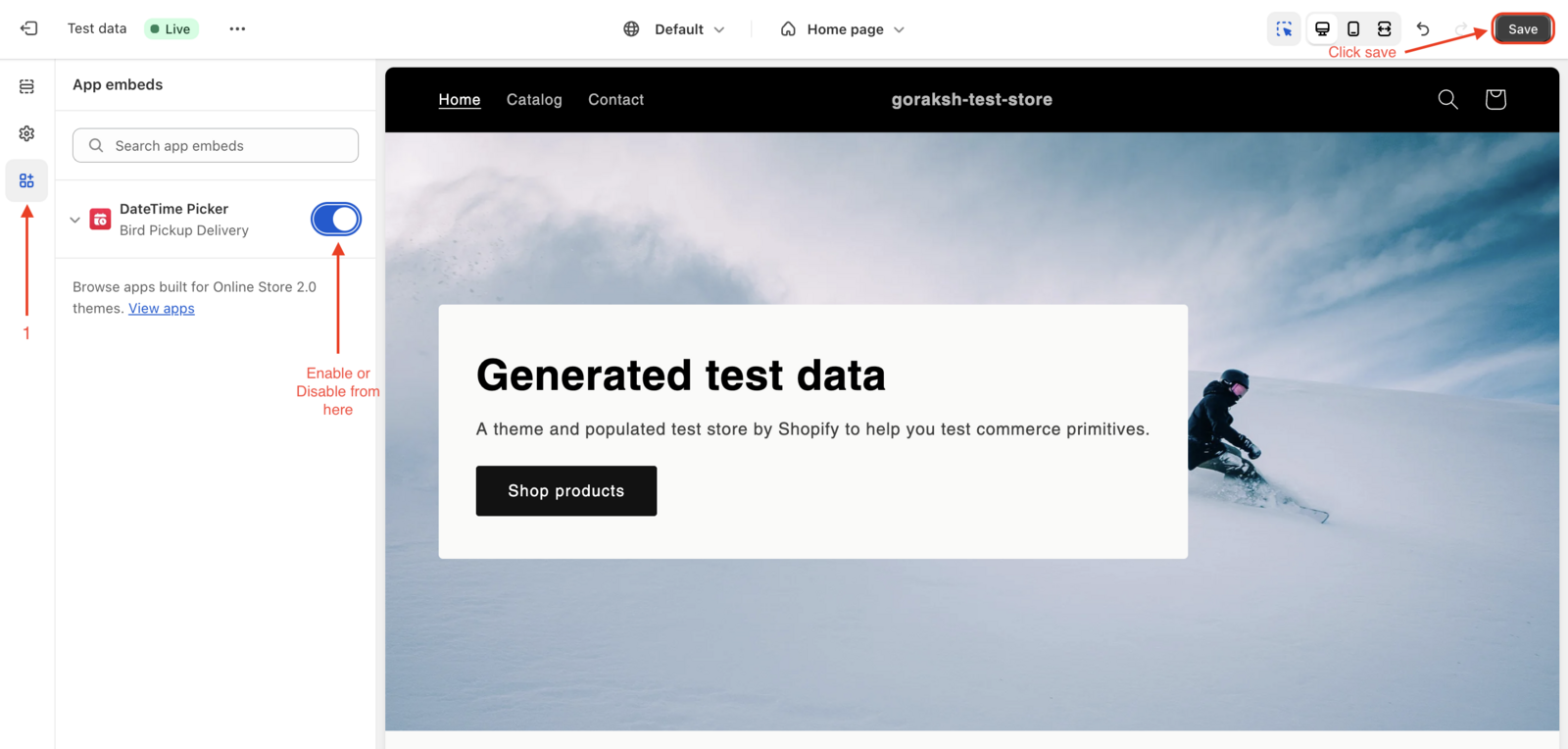
For custom positioning or a full troubleshooting walkthrough, see How to Enable Bird Pickup and Delivery Date Widget in Your Shopify Theme
Step 5: Configure Rates
Set up pricing for pickup, delivery, and shipping.
Or click Configure rates on the Setup Guide checklist in your dashboard to jump straight to the Rates wizard.
- Go to Bird App > Rates
- Follow the Rates setup guide
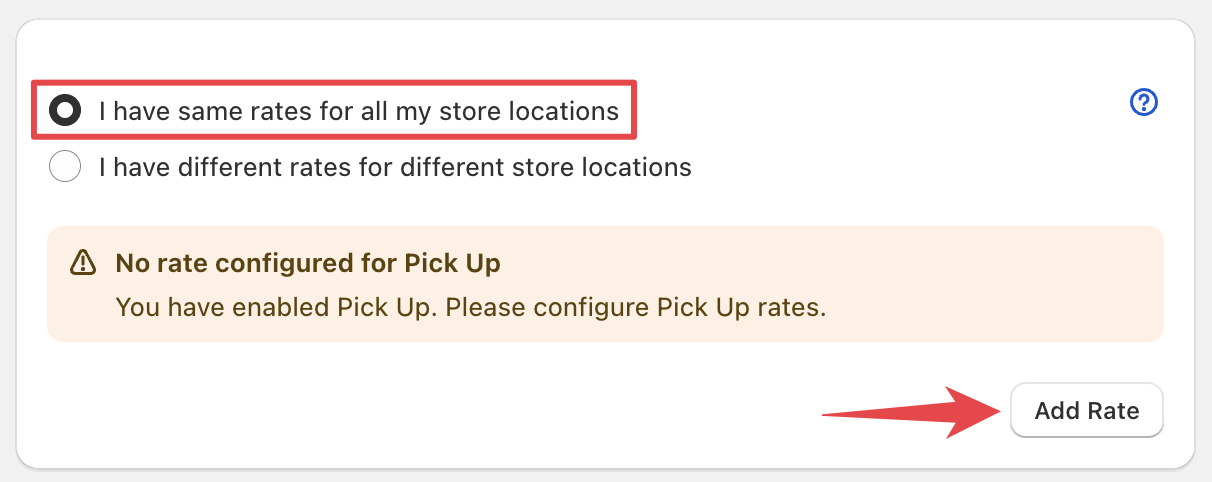
- Configure pickup rates
- Set delivery fees
- Set shipping rates
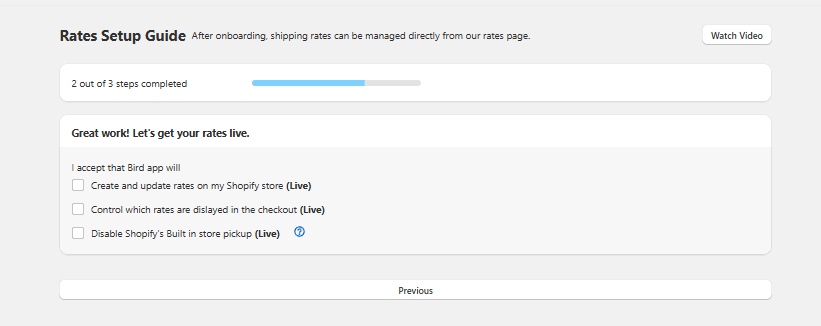
- Under I accept that Bird app will, check the three consent boxes, then click Finish setup to activate rates
- Your pickup, delivery, and shipping rates are configured and active
Already have delivery or shipping rates set up in Shopify? You don’t have to recreate them in Bird. In the wizard, choose Run local delivery rates through Shopify for Delivery, or Run shipping rates through Shopify for Shipping, and Bird will use your existing Shopify rates instead.
The last screen of the wizard asks you to confirm three boxes under “I accept that Bird app will…”, including Disable Shopify’s Built-in store pickup. Checking that box lets Bird disable it automatically, so customers can’t dodge the delivery or shipping fee they picked in the cart by switching to Shopify’s free native Pickup tab at checkout, and customers who already chose pickup won’t hit a redundant pickup step that risks abandonment. See Why Do I Need to Disable Built-in Shopify Pickup? for why this matters.
Step 6: Update Email Templates
Customize the emails Bird sends about pickup and delivery status.
Or click Update templates on the Setup Guide checklist in your dashboard to jump straight to Email notifications.
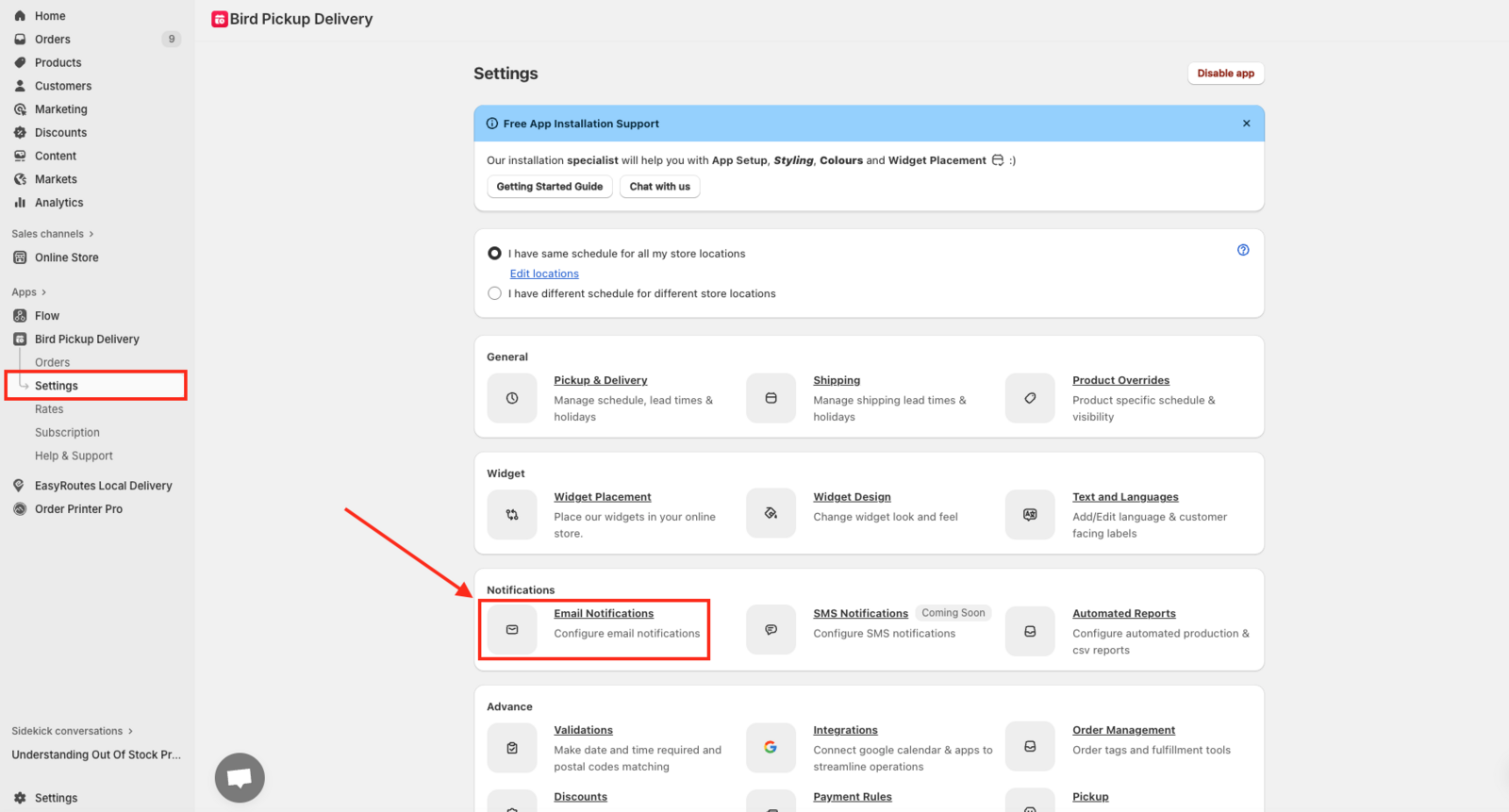
- Go to Bird Settings, then under Notifications, click Email notifications
- Click Edit order confirmation email — this is Shopify’s own template, not Bird’s (see How to Customize Email Templates in Bird App)
- Paste in a short code snippet (the linked guide below has the exact code to copy) at the right spot in your template
- Place a real test order to verify it worked. Test or preview emails won’t show the change, only a real order confirmation will (see Step 8)
- Order confirmation emails include delivery dates and times
How to Add Date and Time to Order Confirmation Emails
Step 7: Add Date/Time on Thank You Page
Show the customer’s delivery or pickup selection right after checkout.
Or click Configure thank you page on the Setup Guide checklist in your dashboard to jump straight to the checkout editor, instead of navigating there manually in Shopify Settings.
- In Shopify, go to Settings > Checkout > Customize
- Choose the Thank you page, the Order status page, or both
- On the page you chose, click Sections, then Add app block, and select Bird Order Details
- Click Save
How to Display Delivery Date and Time on Thank You and Order Status Pages
Step 8: Place Test Order
Verify everything works correctly.
- Add a product to cart and go to your store’s cart page
- In the Bird widget, select a delivery method and a date/time slot
- Complete checkout and place the order
- In Shopify Admin, go to Orders, open the test order, and confirm the delivery date, time, and method appear in the order details
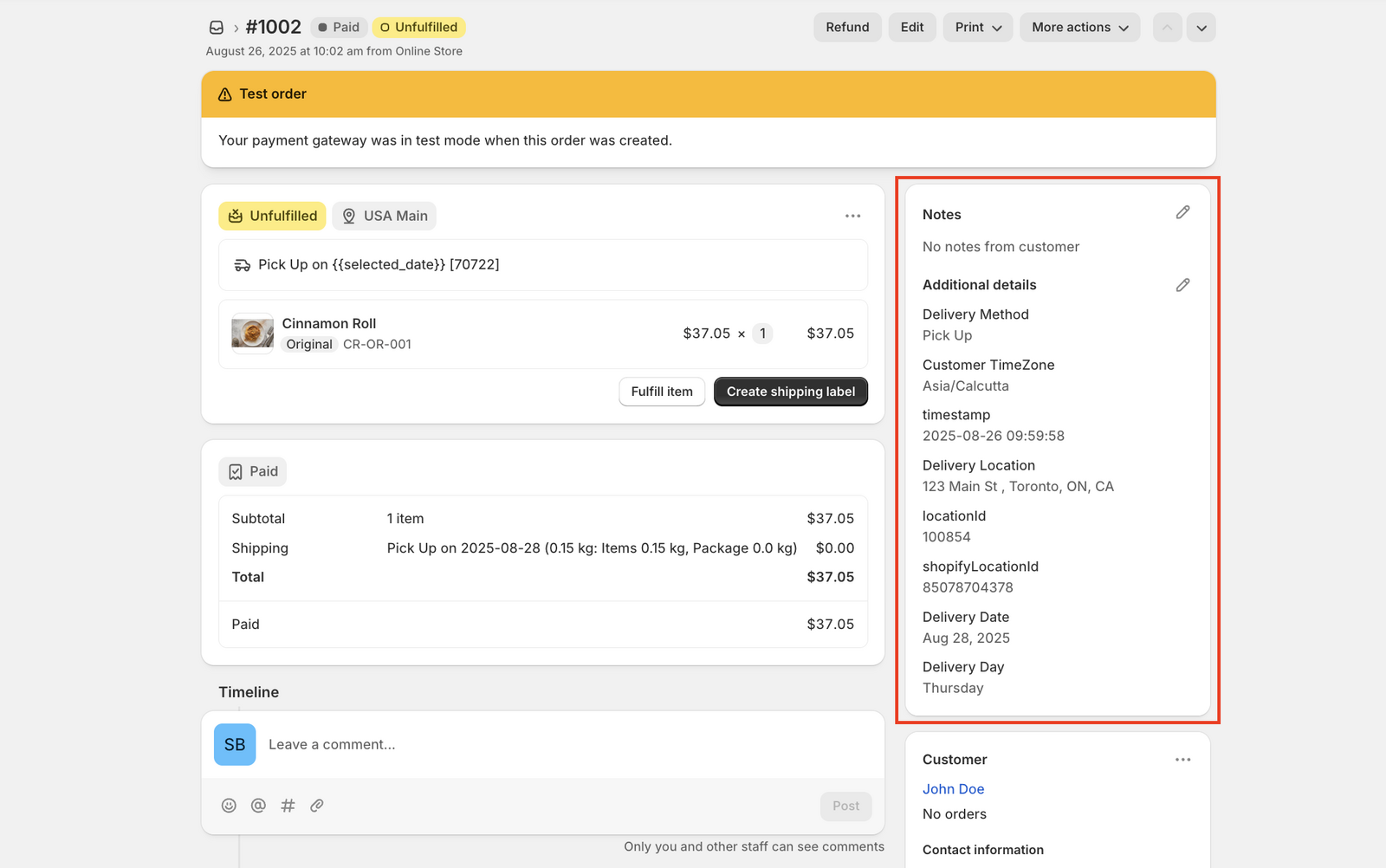
Check the thank you or order status page you configured in Step 7 too, to confirm delivery details show there.
Verify Your Widget Setup: Place a Test Order
Optional Configuration
These aren’t part of the core setup checklist, but are commonly used once your store is up and running.
Product Overrides (under General in Bird Settings): give a specific product its own preparation time or availability instead of your store-wide default. For example, a made-to-order cake might need two days’ notice while everything else ships same-day. See Store Pickup: Product Override.
Widget Visibility (under Widget in Bird Settings): hide the widget entirely on products where it doesn’t apply, such as gift cards or wholesale-only checkout flows. See Widget Visibility.
Widget design (under Widget in Bird Settings): match the widget’s colors and styles to your store’s branding. See Widget Design.
Language (Text and Languages, under Widget in Bird Settings): customize the widget’s language and labels. See How to Customize Widget Language and Labels. You can also change the checkout page language in Shopify.
Packing Slips: show the delivery date/time on packing slips and invoices. See How to Add Date and Time to Packing Slips and Invoices for the full steps.
Related Articles
Was this article helpful?
Thanks for your feedback!