
 Notifications
Customer: Customize Pickup & Delivery Email Templates
You’ll learn how to personalize the email notifications sent to your customers through the Bird Pickup & Delivery app.
Customizing email templates lets you maintain brand consistency and provide clear communication to your customers about their delivery or pickup orders.
Which Emails Does Bird Send?
Bird sends the following notification emails. Most are specific to pickup and delivery orders, while a few also apply to shipping orders.
| Sent For | Recipient | |
|---|---|---|
| Ready for Pickup | Pickup orders | Customer |
| Order Picked Up | Pickup orders | Customer |
| Out for Delivery | Delivery orders | Customer |
| Order Delivered | Delivery orders | Customer |
| Order Edited | All order types (when “Notify Customer” is checked) | Customer |
For shipping orders, Shopify’s own order confirmation email is used. To include delivery date and time in that email, see How to Add Date and Time to Order Confirmation Emails.
Looking for the New Order Notification email your staff receives? See Customize Staff Email Templates.
Customize an Email Template
-
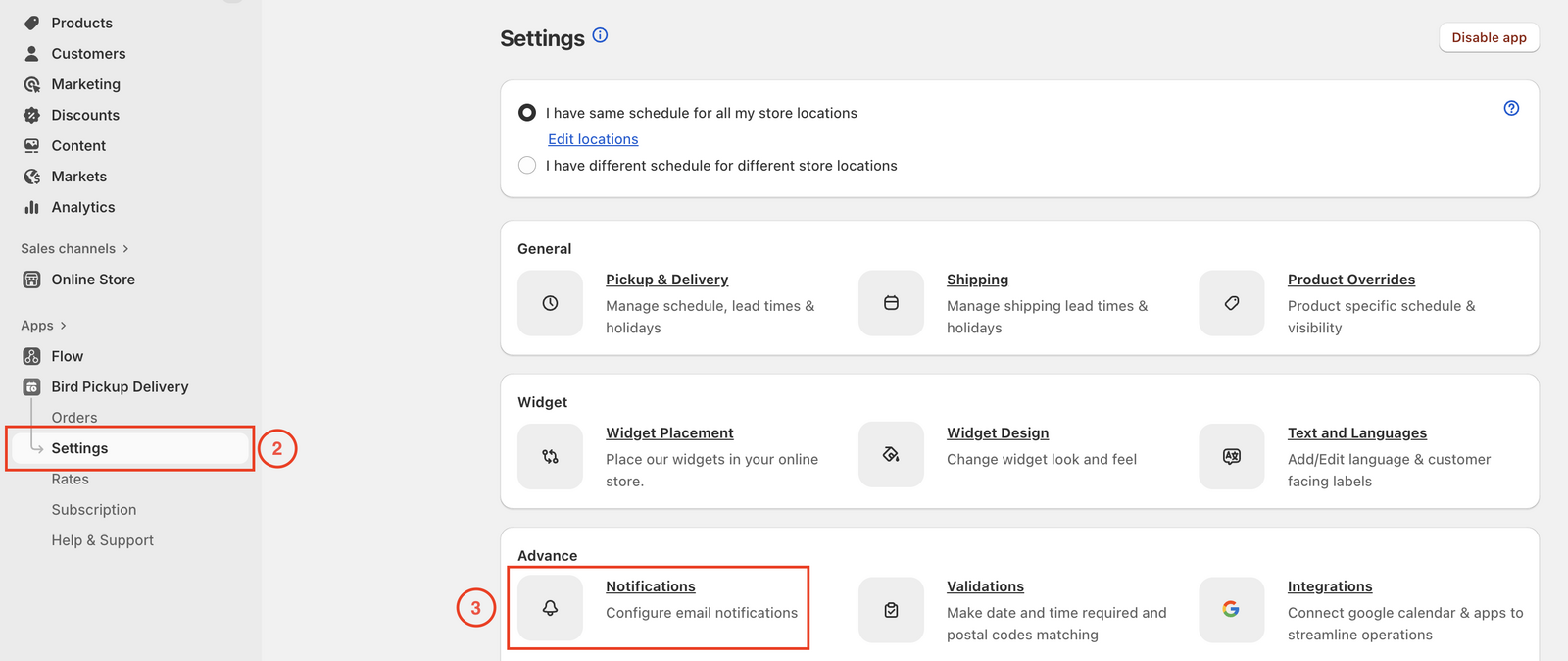
Go to Bird Settings > Email notifications
-
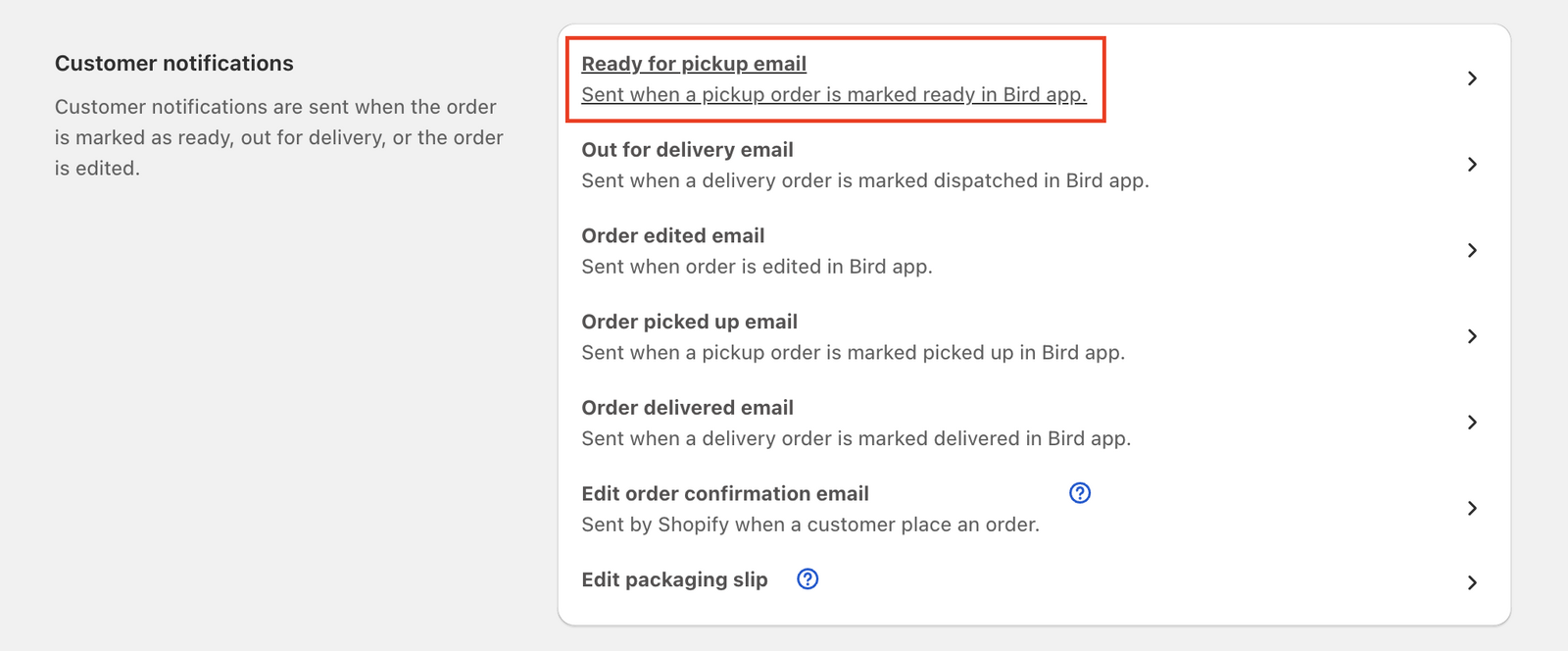
Click the email template you want to modify
-
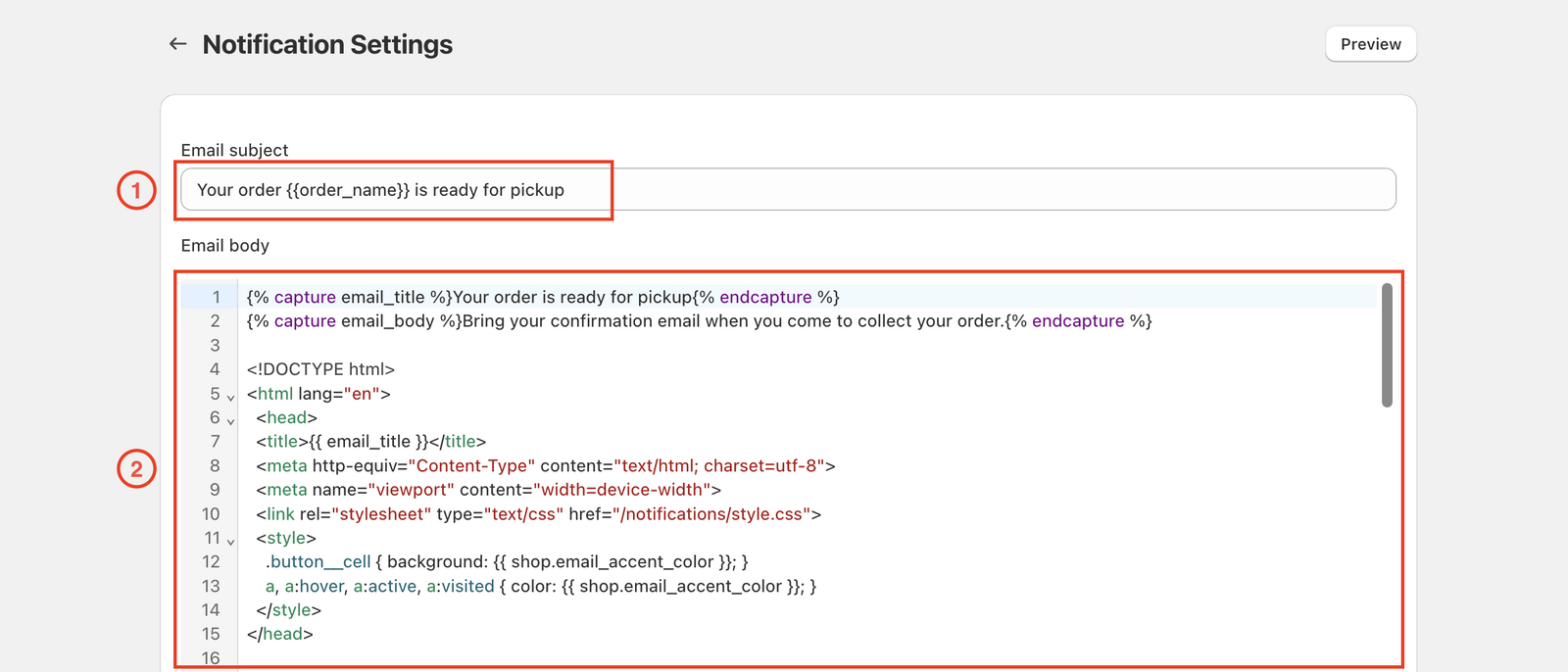
Edit the Email Subject and Email Body. Use variables (see below) to pull in dynamic order information
-
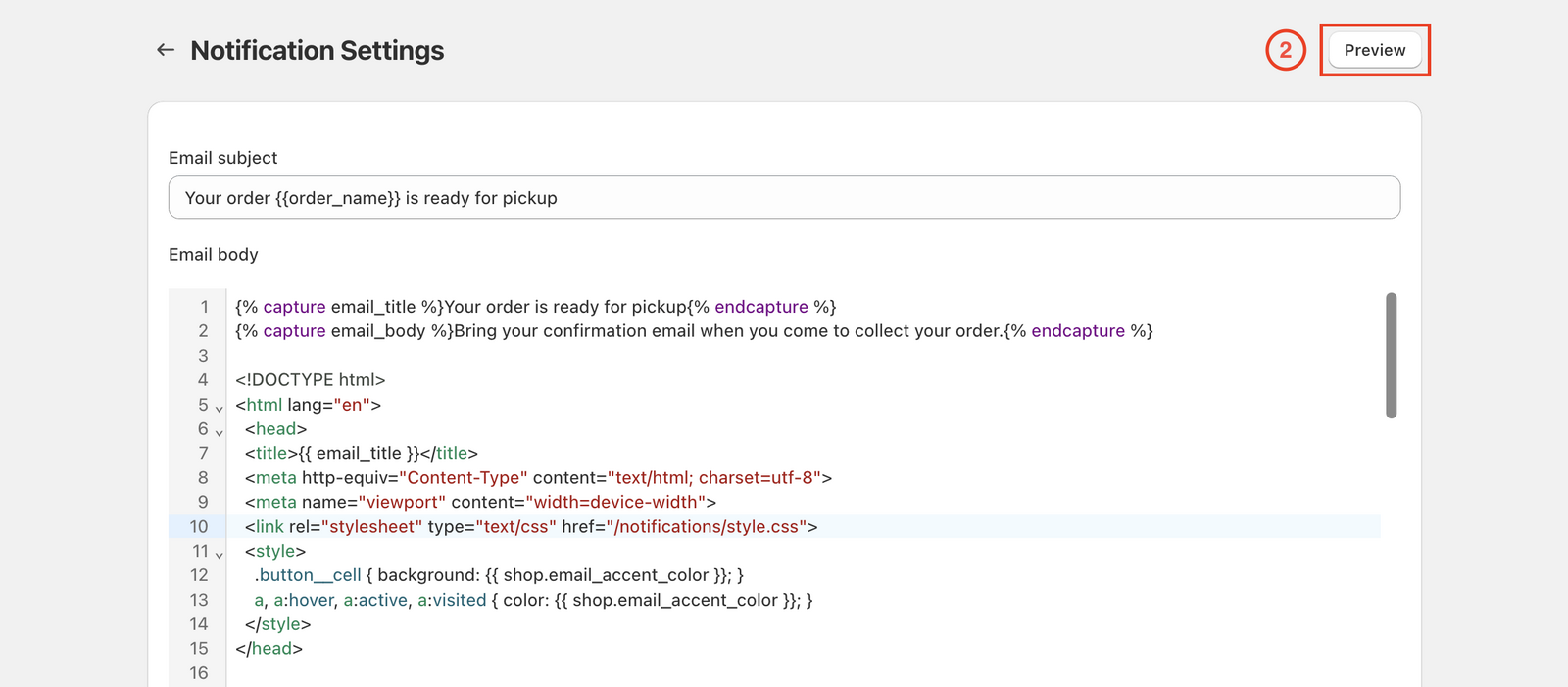
Click Save, then Preview to see how it will look
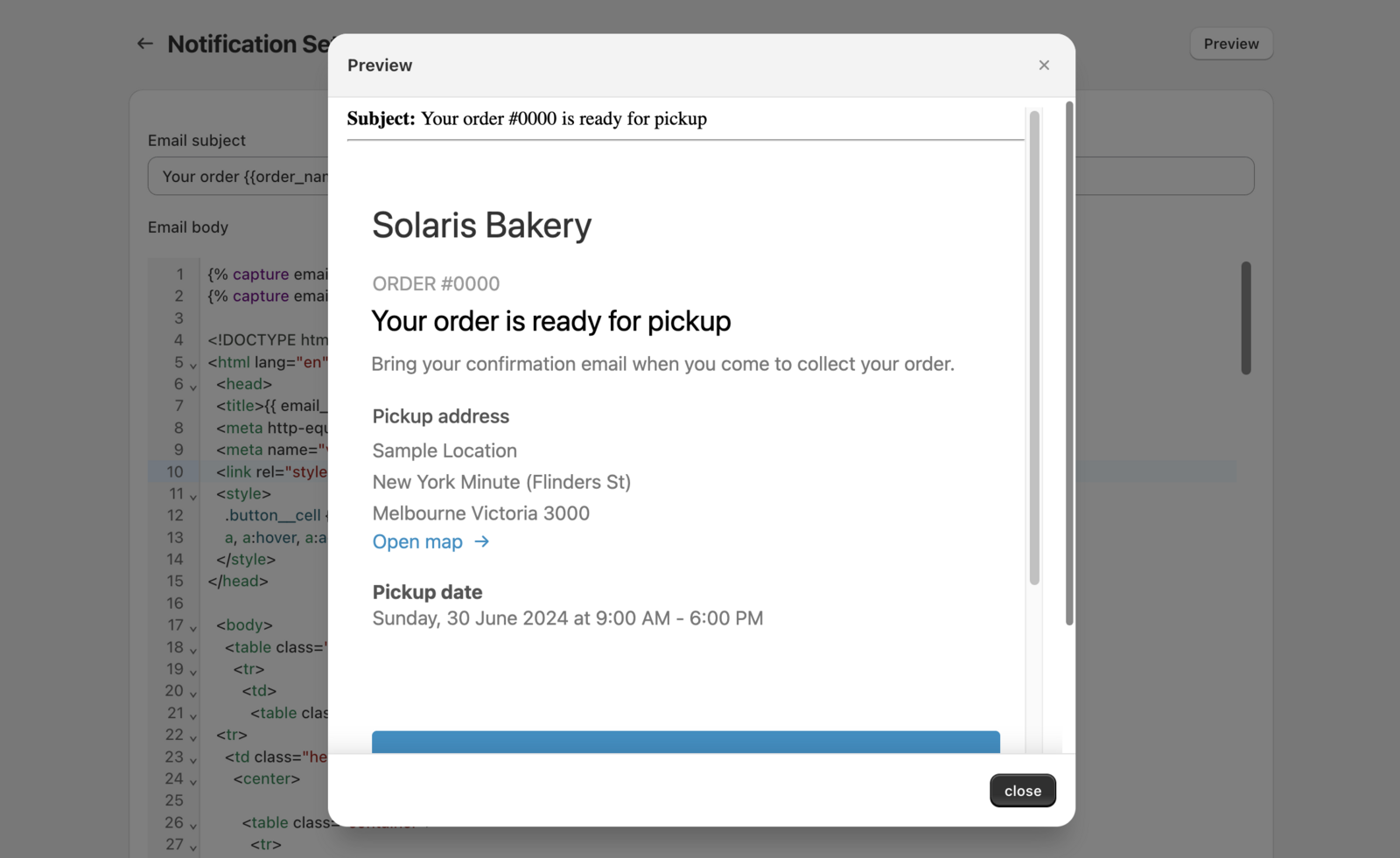
Made a mistake? Click Reset to restore the original template. If your store supports multiple languages, Bird automatically sends emails in the customer’s language when a translated template is available — create translated versions from the template editor.
What You Can Personalize
You can freely edit the subject line and body text of any template. Just type what you want.
To include dynamic order data (like the customer’s name or order number), use variables. Wrap them in double curly braces like {{ order_name }} and they will be replaced with real data when the email is sent. You can use variables in both the subject line and the email body.
For example, a subject line of Order {{ order_name }}, {{ customer.first_name }}: it's on its way! sends as “Order #1042, Jordan: it’s on its way!”
Order Details
| Variable | What It Shows | Example |
|---|---|---|
{{ order_name }} |
Order number | #1042 |
{{ order_status_url }} |
Link to order status page | — |
{{ total_price }} |
Order total | 49.99 |
{{ total_discounts }} |
Total discounts applied | 5.00 |
{{ note }} |
Order note | Please leave at the door |
Store Info
| Variable | What It Shows |
|---|---|
{{ shop.name }} |
Your store name |
{{ shop.url }} |
Your store URL |
{{ shop.email }} |
Your store contact email |
{{ shop.currency_symbol }} |
Currency symbol (e.g., $, €, £) |
{{ shop.permanent_domain }} |
Shopify domain (e.g., yourstore.myshopify.com) |
Customer Info
| Variable | What It Shows |
|---|---|
{{ customer.first_name }} |
First name |
{{ customer.last_name }} |
Last name |
{{ customer.name }} |
Full name |
{{ customer.email }} |
Email address |
{{ customer.phone }} |
Phone number |
Delivery and Pickup Details
These are the selections the customer made at checkout:
| Variable | What It Shows |
|---|---|
{{ attributes['Delivery Method'] }} |
Pick Up, Delivery, or Shipping |
{{ attributes['Delivery Date'] }} |
Selected date |
{{ attributes['Delivery Time'] }} |
Selected time slot |
{{ attributes['Pickup Security Code'] }} |
Pickup verification code (if enabled) |
Pickup Location
| Variable | What It Shows |
|---|---|
{{ location.name }} |
Location name |
{{ location.address1 }} |
Street address |
{{ location.address2 }} |
Address line 2 |
{{ location.city }} |
City |
{{ location.province }} |
State / Province |
{{ location.zip }} |
Postal code |
{{ location.country }} |
Country |
{{ location.phone }} |
Phone number |
Delivery Address
Available in Out for Delivery, Order Delivered, and Order Picked Up templates. This is the address the order is being delivered to.
| Variable | What It Shows |
|---|---|
{{ delivery_address.name }} |
Recipient full name |
{{ delivery_address.first_name }} |
Recipient first name |
{{ delivery_address.last_name }} |
Recipient last name |
{{ delivery_address.company }} |
Company name |
{{ delivery_address.address1 }} |
Street address |
{{ delivery_address.address2 }} |
Address line 2 |
{{ delivery_address.city }} |
City |
{{ delivery_address.province }} |
State / Province |
{{ delivery_address.zip }} |
Postal code |
{{ delivery_address.country }} |
Country |
{{ delivery_address.phone }} |
Phone number |
Order Items
Use a for loop to list the products in the order:
{% for line in line_items %}
  {{ line.title }} x {{ line.quantity }} — {{ shop.currency_symbol }}{{ line.price }}
{% endfor %}
| Variable | What It Shows |
|---|---|
{{ line.title }} |
Product title |
{{ line.sku }} |
SKU |
{{ line.quantity }} |
Quantity ordered |
{{ line.variant_title }} |
Variant (e.g., Size: Large) |
{{ line.price }} |
Item price |
{{ line.image }} |
Product image URL |
{{ line.is_refunded }} |
Whether the item was refunded |
{{ line.properties }} |
Custom line item properties (e.g., gift message, engraving) |
{{ line.product.title }} |
Product name |
Variables Available in Specific Templates Only
| Variable | Available In | What It Shows |
|---|---|---|
{{ qr_code_data_url }} |
Ready for Pickup | QR code image for pickup verification |
{{ id }} |
Order Edited | Shopify order ID (useful for admin links) |
Show Content Conditionally
You can show different content depending on the delivery method:
{% if attributes['Delivery Method'] == 'Pick Up' %}
  Please pick up your order from {{ location.name }}.
{% else %}
  Your order will be delivered to your address.
{% endif %}
Or show a section only when a value exists:
{% if attributes['Pickup Security Code'] %}
  Your pickup code: {{ attributes['Pickup Security Code'] }}
{% endif %}
Best Practices
- Keep subject lines under 50 characters for better email deliverability
- Use clear, action-oriented language in your email body
- Test your templates with the preview function before going live
- Maintain consistent branding across all email templates
- Use conditional logic to show relevant content based on the delivery method
Related Articles
Was this article helpful?
Thanks for your feedback!