
 Notifications
Customer: Order Reminder Emails
Customers sometimes forget a pickup or aren’t home for a delivery. An order reminder email tells them the date, time and, for pickup, the store address, so they turn up or are ready at the door. You choose which orders get a reminder and send it from the Orders page.
Requirements
- Bird’s Scale plan or above
- An email address on the order
Step 1: Turn on the reminder email
- Go to Bird Settings > Notifications.
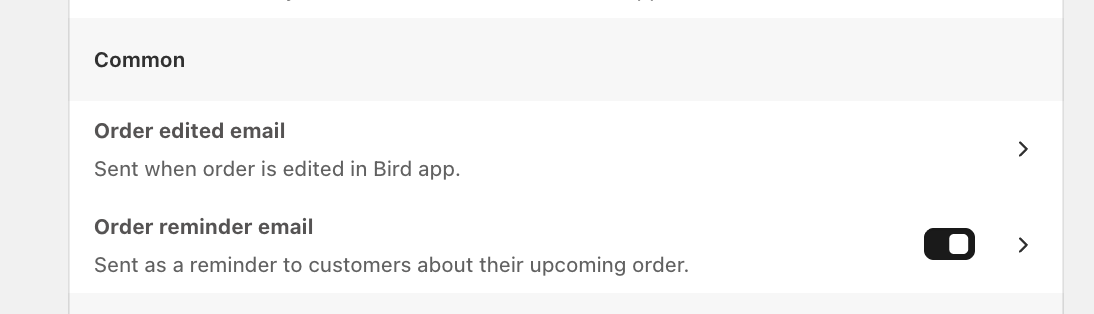
- Under Customer notifications, find Order reminder email in the Common group.
- Turn it on. Reminders are only sent while this is on.
Step 2: Send reminders
- Open the Bird Orders page.
- Select the orders you want to remind. Use the date filter, for example Tomorrow, to find upcoming orders quickly.
- Click the ⋯ (more actions) button above the order list, then click Send customer reminder. On mobile, it’s under Actions.

Each selected customer gets one email straight away.
What the customer receives
- The subject Reminder: Your upcoming order, followed by the order number
- The scheduled date, and time if the order has one
- For pickup orders, the store address with a map link
- A View your order button, the order summary and the total
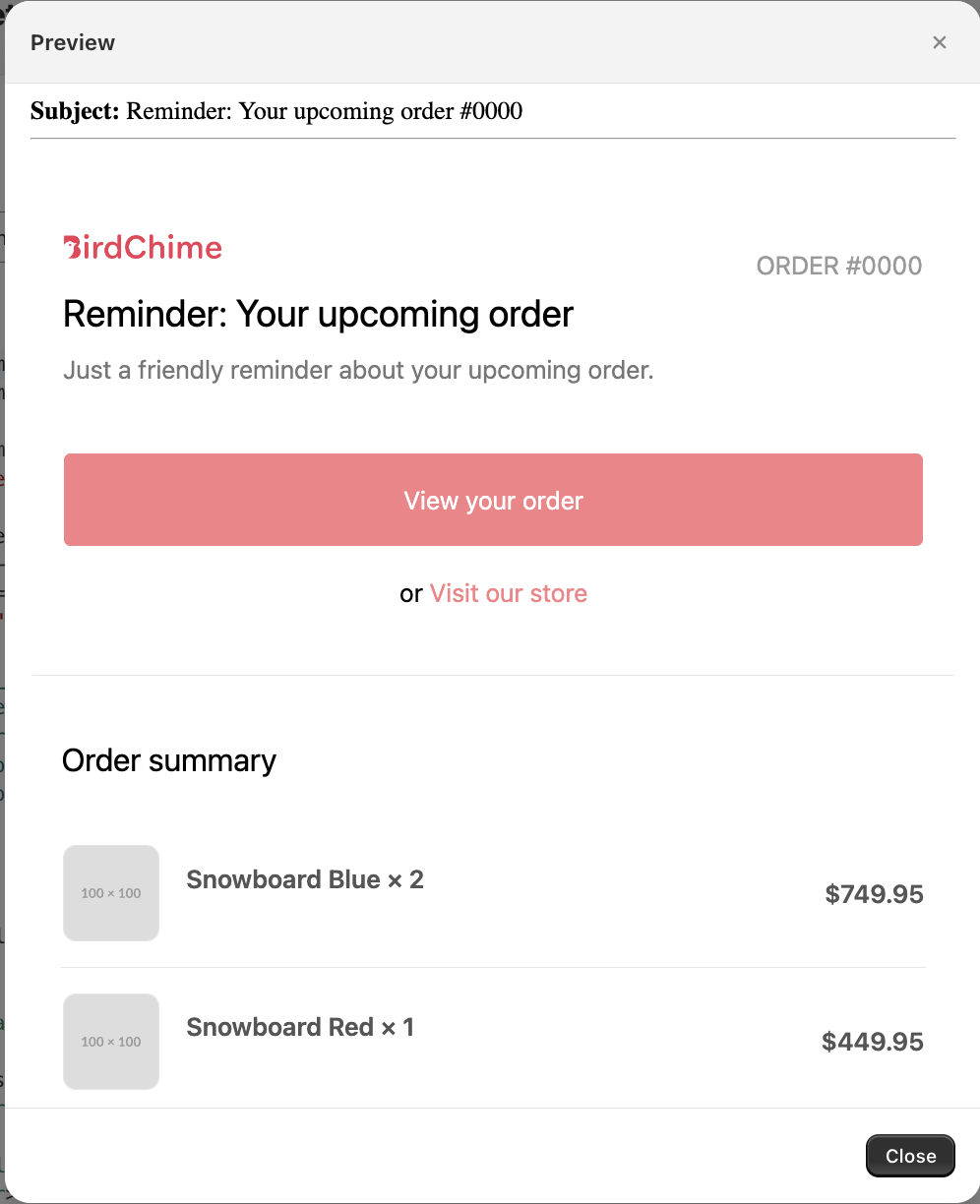
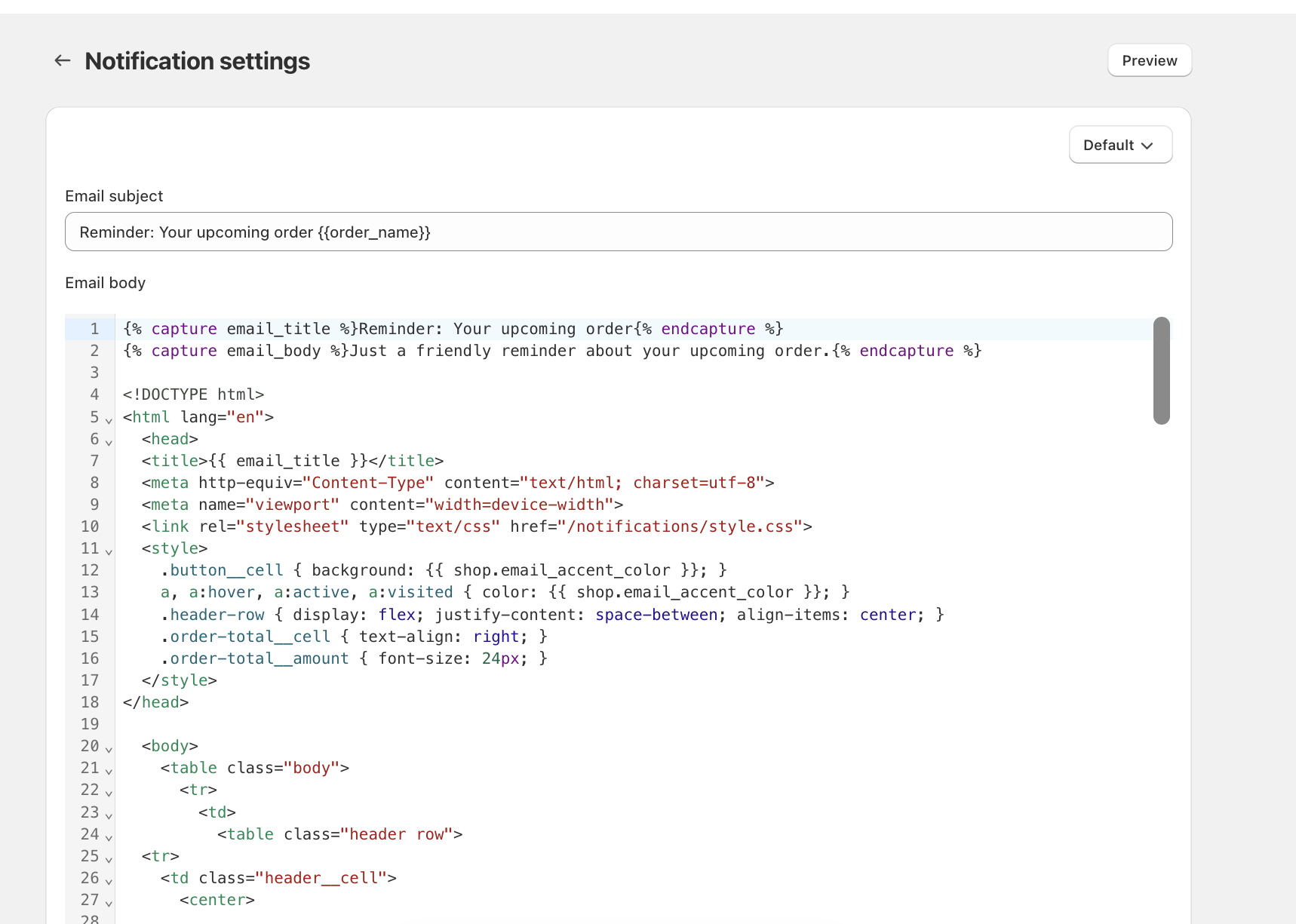
The email uses your logo, colours and sender details from Brand settings. See Customer: Email Branding & Authentication. To change the wording, edit the Order reminder email template like any other customer email. See Customer: Customize Pickup & Delivery Email Templates.
To open the template, click the arrow next to Order reminder email in Customer notifications. Click Preview to see how the email looks.
Notes
- Reminders are only sent when you click Send customer reminder. Bird doesn’t send them automatically before the order date.
- Orders without an email address are skipped. If Order reminder email is turned off, no reminders are sent at all. You won’t see an error in either case.
- Clicking twice within a minute sends one email, not two.
- Reminders are email only. There’s no SMS reminder.
- Ready for pickup, out for delivery and delivered emails are separate. Those go out when you update an order’s status. See Customer: Pickup & Delivery Notifications.
Related Articles
Was this article helpful?
Thanks for your feedback!