
 Local Delivery
Local Delivery: Driving Distance Validation
Configure local delivery based on actual driving distance (kilometers/miles) from your store location. Unlike radius validation which draws a straight-line circle, driving distance follows real roads, giving you more accurate delivery zone control.
Table of Contents
- When to Use Driving Distance Validation
- Driving Distance vs. Radius: Key Differences
- Prerequisites
- Configuration Steps
- How Driving Distance Validation Works
- Update Input Field Labels and Validation Messages
- Test Your Configuration
- Common Questions
- Related Articles
When to Use Driving Distance Validation
- Urban areas with irregular road networks: Straight-line distance may include unreachable areas (rivers, highways, restricted zones).
- Accurate delivery cost estimation: Charges based on the actual route a driver takes.
- Areas where radius validation over- or under-includes customers: e.g., a customer 4km away in a straight line but 12km by road.
Driving Distance vs. Radius: Key Differences
| Feature | Radius Validation | Driving Distance Validation |
|---|---|---|
| Distance method | Straight-line distance | Actual road distance |
| Accuracy | Approximate | More precise |
| Google API required | Geocoding API | Routes API |
| Best for | Simple zones, regions without postal codes (ZIP codes) | Urban areas, accurate delivery costing |
Prerequisites
You need a Google Maps API key with the following APIs enabled:
- Get API Key: Go to Google Cloud Console.
- Enable APIs: Enable the Places API, Geocoding API, and Routes API for your project.
- Billing: Set up billing for your Google Cloud project (required for API usage).
- Create Key: Create an API key in the Credentials section.
For detailed setup instructions, follow Google’s official documentation.
Configuration Steps
1. Configure Driving Distance Validation
- Navigate to Bird Settings > Delivery.
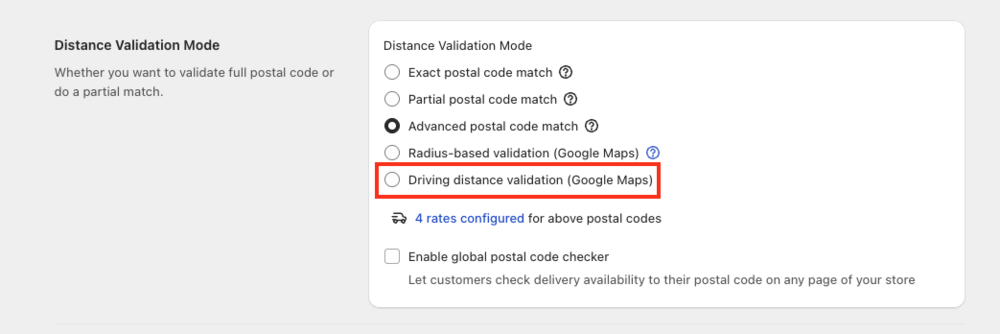
- Scroll to “Distance Validation Mode”.
- Click the “Driving distance validation (Google Maps)” radio button.
- Enter your Google Maps API key in the dialog that appears.
- Click Validate & save to validate and store your key.
The app validates your API key automatically. You will see green checkmarks next to Places API, Geocoding API, and Routes API once your key is valid.
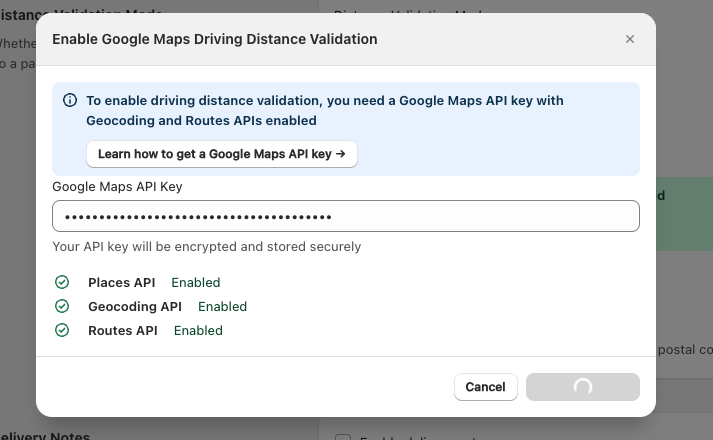
If you see an error, check that your key has the Routes API, Places API, and Geocoding API all enabled in Google Cloud Console.
2. Set Up Store Locations
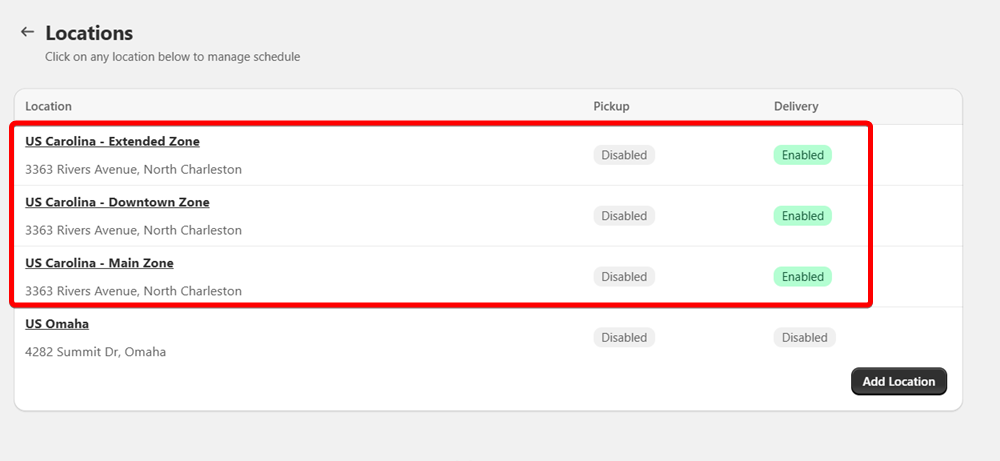
- Go to Bird App Settings > Configure Locations.
- Create or duplicate locations for different delivery zones (e.g., “Main Store”, “Downtown Zone”).
3. Configure Driving Distance for Each Location
- Select a location and enable Local Delivery.
- Click “Edit Settings” in the Local Delivery section.
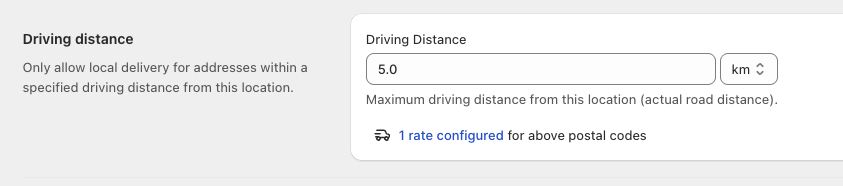
- Scroll to the “Driving distance” section.
- Enter the maximum driving distance in km or miles:
| Location | Driving Distance |
|---|---|
| Main Store Location | 5km |
| Downtown Zone | 10km |
| Extended Zone | 15km |
How Driving Distance Validation Works
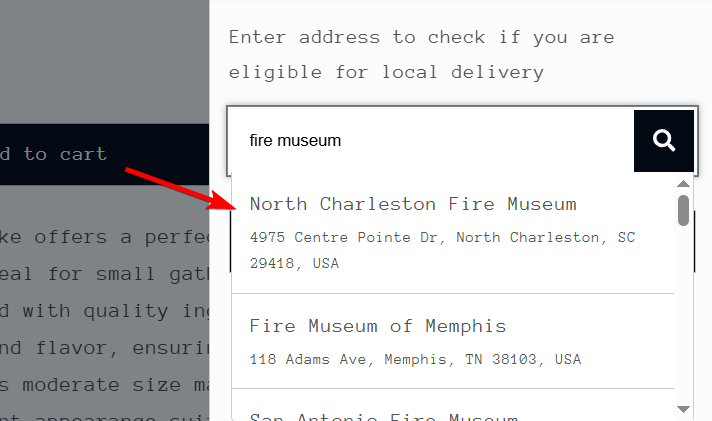
- Customer types their address in the delivery widget
- Google Maps provides address suggestions as they type
- Customer selects their address from the dropdown
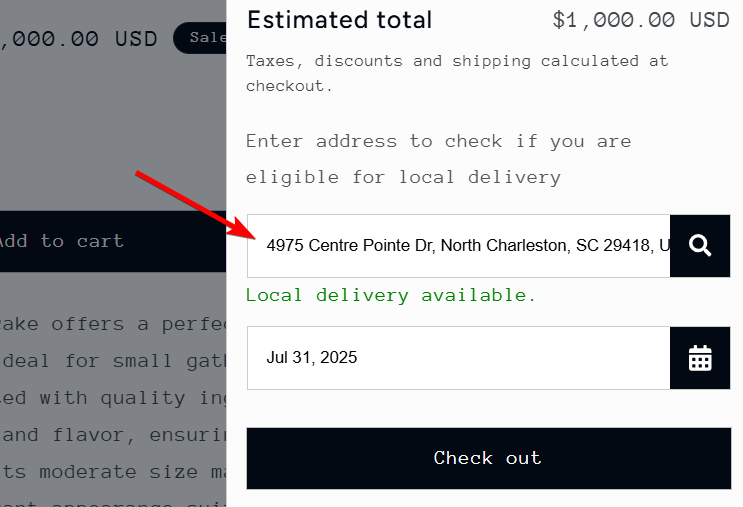
- Bird App calls the Google Routes API to calculate the driving distance to each store location
- App assigns customer to the nearest location within driving distance limit
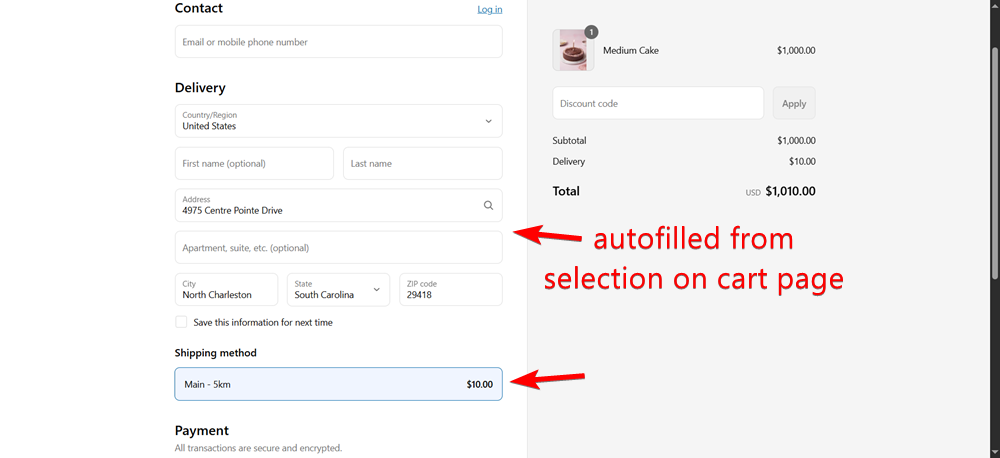
- App applies that location’s rates and delivery schedules
Important behavior
- Bird selects the location with the smallest driving distance limit if multiple locations overlap.
- Each location’s delivery rate applies to all addresses within that location’s driving distance limit.
- Customers select delivery date and time from that location’s schedule.
- If no location is reachable by road within its limit, the customer is shown as outside the delivery zone.
Update Input Field Labels and Validation Messages
Update the labels and validation messages for driving distance delivery zones to ensure customers enter a full address:
- Navigate to Bird App Settings > Text and Languages. The page opens directly on your default language.
- If you have more than one language, pick the one you want from the language dropdown next to the page title.
- Update the following elements:
- Zip/postal codes header: Change to “Enter your address to check if you are eligible for local delivery”
- Zip/postal codes label: Change to “Enter your address”
- Zip/postal codes success: Update to reflect address validation instead of postal code (optional)
- Zip/postal codes error: Update error message to reflect address validation instead of postal code (optional)
Test Your Configuration
Verify driving distance delivery works correctly:
- Test with addresses at various driving distances from store locations
- Verify Google Maps address autofill functionality
- Confirm correct location assignment based on road distance (not straight-line)
- Check proper rate application
- Test addresses that are outside all driving distance limits
- Verify updated labels and validation messages display correctly
Common Questions
How is this different from radius validation?
Radius validation measures straight-line distance. Driving distance validation uses actual road routes via the Google Routes API, so a customer 4km away in a straight line but 12km by road would be correctly evaluated against the 12km road distance.
Why do I see an error or why do the locations not show up in the frontend?
Ensure your API Key is valid and has the Routes API, Geocoding API, and Places API all enabled in the Google Cloud Console.
Related Articles
Was this article helpful?
Thanks for your feedback!