
 Local Delivery
Local Delivery: No Postal Code or Radius Validation
Configure local delivery without any validation. This setting disables both postal code (ZIP code) and radius checks, allowing customers to proceed with delivery booking solely based on date and time availability.
Table of Contents
- When to Use No Validation
- How It Works
- Configuration Steps
- Check Global Delivery Settings
- Important Implications
When to Use No Validation
Consider disabling validation if:
- You deliver everywhere: You serve the region without restrictions.
- You use Shopify Local Delivery Rates: You rely entirely on Shopify’s native checkout validation to block unreachable addresses.
- Simplest Setup: You want to minimize friction and let anyone schedule a slot, without having to deal with validation.
How It Works
When validation is disabled (Postal Code List is empty):
- No Postal Code Check: The widget does not ask the customer to verify their postal code.
- No Radius Check: The widget does not calculate distance.
- Immediate Access: Customers see the date/time picker immediately.
- Checkout: Address validation happens only at the shipping step in Shopify checkout, governed by your Shopify Local Delivery settings.
Configuration Steps
Follow the steps matching your current setup mode.
1. Default Mode: Configure Locations
Most users will see “Configure Locations” in Bird Settings settings.
- Go to Bird Settings > Configure locations.
- Select the location you want to edit.
- Click Edit settings (beside “Local delivery is Enabled”).
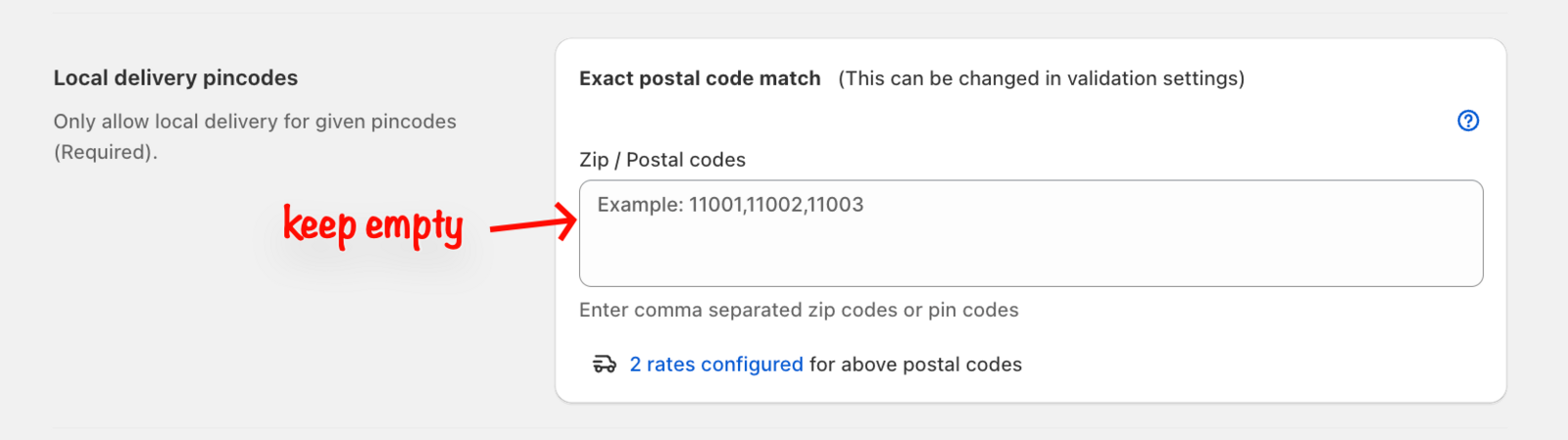
- Scroll to the Local delivery zip/postal codes, Local delivery radius or Driving distance section depending on your choice of validation.
- Clear the field: Ensure the ZIP / postal codes input field is completely empty.
- Click Save.
Result: The widget will not request a postal code for this location.
2. Legacy Mode: Same Schedule
If you use the legacy “Same schedule for all locations” mode (visible as “Pickup & Delivery” in settings instead of “Configure Locations”):
- Go to Bird Settings > Delivery.
- Find the ZIP / postal codes field.
- Clear the field: Ensure the ZIP / postal codes input field is physically empty.
- Click Save.
Result: The widget will not request a postal code for any location.
Check Global Delivery Settings
Ensure no global setting conflicts with your “No validation” setup.
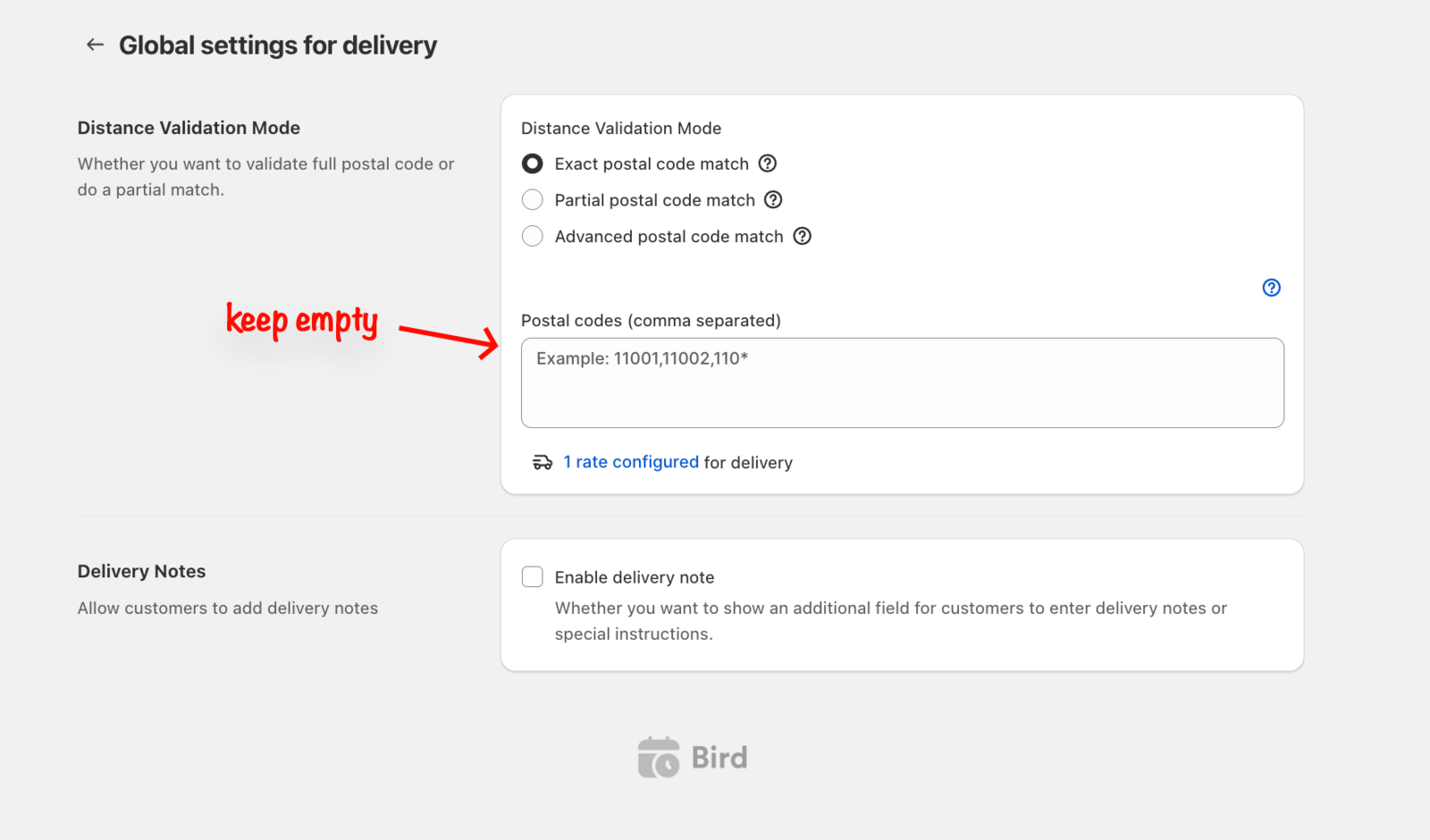
- Go to Bird Settings > Delivery.
- Under Distance validation mode:
- Select Exact postal code match (Recommended for “No Validation” setup).
- Why? Radius validation requires an API key, so “Exact” is the safest default when the list is empty.
- Click Save.
Important Implications
- Customer Experience: Extremely low friction. Customers can book slots instantly.
- Potential False Positives: Because the widget accepts any address, a customer might book a slot but then find out at checkout that you don’t actually ship to them (based on your Shopify Local Delivery rates).
- Data Consistency: Ensure your Shopify Local Delivery Zones match your intent to deliver broadly.
Related Articles
Was this article helpful?
Thanks for your feedback!