
 Getting Started
How to Migrate Your Bird Shopify Widget to Version 2 (V2)
Widget V2 is a complete rebuild of the Bird widget — fast, scalable, and packed with new capabilities like the product page widget and a pickup store finder.
Step 1: Enable Widget V2
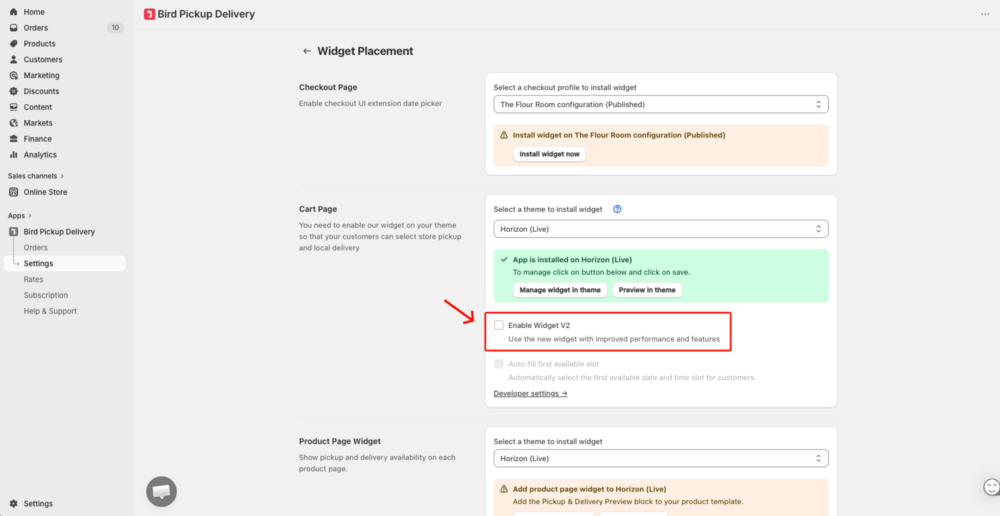
- In Bird, go to Settings → Widget Placement
- Under Cart Page, check Enable Widget V2
- A permissions dialog appears — click Update to approve
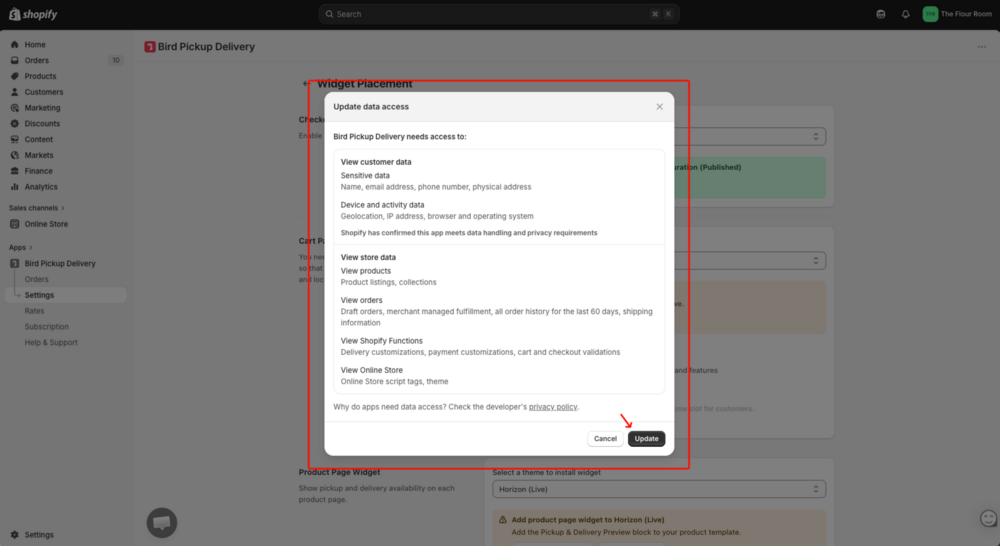
After approving, a save bar appears at the top of the page — click Save.
Step 2: Install the Widget in Your Theme
- In Settings → Widget Placement, under Cart Page, select your active theme from the dropdown
- Click Manage widget in theme — this opens the Shopify theme editor
- In the theme editor, confirm the Bird app embed is enabled
- Save the theme
Next Steps
Once you’ve migrated, these V2 features are available to enable in your settings.
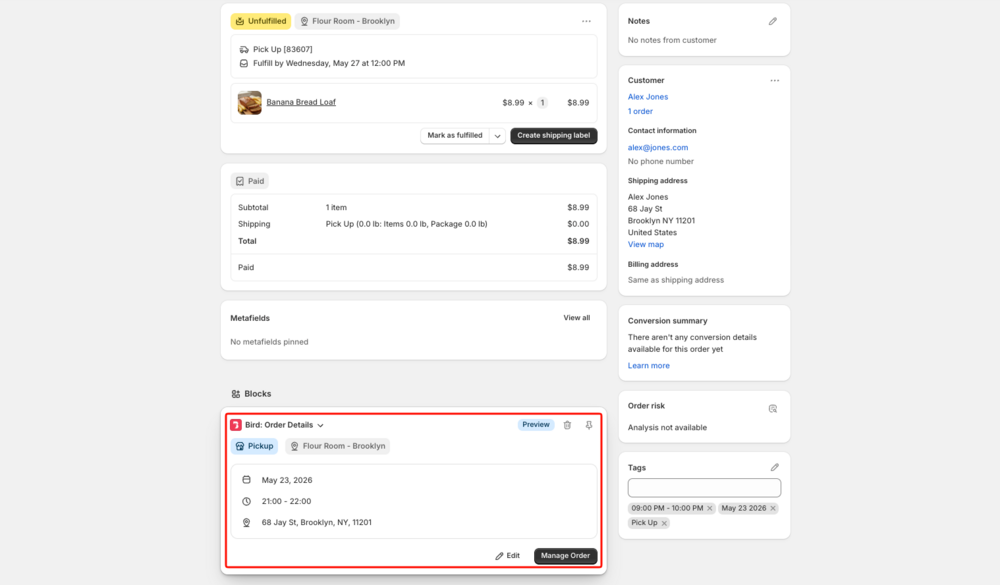
Bird Order Details Block
V2 writes order data to Shopify order metafields. This means the details your customers select in the Bird widget appear in the Bird Order Details block right on Shopify’s order page — so you can see them without opening the Bird app.
What Changes for Your Customers
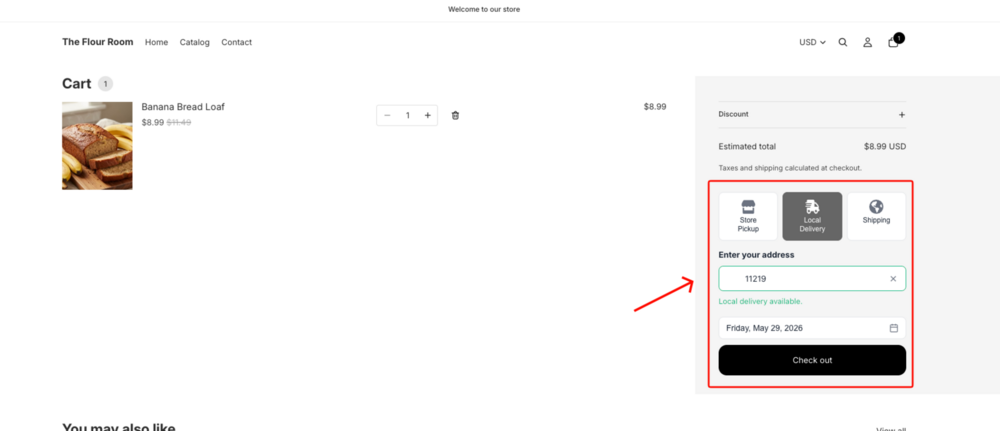
- Fast and scalable — built to handle high-traffic stores without slowdowns
- A completed selection is preserved if the customer navigates away and returns to the cart
- The customer’s zip or postal code is remembered for the current browsing session, so they don’t have to re-enter it as they shop
- Cleaner UI that works seamlessly with modern Shopify themes
Related Articles
Troubleshooting
V2 toggle is greyed out — Multi-location is not enabled. Enable it in Settings → Locations.
Widget not appearing after enabling V2 — Go to Settings → Widget Placement, click Manage widget in theme, and re-save the theme in the Shopify editor.
Permissions prompt did not appear — Try disabling and re-enabling Widget V2 to trigger the permission prompt again.
Was this article helpful?
Thanks for your feedback!