
 Local Delivery
Local Delivery: Radius Distance Validation
Configure local delivery based on a radial distance (kilometers/miles) from your store location. This effectively draws a circle around your store usage Google Maps, allowing any address inside that circle to be eligible for delivery.
Table of Contents
- When to Use Radius Validation
- Prerequisites
- Configuration Steps
- How Radius-Based Validation Works
- Update Input Field Labels and Validation Messages
- Test Your Configuration
- Common Questions
- Related Articles
When to Use Radius Validation
- Regions without Postal Codes: Countries or cities (e.g., UAE, Hong Kong) where street addresses are used but zip codes are not granular or used at all.
- Simple Distance Rules: “We deliver to anyone within 5km.”
- Avoids Complex Lists: No need to maintain a list of 500 postal codes (ZIP codes).
Prerequisites
You need a Google Maps API key to enable address-based location assignment:
- Get API Key: Go to Google Cloud Console.
- Enable APIs: Enable the Geocoding API, Maps JavaScript API, and Places API for your project.
- Billing: Set up billing for your Google Cloud project (required for API usage).
- Create Key: Create an API key in the Credentials section.
For detailed setup instructions, follow Google’s official documentation.
Configuration Steps
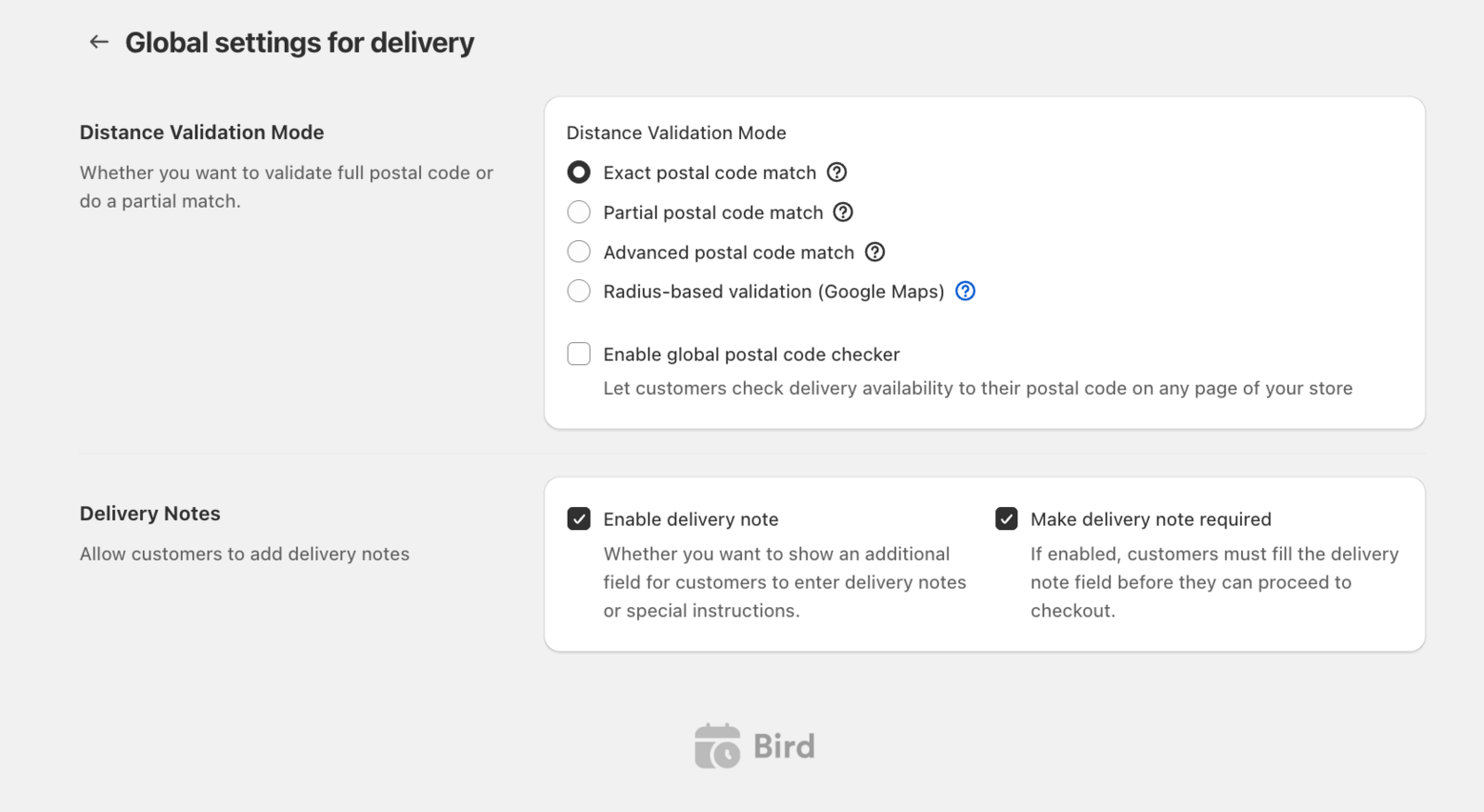
1. Configure Radius-Based Validation
- Navigate to Bird Settings > Delivery.
- Scroll to “Radius-based validation (Google Maps)”.
- Click the radio button to enable radius-based validation.
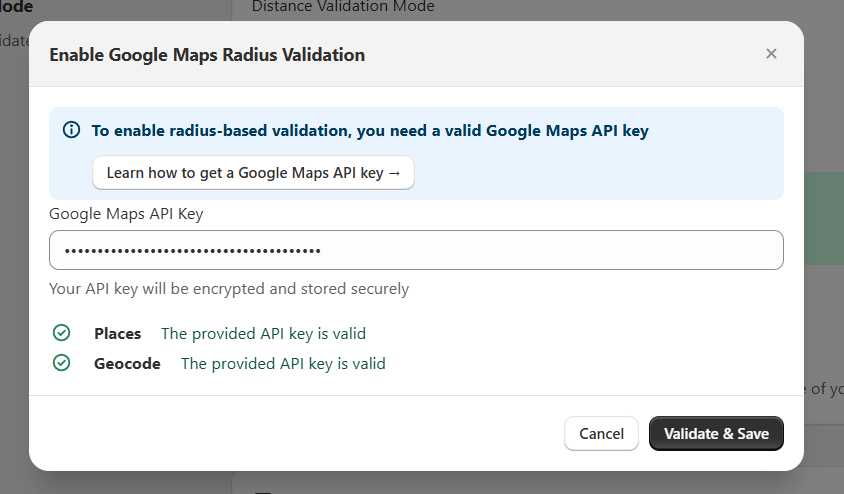
- Enter your Google Maps API Key.
- Click Validate & Save.
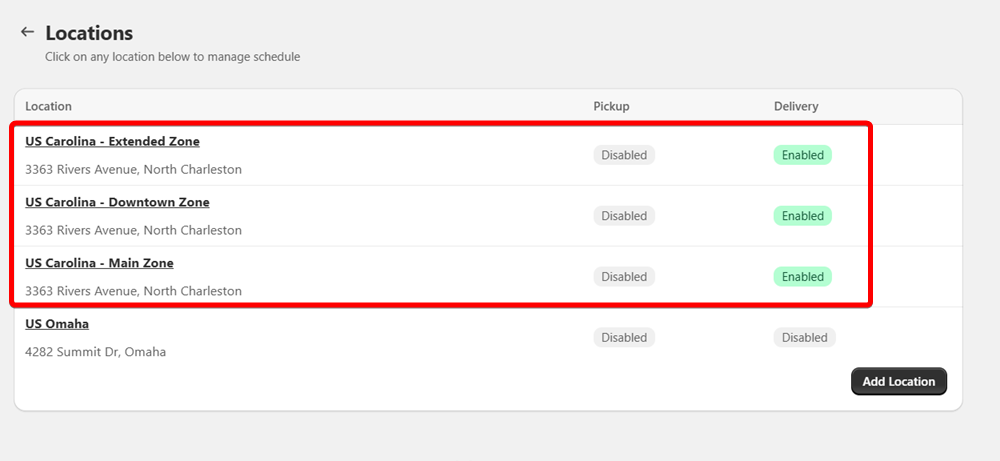
2. Set Up Store Locations
- Go to Bird App Settings > Configure Locations.
- Create or duplicate locations for different delivery zones (e.g., “Main Store”, “Downtown Zone”).
3. Configure Radius for Each Location
- Select a location and enable Local Delivery.
- Click “Edit Settings” in the Local Delivery section.
- Scroll to “Local delivery radius”.
- Set the radius for each location:
| Location | Radius |
|---|---|
| Main Store Location | 5km |
| Downtown Zone | 10km |
| Extended Zone | 15km |

How Radius-Based Validation Works
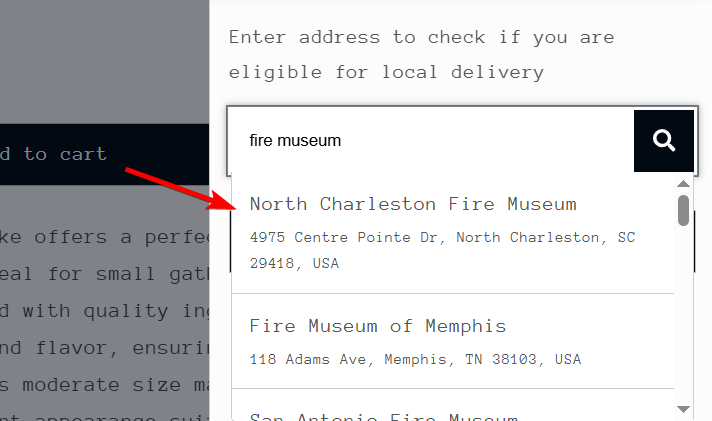
- Customer types their address in delivery widget
- Google Maps provides address suggestions as they type
- Customer selects their address from dropdown
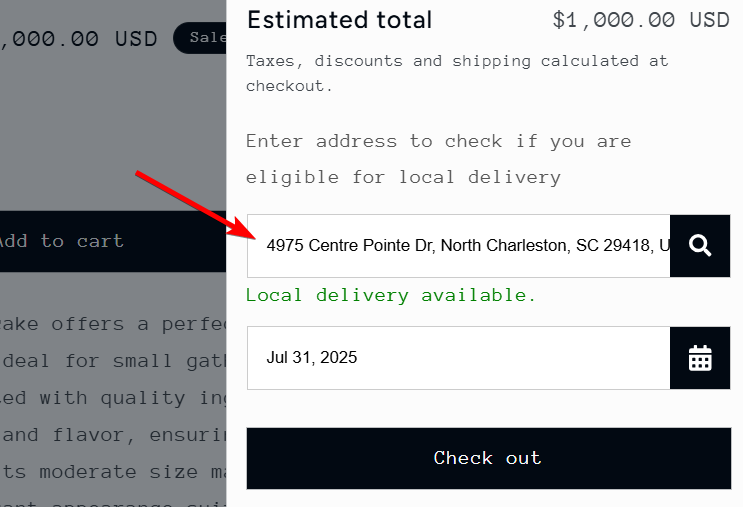
- Bird App calculates distance to each store location
- App assigns customer to nearest location within radius
- App applies that location’s rates and delivery schedules
Important behavior
- Bird selects location with smallest radius if multiple locations overlap.
- Each location’s delivery rate applies to all addresses within that location’s radius.
- Customers select delivery date and time from that location’s schedule.
Update Input Field Labels and Validation Messages
Update the labels and validation messages for radius-based delivery zones to ensure customers enter a full address:
- Navigate to Bird App Settings > Text and Languages
- Click Edit on the language you want to modify
- Update the following elements:
- Postal codes header: Change to “Enter your address to check if you are eligible for local delivery”
- Postal codes label: Change to “Enter your address”
- Postal codes success: Update to reflect address validation instead of postal code (optional)
- Postal codes error: Update error message to reflect address validation instead of postal code (optional)
Test Your Configuration
Verify radius-based delivery works correctly:
- Test with addresses at various distances from store locations
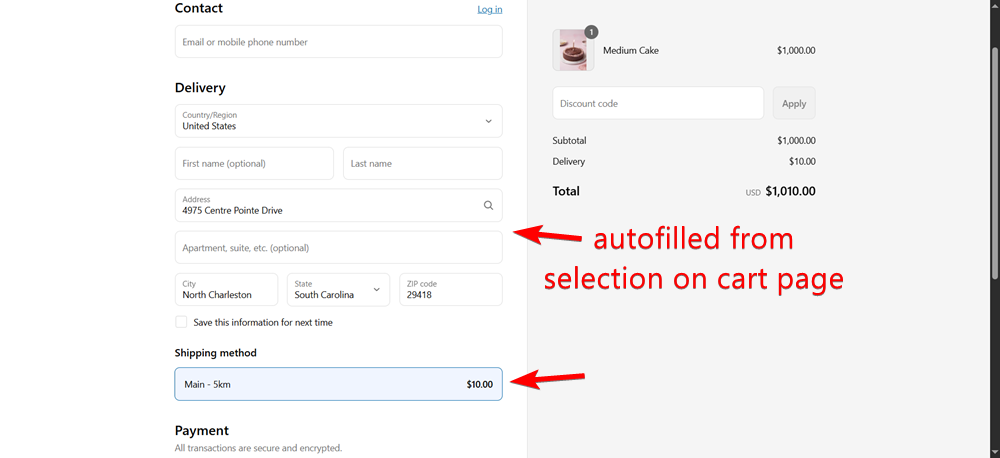
- Verify Google Maps address autofill functionality
- Confirm correct location assignment
- Check proper rate application
- Test addresses that are outside all delivery radii
- Verify updated labels and validation messages display correctly
Common Questions
Is this driving distance?
No. Radius validation uses straight-line distance, not actual road distance. If you need validation based on actual driving distance, see Local Delivery: Driving Distance Validation.
Why do I see a error or why do the locations don’t show up in frontend?
Ensure your API Key is valid and has “Geocoding API” enabled in the Google Cloud Console.
Related Articles
- Local Delivery: Driving Distance Validation
- Local Delivery: Postal Code Validation
- How to Set Up Radius-Based Delivery Zones
- How to Set Up Driving Distance-Based Delivery Zones
- I am getting an error Order can’t be shipped to the Address or Order not available for address
- Can I set specific delivery days for a particular postal code?
Was this article helpful?
Thanks for your feedback!